Newsletter Subscribe
Enter your email address below and subscribe to our newsletter

Enter your email address below and subscribe to our newsletter
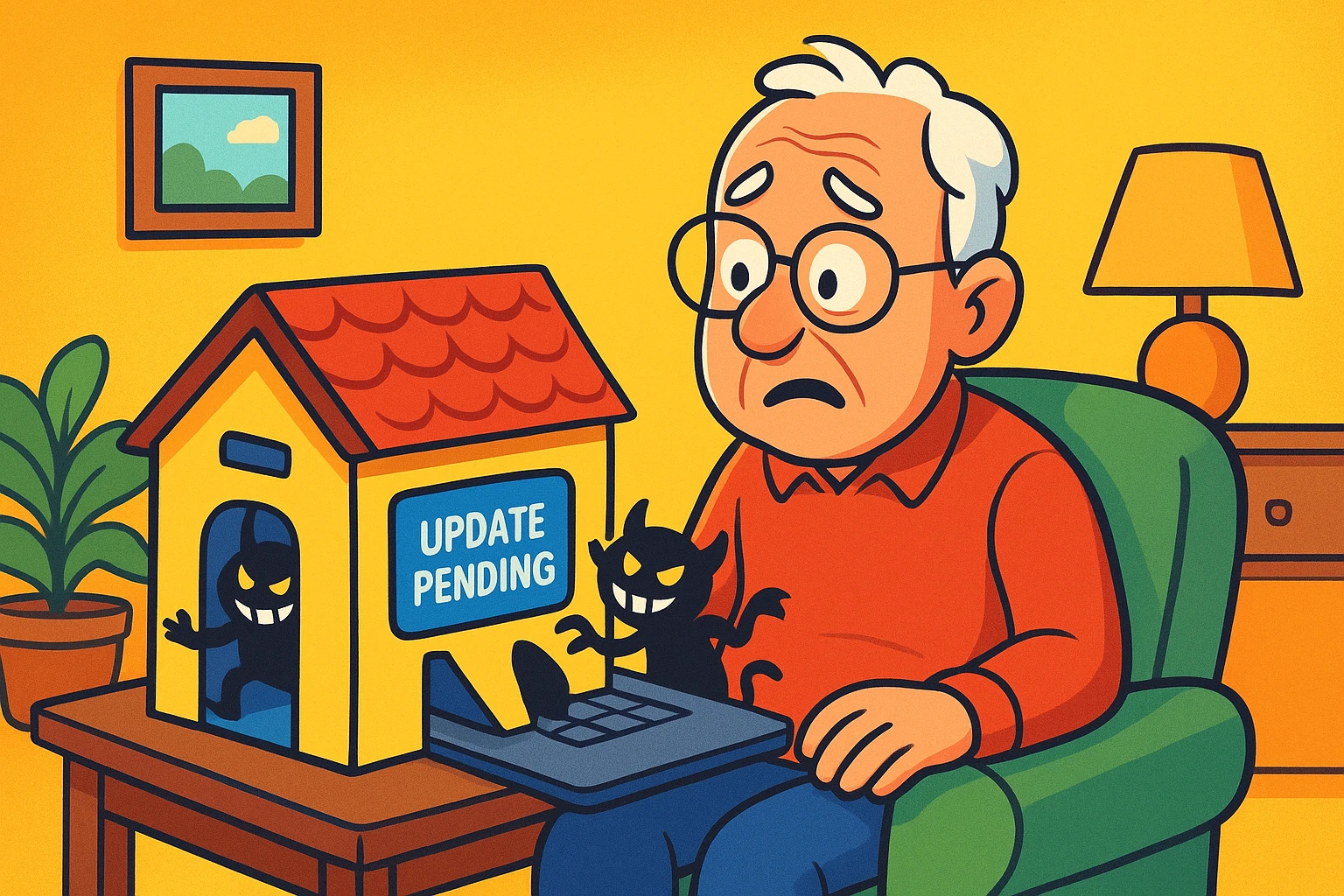
You’re sitting comfortably in your favorite chair, innocently playing a game of digital Solitaire or scrolling through photos of your grandkid’s latest soccer game. Suddenly, a notification pops onto your screen, blocking your view. It demands attention. It wants you to “Install Software Update.”
You stare at it. It stares back. You feel a familiar wave of technological dread wash over you. If you click “Install Now,” who knows what will happen? Will your device spontaneously combust? Will it erase all your contacts and replace them with people you’ve never met, like a guy named “Gary from Accounting”?
So, you do what any rational human being would do: You click “Remind Me Later.” Tomorrow becomes next week. Next week becomes “when the sun finally swallows the earth.”
If this sounds familiar, you are absolutely not alone. For many of us, software updates feel like a disruptive risk rather than a helpful tool. But hitting that “Later” button is actually the digital equivalent of leaving your front door wide open in a bad neighborhood. Let’s demystify the update process, banish the fear of losing your cherished photos, and turn you into a confident digital homeowner.
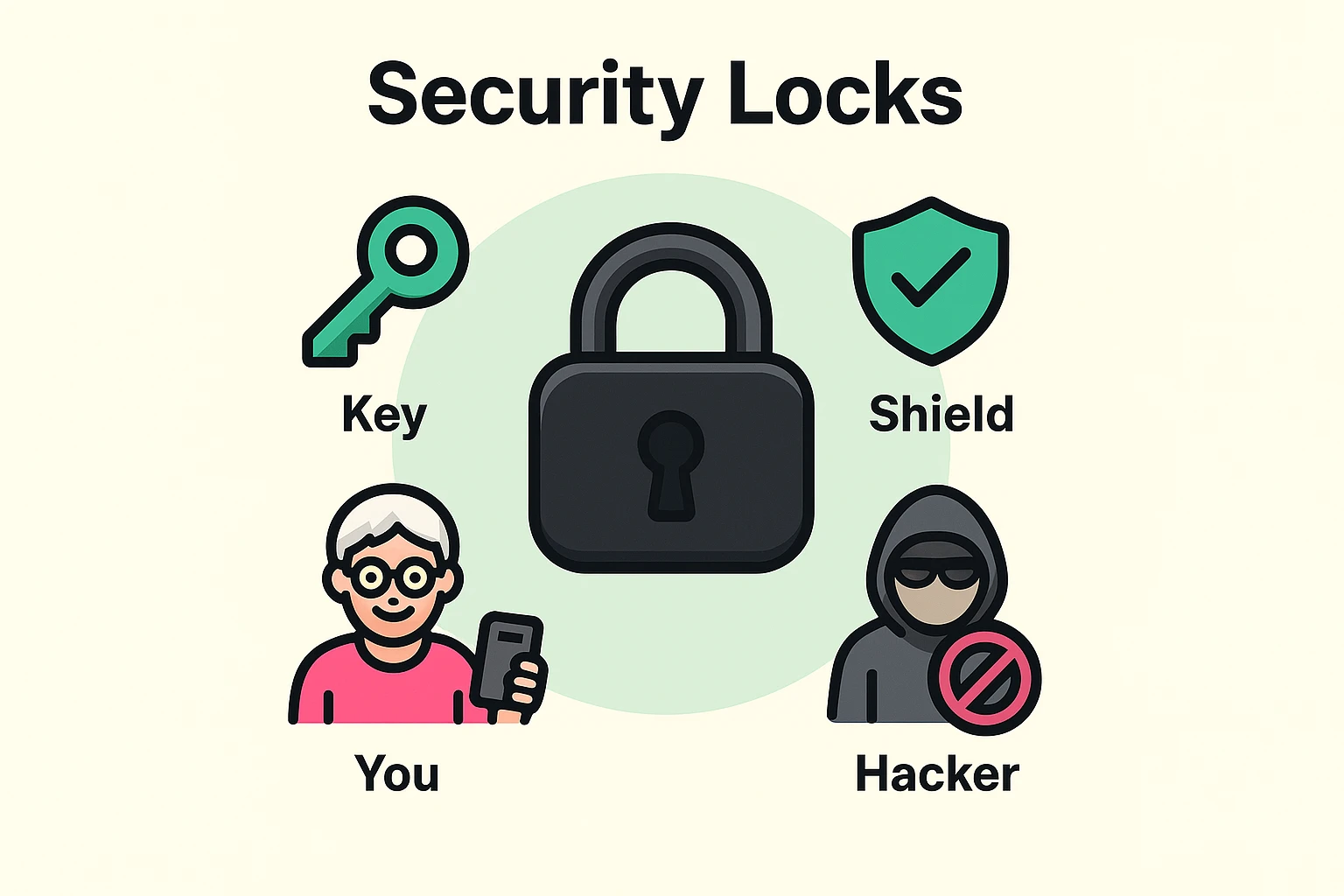
When tech companies talk about updates, they use intimidating, sci-fi sounding words like “vulnerability patches,” “binary exploits,” and “zero-day threats.” No wonder we avoid them! Let’s translate that into plain English.
Imagine you have a beautifully built house with a sturdy front door. One day, the company that built your door discovers that burglars have figured out a brand new way to pick the lock using nothing but a bent paperclip and a piece of dried linguine.
A software update is simply the door company sending a free locksmith to your house to change the tumblers so the linguine trick doesn’t work anymore. They aren’t tearing down your house. They aren’t throwing away your furniture. They are just securing the door against a newly discovered threat.
In the tech world, these discovered holes are called “vulnerabilities,” and the fixes are called “patches.” By continually hitting “Later,” you are essentially telling the free locksmith to go away, leaving your lock vulnerable to anyone with a piece of pasta.
And the stakes are real. Research shows that a staggering 57% of data breaches occur because a security patch was available, but the user simply hadn’t installed it yet. We’ve all seen the news stories about massive companies like Equifax or Target suffering catastrophic data breaches. Those disasters often happen because someone, somewhere, ignored an update. If it can happen to a billion-dollar company, our personal phones and tablets definitely need their shields up.
A massive gap in trust exists between the people who make our devices and the people who use them. We hesitate to update because we are terrified of losing what matters to us. Let’s tackle the biggest update myths head-on.
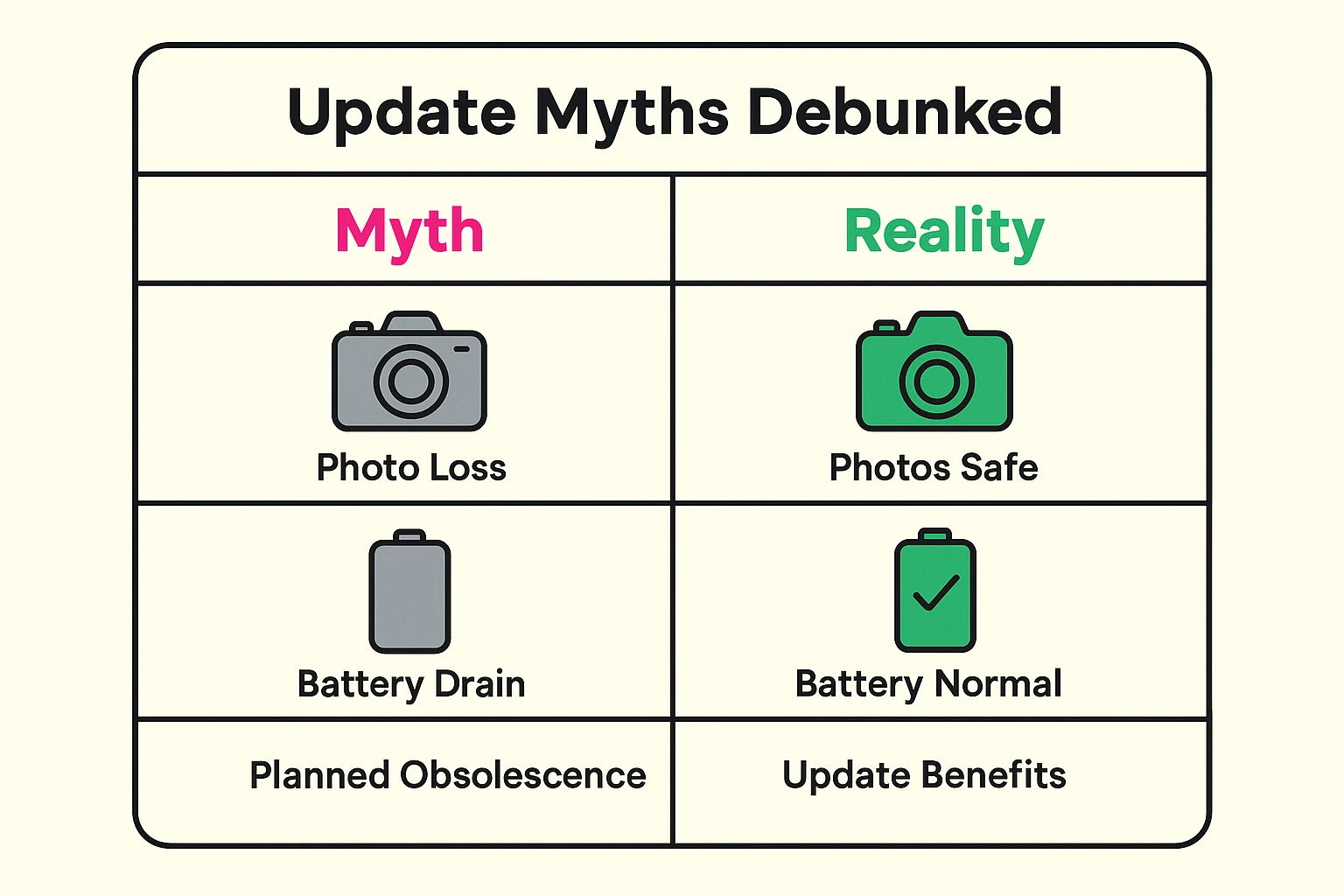
This is the number one reason seniors avoid updating. The fear of losing a camera roll full of memories is powerful.
The Reality: Standard software updates are designed only to change the operating system, not your personal files. Here is a quick “Will I Lose It?” cheat sheet:
Ah, the famous “Planned Obsolescence” conspiracy. It’s easy to believe, especially when your phone acts a little sluggish the day after an update.
The Reality: When you update your phone, it has to do a lot of “behind the scenes” organizing. Imagine dumping out your entire filing cabinet and reorganizing it in one afternoon; you’d be exhausted too! For the first 24 to 48 hours after a major update, your device might use more battery or run slightly warmer while it indexes files. After that, performance usually returns to normal, and often runs even better because old software bugs have been squashed.
Now that we know why we need to update, let’s talk about how to do it without having a nervous breakdown. The secret to a stress-free update is simple preparation.
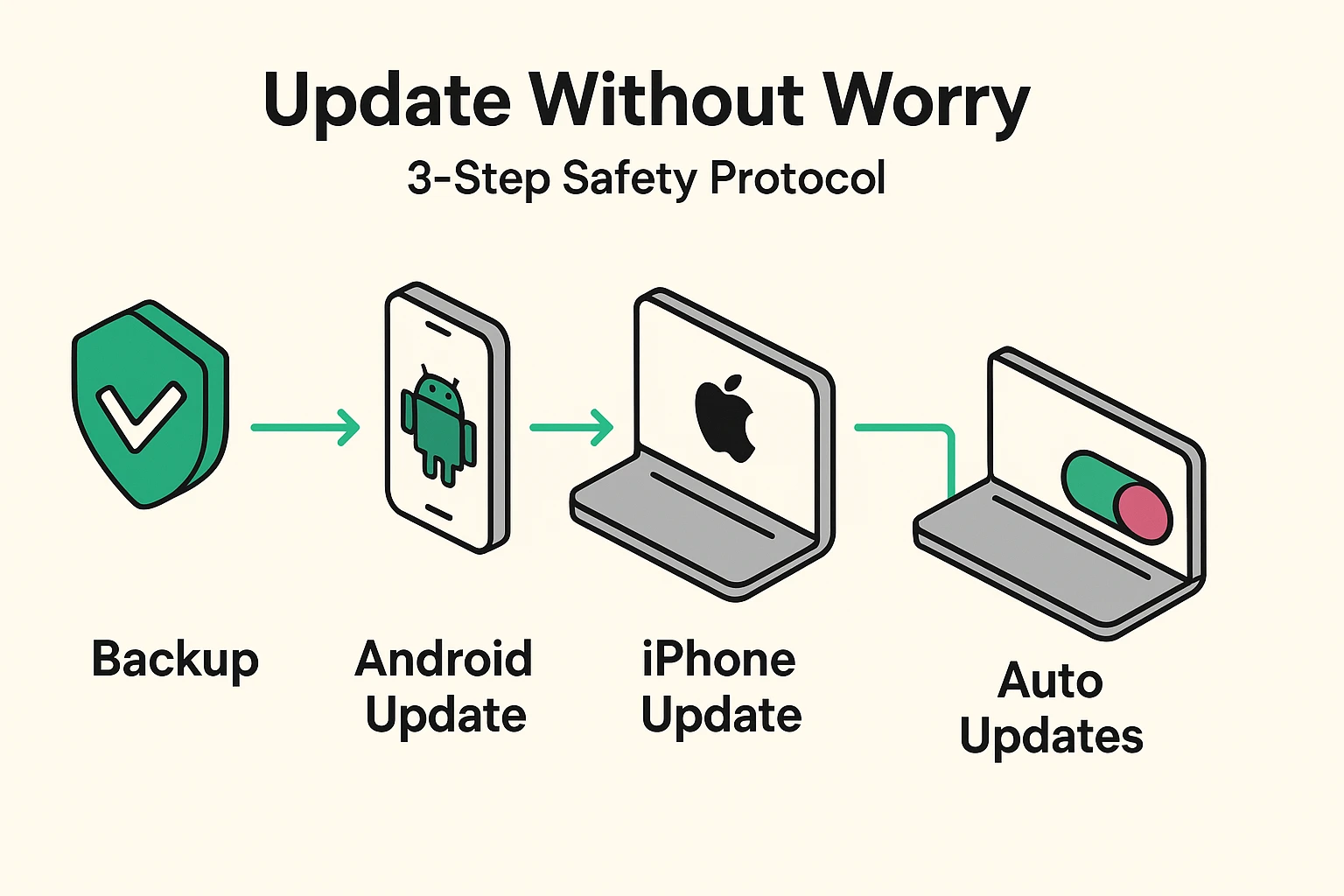
Before you tap the install button, run through this quick checklist to ensure absolute safety:
Here is exactly what will happen when you hit update. Your screen will eventually go completely black. Do not panic! Your device is not broken; it is taking a digital nap.
Soon, a logo (like the Apple or Google icon) will appear, and a little status bar will slowly crawl across the screen. This process can take anywhere from 5 to 30 minutes. Do not press any buttons. Do not try to turn it off and on again. Go make a cup of coffee, read a book, and let the locksmith do their job.
(Note: Menus can vary slightly depending on who made your phone, like Samsung or Motorola, but generally follow this path).
For Windows PCs, click the Start Button, type “Windows Update,” and click the resulting settings option to check for updates. For Macs, click the Apple logo in the top left corner, select “System Settings” (or System Preferences), and click “Software Update.”
Do you want to know the best way to handle updates? Have your device do them while you are sound asleep.
Both Apple and Android devices have an “Automatic Updates” feature. You can find it on the exact same screens mentioned in the steps above. If you toggle “Automatic Updates” to the ON position, your phone will quietly download and install security patches overnight while it is plugged in and connected to Wi-Fi.
You’ll wake up to a fully protected device, and you’ll never have to stare down that annoying “Remind Me Later” pop-up ever again.
You might hear this scary term on the evening news. A “zero-day” simply means hackers have discovered a flaw in the software, and the manufacturer has had “zero days” to prepare for it. When a patch is finally released for it, installing it immediately is crucial.
Yes. Whether you use an Apple iPhone, a Samsung Galaxy, a Google Pixel, or devices from other international manufacturers, official system updates pushed through your device’s main settings menu are safe and necessary. The only updates you should never click are random pop-ups on internet websites claiming your device is “infected.” Always update through your device’s official Settings app.
Generally, no. Once you install a new operating system, rolling it back to the old version is incredibly difficult and not recommended, as it removes all those vital security locks we just talked about. While it might take a few days to get used to a new icon color or menu layout, the invisible security benefits are always worth it.
Technology is supposed to make our lives easier, not fill us with anxiety. By treating software updates as routine digital home maintenance rather than a terrifying technical overhaul, you take the power back from the hackers and the scammers.
Take five minutes today to run through the 3-Point Pre-Check, plug in your phone, and finally click that “Install Now” button. Your photos will be right where you left them, your device will be protected, and you can get back to your game of Solitaire in peace.