Newsletter Subscribe
Enter your email address below and subscribe to our newsletter

Enter your email address below and subscribe to our newsletter
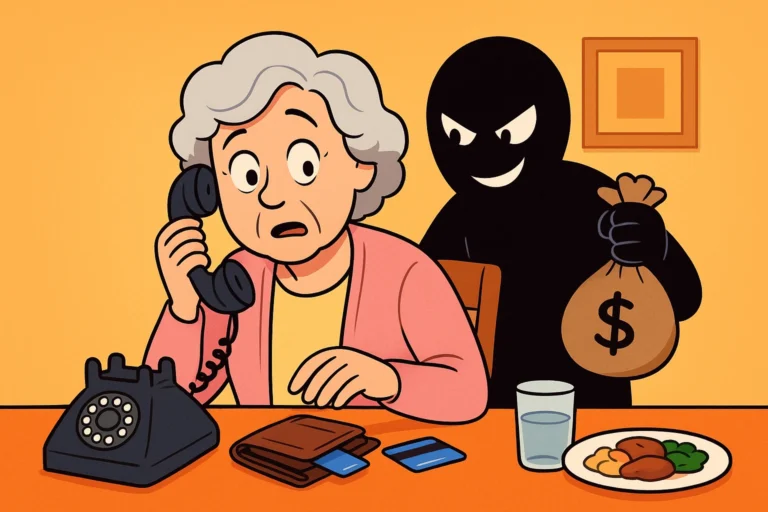
You’re minding your own business, checking your email to see if your grandson finally wrote back (he didn’t), when you spot a message. “URGENT: Your package from The Intergalactic Mail Service cannot be delivered!” You didn’t order anything, but hey, maybe it’s a surprise gift! So, you click the link.
Suddenly, your screen blinks, a weird box pops up, and your computer starts whirring like it’s preparing for a mission to Mars. Your stomach drops into your slippers. You’ve just clicked a suspicious link, and your immediate thought is probably: Well, that’s it. I just gave the deed to my house to a hacker named ‘DarkLord99’.
If this sounds familiar, take a deep breath. You are not alone, and you have not ruined everything. A wrong click doesn’t automatically mean total disaster. Sometimes, scammers rely more on your panic than their actual computer skills. Let’s walk through exactly what to do—and what not to do—to stop a digital headache from becoming a digital nightmare.
A lot of folks think that the moment they click a bad link, a hacker is instantly watching them through their webcam while emptying their bank accounts. That’s usually not how it works. You have what we call the “Golden 5 Minutes” to perform digital first aid.
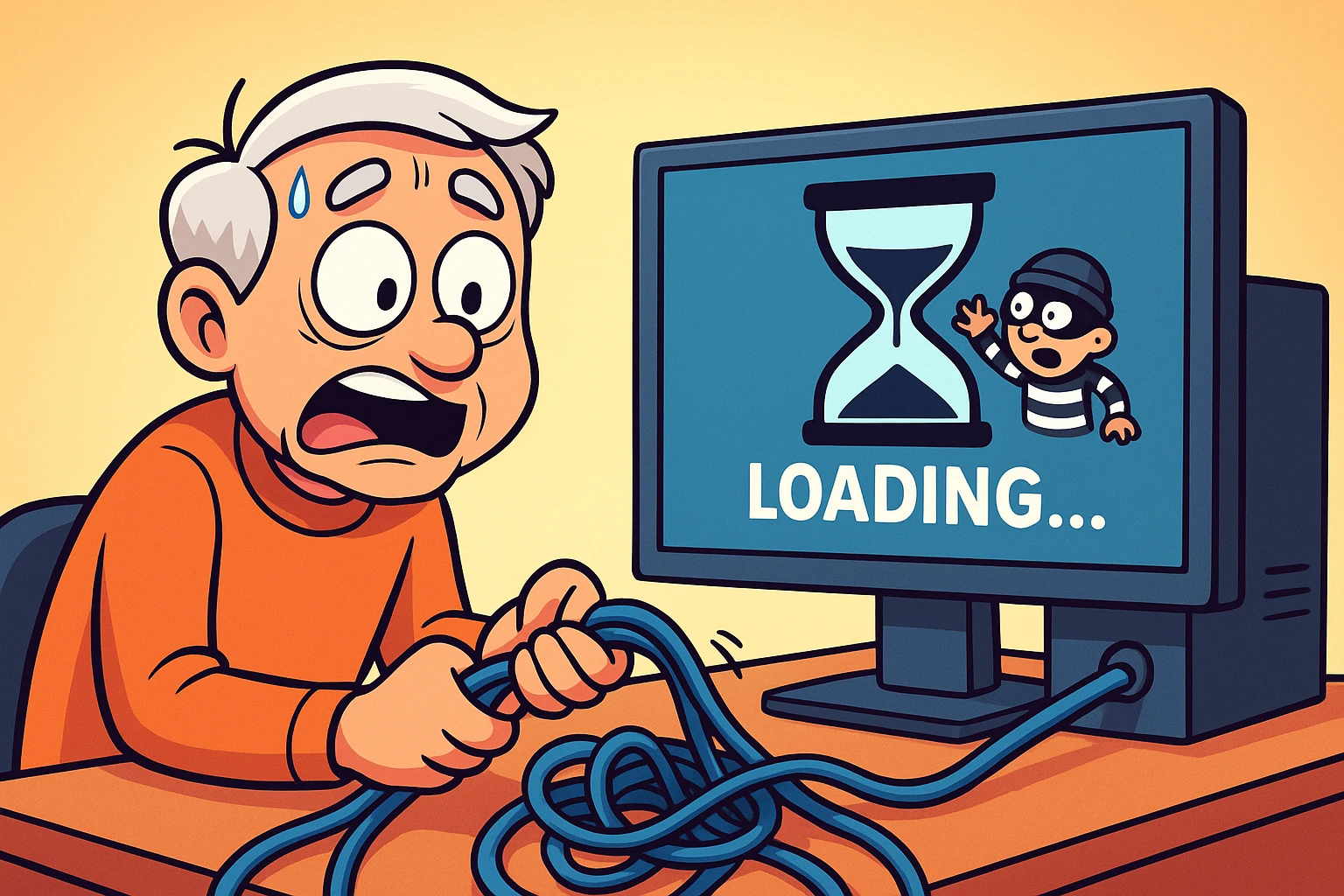
First, execute the “Digital Quarantine.” Don’t just close the browser window; disconnect your device from the internet entirely. Unplug the internet cable from your computer, turn off your Wi-Fi router, or put your phone or tablet in Airplane Mode. By cutting the connection, you lock the front door so nothing else can sneak in or out.
Second, obey the “Don’t Type” rule. If that suspicious link took you to a website that asks for a password, your Social Security number, or your favorite grandchild’s name, do not type a single letter. Treat your keyboard like it is covered in wet paint. If you don’t hand over the keys, the bad guys usually can’t get in.
So you’ve pulled the plug on the internet. Now what? Your computer might start throwing scary error messages at you. These messages are designed by computer programmers, which means they are completely incomprehensible to normal humans. Let’s translate them.
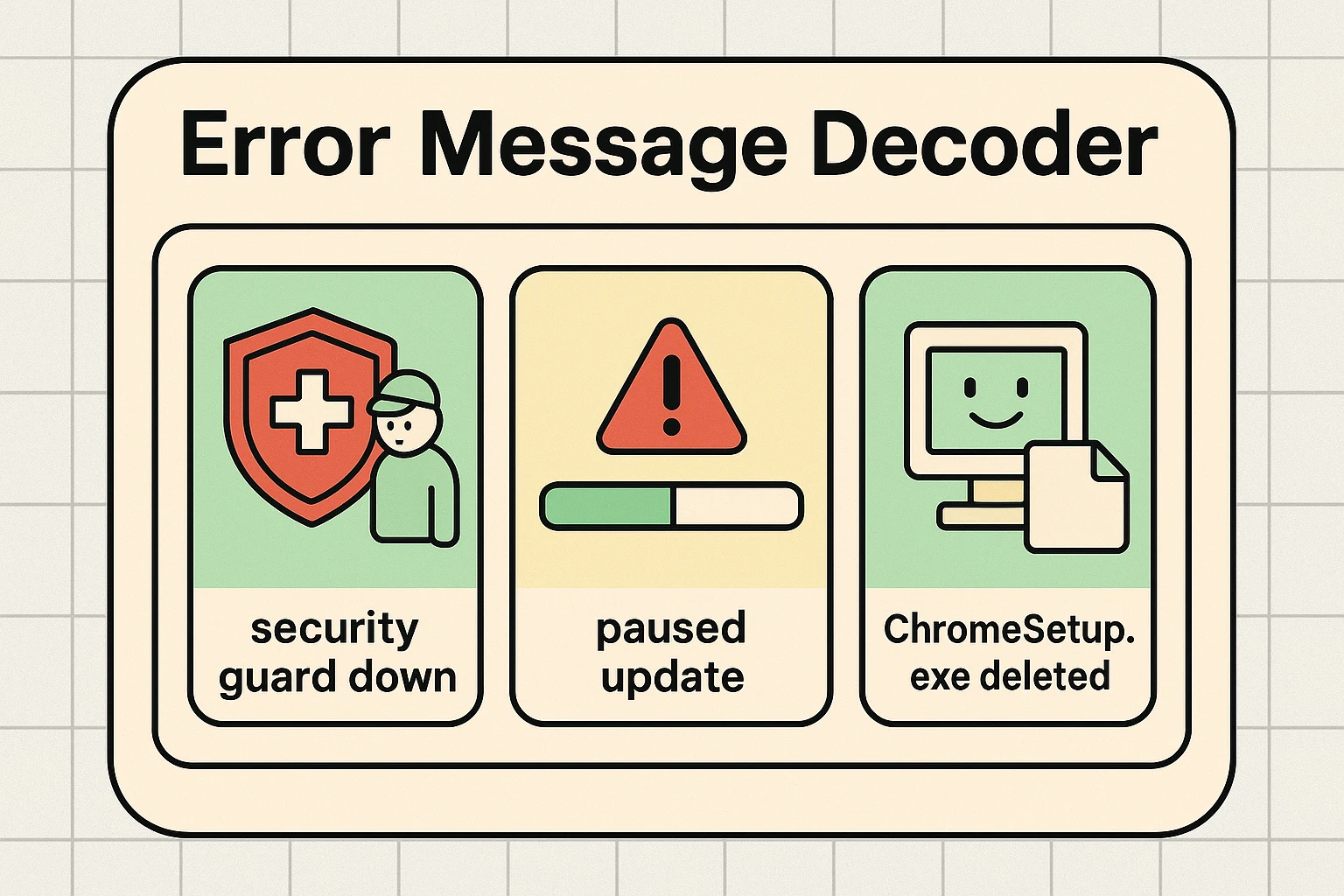
If your Windows Security suddenly pops up with a red cross saying, “Virus and Threat Protection has stopped,” do not panic. Think of this as the “Red Light” analogy. It doesn’t mean your computer is destroyed; it simply means your computer’s frontline security guard just got knocked out by the intruders. You just need to call in the backup guard, which we’ll cover in a moment.
Another common trick is a message saying, “Software update is paused.” Scammers love to pause your updates. Why? Because they know those updates often contain the “cure” to whatever virus they just tried to sneak onto your machine. If your updates are mysteriously paused, consider it a red flag that something is snooping around.
What if you didn’t click “download,” but a file magically appeared on your computer anyway? This is called a “Drive-by Download.” It’s the internet equivalent of someone tossing a flyer into your car window while you’re stopped at a red light. Just because the flyer is in your car doesn’t mean you have to read it or follow its instructions. Leave the file alone, and it usually can’t hurt you.
Sometimes, your computer is actually doing its job, but it looks terrifying. For example, if you see an alert that a file called chromesetup.exe was deleted or blocked by Windows, you might think you’ve been hacked. But that’s actually your computer’s immune system at work! It recognized a fake file pretending to be the Google Chrome browser and tossed it in the trash. That is a sign of safety, not a disaster.
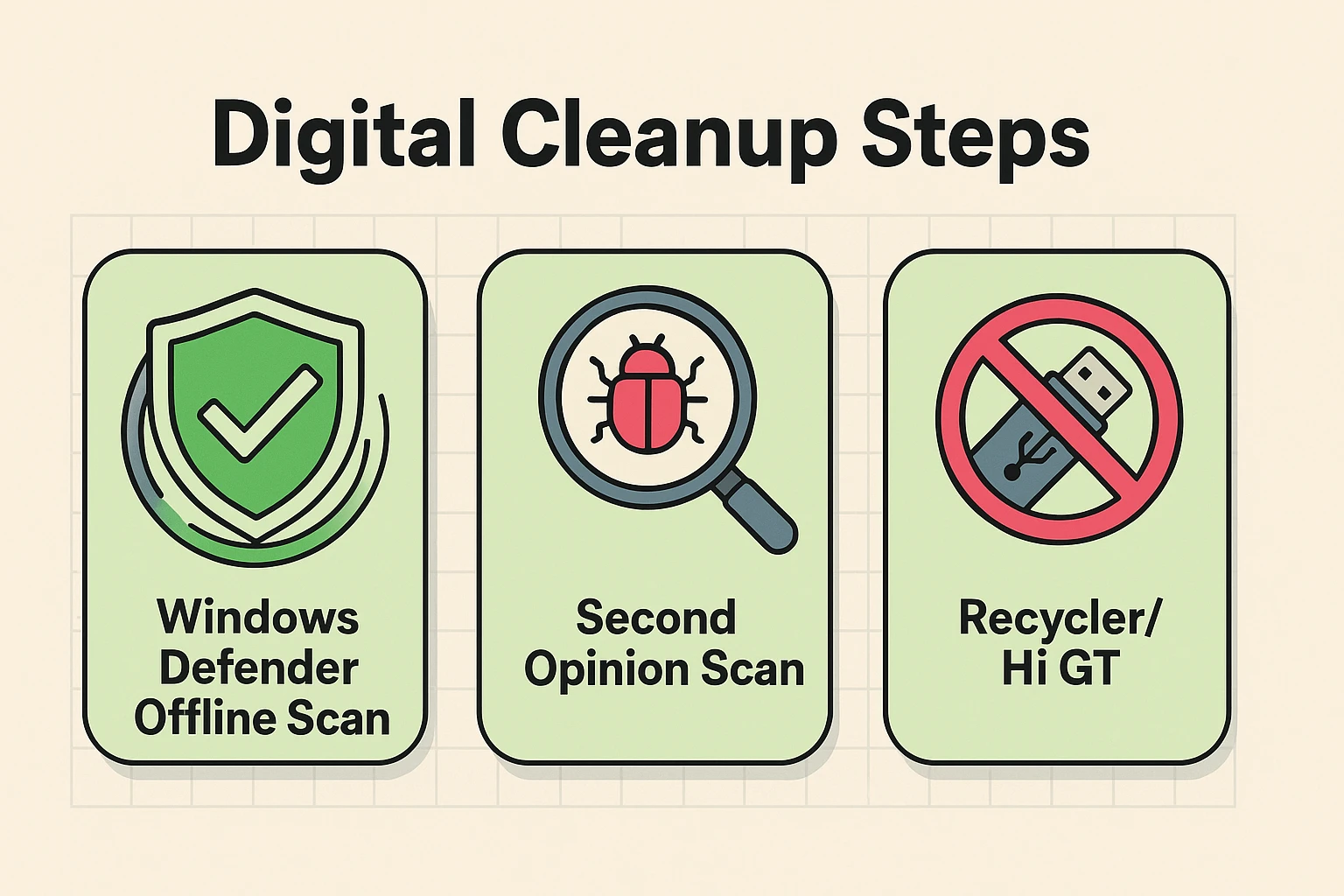
Then there is the infamous “Recycler” virus. This is what we call a “Digital Hitchhiker.” It loves to jump onto USB flash drives. If you plug in a USB drive and see a weird folder called “Recycler” or “autorun,” don’t click it! That’s the hitchhiker waiting for you to open the door so it can raid your digital fridge.
Okay, we know what’s happening. How do we clean it up? Since you disconnected from the internet, you are perfectly safe to run a scan. We want to do something called a “Windows Defender Offline Scan.”
An offline scan reboots your computer and looks for bad guys before Windows even wakes up. It’s like sneaking up on the burglars while they’re napping on your couch. You can find this by typing “Windows Security” into your start menu, clicking “Virus & threat protection,” and selecting “Scan options.”
Once the offline scan finishes, it’s smart to get a second opinion. Just like you’d ask another doctor if the first one told you you needed a third arm, get a second digital scan. Free programs like Malwarebytes are fantastic for double-checking your system once you turn the internet back on.
Once your scans come back clean, it’s time to change any passwords you might have accidentally typed while panicking. Going forward, practice the fine art of “hovering.” If you hold your mouse pointer over a link without clicking it, a little box will pop up near the bottom of your screen showing you where the link actually goes.
If you’re ever unsure about a link or a message in the future, you don’t have to guess or play internet roulette. You can use a bitdefender scam detector to help you analyze whether a message is safe or a trap. It’s like having a digital bodyguard review your mail before you open it.
Almost certainly not. Most modern computers are surprisingly resilient. Unless you explicitly gave a scammer permission to control your screen or handed over your passwords, your hardware is fine. The software might just need a little offline cleaning.
No. Getting access to a computer’s webcam requires bypassing several security layers, which a single click on a webpage rarely achieves. If you’re nervous, putting a sticky note over your camera lens is a 100% foolproof, zero-tech way to guarantee your privacy.
If you did not type your username, password, or banking details into a fake website, your money is safe. Scammers cannot extract your bank funds just because you clicked a link. They need your credentials to do that.
Email addresses are like phone numbers; eventually, everyone gets on a list somewhere. It doesn’t mean you were specifically targeted or hacked. It just means your email was part of a massive, automated blast sent out to millions of people, hoping a few would click.
By keeping these digital first-aid steps in your back pocket, you can browse the web with confidence. Remember, the internet should be a tool for fun, learning, and staying connected—not a source of stress. So keep your antivirus updated, keep your eyes peeled for suspicious links, and keep your sense of humor handy. You’ve got this!