Newsletter Subscribe
Enter your email address below and subscribe to our newsletter

Enter your email address below and subscribe to our newsletter
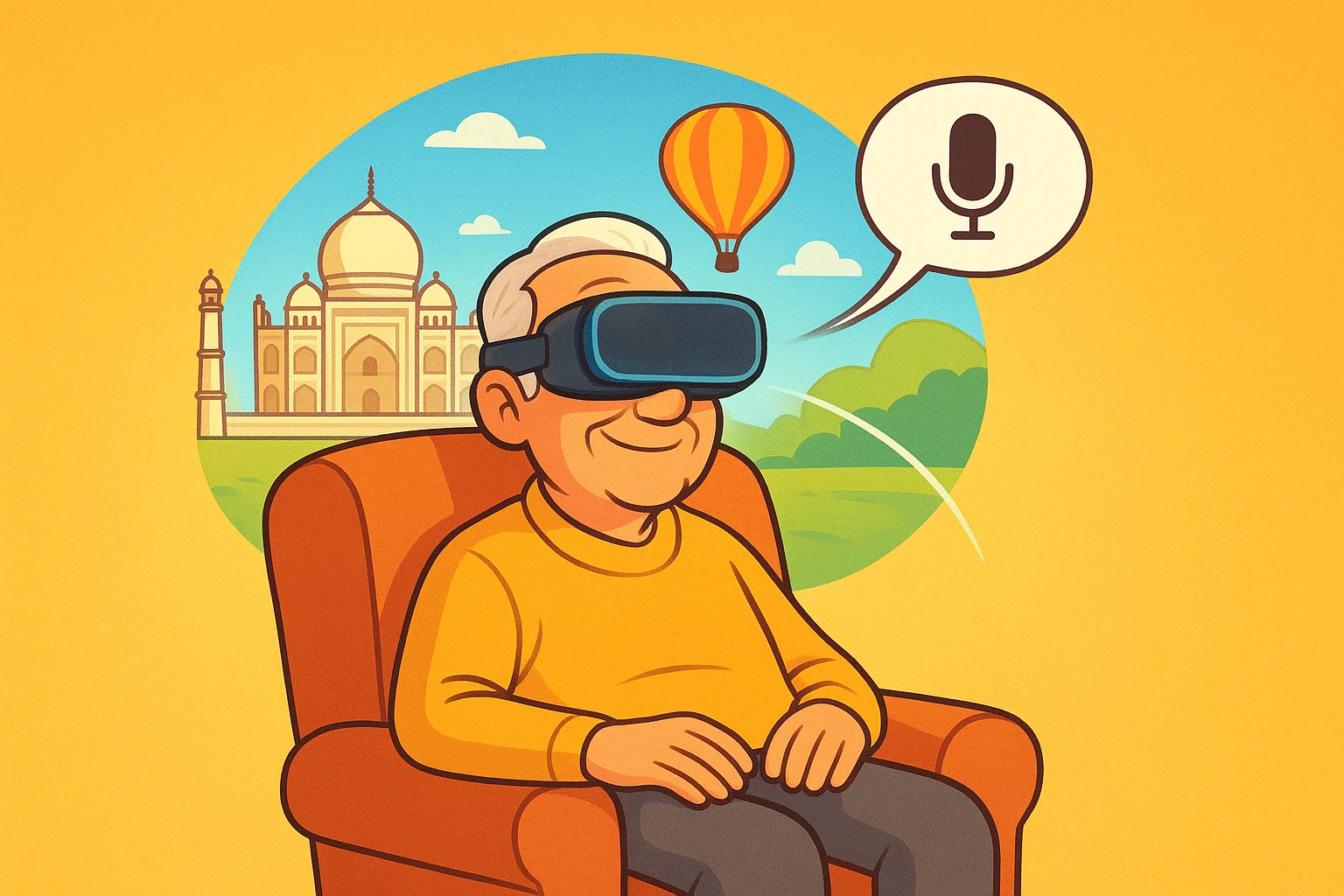
Have you ever watched a younger person play a Virtual Reality (VR) game? They generally flail around the living room like they are fighting a swarm of invisible, highly aggressive bees. They duck, they swing, they jump, and they almost always knock over a perfectly good table lamp.
If you are a senior dealing with arthritis, limited mobility, or just a strong preference for staying comfortably seated, you might look at that spectacle and think, “No thank you.” You might reasonably assume that using VR requires the physical stamina of an Olympic gymnast.
But here is the wonderful, lamp-saving truth: your mobility shouldn’t end where your physical world does. The tech industry has finally realized that not everyone wants to do aerobics while wearing a computer on their face. Today, Virtual Reality and Augmented Reality (AR) can be largely hands-free and enjoyed right from your favorite recliner.
Let’s look at how you can travel the world, visit museums, and connect with family in VR, all with minimal physical effort.
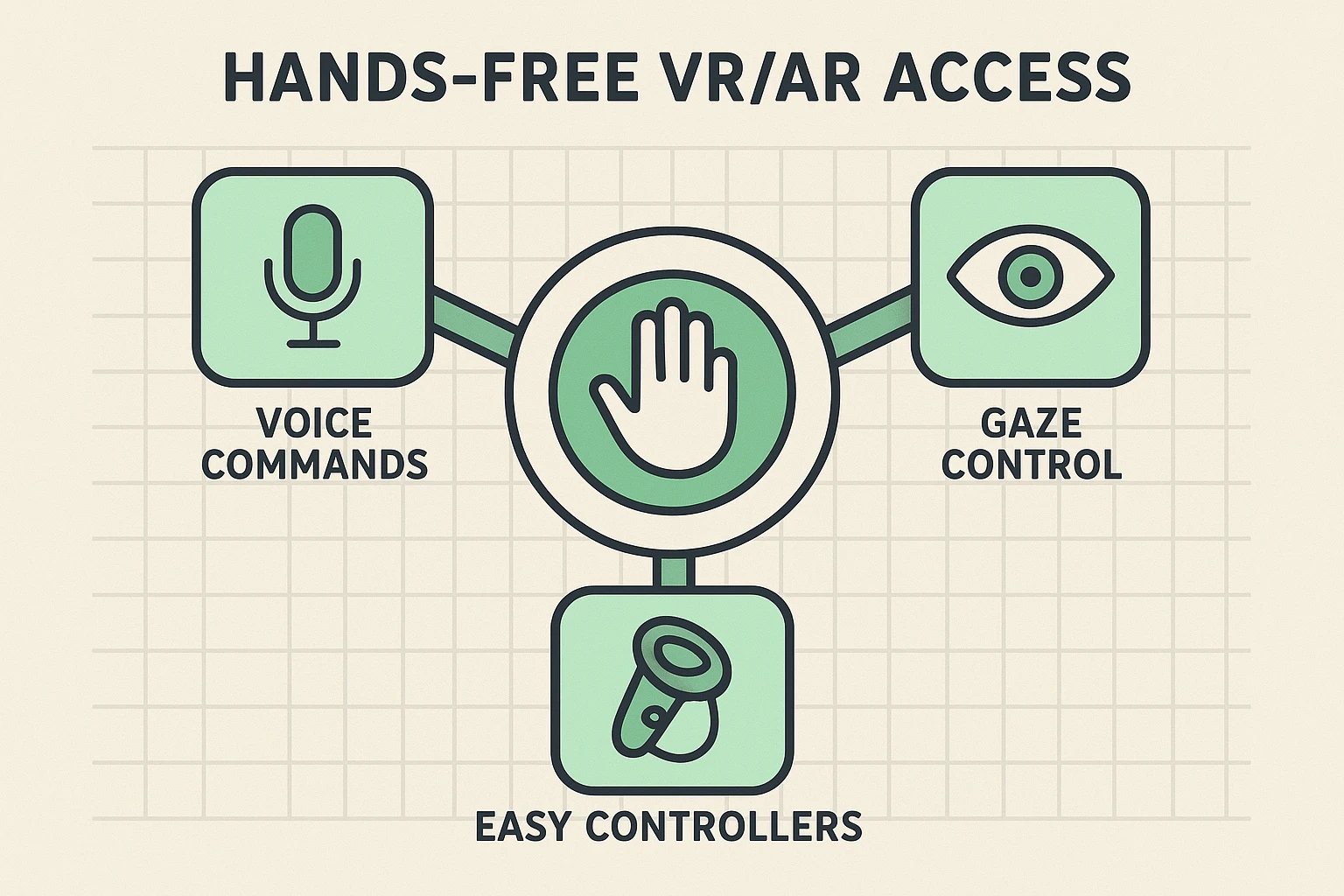
When tech companies talk about VR, they love to use intimidating jargon like “asynchronous space warp.” We prefer plain English. Making VR accessible for seniors essentially boils down to three simple tools: your voice, your eyes, and some very clever controller tricks.
1. Voice Commands (Talking to Your Headset)If you’ve ever used alexa for seniors to check the weather or play a song, you already know how handy voice controls can be. Most modern headsets, like the Meta Quest 3S, have built-in voice assistants. By simply saying “Hey Meta,” you can open apps, search for travel videos, or check your battery life without ever touching a button.
2. Gaze Control (The Power of Staring)What if you could click a button on a screen just by looking at it? In the VR world, this is called “Dwell Control” or gaze tracking. You simply look at a menu option, a little circle fills up, and—voilà!—the headset registers a “click.” High-end devices like the Apple Vision Pro are the absolute champions of this, using advanced eye-tracking to let you navigate menus effortlessly.
3. Modified Controllers (Giving Your Hands a Rest)Standard VR controllers require you to constantly grip them, which is about as fun as holding a soup can for three hours if you have arthritis. Thankfully, there are inexpensive “strap-on grips” from companies like Kiwi or AMVR. These straps secure the controller to the back of your hand, meaning you can completely relax your fingers and the controller won’t fall.
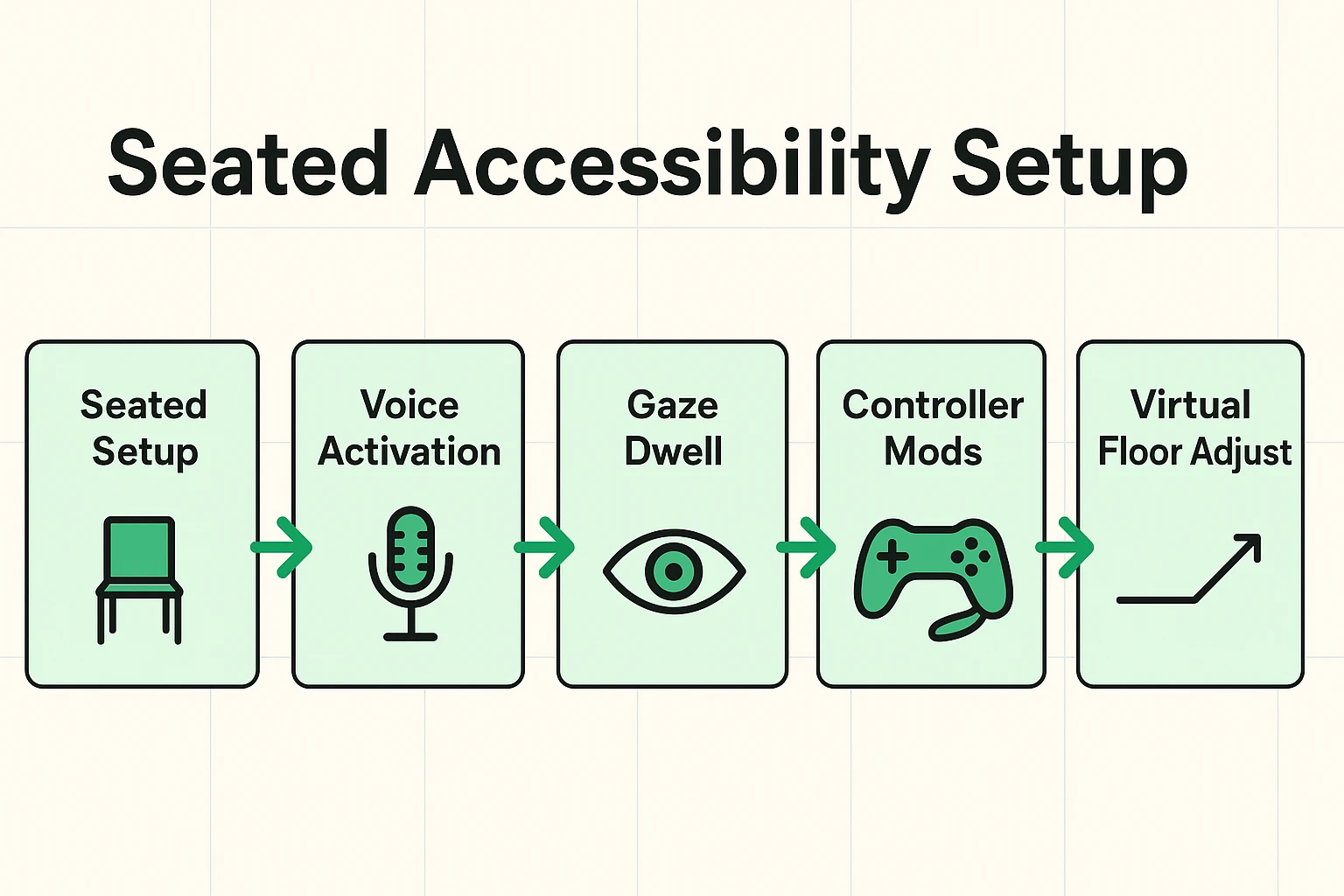
Most standard VR setup guides assume the user can easily reach behind their head or bend down to touch the floor. We call this the “Setup Chasm,” and it leaves many seniors frustrated before they even begin. The secret is to configure your headset using a “Seated-First” methodology.
Think of VR movement settings as choosing your digital mobility aid. When you see options for “Smooth Locomotion” (which moves you continuously like you’re walking) versus “Teleportation” (which instantly zaps you from point A to point B), choose Teleportation. It’s the digital equivalent of a virtual wheelchair, and it drastically reduces motion sickness.
Another brilliant trick is adjusting the virtual “Z-Axis.” This is a fancy way of saying you can tell the headset to bring the virtual floor up to your lap. If a game expects you to pick something up off the ground, you won’t have to bend over; the ground simply comes to you.
Once you are set up comfortably, where do you go? Many seniors go online looking for free apps and stumble into forums telling them to “sideload APKs.” Sideloading is a complex, risky process of forcing unapproved apps onto your headset. It is the digital equivalent of buying medicine out of the trunk of a stranger’s car. Skip it.
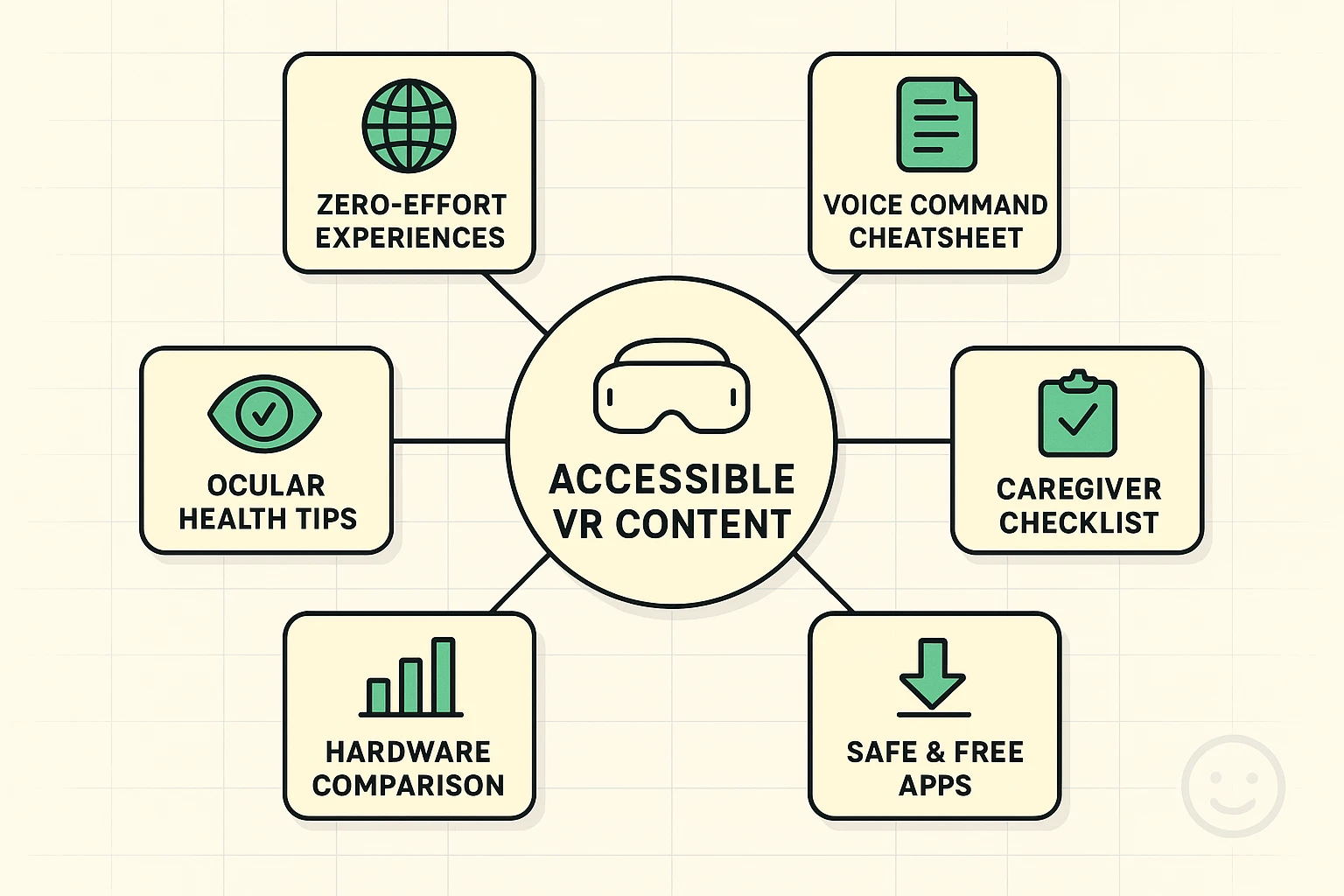
Instead, stick to the official, safe stores and look for “Zero-Physical-Effort” experiences. Alcove is a fantastic free app designed specifically for families, allowing you to sit in a virtual living room and watch movies with loved ones who live far away. Wander uses Google Earth data to let you digitally “walk” your childhood neighborhood or visit the Taj Mahal.
For sheer entertainment, YouTube VR is a treasure trove. You can ride in a hot air balloon over Africa or get a front-row seat to a Broadway show, all while sipping your morning coffee. Studies from the JAMA Network have even shown that these types of relaxing VR experiences can help with chronic pain management in older adults.
If you are a caregiver helping a senior relative try VR for the first time, preparation is everything. Start them in a sturdy chair with armrests to help them feel grounded. Make sure the volume isn’t too loud, as the immersive nature of VR can be startling at first.
Most importantly, implement the VR adaptation of the “20-20-20 Rule” for eye health. Every 20 minutes, have the user take the headset off and look at something 20 feet away for at least 20 seconds. Senior eyes need slightly more frequent breaks from digital screens than younger power users.
Finally, don’t overwhelm them with button-heavy tutorials. Print out a large-font “Cheat Sheet” of simple voice commands like “Hey Meta, open YouTube,” and tape it to the wall where they usually sit. The goal is independence, not a pop quiz in computer science.
Absolutely! Every major VR headset has a “Stationary Boundary” or seated mode. The headset will track your head and hand movements perfectly while you remain comfortably seated in a chair or bed.
This is a rapidly evolving area. While standard gaming VR headsets aren’t automatically covered, certain specialized VR systems used for physical therapy, cognitive therapy, or chronic pain management are beginning to be classified as Durable Medical Equipment (DME). Always consult with your doctor to see if a prescribed VR therapy program is covered under your specific plan.
Motion sickness in VR usually happens when your eyes see movement but your inner ear doesn’t feel it. To fix this, always use “Teleport” movement instead of “Smooth Walking.” Additionally, turning on a small desk fan to blow real air on your face while you play tricks your brain into feeling grounded and drastically reduces nausea.
Look into “Gaze Control” (using your eyes as a mouse pointer) and “Voice Commands.” For PC-based VR, there is also specialized software like WalkinVR on Steam, which allows caregivers to remap complex button combinations into simple, one-touch actions.
Diving into Virtual Reality doesn’t mean you need to become a tech wizard or an athlete. By leaning on voice commands, utilizing seated modes, and sticking to relaxing apps, VR can be a beautiful, accessible way to explore the world. If you’re ready to learn more about making modern gadgets work for you—instead of the other way around—be sure to explore our guides on internet safety, simple tech fixes, and making your digital life delightfully frustration-free.