Newsletter Subscribe
Enter your email address below and subscribe to our newsletter

Enter your email address below and subscribe to our newsletter
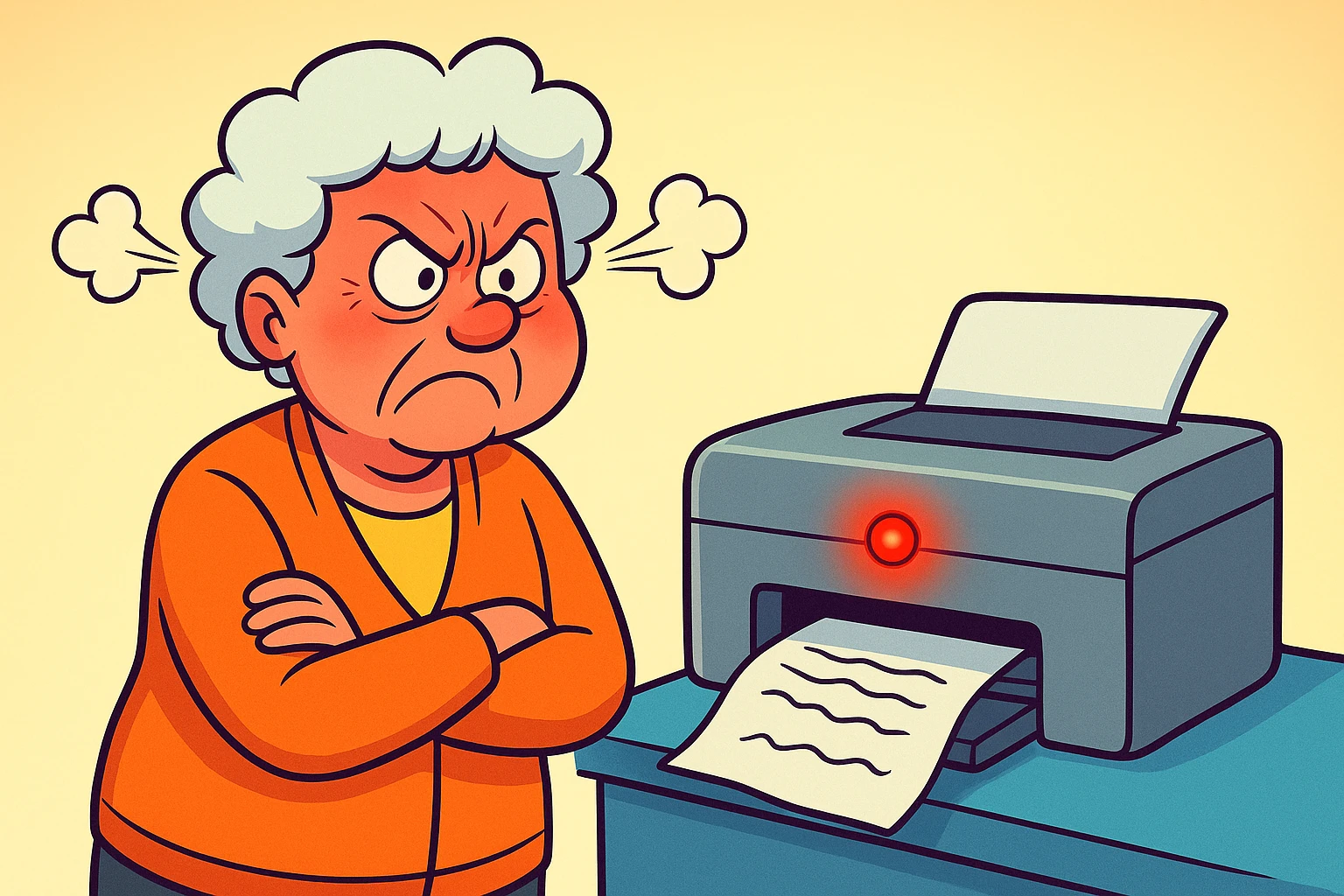
There are few moments in modern life as uniquely frustrating as a standoff with a printer. You’ve spent an hour perfecting your granddaughter’s birthday card. You’ve chosen the perfect font, added a picture of her new puppy, and you’re ready for the grand finale. You click “Print.”
And… nothing.
Instead of a beautiful card, your printer offers a silent, blinking red light. It’s the technological equivalent of a shrug. This little machine, which exists for one single purpose, has decided to go on strike. It’s now communicating in a cryptic language of flashes and whirs, leaving you to wonder if you’ve accidentally insulted its ancestors.
If you’ve ever felt the urge to discuss the matter with your printer using a baseball bat, you are not alone. But before you resort to drastic measures, let’s play detective. We’ll figure out what that red light is trying to tell you, why your beautiful reds are coming out a sad shade of beige, and most importantly, when it’s time to stop troubleshooting and just call for help.
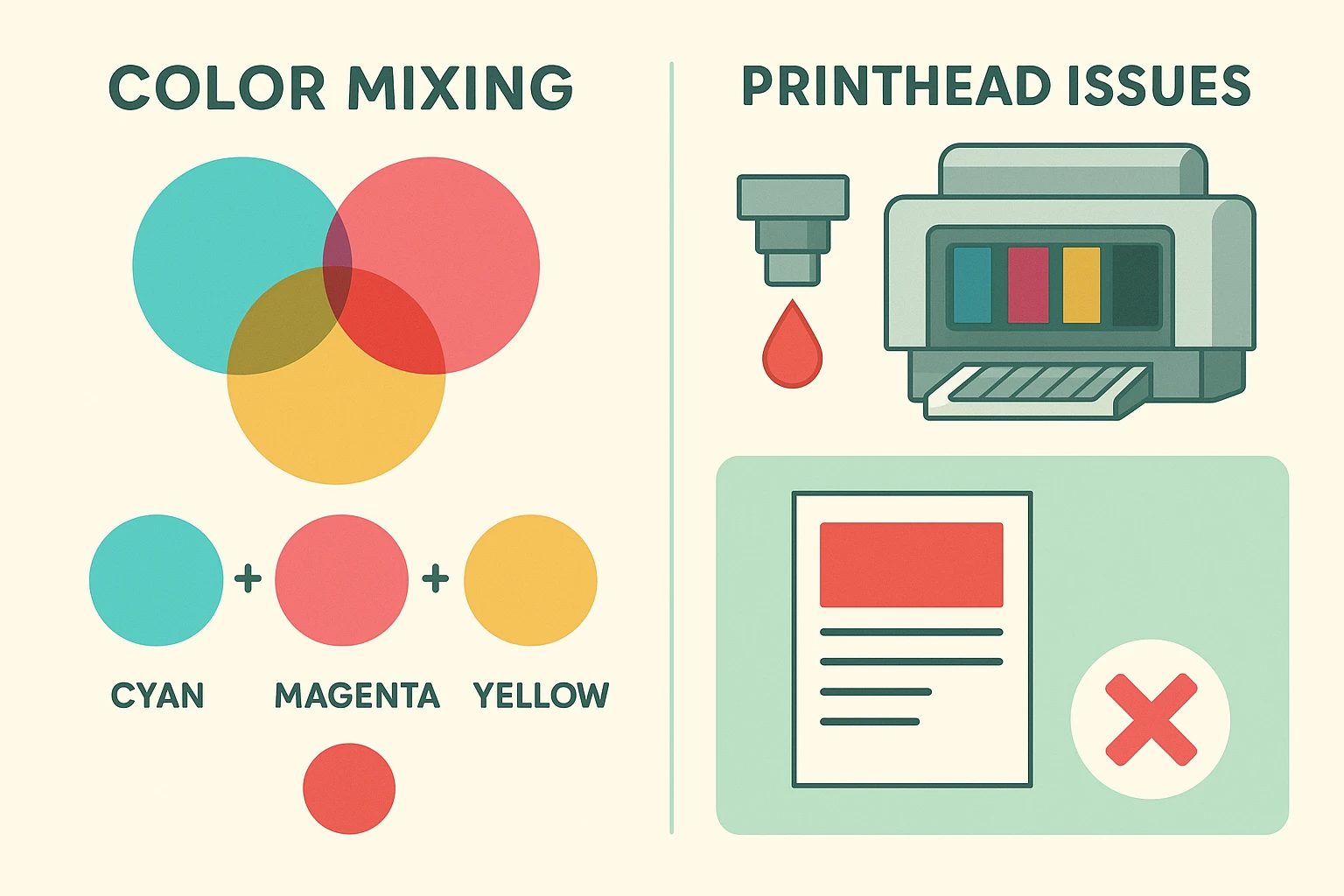 This infographic shows how magenta and yellow cartridge problems lead to red color printing failures for beginners.
First, let’s tackle a common mystery: your printer is working, but it refuses to print the color red. You want a vibrant sunset, but you get a muddy brown. You want a bright red stop sign, but it comes out pale orange. What gives?
Here’s the secret printers don’t tell you: they don’t have a giant vat of “red ink.” Just like you learned in elementary school art class, they create red by mixing two other colors: magenta (a pinkish-purple) and yellow.
If either of those color cartridges is low, empty, or clogged, your printer simply can’t make red. It’s like trying to bake a cake without flour. You can have all the sugar and eggs in the world, but it just won’t work. So, if your reds are looking weak, the magenta or yellow cartridge is your prime suspect.
A blinking red light on a printer is its universal signal for “I have a problem, and I’m not going to tell you what it is.” It’s less of a helpful warning and more of a tiny, passive-aggressive cry for help.
Fortunately, it usually means one of a few simple things. Before you panic, let’s run through a quick first-aid checklist. Think of it as a series of questions you’d ask a grumpy toddler.
This is your battle plan. Start at the top and work your way down. More often than not, the solution is hiding in one of these simple steps.
1. The “Is It Plugged In?” Check (No Judgment!) We’ve all done it. Just take a peek. Is the power cord firmly in the wall and the printer? Is the USB cable connecting it to the computer snug? Sometimes, the cleaning crew just bumps things around.
2. The Paper & Ink Interrogation Open up your printer. Is there paper in the tray? Is it loaded correctly, not crooked or jammed? Now, check your ink or toner levels. Most printers have a little screen or software on your computer that tells you this. If a cartridge is empty, especially the aforementioned magenta or yellow, you’ve likely found your culprit.
3. Clear the Paper Jam Traffic Jam If you see a piece of paper crumpled up inside, you’ve found a classic paper jam. Turn the printer off completely before you start pulling on it. Gently pull the paper out in the direction it was trying to go. Tugging it backward can damage the printer’s delicate innards.
4. Check Your Computer’s Brain Sometimes, the problem isn’t the printer at all—it’s the computer.
5. Time for a Little Self-Care: Run a Cleaning Cycle If your colors are streaky or missing, the printhead might be clogged with dried ink. Think of it like a dried-up marker tip. Luckily, most printers can clean themselves. Look for an option called “Printhead Cleaning” or “Nozzle Check” in your printer’s maintenance menu. Run it once or twice.
You’ve checked the paper. You’ve replaced the ink. You’ve run the cleaning cycle so many times your printer probably feels squeaky clean inside. And yet, it still sits there, blinking that defiant red light.
My friend, it’s time. There is no shame in calling for backup. In fact, knowing when to stop is a sign of wisdom. Poking around inside a printer can sometimes make a small problem a very, very expensive one. It’s a common misconception that all tech problems are fixable with a quick Google search, a myth we explore in our article, 9 Big Tech Myths Busted.
Call a professional technician if:

Great question! While it varies by brand, an orange or amber light is often a “heads-up” warning, like low ink or no paper. A solid or blinking red light usually signals a more serious error that has stopped all printing.
This is the great debate of our time. Off-brand (or third-party) cartridges are cheaper, but they can be a gamble. Sometimes they work perfectly, and other times they can cause clogs or not be recognized by the printer. If you start having print quality problems after installing one, the new cartridge is your first suspect.
Did you remember to remove the little plastic tab or tape? Most new cartridges have a protective seal over the ink port that must be removed before installation. It’s an easy step to forget!
You don’t need to do it often. Only run a cleaning cycle if you’re actually seeing problems like streaks or missing colors. Running it too frequently just wastes a surprising amount of ink.
A printer may never be your best friend, but it doesn’t have to be your worst enemy. With a little patience and a clear plan, you can solve most of its little tantrums yourself. And for the big ones, you now know when to tag in a professional.
At the end of the day, technology is supposed to make our lives easier, not more frustrating. For more tips on navigating the digital world with confidence, check out our other guides at Senior Tech Cafe.