Newsletter Subscribe
Enter your email address below and subscribe to our newsletter

Enter your email address below and subscribe to our newsletter
Remember the old days? I’m talking about the days when “photo organization” meant shoving a stack of Kodak prints into a shoebox, writing “Summer ’84” on the lid with a Sharpie, and shoving it under the bed. It wasn’t a perfect system, but at least you knew that if you opened the box, you’d probably find pictures of you with a questionable perm and huge sunglasses.
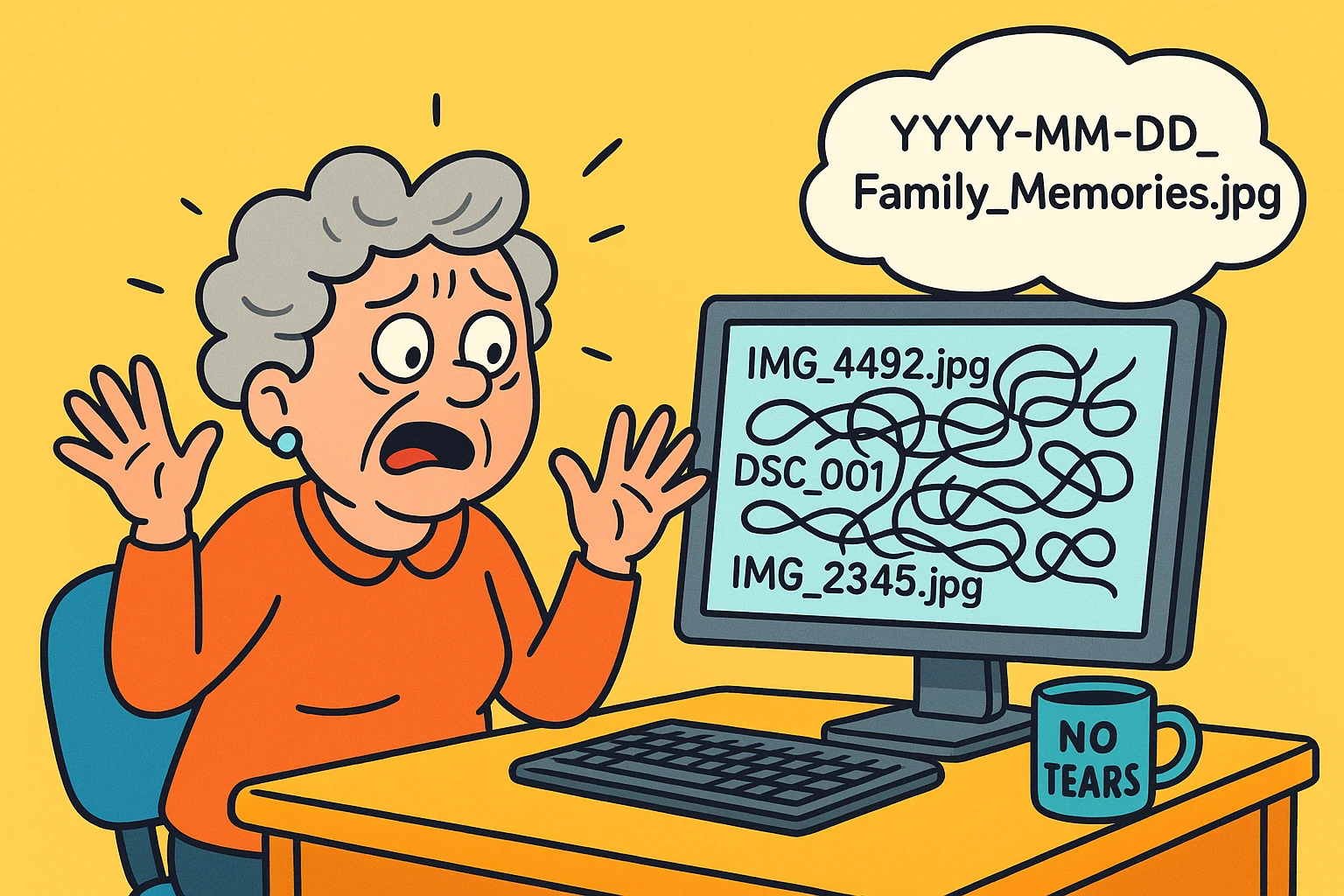
Fast forward to today. You sit down at your computer, eager to find that lovely photo of your granddaughter’s first birthday to email to your sister. You open your “Pictures” folder and are greeted by a digital alphabet soup: IMG_4492.jpg, DSC_001.jpg, and my personal favorite, Scan_29384_v2.png.
It’s like walking into a library where all the books have been stripped of their titles and just labeled “Book 1,” “Book 2,” and “Book 4,000.” You click on one, hoping for a cute baby, and instead, you get a blurry picture of your own thumb or a screenshot of a casserole recipe you don’t remember saving.
If this sounds familiar, take a deep breath. You haven’t failed at technology; technology has failed to explain itself to you. But today, we are going to fix it. We are going to turn that chaotic digital pile into a family legacy, and we’re going to do it without buying expensive software or crying into your keyboard.
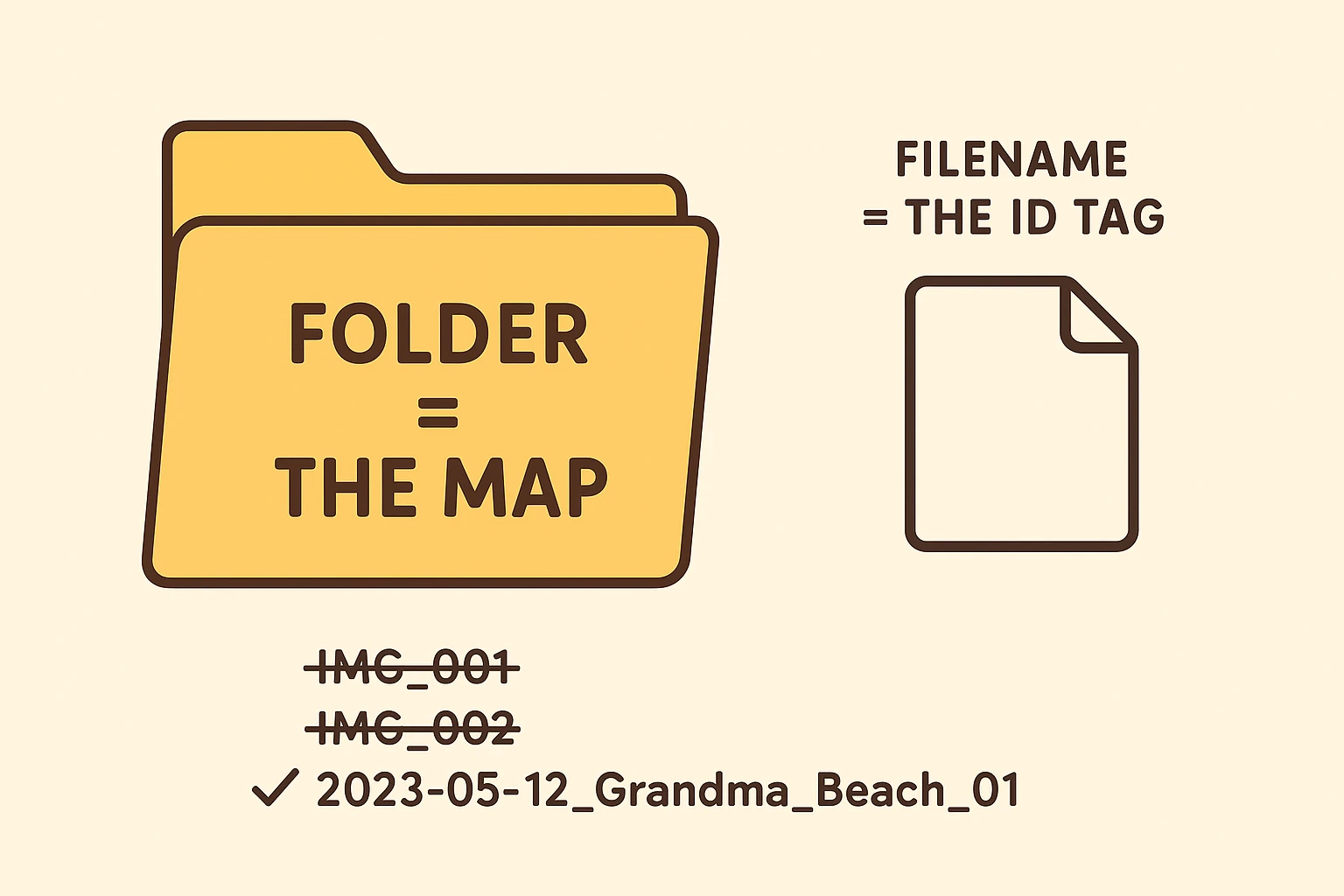
Most people try to organize their photos by creating folders. You might have a folder called “Christmas 2015” or “Trip to Florida.” This is a good start—it’s the digital equivalent of the shoebox.
But here is the problem: Computers are terrible at context. If you take IMG_0992.jpg out of the “Christmas” folder and email it to your son, the name of the file is still IMG_0992.jpg. Your son receives it and has no idea if it’s from Christmas, Easter, or a random Tuesday.
Worse, search functions on computers are notoriously literal. If you search for “Grandma,” the computer looks for files named “Grandma.” It does not look inside the picture to see who is wearing the floral apron.
We need a system that acts like writing on the back of the photo. We need the filename itself to tell the story.
Here is a little secret about computers: they are incredibly smart at math, but they are absolutely stupid at understanding dates unless you spell them out in a very specific way.
If you name a file December 1st, the computer files it under “D.” If you name it 12-01-2023, the computer files it under “1.” This leads to a messy list where January 2024 comes before December 2023. It’s madness.
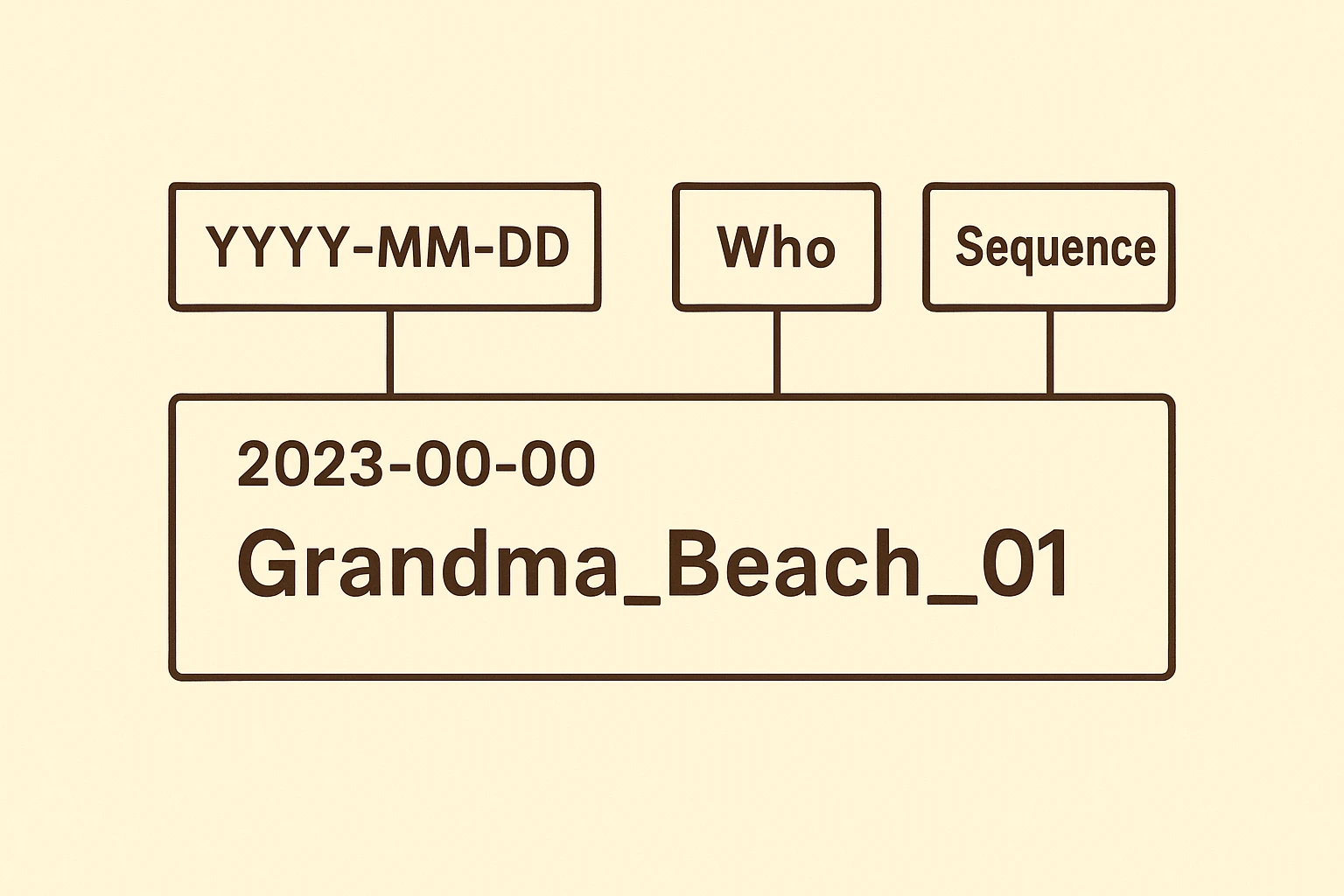
To keep your sanity, we use the International Standard Date Format (ISO 8601). That sounds like something NASA uses, but it’s actually very simple. It’s just “Year-Month-Day.”
YYYY-MM-DD_Description
That’s it. That’s the whole trick.
Why does this work? Because 2023 always sorts before 2024. By putting the year first, your computer will automatically line up every single photo in perfect chronological order, from your childhood black-and-whites to yesterday’s selfie, regardless of what folder they are in.
Here is what a “No-Tears” filename looks like:
1985-12-25_Christmas_Dad_Carving_Turkey.jpg2010-07-04_Picnic_Fireworks_Lake.jpgNow, if you search for “Christmas,” you find it. If you search for “1985,” you find it. If you search for “Turkey,” you find it. You have just created a searchable legacy.
I know what you’re thinking. “That’s great for my iPhone photos, but I have 500 scanned slides from the 70s, and I can barely remember what I had for breakfast, let alone the exact day we went to the Grand Canyon in 1976.”
This is where the “Analysis Paralysis” usually sets in. You stare at the photo, trying to remember if Uncle Larry’s sideburns look more like 1974 or 1976. You get frustrated, and you quit.
Do not quit. We have a cheat code for this.
In the library and genealogy world, when we don’t know a date, we use “00” as a placeholder. It tells the computer, “I know the year, but I don’t know the month.”
1976-00-00_Grand_Canyon.1976-07-00_Grand_Canyon.1970-00-00_Approx_College_Days.The beauty of the “00” creates a safe sorting system. The computer will put the “00” photos at the very beginning of that year’s list. It keeps them grouped with the right era, without you needing to lie and invent a fake date like January 1st.
There are companies out there that will try to sell you “Photo Management Software” for $99 a year. These programs have lots of buttons, dark backgrounds, and require you to learn words like “metadata” and “catalog ingestion.”
You do not need them.
You already own the best tool for this job. It’s built right into your computer. Whether you have a PC (Windows) or a Mac, you can rename photos in batches. This means you can highlight 50 photos from your daughter’s wedding and rename them all at once, rather than typing the same thing 50 times.
Don’t try to rename 10,000 photos this weekend. That is a recipe for a migraine. Instead, try the “Coffee Break Method.”
1990-06-15_Susan_Birthday (1). Windows will automatically name the rest (2), (3), etc.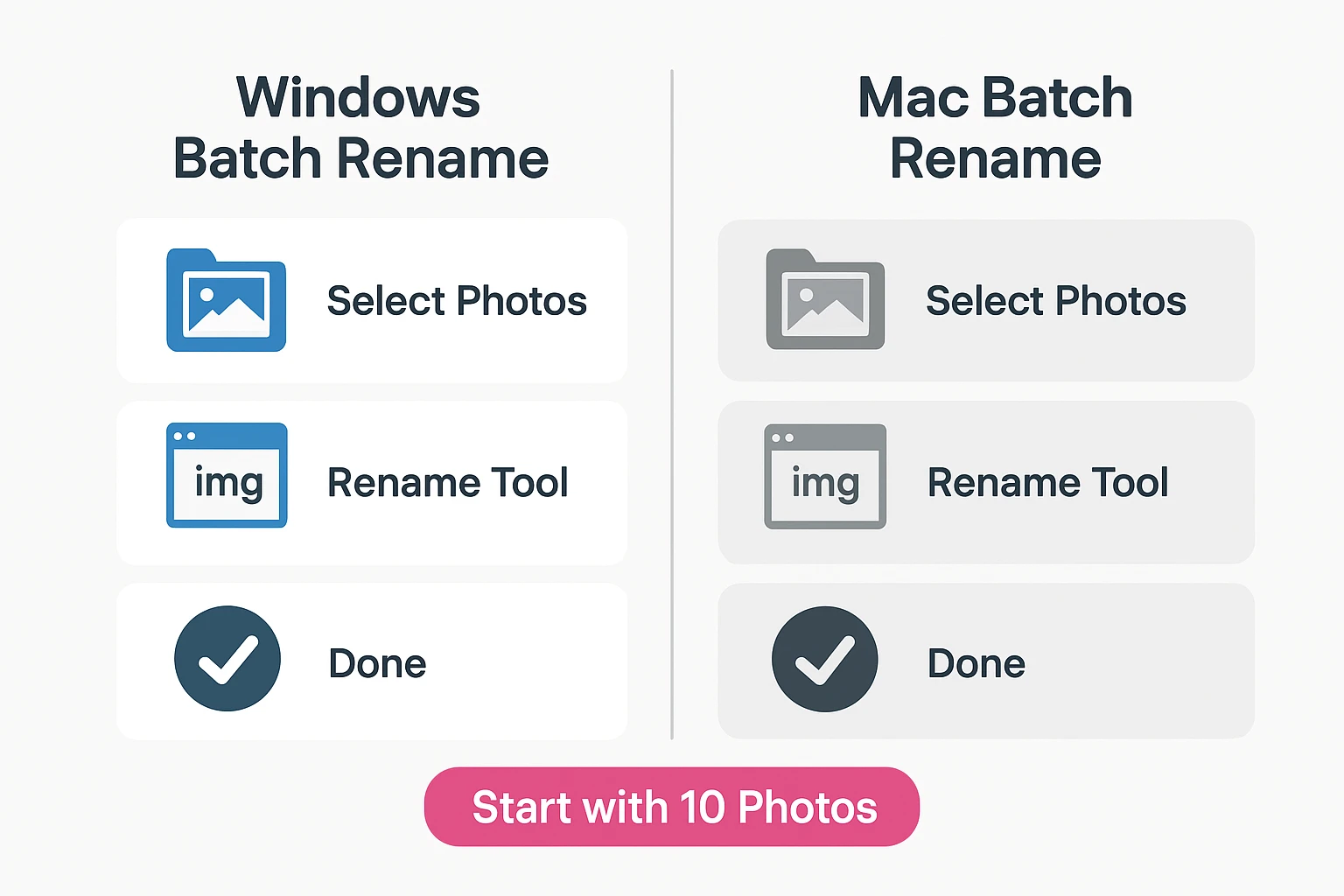
Ideally, no. Some computers get confused by spaces. It’s safer to use underscores (_) or hyphens (-). Think of them as the glue holding your filename together.
If you have dragged a photo into a Word document or a slideshow before renaming it, changing the name might confuse that document. It’s best to rename your photos before you use them in projects.
You can, but think about your grandchildren. Fifty years from now, when they find a file called IMG_9921, will they know it’s their great-grandmother? Or will they hit “Delete”? Naming is about preserving the story, not just the file.
It’s easy to get caught up in the technical drudgery of “file management.” But try to shift your perspective. You aren’t just organizing files; you are curating a museum of your life.
When you take the time to change Scan001 to 1968-00-00_Wedding_Mom_and_Dad, you are sending a gift to the future. You are ensuring that the memories you cherish today don’t end up in the digital equivalent of a landfill tomorrow.
So, pour yourself a fresh cup of coffee, open up that “Pictures” folder, and tackle just one event today. Your future self (and your grandkids) will thank you.