Newsletter Subscribe
Enter your email address below and subscribe to our newsletter

Enter your email address below and subscribe to our newsletter
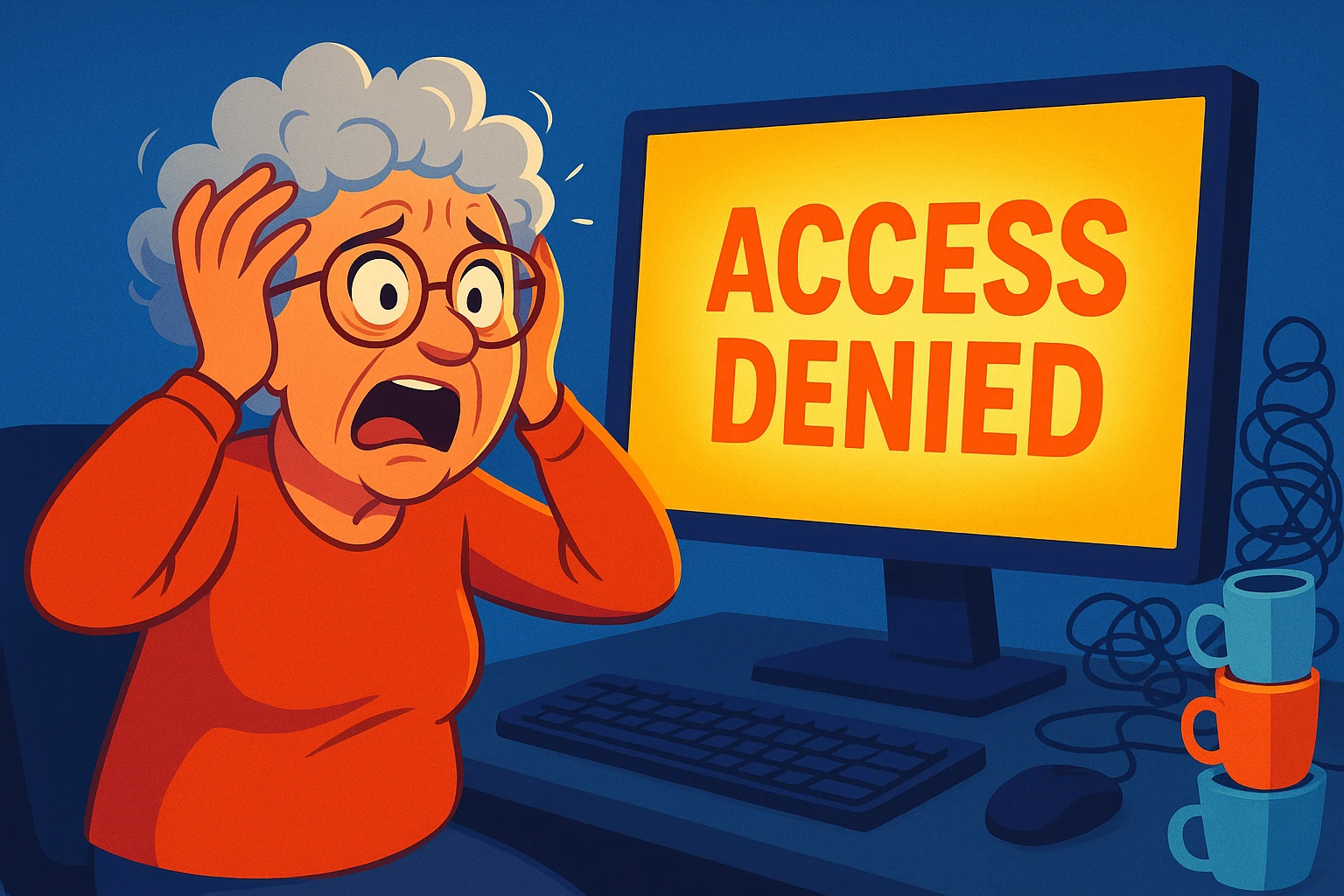
You know that feeling when you walk into a room and immediately forget why you’re there? It’s like your brain just decided to take a union-mandated coffee break right in the middle of a thought. Now, imagine that feeling, but instead of standing in the kitchen looking confusedly at a toaster, you are staring at a computer screen that demands the one password to rule them all: your Master Password.
You type it in. Access Denied.
You chuckle nervously and type it again, slower this time. Access Denied.
Suddenly, the room feels warmer. Your palms start to sweat. You realize that inside that digital vault lies everything from your bank login to that secret recipe for chili you swore you’d never lose. The little cursor blinks at you, mocking your memory. It’s a “Digital Heart Attack,” and it is right up there with realizing you left your wallet at the grocery store checkout.
Before you consider throwing your laptop out the window or moving to a cave to live as a hermit, take a deep breath. This happens to the best of us. Even the people who invented these systems probably lock themselves out occasionally.
We are going to walk through this together. We’ll start with the “first-aid” checks, move on to the specific recovery tricks for different software, and finally, look at how to make sure this never scares the living daylights out of you again.
If you forget your password for Facebook or Gmail, you click a link, they send an email, and poof—you’re back in. Easy, right? So why does your password manager act like Fort Knox when you ask for help?
It comes down to a concept called Zero-Knowledge Architecture. That sounds like an insult a teenager might throw at you, but in the tech world, it’s actually a good thing.
Think of your password manager like a safe deposit box inside a massive, secure warehouse.
The warehouse owner (the software company) does not have a copy of your key. They can’t see what’s inside your box. This is great for privacy because if hackers break into the warehouse, they can’t open your box. But it also means if you lose your key, the warehouse owner can’t just cut you a new one. They literally don’t know how to open your safe.
However, just because they can’t reset it for you doesn’t mean you’re out of options.
When panic sets in, our brains go into “fight or flight” mode, which is excellent for running away from a bear but terrible for remembering a complex string of characters involving a capital letter and a symbol.
Before you start clicking buttons, try these non-technical steps:
Did you write the password down in a “secret” spot? Check your address book (maybe under ‘P’ for Password?), that little notebook in your desk drawer, or stuck to the bottom of your monitor (we won’t judge).
This is the most common way seniors get back in. Grab your smartphone or tablet. If you installed the password manager app on your phone, you likely set it up to open with FaceID (your face) or TouchID (your fingerprint).
If you can open the app on your phone with your face, you are in. You can usually use the app on your phone to view or export your passwords, even if you can’t remember the text password for the computer right now.
If the “FaceID” trick didn’t work, here is how the big names handle a lost key.
LastPass has a few safety nets, but they are time-sensitive.
1Password is very secure, which makes recovery tricky, but they rely heavily on the Emergency Kit.
Bitwarden is strict about security.
If you have checked the notebooks, tried the phone app, looked for the PDF, and asked your family, and you still cannot get in… we have reached the “Nuclear Option.”
You may have to delete your account and start over.
I know. It hurts. It feels like losing a digital limb. But here is the reality check: Your data is not gone from the world. You can still reset the passwords for your bank, email, and Amazon individually by clicking “Forgot Password” on their websites.
It will be a tedious afternoon of resetting accounts and saving them into a new password manager account, but it is not the end of your digital life. Think of it as forced spring cleaning.
Once you are back in (or have started a new account), let’s make sure this panic never happens again. The best defense against a high-tech problem is often a low-tech solution.
Security experts used to scream “Never write down your password!” They were wrong. For a Master Password, writing it down is safer than forgetting it.
If your password manager supports it (like 1Password Families, Bitwarden, or LastPass), designate a “Digital Heir.” This is usually a trusted child or spouse who can request access to your vault if you are incapacitated or locked out. It’s not just for memory lapses; it’s a crucial part of your digital legacy.
Generally, yes. The risk of a hacker breaking into your house to steal a notebook is much lower than the risk of a hacker accessing a digital file on your computer. Just don’t leave the notebook sitting open at a coffee shop.
If they had a key to let you in, a hacker or a government agency could steal that key to let themselves in. By having no backdoor, they ensure that no one can access your data but you.
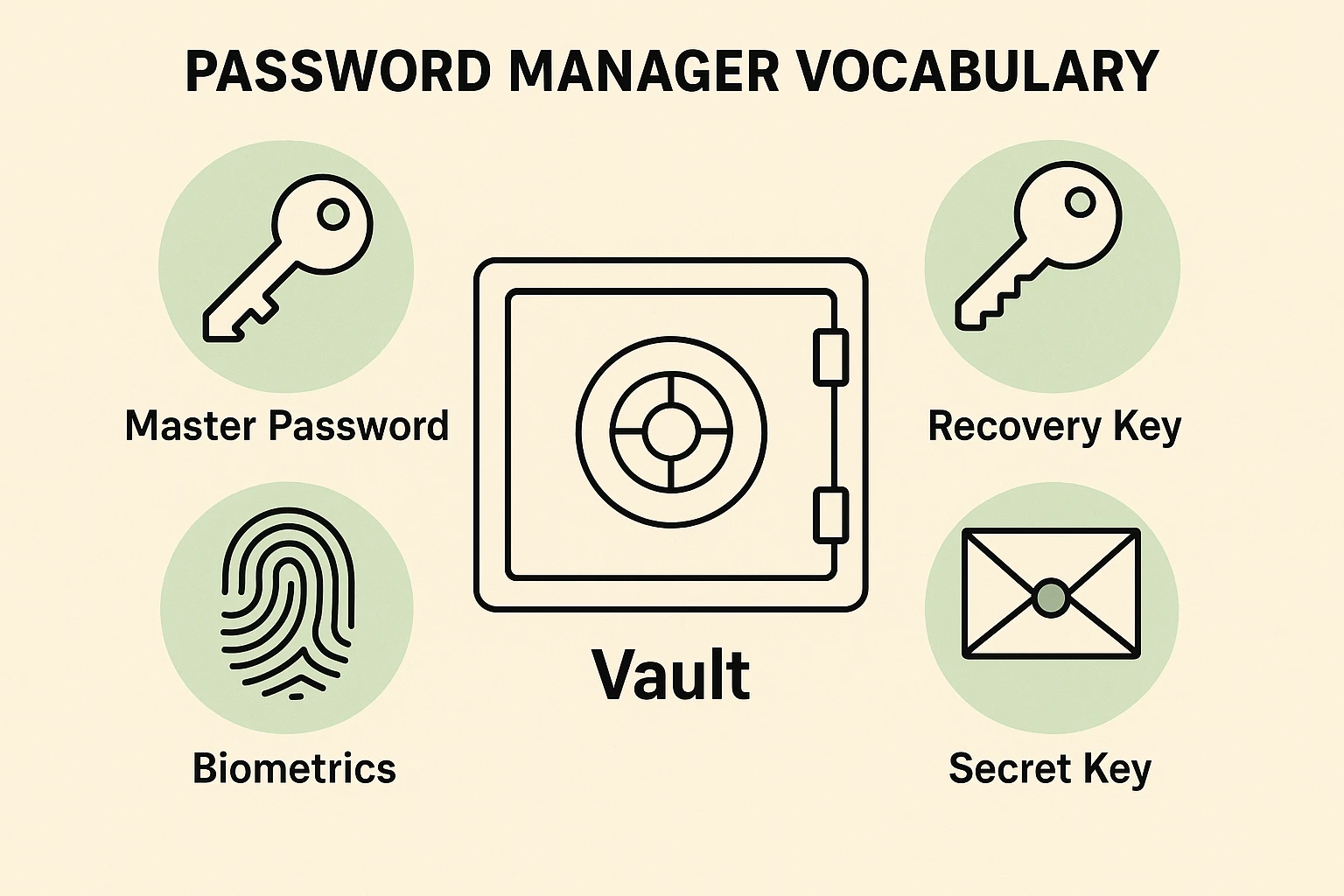
A Master Password is the word you type in. A Secret Key (used by 1Password) is a long string of computer-generated code that acts as a second lock. You need both to get in on a new device.
Take a moment today to check your “Emergency Kit.” Do you know where your Master Password is written down? If not, grab a pen and paper right now. Your future self—the one who just wants to log in to order banana bread ingredients—will thank you.