Newsletter Subscribe
Enter your email address below and subscribe to our newsletter

Enter your email address below and subscribe to our newsletter
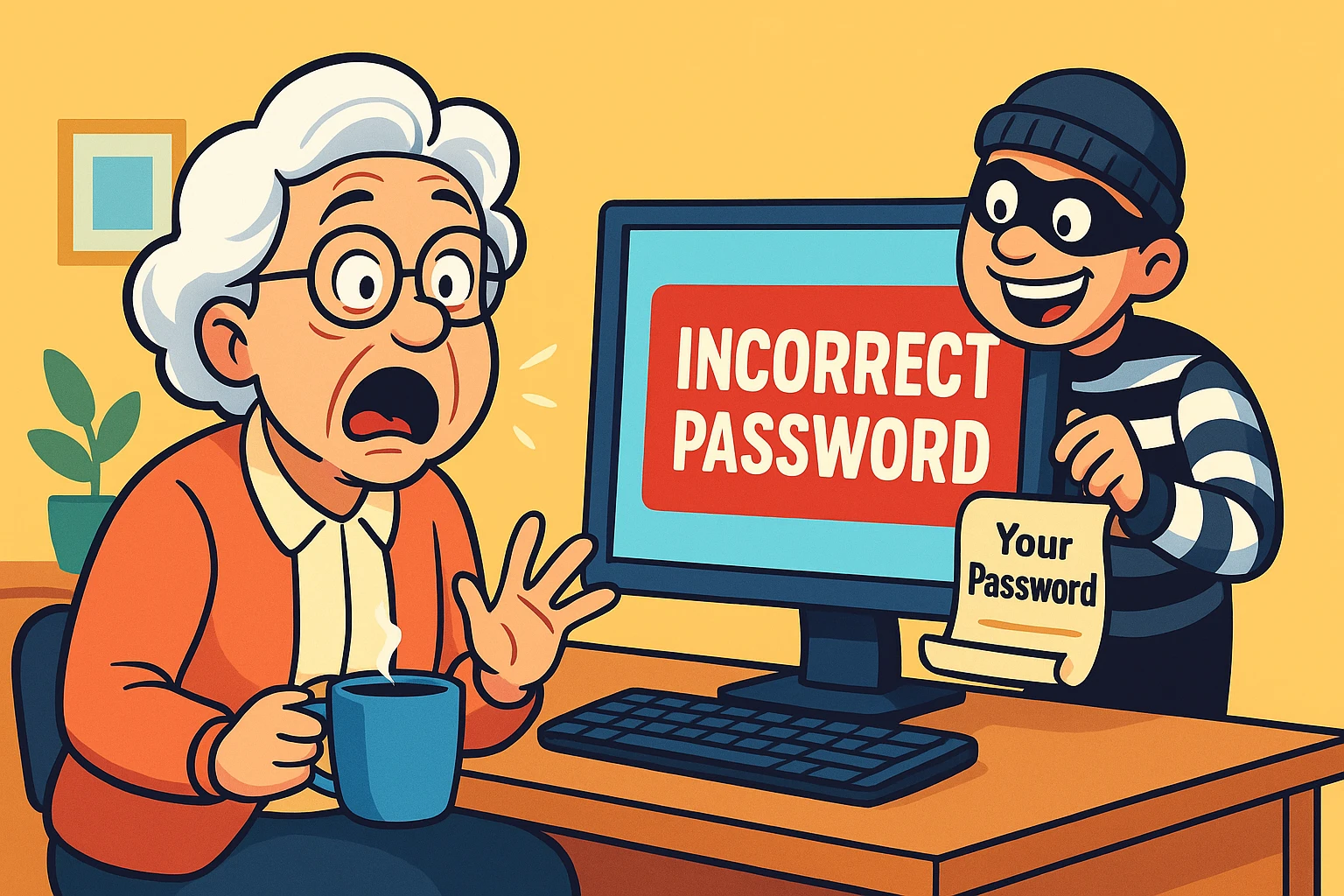
You know the feeling. You sit down with your morning coffee, ready to check the photos of your granddaughter’s dance recital on Facebook. You type in your password—the same one you’ve used since 2012, involving the name of your first dog and a significant year—and hit Enter.
Instead of cute photos, the screen shakes its head at you. “Incorrect Password.”
You try again. Maybe you typed it with your elbows? Maybe caps lock is on? You type it slowly, with the precision of a diamond cutter. “Incorrect Password.”
Then, the cold realization washes over you like a bucket of ice water. You didn’t change your password. But someone else did.
If your heart is currently racing like you just ran a marathon, take a deep breath. Getting hacked is not a moral failing, nor does it mean you aren’t “tech-savvy.” It is the digital equivalent of a pickpocket bumping into you on a crowded subway. It happens to tech billionaires, it happens to government officials, and unfortunately, it happens to us.
The good news? You are not powerless. While the digital bad guys are tricky, they aren’t invincible. We are going to walk through this together, step-by-calm-step, to help you regain control of your digital house.
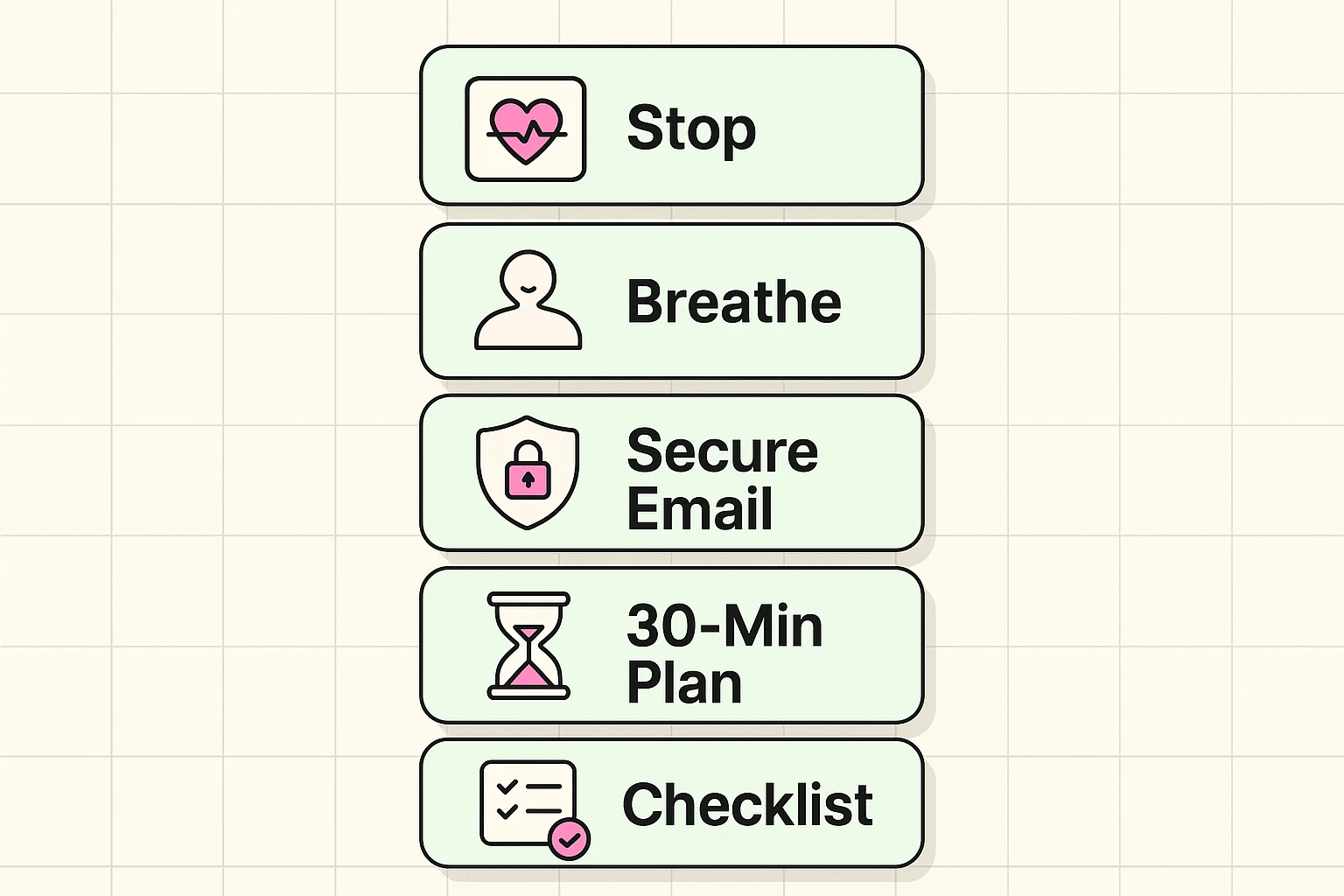
Before we start clicking buttons, we need to establish the “Golden Rule of Hacking”: Do not panic, and do not Google “how to recover hacked account.”
Why? Because if you panic-search on Google, you will likely find “recovery experts” who claim they can hack your account back for a fee. These are scammers. They are the vultures circling the scene of the accident. No stranger on Instagram or WhatsApp can fix this for you. Only the platform (Facebook, Google, etc.) can help.
Imagine your digital life is a house. Your social media accounts are the bedrooms. But your Email Account is the front door key.
If a hacker gets into your Facebook, it’s annoying. If they get into your Email, it’s a crisis. Why? Because every “Reset Password” link for every other account goes to your email.
Your First Move:
Here is the part that drives most seniors (and frankly, most humans) absolutely bonkers.
You go to Facebook or Google. You click “Forgot Password.” The system cheerfully says, “We sent a code to email address h***@hotmail.com.”
But wait! That starts with ‘h’. Your email starts with ‘b’. That’s the hacker’s email!
You are stuck in what we call the Circular Loop. The system keeps trying to send the solution to the problem… to the person causing the problem. It feels like locking your keys in the car, and the roadside assistance person suggests they toss a spare key onto the driver’s seat.
The tech companies know this happens, but they hide the solution. You are looking for a tiny link, usually in small print at the bottom of the verification box. It will say something like:
This is your escape hatch. Clicking this moves you from the automated robot (who is not helpful) to a more serious recovery process (which might actually help).
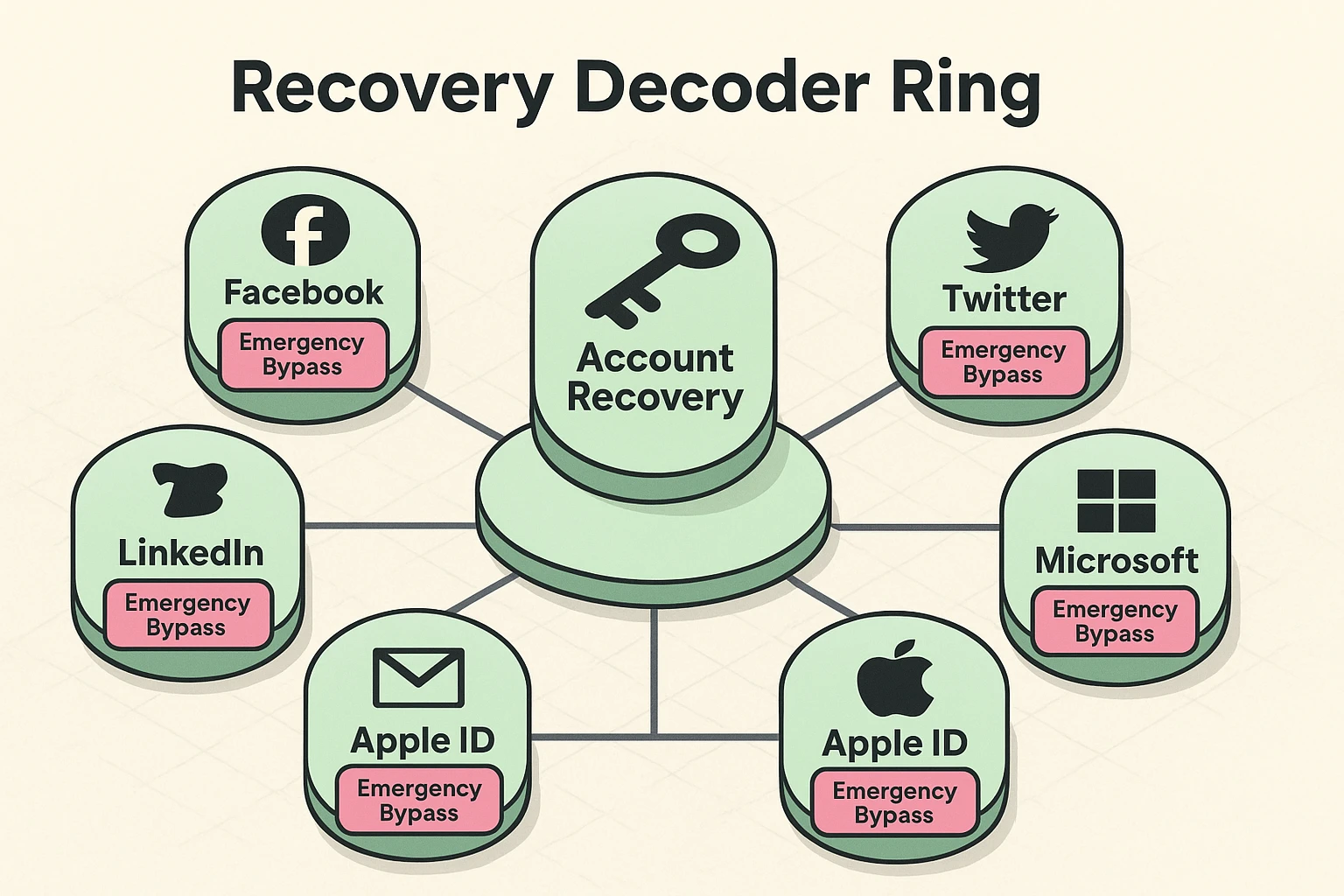
Once you click that hidden link, the platform realizes, “Uh oh, this person is in trouble.” They may ask you to verify your identity.
For many seniors, this feels invasive. “Why does Facebook need my driver’s license? Is this a scam?”
In this specific context—if you are on the official website—it is not a scam. It is the only way for a human to know you are the real “KnittinGranny1943” and not the hacker in a basement somewhere.
They may ask you to:
Note: If you are uncomfortable doing this, that is your right. However, be aware that without this proof, the account may be lost forever.
Once the dust settles—whether you got the account back or decided to start fresh—we need to talk about the “why.”
How did they get in? Usually, it’s not because they are computer geniuses. It’s often because of a “Data Breach” (where a company loses your password) or a “Phishing” scam (where you accidentally clicked a fake link).
To learn more about the tricks hackers use to steal credentials, you can check our online scamming methods pdf free download resource. It’s a great way to spot the red flags before they become problems.
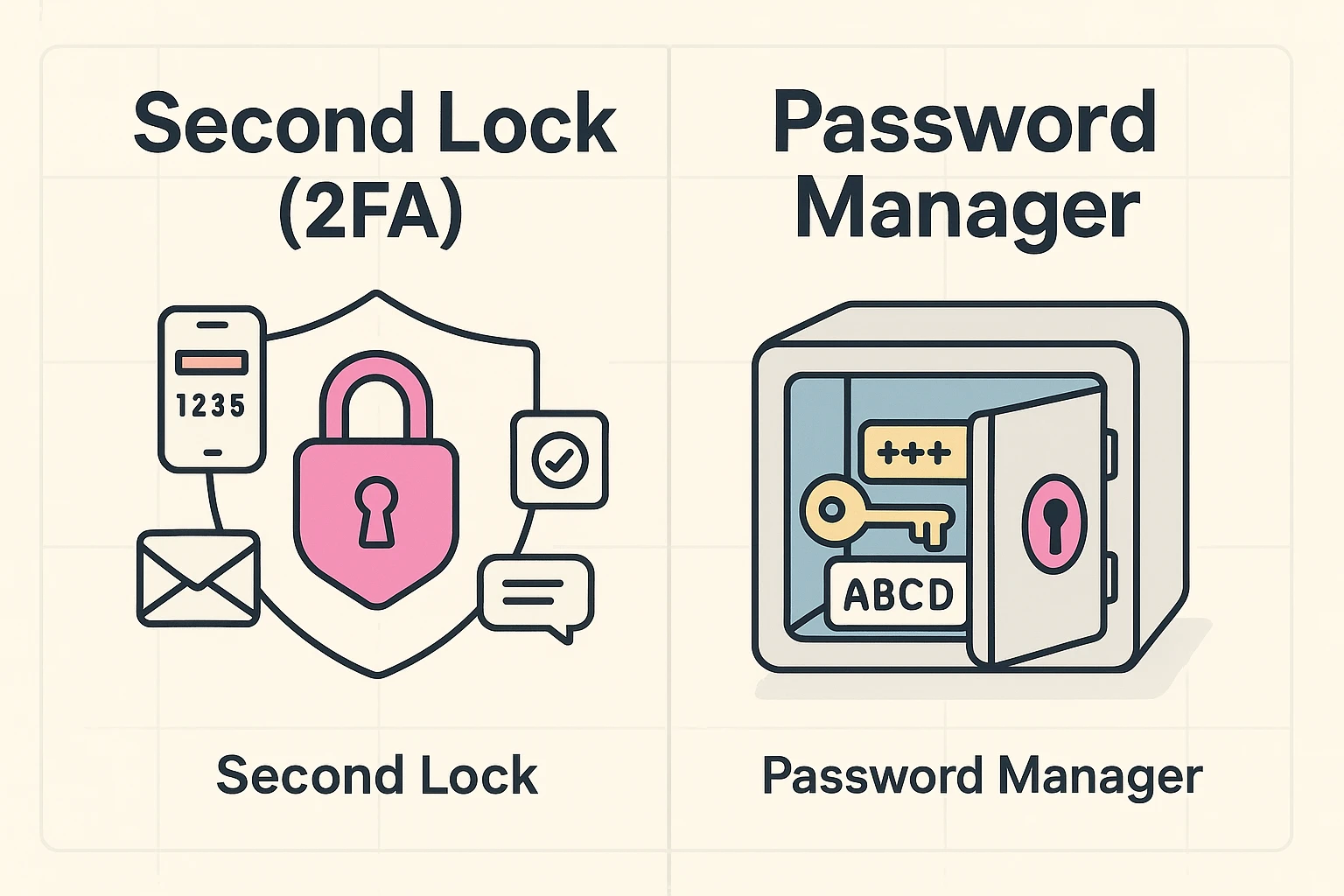
To make sure this never happens again, you need two things. Think of them like safety upgrades for your home.
“Two-Factor Authentication” sounds like something NASA uses, but it’s simple.
Stop writing passwords in the address book in your desk drawer. If your house gets burglarized, they get your jewelry and your bank account. A password manager is an app that remembers your passwords for you. You only have to remember one master password, and the app handles the rest.
No. This is a recovery scam. These people search for users complaining about being hacked and prey on their desperation. They will take your money and disappear. Only the official support channels can help you.
If you can’t log in, you usually can’t delete it immediately. However, you can create a new account. If you do, send a message to your friends from the new account saying: “Hey, my old account was hacked. Block it and friend this one instead.”
If you are directly on facebook.com or linkedin.com, it is generally safe. They use it to match the name on the ID to the name on the account. They delete the image after verification is complete. However, never send a photo of your ID via email or Messenger to a person claiming to be support.
Probably not. Hackers use automated software to try millions of stolen passwords from other websites (like that knitting forum you joined in 2008). It’s not personal, and it doesn’t mean you were careless. It just means it’s time to update your security.
Taking back control of your digital life feels daunting, but you’ve managed to navigate life this far—a little computer code isn’t going to stop you now.