Newsletter Subscribe
Enter your email address below and subscribe to our newsletter

Enter your email address below and subscribe to our newsletter
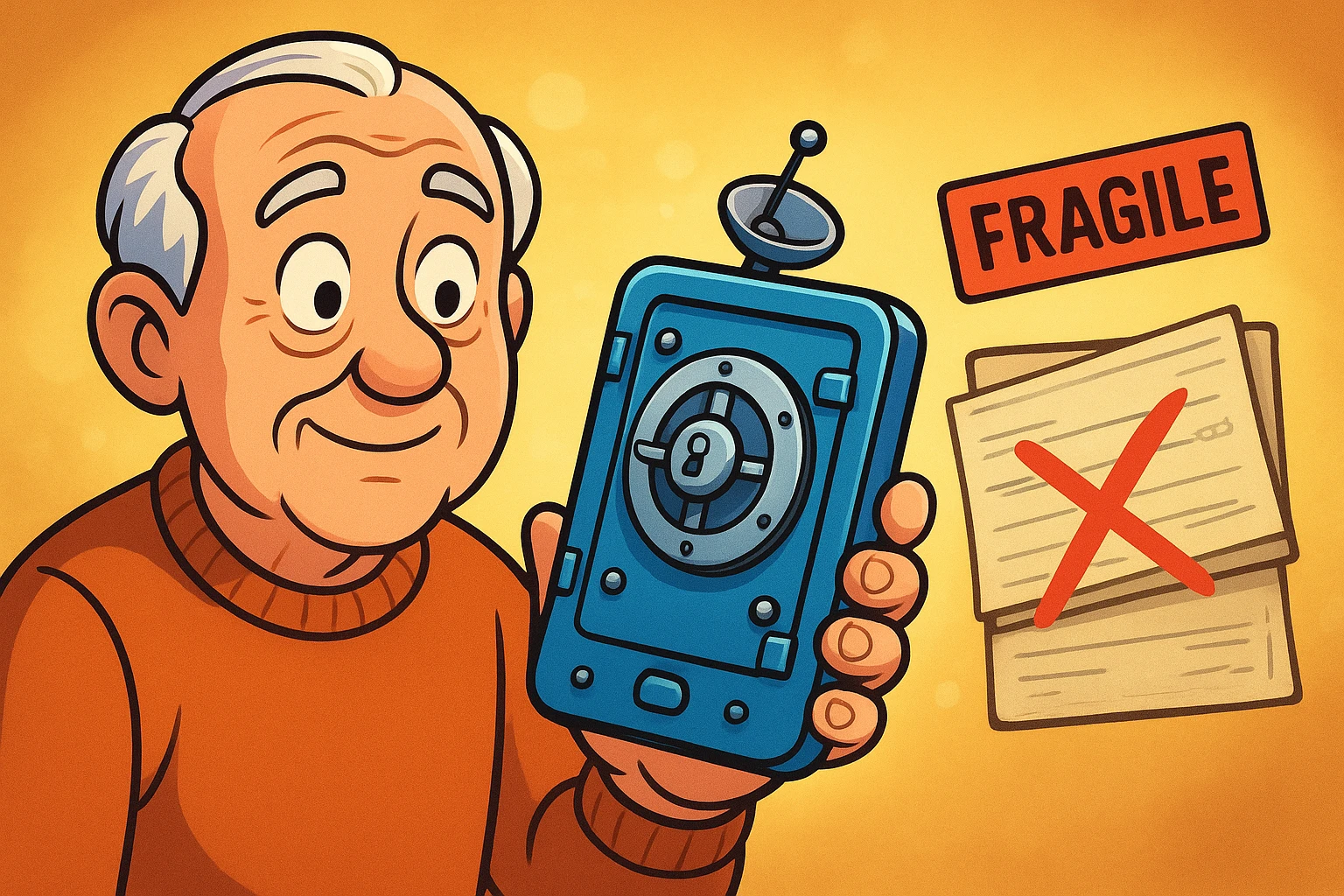
You’re staring at your smartphone. Your bank is gently suggesting—which is to say, aggressively badgering you every time you log in—to download their mobile app. You hesitate. You picture yourself accidentally pressing the wrong button and instantly wiring your life savings to a “prince” in a country that doesn’t even exist.
If this sounds familiar, you are absolutely not alone. For many of us, the idea of carrying our entire bank account in our pocket feels like walking around town with our life savings stuffed into a very fragile, easily droppable glass jar. We grew up trusting thick steel vault doors, paper checkbooks, and bank tellers named Brenda who knew us by name.
But here is the surprising truth: that little glowing rectangle in your hand is actually far more secure than your trusty paper checkbook. A checkbook has your name, address, routing number, and account number printed right there for anyone to see. If you leave it at the grocery store, whoever finds it has everything they need to go on a shopping spree.
Your smartphone, on the other hand, is like a high-tech fortress. It has invisible bodyguards, secret codes, and alarms that Brenda the bank teller could only dream of. Let’s demystify how these security features actually work, in plain English, so you can decide if mobile banking is right for you.
When you hear tech companies talk about “bank-level security,” it usually sounds like a lot of buzzwords designed to make you stop asking questions. But the mechanics behind it are actually quite fascinating and easy to understand once you peel away the jargon.
Here are the three main “invisible bodyguards” working to keep your digital wallet safe.
You’ve probably heard of “Face ID” or fingerprint scanners. This is called biometric login. It sounds like something from a sci-fi movie where a laser scans your eyeballs, but it’s really just your phone checking to make sure you are the one holding it.
The biggest fear most seniors have about this is privacy. “Is my bank storing a picture of my face on the internet?” “Can the government see my fingerprints?” The answer is a resounding no.
Your facial map or fingerprint never actually leaves your phone. It is stored on a microscopic, ultra-secure chip inside the device itself, often called the “Secure Enclave.” When you open your banking app, the app basically asks your phone, “Hey, is this the boss?” Your phone checks your face, says “Yep, it’s them,” and unlocks the vault. The bank never sees your biometric data.
Imagine you want to send a postcard to a friend with your secret family recipe for potato salad, but you don’t want the mail carrier to read it. So, you write it in a secret code that only you and your friend know. Even if the mail carrier looks at it, it just looks like gibberish.
That is exactly what “encryption” does. When your banking app talks to your bank through the internet, it scrambles all your data into a complex, unreadable code. Even if a hacker managed to intercept the signal while you were checking your balance at a coffee shop, all they would get is a meaningless jumble of letters and numbers.
Have you ever stepped away from your computer to make a cup of coffee, come back, and realized your bank logged you out? It can be highly annoying to type your password all over again. You might even curse the machine under your breath.
But that annoying feature is actually a brilliant security measure called a “session timeout.” Think of it like a spring-loaded deadbolt on a door. If you forget to lock your phone and leave it on a table at a restaurant, the banking app will automatically lock itself after just a few minutes of inactivity.
According to cybersecurity experts at places like Morgan Stanley, scammers often target older adults specifically because they assume we have lower “digital fluency.” One of their favorite tricks is creating fake banking apps that look like the real thing.
Fortunately, spotting a fake app is easier than spotting a bad toupee if you know exactly where to look. Before you download any financial app, run it through this quick 3-step test.
Step 1: Check the Publisher’s Name. In the App Store (Apple) or Google Play Store (Android), look right below the name of the app. It should list the official name of the bank (e.g., “Bank of America, N.A.” or “JPMorgan Chase”). If it says something weird like “Chase Mobile Tools by John Doe,” run away.
Step 2: Look at the Review Count. A real banking app from a major institution will have hundreds of thousands, if not millions, of reviews. If the app you are looking at has 14 reviews and was uploaded last Tuesday, it is not your bank.
Step 3: Go Straight to the Source. If you are ever in doubt, don’t search for the app in the app store at all. Instead, check their website on your computer, log into your account securely, and look for a direct link to download their official mobile app.
This is the big one. The ultimate fear. You reach into your pocket or purse, and your phone isn’t there. Panic sets in. You imagine a teenager in a hoodie currently buying a yacht with your checking account.
Let’s take a collective deep breath and debunk the “lost phone equals lost money” myth. Remember, your banking app isn’t a digital wallet where the money is just sitting there waiting to be spent. It is merely a viewing window into your bank account.
Without your fingerprint, your face, or your highly complex password, the person who finds your phone cannot get into that viewing window. To make your device a true fortress, you should always ensure you have strong auth set up on your primary device, requiring a pin or face scan just to unlock the phone’s home screen.
If the worst happens and your device goes missing, there is a clear plan of action you can take to protect yourself. And if you’ve ever dealt with a two factor authentication lost phone scenario, you know that keeping a cool head and having a backup plan is half the battle.
One of the greatest, most underutilized superpowers of a mobile banking app is the ability to set up instant notifications. You can tell the app to send you a text message or a little ping on your screen every time money leaves your account.
This is your ultimate defense against scams—especially the dreaded “Grandchild Emergency Scam.” If someone calls you claiming to be your grandson needing bail money, and you are feeling panicked, a quick glance at your banking app can confirm that your funds are safe and sound.
You can even set it to notify you if a transaction happens overseas, or if a purchase is made over a certain dollar amount. It’s like having a tiny, incredibly attentive accountant living in your pocket who taps you on the shoulder whenever a penny moves.
You don’t need one, but it is often safer than using a web browser on a computer. Mobile apps are “closed environments,” meaning they are harder for computer viruses to infect compared to a regular internet browser.
Many apps ask for your location, but it’s actually for your protection. If you live in Ohio and suddenly your app is being logged into from a phone in Eastern Europe, the bank’s security system will notice the location difference and freeze the attempt. You can always turn this off in your phone’s settings if it makes you uncomfortable.
Your banking app is for managing your money (checking balances, paying bills, moving funds). Apple Pay or Google Pay (your “digital wallet”) is strictly for spending money at cash registers without pulling out your physical credit card.
Technology is only intimidating until someone explains it properly. You don’t need a degree in computer science to bank safely online; you just need to know which deadbolts to lock.
If you haven’t yet, try downloading your bank’s official app using the 3-step legitimacy test we discussed. Don’t worry about learning every feature on the first day. Start small. Just log in, look at your balance, and log out.
Once you realize that checking your account balance from the comfort of your favorite armchair is far better than waiting in line behind a guy paying for a cashier’s check entirely in loose change, you might just find that you like this whole “mobile banking” thing after all.