Newsletter Subscribe
Enter your email address below and subscribe to our newsletter

Enter your email address below and subscribe to our newsletter
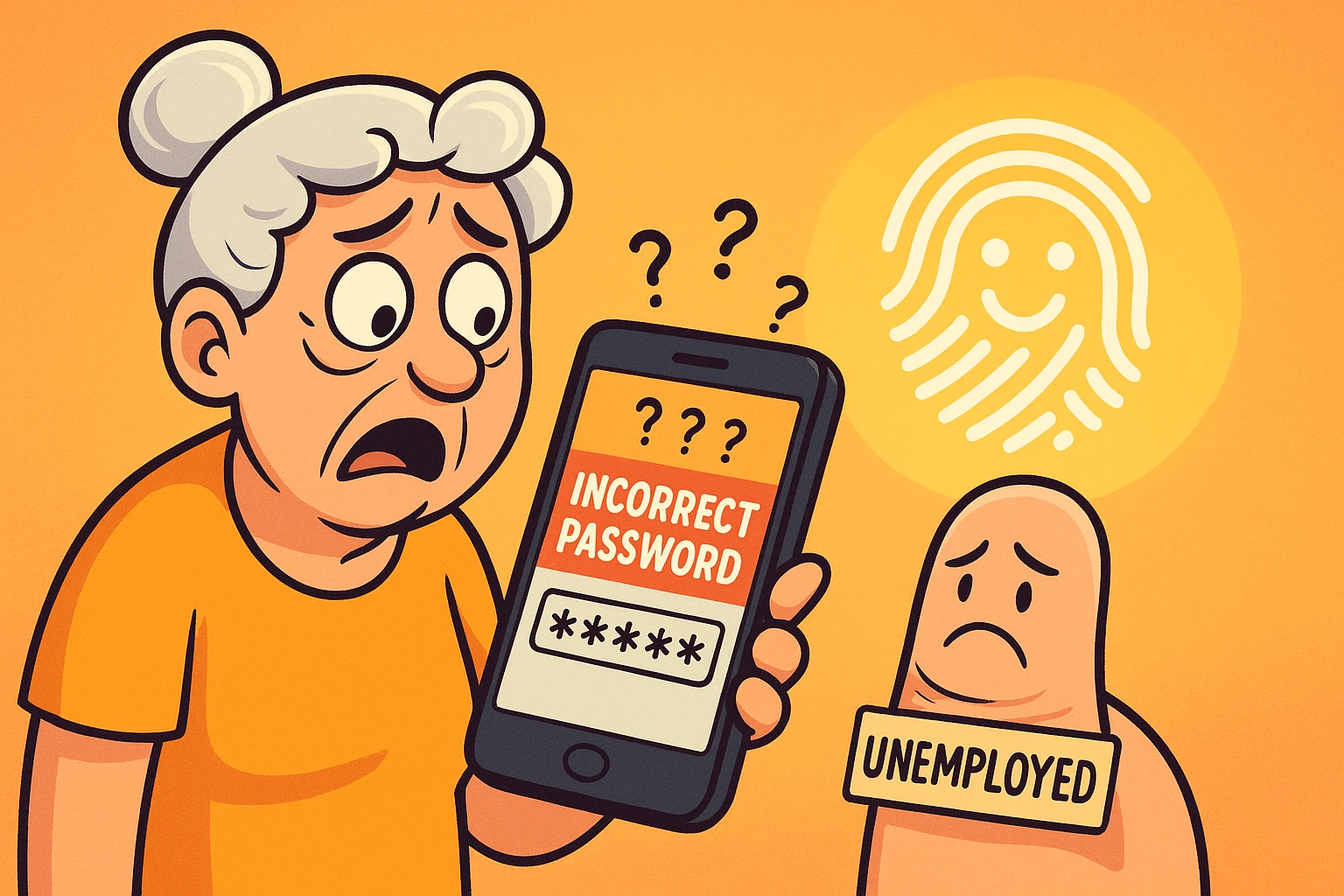
Imagine staring at your smartphone, just trying to log into your bank account to check a balance. The screen aggressively demands a password. You type “Fluffy2009!” Incorrect. You try “Fluffy2009?” Still wrong.
Eventually, you sigh and trigger a master password reset, which emails you a link that takes twenty minutes to arrive. By the time you finally get in, you’ve forgotten why you wanted to look at your bank account in the first place. Meanwhile, your thumb—which has been with you your entire life and knows exactly who you are—is just resting on the edge of the screen, completely unemployed.
It’s enough to make you want to throw the device out the nearest window and go back to stuffing cash in a mattress.
If this digital standoff sounds familiar, you are not alone. Remembering dozens of complex passwords is a universal headache. The good news? You already possess the ultimate, un-hackable keys to your digital life: your face and your fingertips. Let’s talk about biometrics, how they actually work, and why your phone sometimes acts like it has never met you before.
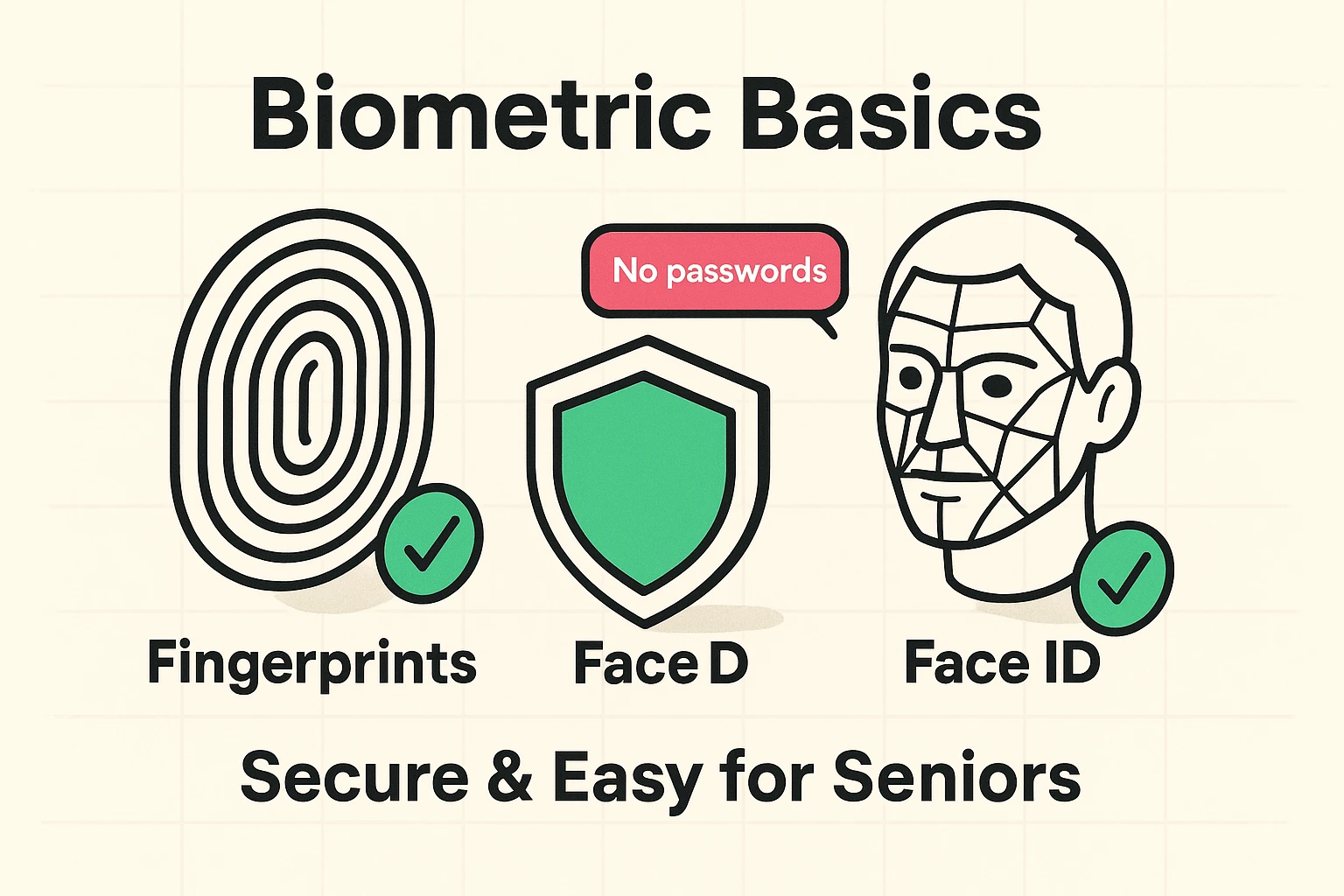
Passwords are a scammer’s best friend. They can be guessed, stolen in data breaches, or socially engineered right out of us by a clever con artist on the phone. And because most of us are exhausted by trying to remember “P@ssw0rd123” for fifty different websites, we tend to reuse the same ones.
Biometrics—a fancy tech term that simply means using your unique physical traits to prove you are you—fixes this problem. Using your fingerprint (Touch ID) or your face (Face ID) is a form of strong auth that locks the bad guys out while letting you in with zero typing required.
Just like how alexa for seniors makes adjusting the thermostat a breeze without having to get up from your favorite chair, biometrics make logging into your accounts effortless.
When seniors first hear about facial recognition or fingerprint scanning, the immediate reaction is usually: “I am not giving my fingerprint to a giant tech company! What if they sell my face to a database?”
This is a totally valid fear, but thankfully, it’s based on a myth. Think of your phone’s memory like two different rooms: a Photo Gallery and a Lockbox.
When you set up Face ID or Touch ID, your phone does not take a picture of you and save it in the gallery. Instead, it measures the exact distance between your eyes, or the microscopic swirls on your thumb, and turns that into a highly complex mathematical equation.
That math equation is then sealed inside a microscopic digital Lockbox right there on your device (Apple calls this the “Secure Enclave”). That data never goes to the cloud, it never goes to Apple or Samsung, and it certainly never goes to your bank. When you try to log in, the phone just checks to see if the face looking at it matches the math equation in the lockbox.
Have you ever tried to use your fingerprint scanner, and the phone just stubbornly vibrates, refusing to let you in? Many older adults assume they are doing something wrong, or that they broke the phone.
We are here to officially absolve you of the guilt: It is not your fault. It is biology.
As we age, our skin loses collagen and elasticity. Our skin gets thinner, and those distinct, mountain-like ridges on our fingertips start to flatten out. Throw in a little dry winter skin, gardening hands, or arthritis that makes it hard to press down evenly, and the phone’s sensor simply gets confused.
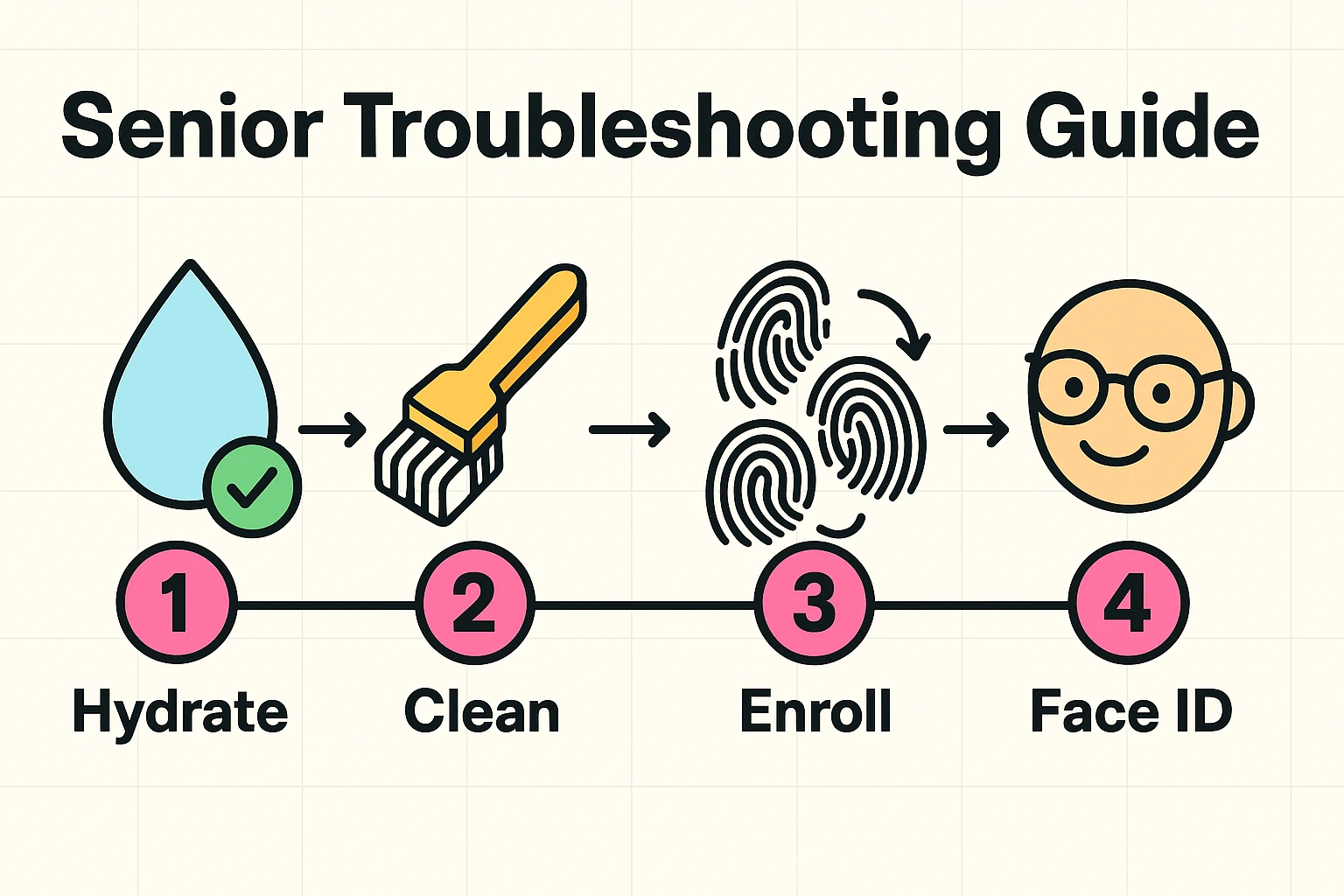
If biometrics have been frustrating for you, try these senior-specific fixes to make the technology bend to your needs, rather than the other way around.
Don’t just scan your dominant thumb once and call it a day. Your phone allows you to save multiple fingerprints. Scan your right thumb, your left thumb, and your index fingers. Pro Tip: If your thumbprint is really fading, scan the same thumb twice as two separate entries. This gives the phone twice as much data to work with! Also, a little dab of hand lotion before scanning can plump up the skin just enough to make the ridges readable.
Because fingerprints fade, facial recognition is actually the superior choice for most seniors. But how do you get it to work consistently? Use the “Mirror Test.” Hold your phone exactly the way you would hold a small hand mirror to check if you have spinach in your teeth. That distance—about 10 to 18 inches from your face—is the sweet spot.
Modern facial recognition is incredibly smart. It maps the 3D shape of your face, meaning it works perfectly fine if you put on your reading glasses, wear a hearing aid, or decide to grow a spectacular winter beard.
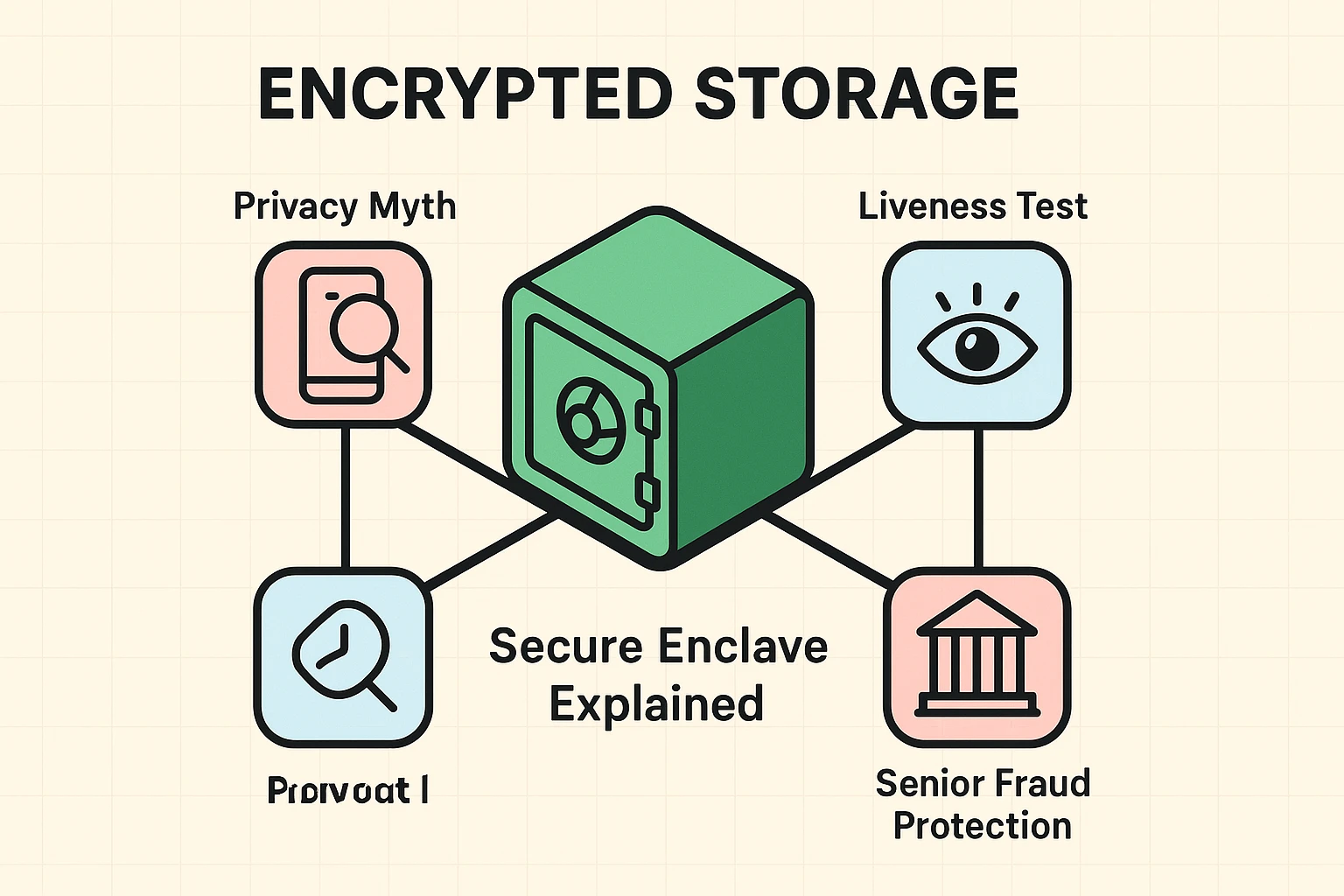
No! This is a great question. Modern smartphones use a “liveness test.” They shoot invisible infrared dots onto your face to measure depth. A flat photograph won’t work. The phone also uses “blink detection,” meaning it checks to make sure your eyes are open and looking at the screen.
Because of the “blink detection” mentioned above, someone cannot hold your phone up to your sleeping face to unlock it via Face ID. (Though technically, they could press your sleeping thumb to a fingerprint reader—so maybe lock your bedroom door if your grandkids are visiting and feeling mischievous).
Yes, but only one! You still need a master device passcode (usually a 4 or 6-digit number) for when you restart your phone or if the biometric sensor fails. But for your dozens of individual apps—like your bank, your email, and your pharmacy—your face or finger will do the heavy lifting.
If you rely on a family member for tech support, you can easily add their fingerprint to your device, or use the “Set Up an Alternate Appearance” feature in your Face ID settings to grant them access.
Technology should make your life easier, not leave you grumbling at a tiny glowing rectangle. By switching to biometric logins, you drastically reduce your risk of falling victim to password-stealing scams, all while saving yourself a lot of typing.
Take five minutes today to dive into the “Settings” menu on your smartphone. Look for “Face ID & Passcode” or “Touch ID & Passcode.” Follow the on-screen prompts, remember our little troubleshooting tricks, and officially retire your thumb from its life of unemployment.