Newsletter Subscribe
Enter your email address below and subscribe to our newsletter

Enter your email address below and subscribe to our newsletter
Picture this: the power goes out, and you need to find that stash of emergency candles you bought in 1998. You download a simple “Flashlight” app on your smartphone to help you navigate the dark. But before it lets you use the light, a box pops up asking for access to your Location, your Contacts, and your Microphone.
Why does a flashlight need to know your location? Is it planning to order a pizza? Does it need to call your sister to tell her it’s dark in your hallway?
If this has ever made you suspicious enough to toss your phone onto the couch and sit in the dark, you are not alone. Many seniors are rightfully wary of these bizarre digital demands. Today, we’re going to demystify “app permissions” so you can take back control of your phone—without needing a degree in computer science.
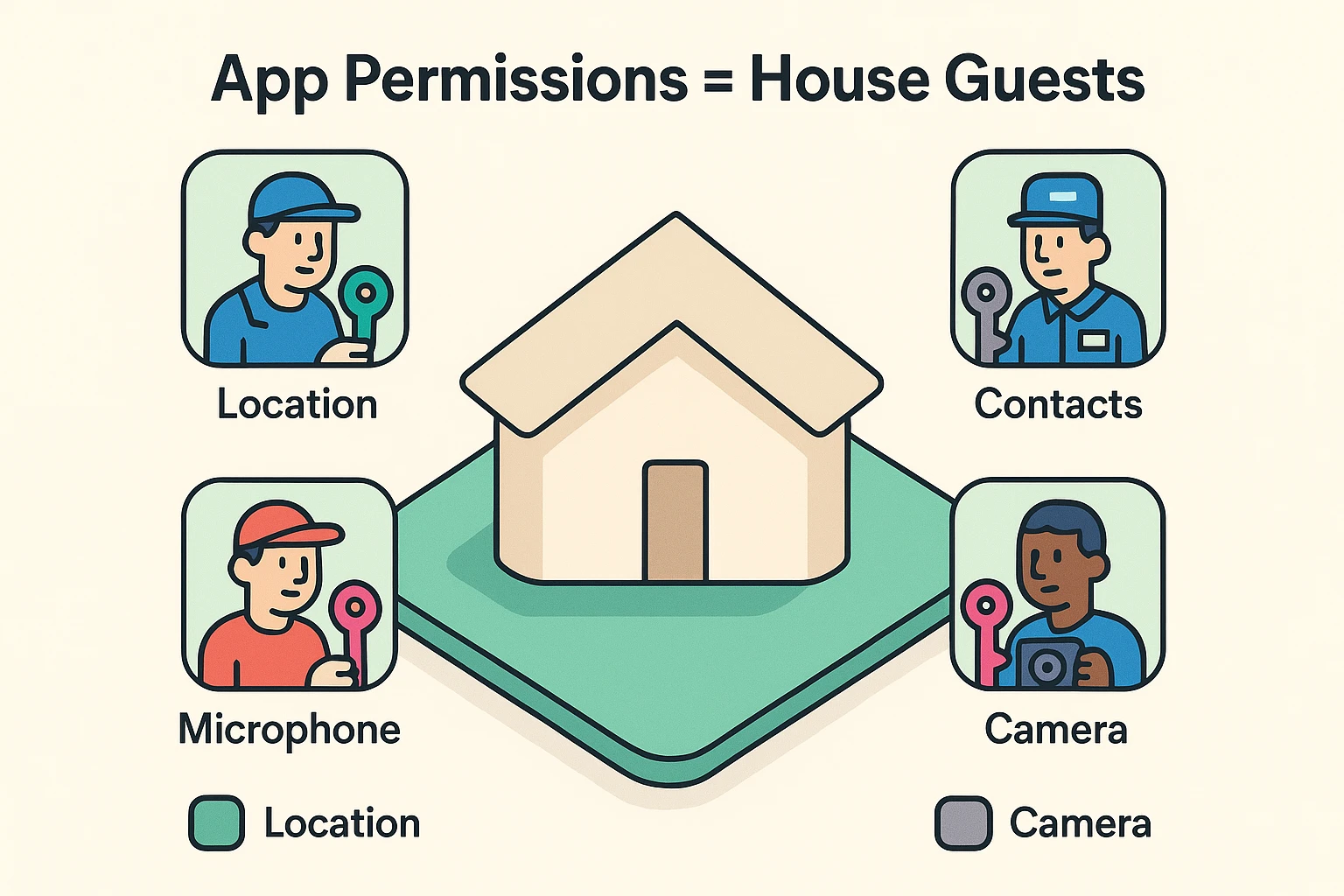
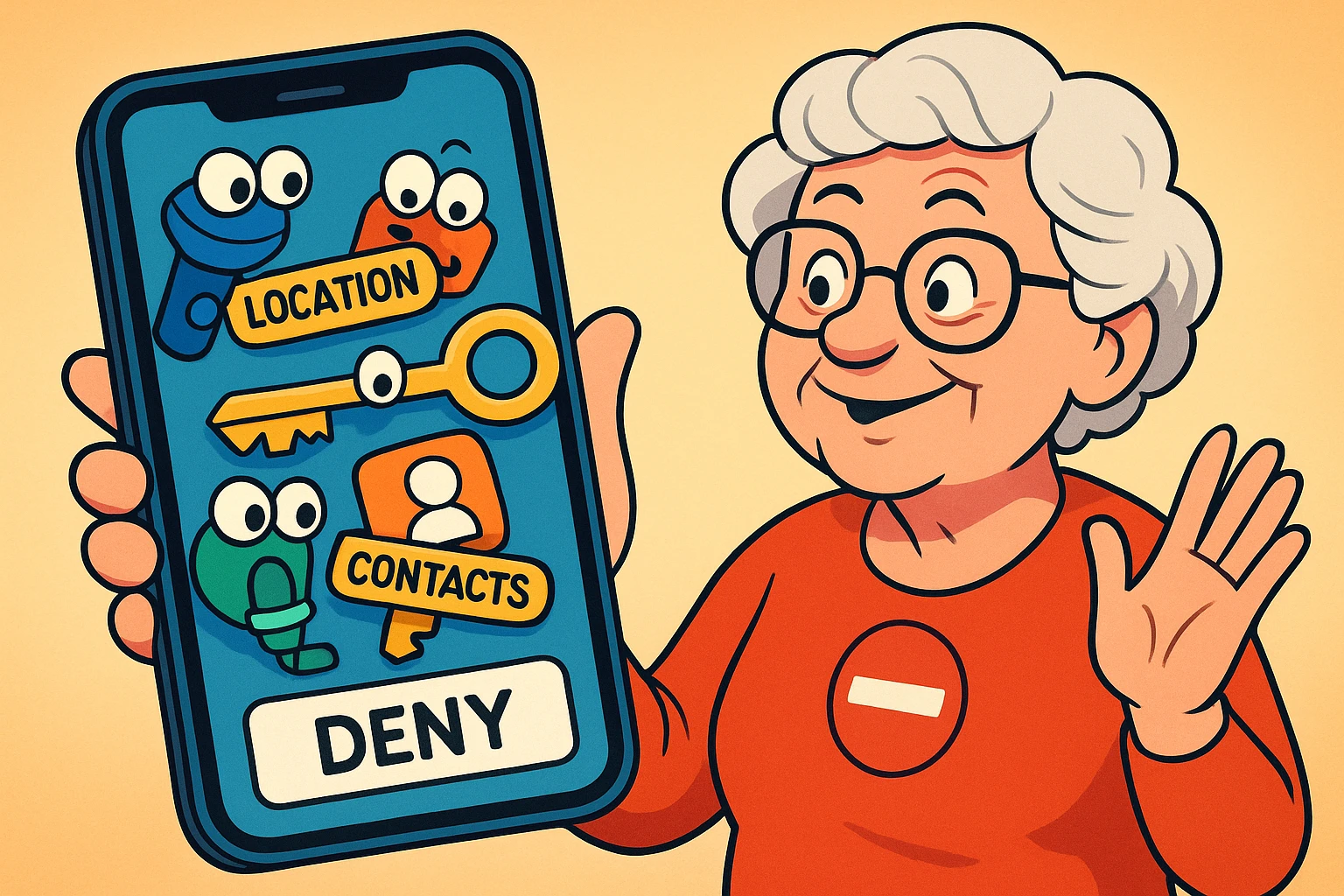
Think of your smartphone as your house. When you download a new app, you’re essentially inviting a guest inside. But just because you let the plumber in to fix the kitchen sink doesn’t mean he needs a key to your bedroom safe or permission to read your diary.
App permissions are simply apps politely (or sometimes aggressively) asking for the “keys” to specific rooms in your digital house. A map app needs the key to your location to give you accurate driving directions. A video calling app needs the keys to your camera and microphone so your grandkids can actually see and hear you.
But a digital solitaire game? It belongs in the digital living room. If it asks for the key to your contacts or your camera, you have every right to slam the door in its digital face.
When apps come knocking, they are usually looking for one of these five main keys. Let’s look at what they do:
Location: This tells the app exactly where you are standing on planet Earth. It is great for weather apps and maps. It is completely unnecessary for simple games, calculators, or puzzle apps.
Camera: This lets the app take photos or video. It’s essential for Zoom, Skype, or snapping pictures of your cat. It is highly suspicious if a recipe app wants it.
Microphone: This allows the app to hear you. It’s wonderful for voice-to-text dictation or making phone calls. It’s a massive red flag for a crossword puzzle app.
Contacts: This gives the app access to your entire digital address book. Social media apps want this to “find your friends” (and harvest their data). Say no unless it’s an app you actually use for texting or calling your loved ones.
Storage/Photos: This lets the app look through the files and pictures saved on your phone. If you’re using a photo-editing app, this makes perfect sense. Otherwise, keep your digital photo album locked up tight.
This is the number one fear that keeps older adults handing over their privacy. You get a pop-up, you panic, and you tap “Allow” just so you don’t accidentally break the internet or cause your phone to spontaneously combust.
Take a deep, relaxing breath. Saying “No” is completely safe. It will not break your phone, and it will not delete your emails.
The absolute worst thing that happens is the app might not be able to perform a specific function. For example, if you deny a weather app your exact location, it won’t crash. It will just ask you to manually type in your zip code. That is a perfectly fine trade-off for keeping your privacy intact!
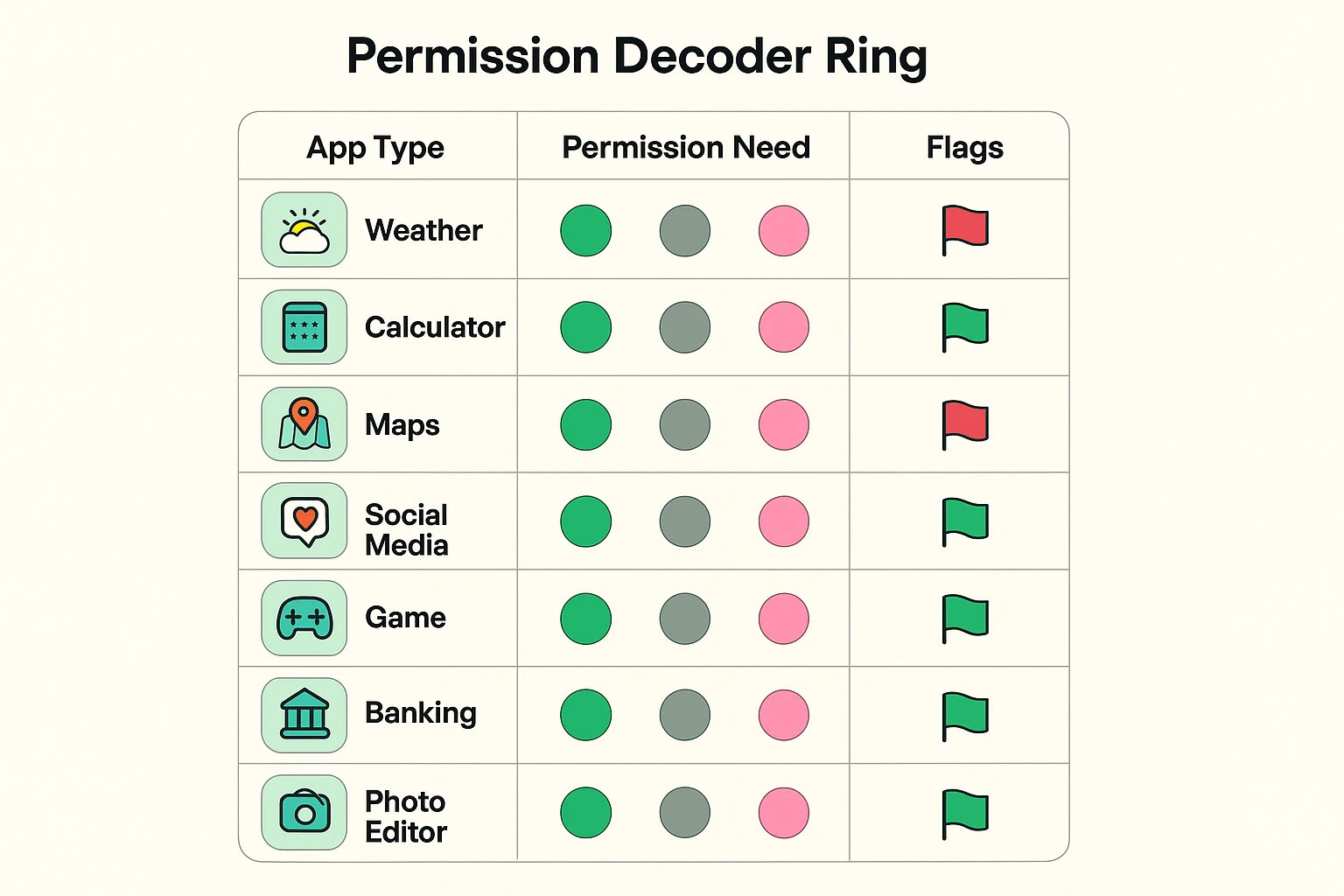
When deciding whether to grant permission, use plain old common sense. We like to call it the “Weather vs. Calculator” test.
If a weather app wants to know your location, that’s a Green Flag. It needs to know if you’re in Miami or Minneapolis so it doesn’t tell you to wear a winter parka to the beach. The permission makes logical sense for the job the app does.
But if a calculator app wants to know your location? That’s a giant Red Flag. Math works the exact same way in Florida as it does in Minnesota. Two plus two is four, regardless of your zip code. If an app is asking for something it clearly doesn’t need to do its job, politely decline.
Here is a brilliant feature modern smartphones have added: temporary permission. When an app asks for your location or camera, you usually don’t have to choose a permanent “Yes” or “No.”
You’ll often see an option that says “Allow Once” or “Ask Every Time.” This is the digital equivalent of giving a repairman a one-time visitor badge instead of cutting them a permanent house key.
If you’re unsure whether an app really needs your camera, choose “Allow Once.” Once you close the app, the permission vanishes into thin air. It’s the ultimate zero-commitment privacy hack!
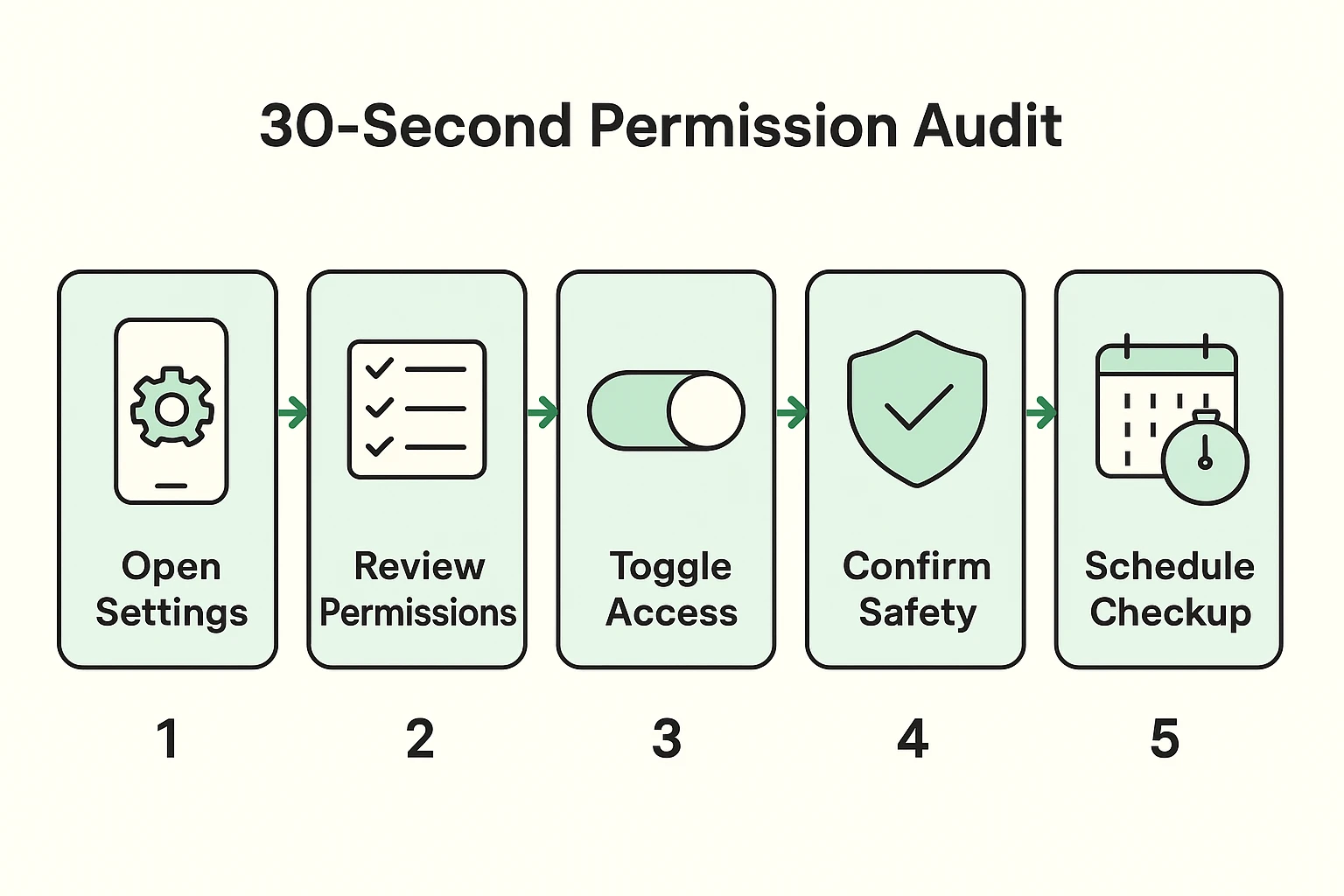
Even if you’ve been handing out digital house keys like Halloween candy for the past five years, don’t panic. The beautiful thing about smartphones is that you can always change the locks.
Taking a quick “permission audit” once a month is a fantastic digital housekeeping habit. It takes less time than making a cup of coffee, and it puts you firmly back in the driver’s seat. Here is how to do it:
For iPhone and iPad Users:
For Android Users:
While you’re digging around in your phone’s settings, you might notice some unfamiliar terms. Let’s clear those up before they cause any unnecessary wrinkles.
First, you might see App Clips (on Apple) or Instant Apps (on Android). These are tiny, temporary versions of apps. Imagine you’re paying for a parking meter with your phone; a temporary app pops up just long enough to process your payment, then politely disappears. They are completely safe and don’t permanently sit on your phone snooping on your data.
Second, you might see Background App Refresh. This is just your phone allowing apps to update their information while you aren’t looking. It’s the reason your email app already has new messages waiting the second you open it. It’s not a security threat, but turning it off for apps you rarely use is a great way to save your phone’s battery life!
Almost certainly not. Modern phones have brilliant built-in safeguards. If you see a tiny green or orange dot at the very top of your screen, it means your camera or microphone is actively being used. If you see that dot while you’re just staring at your home screen doing nothing, it’s time to check your permissions!
This means the app wants to follow your activity across other companies’ apps and websites to show you highly targeted ads. Always tap “Ask App Not to Track.” They don’t need to know you bought orthopedic shoes on Tuesday just to show you a casserole recipe on Wednesday.
Don’t fret! You didn’t break it forever. Just go back into your Settings (using the 30-second audit steps we covered earlier), find the app, and flip the permission switch back on. You can change your mind as many times as you like. You are always in control.
Navigating the modern digital world can sometimes feel like walking through a bustling bazaar where everyone is trying to grab your attention—and your personal data. But remember, your smartphone is your property, and you make the rules.
You are the boss, the landlord, and the head bouncer of your digital club. If an app wants access to your personal information, make it earn it. Don’t be afraid to say no, utilize the “Ask Every Time” feature, and regularly clean out those digital house keys.
Stay curious, stay safe, and remember: no matter how much it begs, your digital crossword puzzle never needs to know your GPS location.