Newsletter Subscribe
Enter your email address below and subscribe to our newsletter

Enter your email address below and subscribe to our newsletter
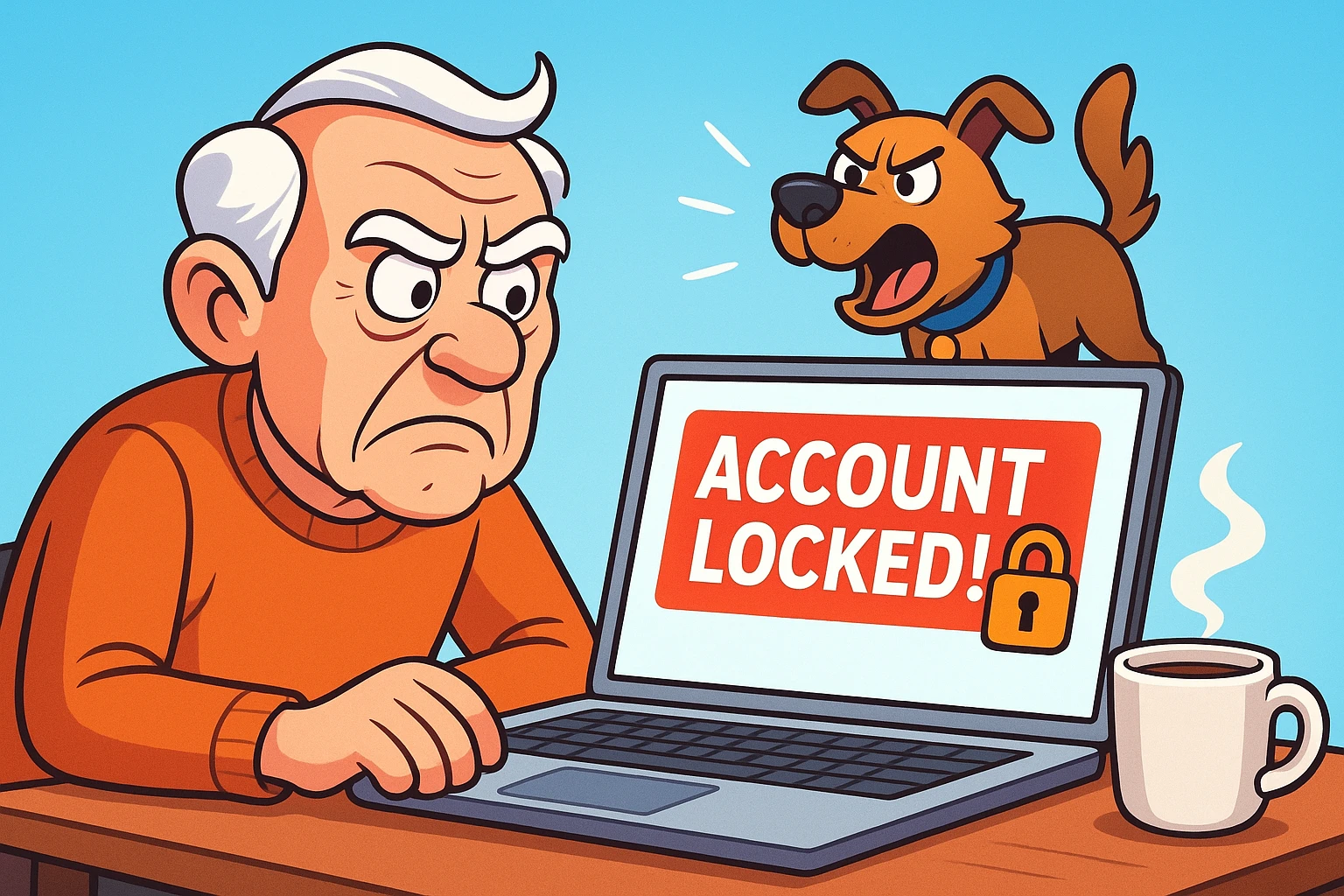
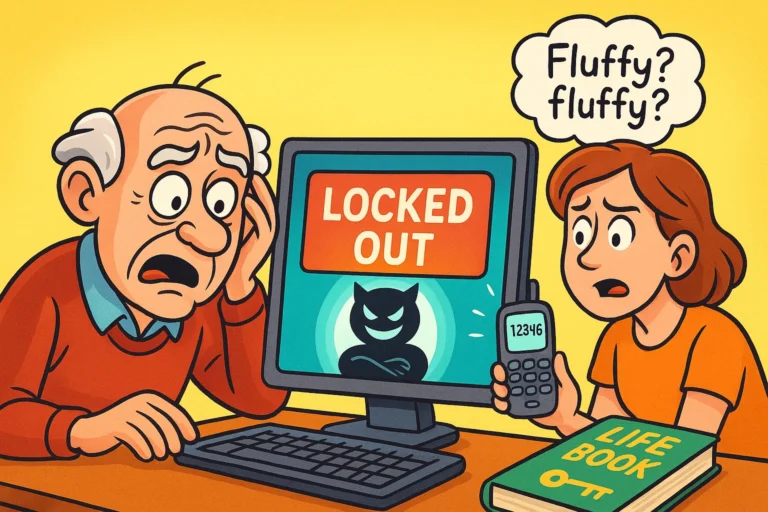
Picture this: You sit down with a fresh cup of coffee, ready to email your grandson about his birthday or perhaps check the tracking number for that new orthopedic pillow you ordered. You type in your password—the one you swear on your favorite spatula is correct—and… nothing.
The screen shakes its head at you. “Incorrect password,” it says, in that cool, unfeeling font. You try again. Maybe it was a capital ‘P’? Nope. Maybe you used your old cat’s name instead of the new one? Still no.
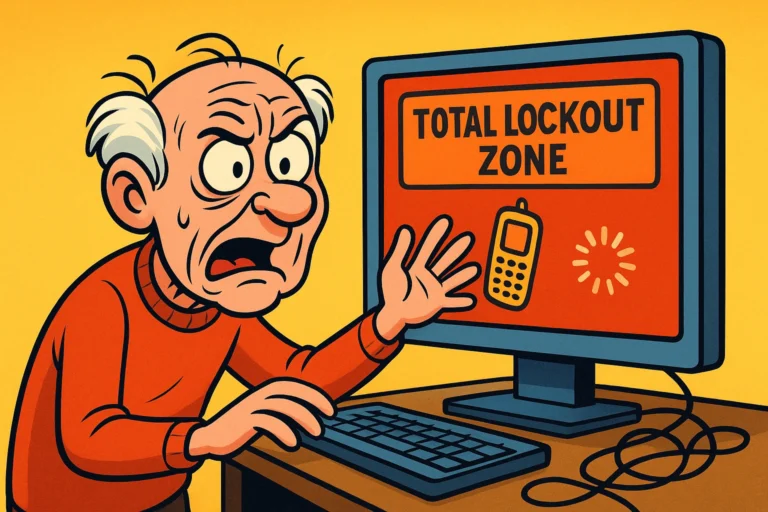
Suddenly, the coffee doesn’t taste as good. A cold sweat starts to form. Being locked out of your Google account isn’t just about missing emails; for many of us, it’s like coming home to find the locks changed and your furniture on the front lawn. It holds your photos, your contacts, and practically your entire digital life.
If you are currently staring at a “Locked Out” screen, take a deep breath. You haven’t broken the internet, and you (probably) haven’t lost everything. Google is just being an overprotective guard dog. It doesn’t recognize you, so it’s barking.
We are going to teach you how to pet the dog, get back in the house, and make sure you have a spare key for next time.
Before we start clicking buttons, it helps to understand why this is happening. You might think Google is just being difficult, like a toddler refusing to eat peas. But actually, Google is trying to stop hackers.
To a computer, a person who types the wrong password three times quickly looks exactly like a criminal trying to break in.
Google relies on a “Digital Fingerprint” to know it’s you. This isn’t your actual thumbprint; it’s a combination of:
When you try to log in from a new iPad at a hotel in Florida using a password you haven’t used in a year, Google’s alarm bells ring. To get back in, we need to calm those alarms down.
Most people panic and start clicking “Forgot Password” frantically. Don’t do this. It triggers Google’s security cooldown, which can lock you out for longer.
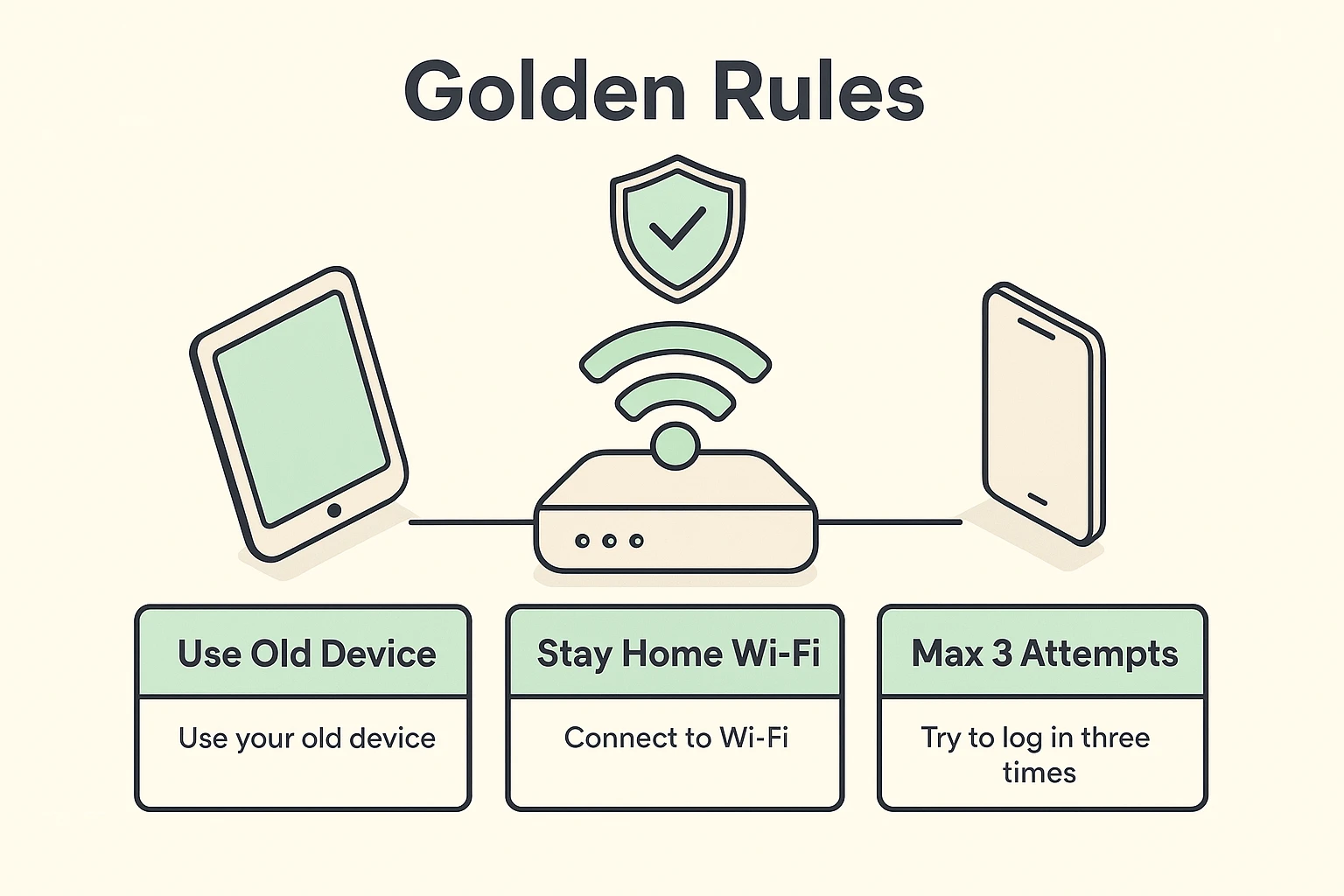
Follow these three Golden Rules before you start the recovery process:
Do not try to recover your account on your brand-new computer or a friend’s phone. Find the device you use most often—the dusty laptop or the phone with the cracked screen. Google “trusts” that device.
Connect to your home Wi-Fi. Do not try to do this from a coffee shop or the library. Google knows your home internet address. Being there is like showing ID.
If you have already tried and failed 5 or 6 times in the last hour, stop. Walk away. Google puts a temporary block on accounts that are “spamming” the recovery page. Wait 24 hours to let the security system cool down. I know it’s hard, but patience is your best tool here.
Ready? Let’s try to get back in.
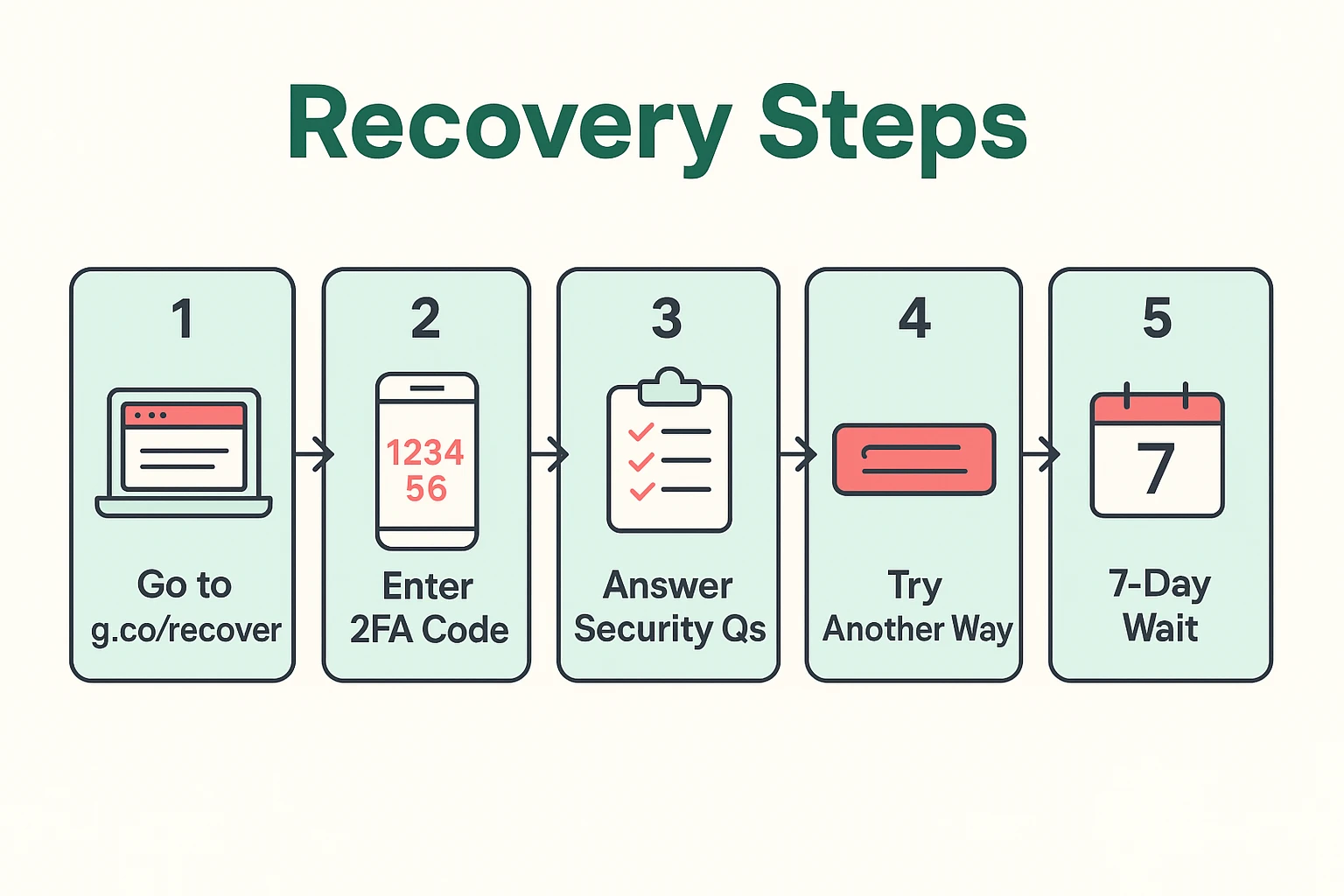
1. Go to the Recovery Page
Open your browser and type in g.co/recover. This is the direct line to the recovery tool.
2. Enter Your Email
Type in your Gmail address. If you can’t remember it, there is a “Forgot email?” link, but you’ll need to know the name on the account and the recovery phone number.
3. The Password Guess
Google will ask for the last password you remember. If you think you know it, type it in. If you have absolutely no idea, click “Try another way.”
4. The “Try Another Way” Loop
This is where people get frustrated. Google will cycle through different questions.
Important Note: You do not have to answer every single question. If Google asks for a code from a phone number you disconnected in 2015, don’t panic. Look for the link at the bottom that says “Try another way” or “I don’t have my phone.”
“But wait!” I hear you cry. “I don’t have that phone number anymore, and I forgot the password to my backup email!”
This is the tricky part. If you have no recovery options set up, Google has to verify you manually.
This is not an instant fix. Google creates a “Security Hold” that usually lasts 3 to 5 days. A real human or an advanced system reviews your request to ensure you aren’t a hacker. They check your location (Rule #2) and your device (Rule #1).
Do not submit the form five times a day. It resets the clock. Submit it once, and then go do some gardening.
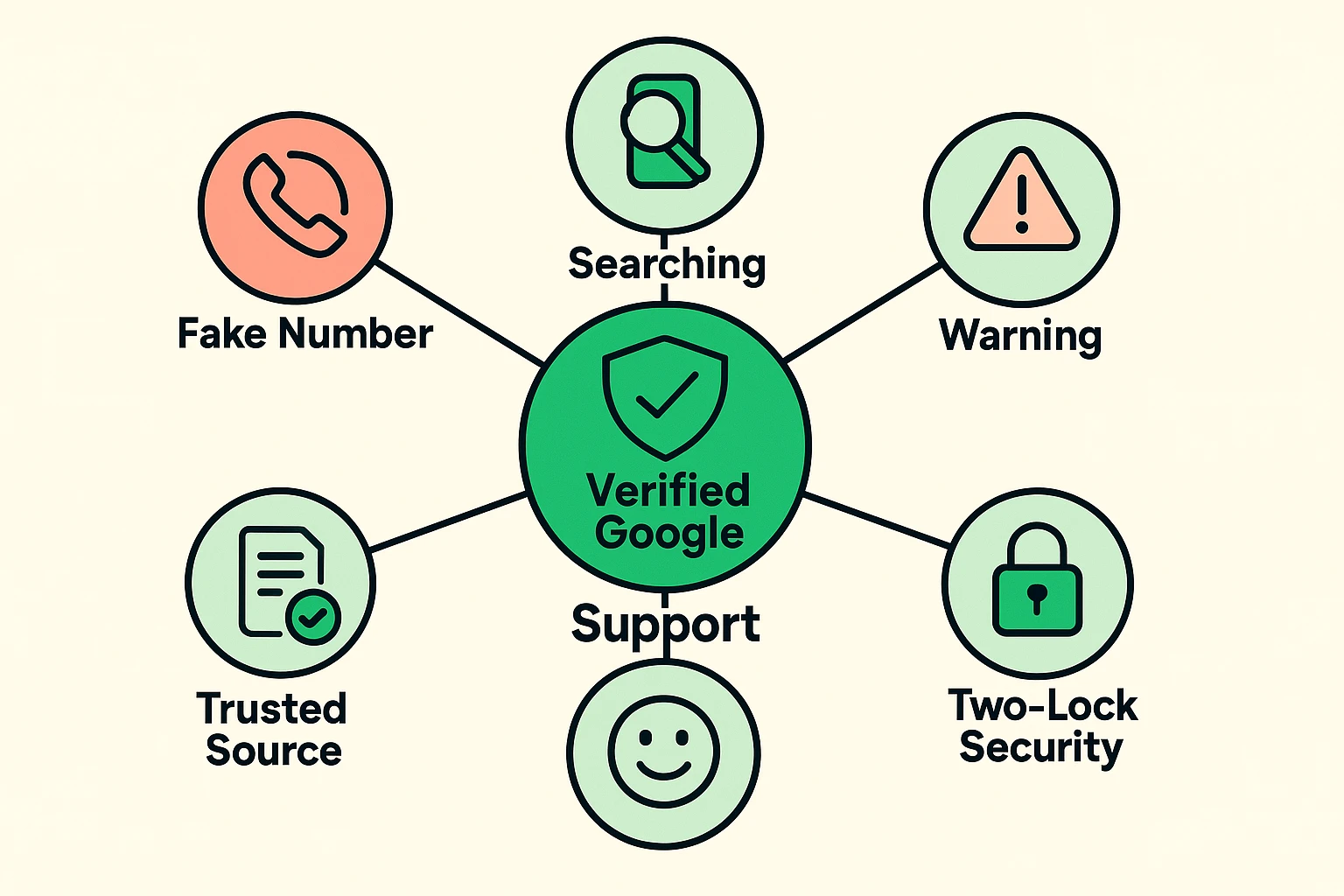
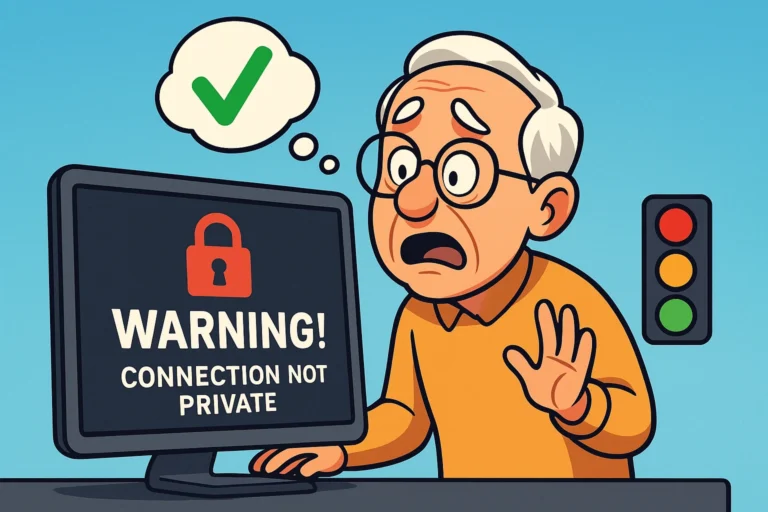
When you are desperate, you are vulnerable. Scammers know this. If you search online for “Google Phone Number,” you will find dozens of 1-800 numbers promising to unlock your account for a fee.
Google does NOT have a phone number for account recovery.Google will NEVER ask you to pay to unlock your account.
If you call a number and a nice young man says he needs remote access to your computer or asks for your credit card to “verify your identity,” hang up immediately. These are predators. If you find a third-party service claiming they can help, you must check their website carefully for red flags before giving them any information (spoiler alert: they are usually fake).
Once you get back in—and you will—let’s make sure we never have to do this dance again.
Go to your Google Account settings, find “Security,” and update your phone number and recovery email. If you change your phone number in the future, updating Google should be the second thing you do (right after calling your kids to tell them the new number).
This is the “Golden Ticket.” In your security settings, you can generate a list of 10 “Backup Codes.” These are one-time passwords.
Unfortunately, no. Google has billions of users. If they had a call center, the line would wrap around the Earth three times. The online recovery form is the only way.
Google prioritizes the security options you set up when you created the account. If you never updated them, it defaults to the old info. Use the “Try another way” link to bypass it.
Wait until you get home. Your home Wi-Fi is the strongest proof of identity you have. Trying to recover an account from a foreign country triggers high-alert security protocols.
Getting locked out is stressful, but it’s manageable. It’s the digital equivalent of misplacing your car keys—frustrating, but not the end of the world. By staying calm, using your trusted devices, and avoiding scams, you can navigate the recovery process safely.
Now, go pour that second cup of coffee. You’ve got this.