Newsletter Subscribe
Enter your email address below and subscribe to our newsletter

Enter your email address below and subscribe to our newsletter
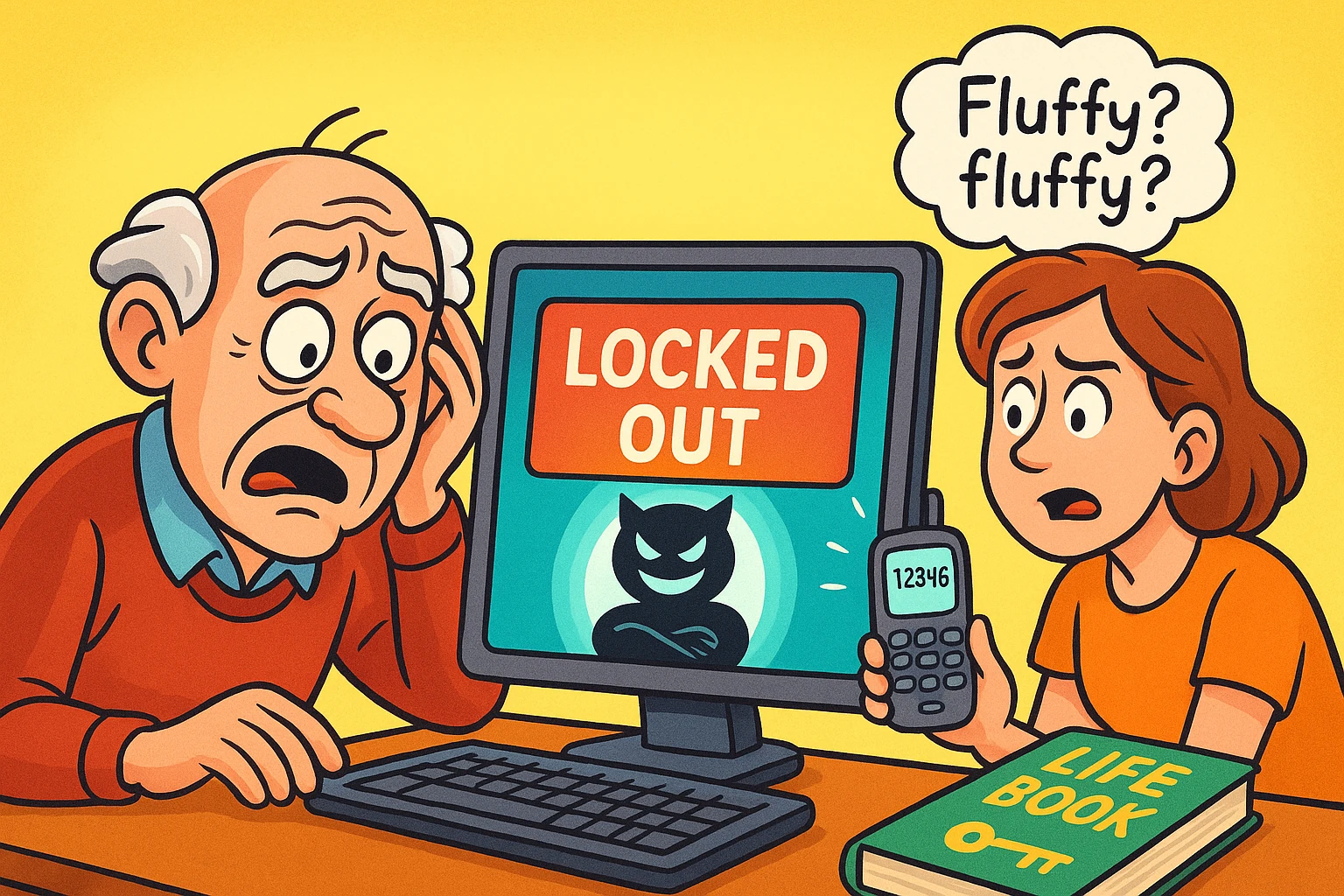
Picture this: It is 2:00 PM. You are on the phone with your mother. She needs to see a message from her doctor about a prescription refill. The doctor’s office, in their infinite wisdom, has sent this vital health information to a “secure portal.”
To enter this portal, your mother needs a username (which she thinks is her email address, but might be her first initial and last name), a password (which she assures you is “the one with the numbers”), and a six-digit code sent to a mobile phone that is currently in a purse, located in a different room, possibly under a pile of mail.
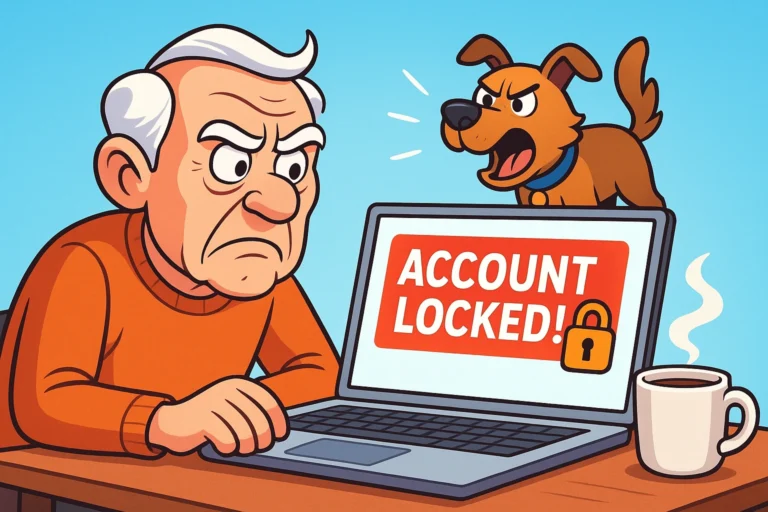
By the time she retrieves the phone, the code has expired. The portal locks her out. The “Forgot Password” link asks for the name of her first pet, and she can’t remember if she typed “Fluffy,” “fluffy,” or “Mr. Fluff-Face.”
If this scenario raises your blood pressure, welcome to the club. You are dealing with the “Digital Bouncer”—that invisible security wall designed to keep hackers out, but which mostly succeeds in keeping seniors out of their own lives.
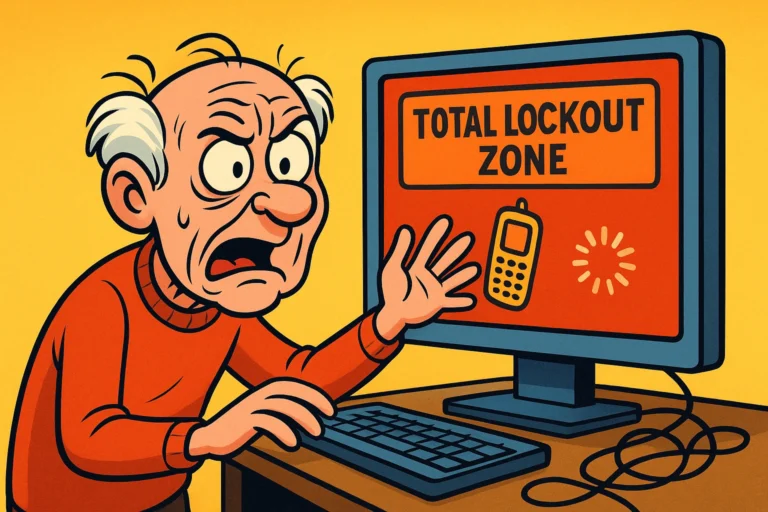
We often talk about “Digital Legacy” (what happens to accounts after someone passes away), but there is a massive gap in information regarding the “Living Lockout.” This is when a senior is very much alive but is technically exiled from their financial, medical, or professional accounts due to memory lapses, lost devices, or just the sheer complexity of modern cybersecurity.
We’re going to walk through how to fix this without losing your mind, breaking the law, or making your loved one feel incompetent.
When the panic sets in, your first instinct might be to just hit “reset” on everything. Pause. Take a breath. Digital lockout usually happens in layers, and if you pull the wrong thread, the whole sweater unravels.
Before you try to reset a bank or medical password, check the email account. The email address is the “Master Key.” If your loved one can’t get into their email, you cannot reset any other password because that is where the reset links go.
The Strategy: Check for “stayed logged in” devices. Is there an old iPad on the coffee table? A laptop they rarely close? Often, the email is still open on a secondary device even if the phone is locked.
Two-Factor Authentication (2FA2FA, or Two-Factor Authentication, is a security measure that uses two different types of proof to v... More) is that annoying feature where they text you a code. It is great for security and terrible for seniors with mobility or vision issues.
If the “trusted device” (the phone receiving the codes) is lost or broken, look for “Backup Codes.” When accounts are set up, platforms like Google or Apple often ask you to print a list of one-time codes. Check the physical files—the filing cabinet or the drawer where they keep the appliance manuals. You might find a printout that looks like a string of gibberish. That gibberish is gold.
Here is a fun fact: Technically, logging into your parent’s account pretending to be them is a violation of the Terms of Service (ToS) for almost every major tech company. It’s the “Computer Fraud and Abuse Act” equivalent of jaywalking—everyone does it to help Grandma, but you need to be careful.
You need to move from “sneaking in” to “authorized helping.”
Most General Power of Attorney (POA) documents are useless for Facebook or Google. They allow you to handle finances, but they don’t explicitly cover “digital assets.”
Enter RUFADAA (Revised Uniform Fiduciary Access to Digital Assets Act). It sounds like a spell from Harry Potter, but it’s actually a law adopted by most states. It grants a fiduciary (that’s you, the helper) the legal right to manage digital files.
Action Item: Check if your loved one’s Power of Attorney includes a specific “Digital Assets” clause. If not, a bank might let you sign a check, but they won’t let you reset an online banking password.
If you have to call support, never say, “I’m trying to log in as my mom.” Say, “I am the authorized agent assisting the account holder.” It sounds stuffy, but it keeps the support agent from hanging up on you due to security protocols.
Tech companies have finally realized that people age. They have built “backdoors” for families that are perfectly legal and safe. You just have to turn them on before the crisis.
This is a terrible name, because it sounds like it’s for dead people. It’s not. It’s for inactive accounts. You can set it so that if your dad doesn’t log in for 3 months, Google automatically emails you a link to download his data or access his account. It’s a failsafe.
If your senior uses an iPhone, set yourself up as a Legacy Contact. While this is primarily designed for after passing, having this status established verifies your relationship to the Apple ID, which can smooth out verification hurdles significantly during “living” crises where identity proof is required.
Did your parent have a career in tech or engineering? They might have accounts on platforms you’ve never heard of, like Keycloak, AppNexus, or Radwin.
These aren’t just social media sites; they may contain intellectual property, consulting data, or professional networks that are vital for their pension or legacy. Don’t ignore the weird-sounding apps on their phone. A “retired” engineer often has digital assets that are just as valuable as their physical ones.
We have spent years telling seniors to create passwords like P@ssw0rd1!. This is bad advice. It is hard to type on a smartphone keyboard, hard to remember, and computers can guess it pretty easily.
Switch them to Passphrases. Four random words strung together.
G&paLuvsU24Blue-Hills-Coffee-TableIt is mathematically harder for a hacker to crack Blue-Hills-Coffee-Table, but it is infinitely easier for a senior to remember and type. It requires less switching between the “ABC” and “123” keyboards on a phone.
Security experts scream, “Never write your password down!” Security experts do not have a 78-year-old mother who just got locked out of her Medicare account for the third time this month.
We recommend a Hybrid Approach.
Technically, most Terms of Service prohibit sharing passwords. However, if you have a Digital POA (RUFADAA compliant) and consent from the senior, you are acting as their agent. The law is catching up, but generally, acting in their best interest with permission is the standard.
This is tricky. If they cannot consent, you generally need a Power of Attorney that is “Durable” (meaning it stays in effect after they lose capacity). Without that legal document, platforms will not talk to you, even if you are the next of kin.
Yes, but with a caveat. Password managers are great, but they require remembering one very strong master password. If they forget that one, they lose everything. If you use one, make sure you know the master password, or write that single master password in the “Life Book.”
Helping a senior regain access isn’t just about tech support; it’s about preserving their dignity and independence. It’s about ensuring they can see their medical records, pay their bills, and yes, look at photos of the grandkids without a digital bouncer standing in the way.
Start simple. Check the email access. Update the legal docs. And maybe, just maybe, write “Blue-Hills-Coffee-Table” in a notebook and lock it in a drawer.