Newsletter Subscribe
Enter your email address below and subscribe to our newsletter

Enter your email address below and subscribe to our newsletter

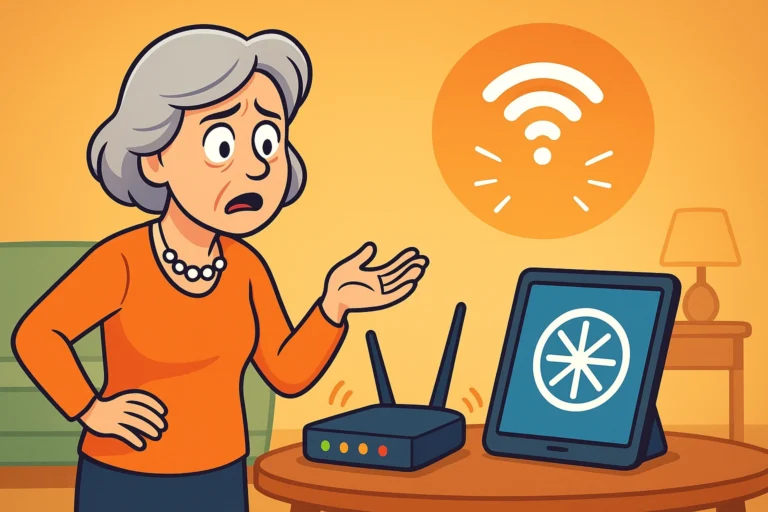
Picture this: You have settled into your favorite armchair with a cup of tea, ready to video call your grandkids or perhaps stream that new British baking show everyone is talking about. You tap your tablet or click your mouse, and… nothing.
Well, not nothing. You get the spinning wheel of death. That tiny, mesmerizing circle that spins round and round, mocking your desire for entertainment. It’s the digital equivalent of being put on hold while listening to elevator music.
But here is the kicker: Your spouse is sitting three feet away, happily watching cat videos on their phone without a single glitch.
This is a special kind of technological betrayal. It’s like being the only person at a banquet who wasn’t served dinner. You look at your router, blinking innocently in the corner. You look at your spouse’s functioning phone. You look back at your frozen screen.
Is your device broken? Does the internet just like your spouse better? Before you threaten to throw your laptop out the window or spend hours on hold with your internet provider, take a deep breath. When the internet is slow on just one device, the problem usually isn’t the “internet” itself—it’s a specific conversation between that one gadget and your router.
Let’s put on our detective hats (sherlock Holmes style, but with better Wi-Fi) and figure out why one device is lagging while the rest of the house is zooming along.

When connectivity issues strike, our instinct is often to blame the Internet Service Provider (ISP). We imagine a cable has snapped somewhere or that “The Cloud” is having a thunderstorm. But if you call your ISP, they will likely tell you everything looks fine on their end. And for once, they might actually be right.
To save yourself a headache, perform “The Phone Test.”
If the phone loads the page instantly while your laptop is still thinking about it, you have successfully diagnosed the problem. The “pipeline” of internet coming into your house is fine. The issue is a clog in the faucet of that specific laptop.
“But wait!” you might say. “My laptop shows full Wi-Fi bars! The signal is strong!”
This is one of the biggest misconceptions in tech. Seeing “full bars” on your Wi-Fi icon does not mean you have fast internet. It simply means your device has a strong ‘hearing’ connection to the router’s broadcast.
Think of it like a radio station. You might have a crystal-clear signal (full bars) from a station playing classical music. But if your radio’s speakers are blown out or the volume knob is stuck (internal device issues), the music will still sound terrible. The signal is there, but the delivery is failed.
Your computer might have a strong connection to the router, but if it is too busy “thinking” about other things to process the data, your internet will feel slow.

If the internet works for everyone else but you, your device is likely suffering from one of three common “clogs.”
We are all guilty of this. You open a recipe, then an email, then a news article, and before you know it, you have 47 tabs open at the top of your screen. Even if you aren’t looking at them, those open tabs are often running in the background, refreshing ads and checking for updates.
It’s like trying to have a conversation with 47 people at once. Eventually, your brain (and your computer’s processor) just shuts down.
The Fix: Be brave. Close the tabs. If you are afraid of losing something, bookmark it. A fresh browser is a fast browser.
Sometimes, your computer decides—without asking you—that right now is the perfect time to download a massive Windows update or run a full virus scan. It’s like someone turning on the garden hose full blast while you are trying to take a shower; the water pressure (internet speed) drops to a trickle.
The Fix: Wait it out, or check your settings to see if an update is pending. If your computer fan is whirring loudly while you aren’t doing anything, this is usually the culprit.
This is the tough one. If you are using a laptop from 2013 and a router from 2024, they might be speaking different languages. Modern routers use super-fast technology (like Wi-Fi 6), but older devices use older standards (like Wi-Fi 4).
Your old laptop is like a Model T trying to drive on a modern Superhighway. The road is fast, but the car simply cannot go over 40 MPH.
Here is a trick that makes tech experts look like wizards. If your internet feels slow, open your browser and switch to “Incognito Mode” (in Chrome) or “Private Browsing” (in Firefox or Safari).
Why? Because this mode turns off all the extra “junk”—the cookies, the extensions, and the saved history—that usually clogs up your browsing.
If you go Incognito and suddenly the internet is fast again, you know the problem isn’t your Wi-Fi card or your router. The problem is likely a browser extension or a corrupted cache. It’s time to manage your extensions or clear your browser cache!
It is a cliché for a reason. Computers, tablets, and phones get “tired.” They hold onto temporary files and processes that get stuck in loops.
Restarting your device (doing a full shut down, not just closing the lid) flushes out all that digital cobwebbing. It forces the device to drop the Wi-Fi connection and re-establish a fresh, clean handshake with the router.
Before you call a technician, give your device a quick nap. You’d be amazed how often this solves the problem entirely.
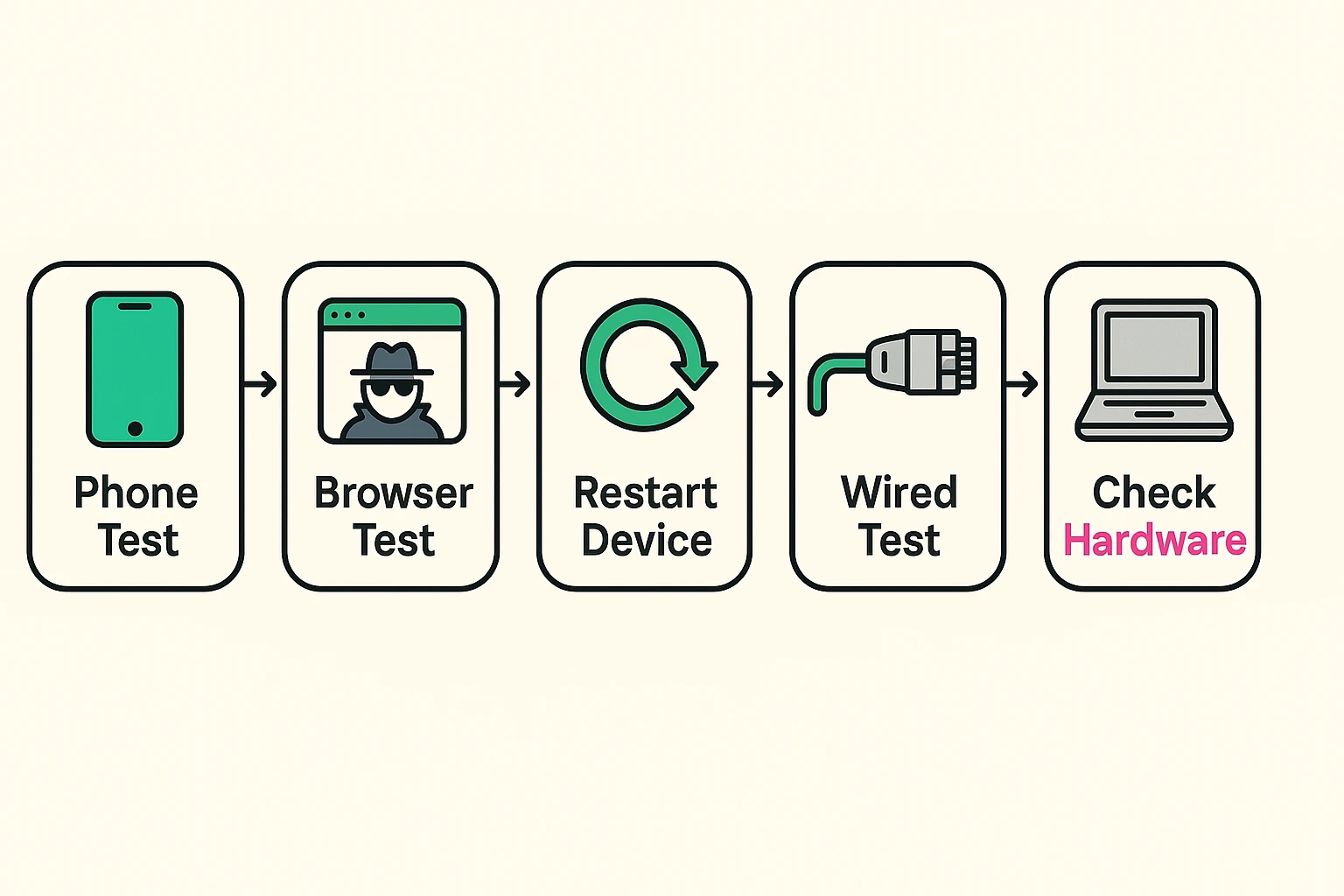
You have restarted the device, you have closed your tabs, and you have verified that your spouse’s phone is still blazing fast. But your computer is still crawling.
If you have an older device (5+ years), it simply might not be compatible with the speeds you are paying for. In this case, you don’t necessarily need a new computer. You can buy a small, inexpensive USB Wi-Fi adapter that plugs into your laptop and gives it “modern ears” to hear the router better.
However, if your device is new and nothing works, it might be time to visit a repair shop to check for malware or failing hardware. Just remember: if the other devices in the house are working, don’t let anyone talk you into buying a more expensive internet plan!
This is usually because apps on iPads are more efficient than full computer programs. Also, laptops run heavy background tasks (like Windows updates) that iPads generally do not.
Probably not. If your phone works fine in the same room, the signal is already there. A booster just makes a loud signal louder; it won’t help a laptop that is struggling to process the information.
Think of a highway. Signal is the road itself—is it paved and smooth? Bandwidth is how many lanes the highway has. If you have great signal but low bandwidth, it’s like a smooth road with a traffic jam.
On a Windows PC, type “Check for Updates” in the search bar. It will tell you if it is currently downloading or installing something. If it is, let it finish—your speed will return once it’s done.
Now that you have ruled out the router, you can stop fighting with your Internet Service Provider and focus on giving your device a little TLC. Try the “Incognito” trick next time you feel the lag—it might just be the “aha” moment you were looking for.
Stay curious, stay connected, and remember: sometimes the computer just needs a nap.