Newsletter Subscribe
Enter your email address below and subscribe to our newsletter

Enter your email address below and subscribe to our newsletter
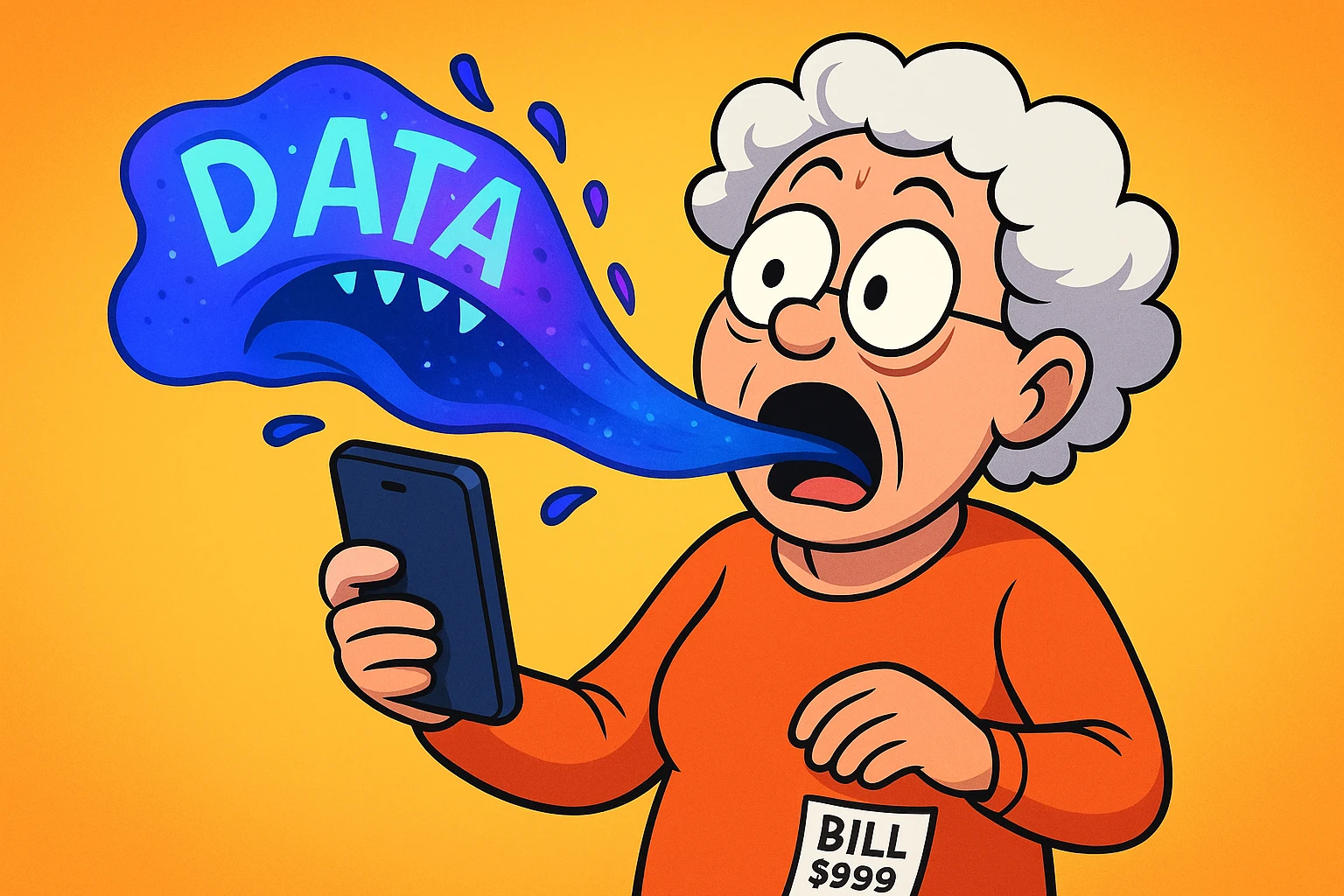
Remember the days when a “bill shock” meant your teenager had spent three hours talking to their crush on the landline, costing you a small fortune in long-distance charges? You’d open the envelope, stare at the total, and wonder if your child had inadvertently called the International Space Station.
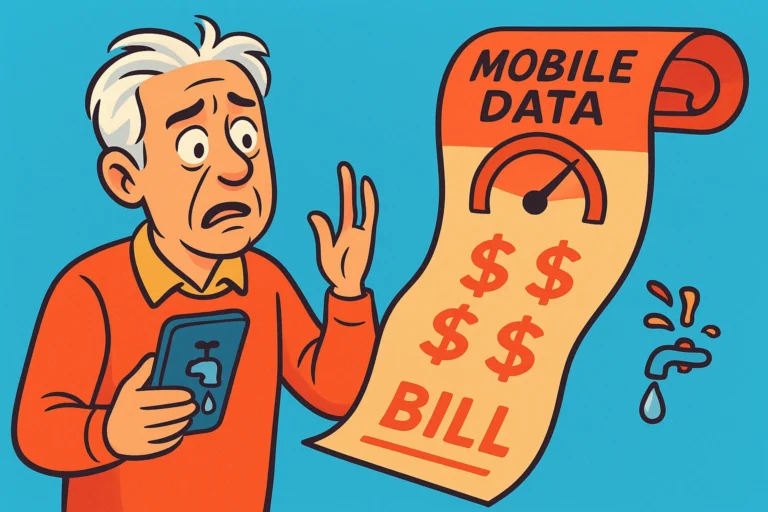
Fast forward to today, and the landline is gone, but the shock remains. You open your mobile phone bill and see that you’ve smashed through your data limit. You receive a stern text message from your carrier saying you’ve used 90% of your data, and there are still two weeks left in the month.
You stare at your phone. It’s just sitting there, innocent and black-screened on the coffee table. You haven’t downloaded any movies. You haven’t video-called the grandkids in Australia. So, who—or what—is eating all your data?
The truth is, your smartphone is a bit like a hungry teenager at an all-you-can-eat buffet. Even when you think it’s sleeping, it might be quietly snacking on gigabytes behind your back. But don’t worry—we’re going to put that phone on a diet.
Before we start pointing fingers at specific apps, let’s clear up a common confusion: the difference between Wi-Fi and Mobile Data.
Think of Wi-Fi like water coming from your garden hose at home. You pay a monthly water bill, but generally, you can run the sprinkler as much as you want without someone charging you by the drop. When you are home, or at a coffee shop, you want your phone drinking from the garden hose.
Mobile Data (or Cellular Data), on the other hand, is like buying premium bottled water at the airport. It’s expensive, it comes in a limited supply, and if you drink too much of it, the shopkeeper (your phone carrier) starts charging you exorbitant fees.
The problem arises when your phone decides to drink the expensive bottled water even when the garden hose is right there. Or worse, when an app decides to throw a pool party using only the bottled water.
Not all apps are created equal. Some sip data like fine tea; others gulp it down like a marathon runner. Here are the three biggest offenders commonly found on seniors’ phones.
Video is the heavy champion of data usage. Watching a movie in High Definition (HD) is the digital equivalent of driving a tank through your data plan.
Streaming a movie on Netflix in standard definition uses about 1 gigabyte (GB) of data per hour. Bump that up to High Definition, and you’re looking at 3 GB per hour. If you watch two movies on the bus ride to visit family, you might have just burned through your entire monthly allowance.
You might think checking Facebook is harmless. You’re just looking at photos of your cousin’s new puppy, right?
The issue is that Facebook and Instagram love to “Auto-Play” videos. As you scroll past a video, it starts playing automatically—whether you wanted to watch it or not. Your phone has to download that video instantly. It’s like ordering a salad and having the waiter dump a steak, three sides, and a lobster on your table, then charging you for it because you looked at it.
Some apps are eager beavers. They want to be ready for you the second you open them, so they constantly refresh their content in the background.
News apps, weather apps, and email accounts are notorious for this. They are constantly checking for updates even while the phone is in your pocket. It’s convenient, sure, but it’s a slow, steady drip that eventually empties the tank.
You don’t need to be Sherlock Holmes to figure out which app is the guilty party. Your smartphone keeps a detailed log of exactly who ate what. Here is how to check your “digital receipt.”
Note: Seeing “System Services” use a bit of data is normal—that’s just the phone keeping its heartbeat going.
Now that we know who the culprits are, it’s time to take control. We aren’t going to ban technology—we’re just going to teach it some table manners.
This is the golden rule of data saving. Go into your app settings (especially for Netflix, YouTube, or Spotify) and look for an option that says “Download only on Wi-Fi” or “Stream only on Wi-Fi.”
This forces the app to wait until you are home connected to your garden hose before it tries to do any heavy lifting. It prevents accidental movie streaming while you’re in the grocery store line.
Do you really need your Stocks app to update every 30 seconds if you only check it once a week? Probably not.
On iPhone: Go to Settings > General > Background App Refresh. You can turn it off entirely, or just turn it off for apps that don’t need to be constantly up-to-date.
On Android: Go to Settings > Data Usage > Data Saver. This prevents apps from sending or receiving data when you aren’t actively using them.
Facebook is a major data vampire because of auto-play videos.
To fix this, open the Facebook app, go to Settings, find “Media,” and change the Auto-play setting to “On Wi-Fi Only” or “Never Auto-play Videos.” Not only does this save data, but it also stops your phone from suddenly blaring loud music when you scroll past a generic “recipe” video in a quiet waiting room.
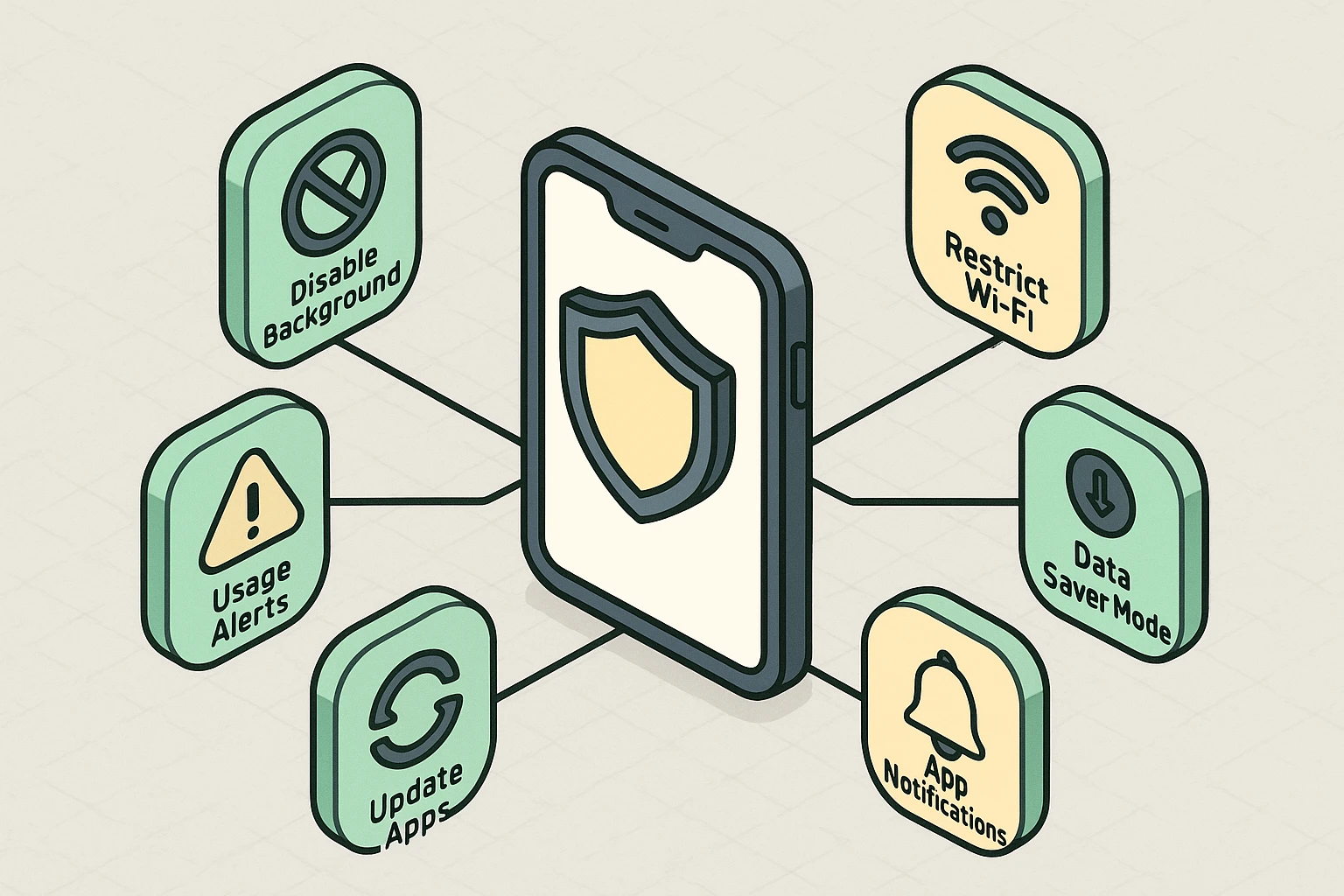
Here at Senior Tech Cafe, we always keep one eye on your wallet and the other on your security. Sometimes, high data usage isn’t just about movies—it can be a sign of something fishy.
If you check your data usage and see that a simple app—like a Calculator or a Flashlight app—is using massive amounts of data, that is a giant red flag. A flashlight app needs zero data to turn on a light.
If an app is transmitting data when it shouldn’t be, it could be “spyware” sending your personal information to a server somewhere far away. If you see an app behaving this way, delete it immediately. It’s not just eating your data; it might be nibbling on your privacy.
Generally, no. Standard SMS (text messages) utilize a different part of the cellular network. However, sending pictures or videos (MMS) often uses a tiny bit of data unless you are using iMessage (blue bubbles on iPhone) or WhatsApp, which definitely use data.
There is a sneaky feature on iPhones called “Wi-Fi Assist” and a similar one on Androids called “Switch to Mobile Data.” If your Wi-Fi signal gets weak (like if you’re in the backyard), the phone automatically switches to cellular data to keep the internet fast. You can turn this off in your Cellular settings if you’d rather have slow internet than a high bill.
This is the most common mix-up in the tech world! Storage is the closet space on your phone (where you keep photos and apps). Data is the traffic on the highway (sending and receiving information from the internet). Deleting photos clears Storage, but it won’t lower your monthly Data bill.
Smartphones are wonderful tools that help us stay connected, entertained, and informed. But they are also designed to consume as much as possible. By checking your settings and making a few tweaks, you can ensure that your phone serves you, rather than you serving your phone bill.
So go ahead, check those settings. Put the data vampires back in their coffins. And maybe use the money you save on data overages to buy yourself a nice treat—one that doesn’t require a Wi-Fi password.