Newsletter Subscribe
Enter your email address below and subscribe to our newsletter

Enter your email address below and subscribe to our newsletter
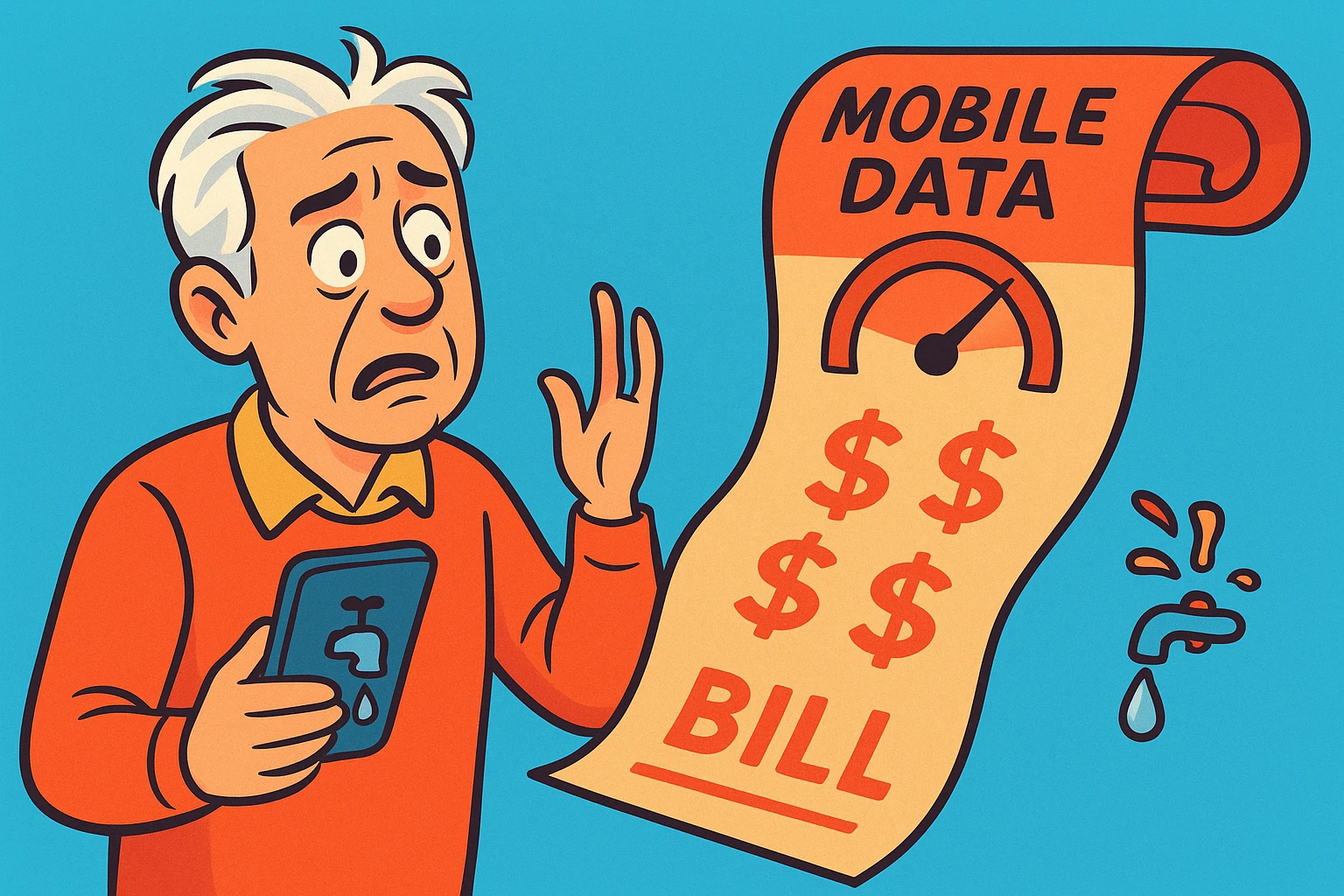
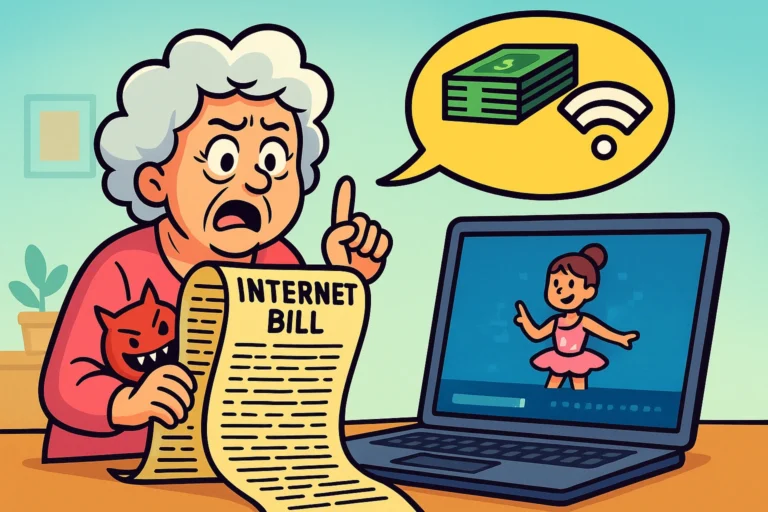
Remember the old days when “roaming” just meant wandering around your backyard aimlessly? Now, it’s a terrifying word that appears on your phone bill, usually accompanied by a dollar amount that could finance a small sedan.
We’ve all been there. You get a text message from your carrier saying you’ve used 90% of your data, and it’s only the 12th of the month. You stare at your phone, betrayed. You haven’t been downloading the Library of Congress. You’ve just been looking at photos of your granddaughter’s new puppy and maybe winning a few rounds of Solitaire.
Mobile data is the invisible fuel that powers our smartphones when we aren’t safely tucked into our home Wi-Fi. It’s magical, convenient, and confusingly expensive if you don’t keep an eye on it. It’s like leaving the garden hose running—it’s fine for a while, until you realize the meter is spinning like a ceiling fan on high.
In this guide, we’re going to demystify mobile data. We’ll explain exactly where those gigabytes go, how to turn your phone into a secure internet hotspot (without melting your credit card), and how to travel without coming home to a bill that makes you weep.
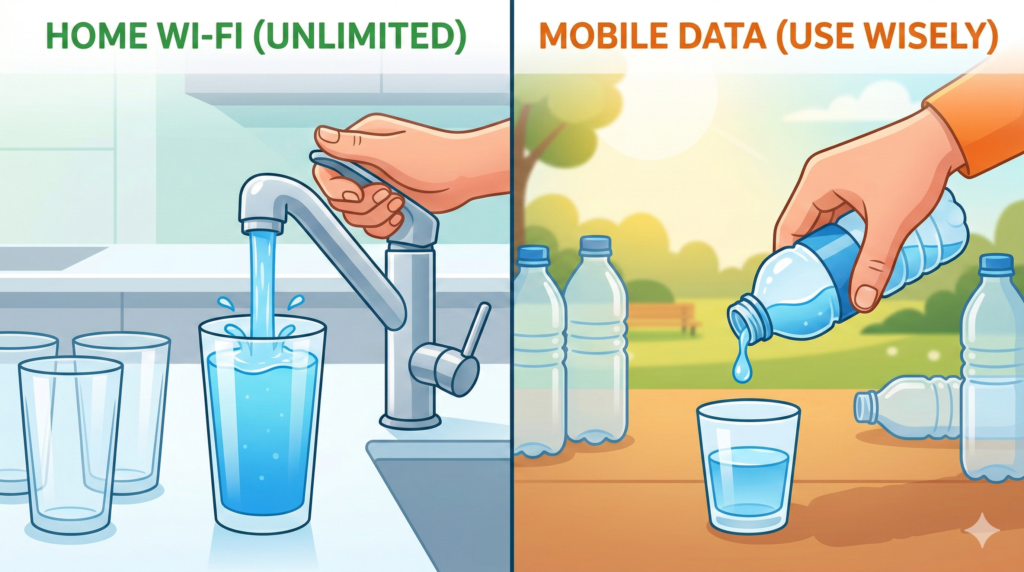
Think of internet access like water. When you are at home, you are connected to Wi-Fi. This is like tap water—you pay a flat monthly fee, and you can generally use as much as you want without worry.
Mobile Data, on the other hand, is like bottled water. It’s portable, convenient, and you can drink it anywhere—at the park, in the car, or at the grocery store. But, depending on your cell phone plan, you have a limited supply. If you drink too much of the bottled water, the store (your carrier) starts charging you a premium price for every extra sip.
Mobile data comes from cell towers, not the cable in your wall. When you see “5G,” “LTE,” or “4G” in the corner of your screen, you are sipping the bottled water. You are using your data allowance.
You’ll hear tech companies shouting about 4G versus 5G. Here is the plain English translation:
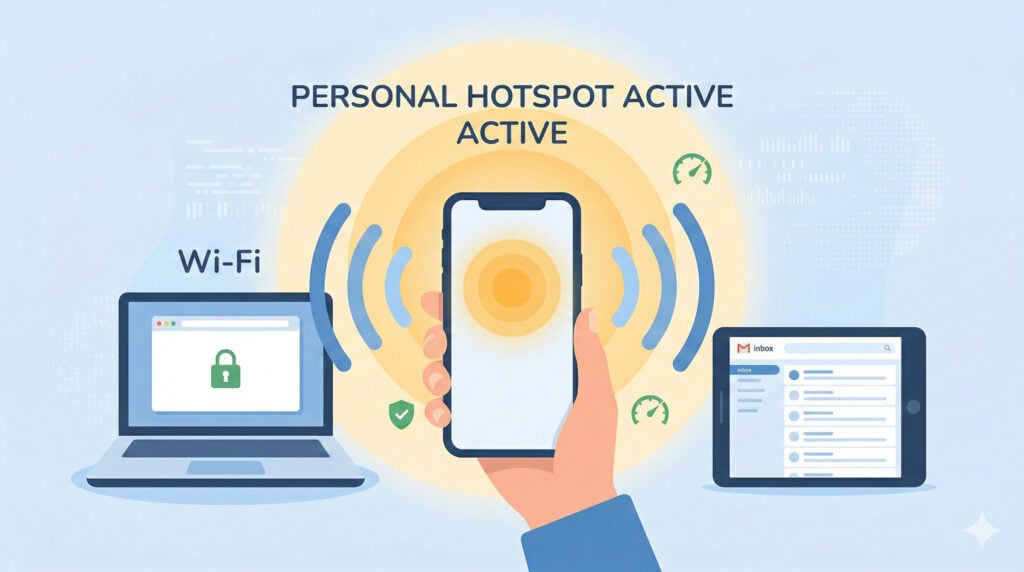
One of the most useful features of a modern smartphone is the Personal Hotspot. This feature turns your phone into a miniature Wi-Fi router.
Let’s say you are at a coffee shop, but their public Wi-Fi is broken (or you don’t trust it because you’ve read our articles on safety). You can turn on your phone’s hotspot, and suddenly your laptop or iPad can connect to the internet through your phone.
There is a common myth that turning on a hotspot burns data faster than regular phone use.
The Verdict: Technically, the hotspot itself doesn’t “burn” extra data. However, the device you connect to it might.
If you connect a laptop to your phone’s hotspot, that laptop doesn’t know it’s running on a limited mobile plan. It thinks it’s on home Wi-Fi. So, it might decide that now is the perfect time to download a massive Windows update or backup 5,000 photos to the cloud"The cloud" refers to storage and services that are accessed over the internet instead of being stor... More. That is what kills your data plan.
Pro Tip: If you use a hotspot, tell your laptop or tablet that it is on a “Metered Connection” (in settings) so it stops doing heavy lifting in the background.
Not all “Unlimited” plans are created equal. In the world of cell phone carriers, “Unlimited” usually means “Unlimited… until we decide you’ve had enough.”
Most carriers have a “cap” on high-speed data—often around 20GB to 50GB. Once you hit that, they “throttle” you. This means they slow your data down to a crawl. It still works, but it feels like trying to browse the web in 1999.
Hotspot data often has its own separate, stricter limit.
If you are wondering how you burned through 5GB of data in a weekend, the culprit is usually video. Text emails and maps use very little data. High-definition video is a data vampire.
Here is a rough breakdown of what eats your data allowance:
You don’t have to stop using your phone to save data. You just have to be smarter than your settings menu. Here are three switches you should flip today.
This feature sounds helpful—if your Wi-Fi signal is weak, the phone automatically switches to cellular data to keep things fast. The problem? It often switches when you don’t want it to, quietly eating your data plan while you think you’re on home Wi-Fi. Turn it off in your Cellular settings.
Both iPhones and Androids have a “Low Data Mode” or “Data Saver” switch. Turning this on stops apps from doing frivolous things in the background, like syncing photos or auto-playing videos, when you aren’t on Wi-Fi. It’s like putting your car in “Eco” mode—you get the same performance, just with better mileage.
Check your App Store or Google Play Store settings. Ensure that “Automatic App Updates” is set to “Over Wi-Fi Only.” App updates can be huge, and you do not want to download a 2GB update for Candy Crush while you’re waiting at the dentist.
Traveling abroad is wonderful until you get the bill. International “roaming” rates are notoriously expensive. We are talking about costs that can exceed $10 per megabyte in some countries. Opening a single email could cost as much as a cappuccino.
Before you get on a plane or a cruise ship, you need a plan.
Your Best Travel Options:
Yes, it is generally much safer than using public Wi-Fi at a cafe or airport. Because the data is coming directly from your cellular carrier to your computer, hackers can’t “snoop” on it the way they can on an open public network. Just make sure your hotspot has a strong password so the person at the next table isn’t mooching your internet.
Signal strength (bars) and data speed are different things. You can have full bars but still have slow data if the cell tower is congested—like a highway that is wide but packed with traffic. This happens often at concerts, sporting events, or busy airports.
On Android devices, yes! You can go to Settings > Network & Internet > Data Usage and set a “Data Limit.” Your phone will literally turn off mobile data once you hit that number. On iPhones, there is no “hard shutoff” setting, but you can check your usage in settings to keep an eye on it manually.
Mobile data gives us the freedom to navigate, communicate, and look up trivia answers from anywhere. It’s a tool, not a trap. By understanding the difference between Wi-Fi and cellular data, managing your hotspot usage, and keeping an eye on those sneaky video apps, you can stay connected without the fear of the bill.
So go ahead, video call the grandkids from the park. Just maybe save the 4K movie marathon for when you’re back on the couch.