Newsletter Subscribe
Enter your email address below and subscribe to our newsletter

Enter your email address below and subscribe to our newsletter
Picture this: You’re sitting at the kitchen table with your mom, trying to log into her bank account to check a mystery charge. She pulls out The Book. You know the one. It’s a battered little address book held together by scotch tape, a rubber band, and sheer willpower.
You flip to “B” for Bank, but it says “See ‘C’ for Chase,” which then redirects you to “M” for Money. When you finally find the page, the password has been crossed out six times. The current iteration looks less like an English word and more like an ancient hieroglyph decipherable only by Indiana Jones.
If this scenario sounds painfully familiar, take a deep breath. You are not alone. Helping our parents or aging loved ones manage their digital lives is the new frontier of caregiving. But doing it wrong—like guessing passwords until an account locks, or relying entirely on that fragile little paper book—can lead to massive headaches, lost data, and serious security risks.
Let’s talk about the elephant in the room. Most of us just say, “Dad, what’s your login?” and type it in for him. It feels helpful. It feels natural. It is also, technically speaking, a terrible idea.
Here is a fun, terrifying fact that most tech sites ignore: accessing someone else’s digital account without formal authorization is often a violation of a platform’s terms of service. In some specific cases, logging into a bank account that isn’t yours can even cross into illegal territory. Yikes.
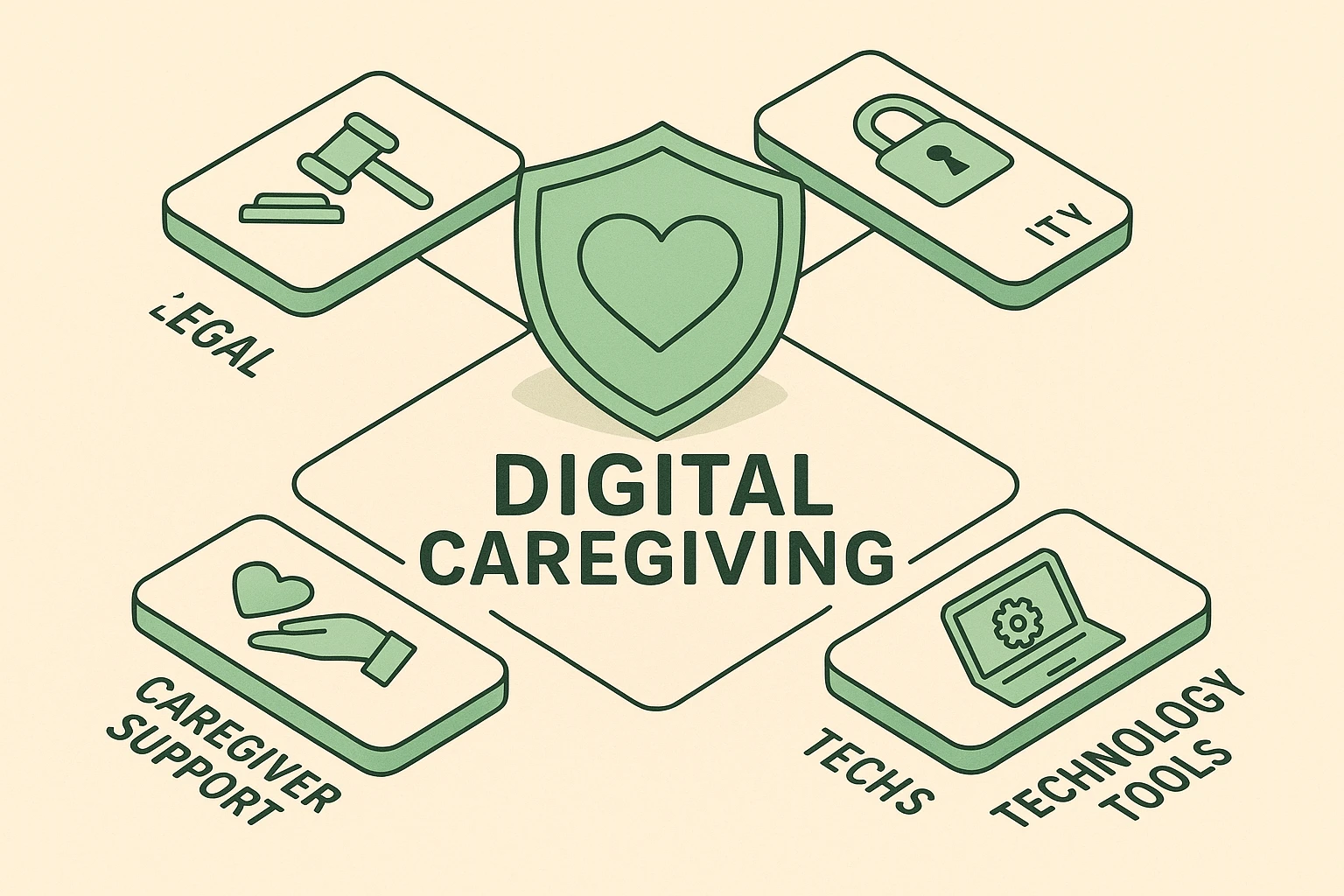
To safely and legally manage a loved one’s digital life, you need to think of this as “Digital Estate Planning.” The gold standard is obtaining a Digital Power of Attorney (DPOA). It’s just like a regular Power of Attorney, but it explicitly grants you the legal right to manage their online accounts, emails, and digital assets.
Elder law experts recommend the “40/70 Rule.” The best time to have conversations about digital access is when you are 40 and your parents are 70. Don’t wait for a medical emergency or a locked bank account to try and figure out their email password. Proactive planning keeps the power in their hands and the panic out of yours.
You can’t just throw away The Book and hand your dad a smartphone app. That is a recipe for a full-scale technological meltdown. When a senior is used to a physical system, ripping it away feels like a loss of independence.
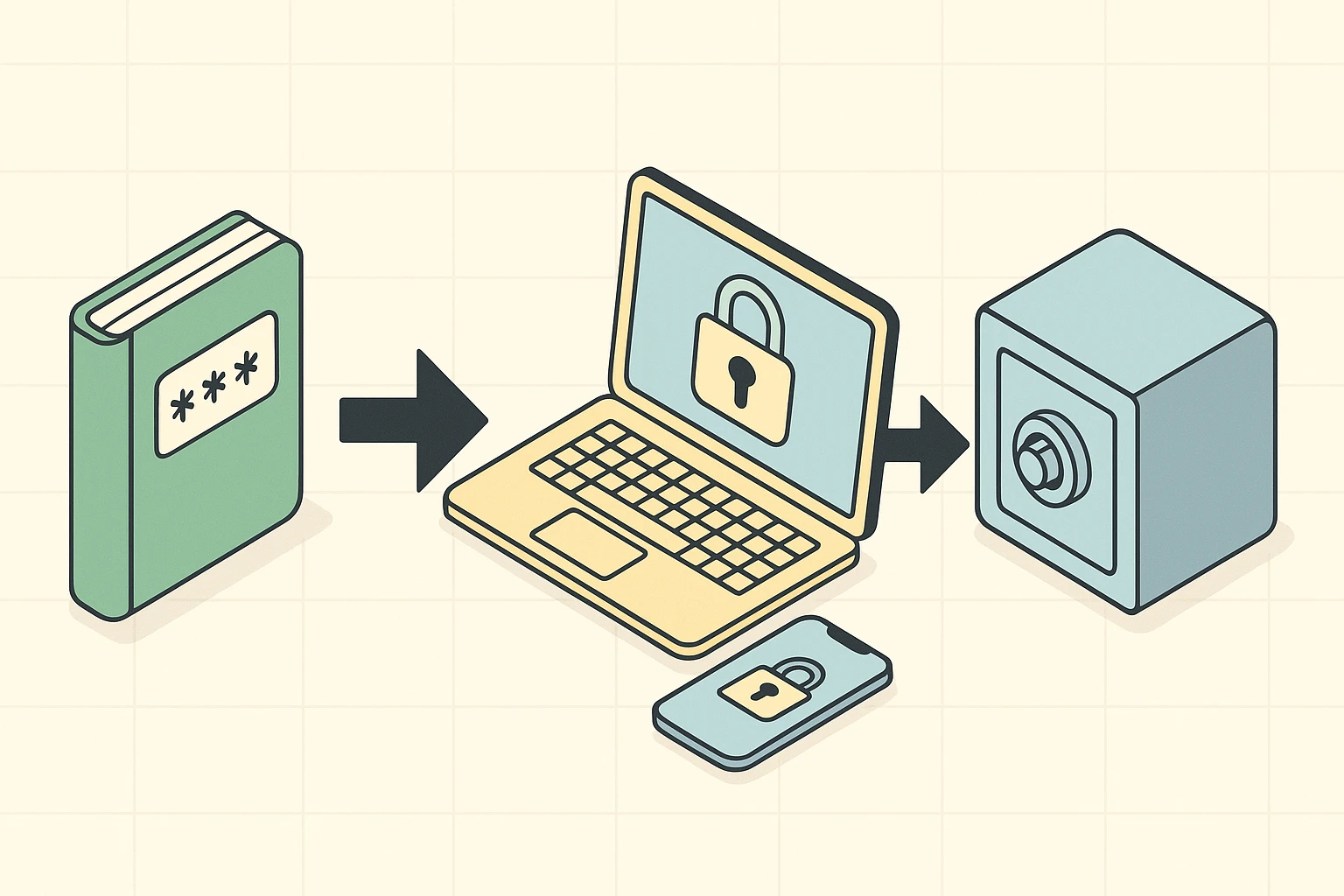
Instead, we use a hybrid approach. First, sit down together with some coffee (or perhaps a strong cup of tea) and digitize the book as a team. Enter the passwords into a reputable, family-friendly password manager like 1Password, Bitwarden, or Apple Passwords.
Don’t burn the paper book right away! Let them keep it as a security blanket while they get used to the digital vault. Show them how the app works, and let them see that their passwords are still entirely theirs.
One of the biggest fears seniors have with these digital vaults is forgetting the single password that unlocks everything. You can ease their anxiety by setting up a clear recovery plan, ensuring they never have to panic about needing a master password reset if their memory slips.
Two-factor authentication (2FA) or multi-factor authentication (MFA) is phenomenal for security. It is also the absolute bane of a senior’s existence.
Imagine trying to log into a medical portal. First, you type the password. Then, the site sends a six-digit code to a smartphone that is currently buried at the bottom of a purse in the other room. By the time your mom finds the phone, puts on her reading glasses, and reads the code, the website has timed out.
This is the number one point of digital failure for older adults. To fix this, good password managers allow you to store and generate those 2FA codes directly within the app itself, removing the need to juggle multiple devices.
Alternatively, you can set up their accounts to send codes to your phone as a backup. This is a brilliant safety net, especially if you ever find yourself dealing with a two factor authentication lost phone scenario where they simply can’t access their device to get back into their accounts.
Here is a radical thought: You don’t actually need to know every single password your parents have. They deserve privacy, too! Maybe your mom doesn’t want you reading her knitting forum posts.
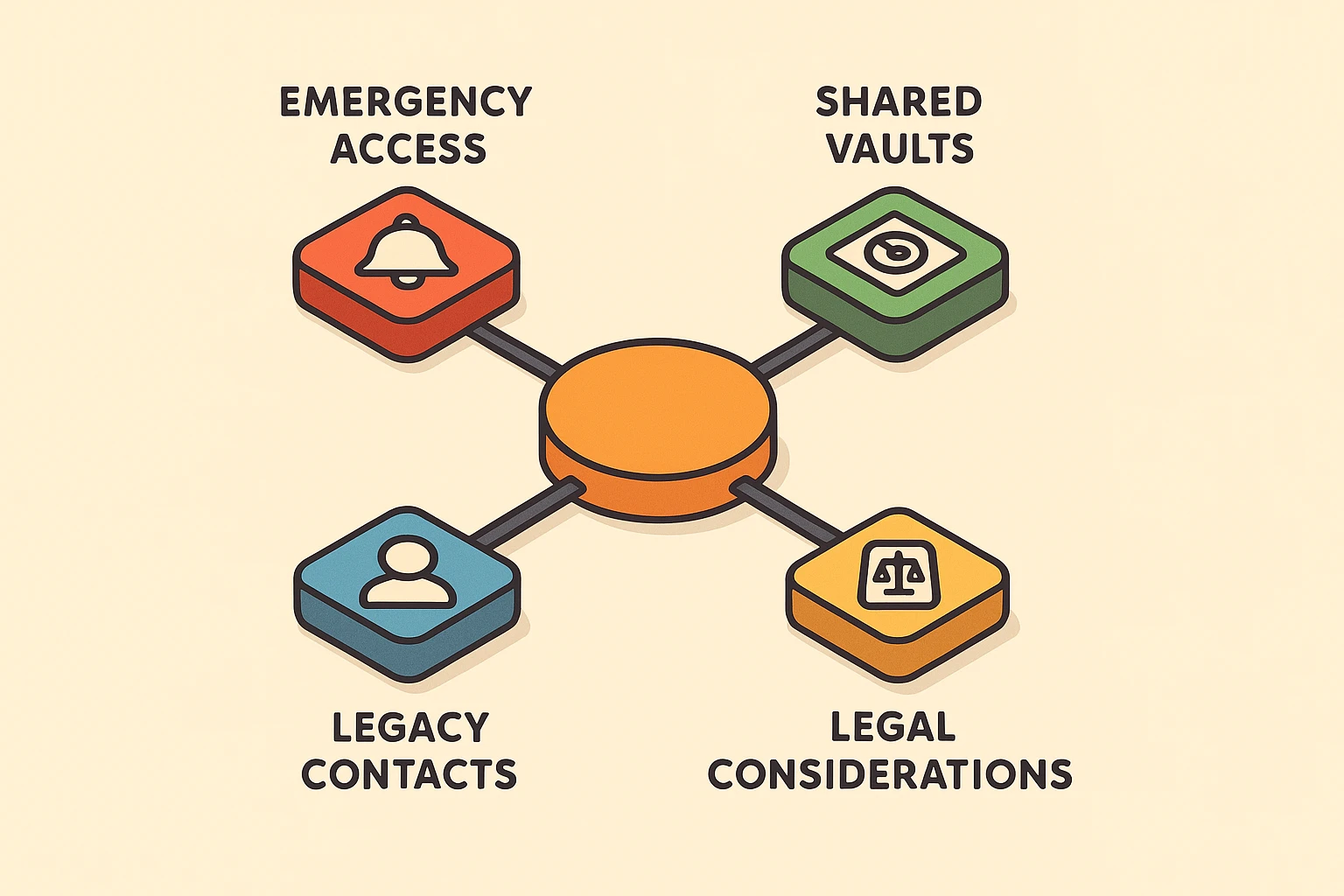
Instead of demanding a master list of passwords, use the “Emergency Access” feature found in most premium password managers. This acts as a digital safety net.
If there is a medical emergency or a sudden cognitive decline, you can click a button to request access to their vault. The app will notify your loved one. If they don’t deny your request within a waiting period that you previously agreed upon (like 48 hours), you are granted access. It preserves their autonomy while ensuring you can step in if things go wrong.
To make sure this actually works, institute an annual “Digital Fire Drill.” Once a year, test the emergency access. Make sure the legacy contacts are up to date and that nothing is broken. It takes ten minutes, but it can save you months of legal headaches later.
Writing passwords in a notebook is much better than using “Password123” for every single account. However, notebooks can be lost, stolen, or destroyed in a house fire. A physical book also doesn’t help you if you live three states away and need to help them log into their health insurance portal.
Blame the hackers! Seriously. You can say, “Dad, I was reading an article about how tricky scammers are getting lately, and I want to make sure we’re both protected. Can we look at our digital security together?” Making it a team effort removes the stigma.
Without a plan, those accounts can be locked forever. Tech companies are notoriously stubborn about handing over access to deceased users’ accounts, even to family members. Setting up “Legacy Contacts” through Apple, Google, and their password manager ensures you have a legal, frictionless way to close or manage their accounts when the time comes.
You don’t have to fix the internet in one afternoon. Start small. Have the conversation with your loved ones this weekend.
Sit down together and draft a “Digital Asset Inventory”—a simple list of what accounts exist (banking, email, medical portals). You don’t even need the passwords yet, just the names of the institutions.Once you know what’s out there, you can start moving those credentials into a shared password manager one at a time. By taking it slow, using plain English, and focusing on their safety and independence, you’ll transform a technological nightmare into a peaceful transition. And who knows? You might just get to retire The Book for good.