Newsletter Subscribe
Enter your email address below and subscribe to our newsletter

Enter your email address below and subscribe to our newsletter
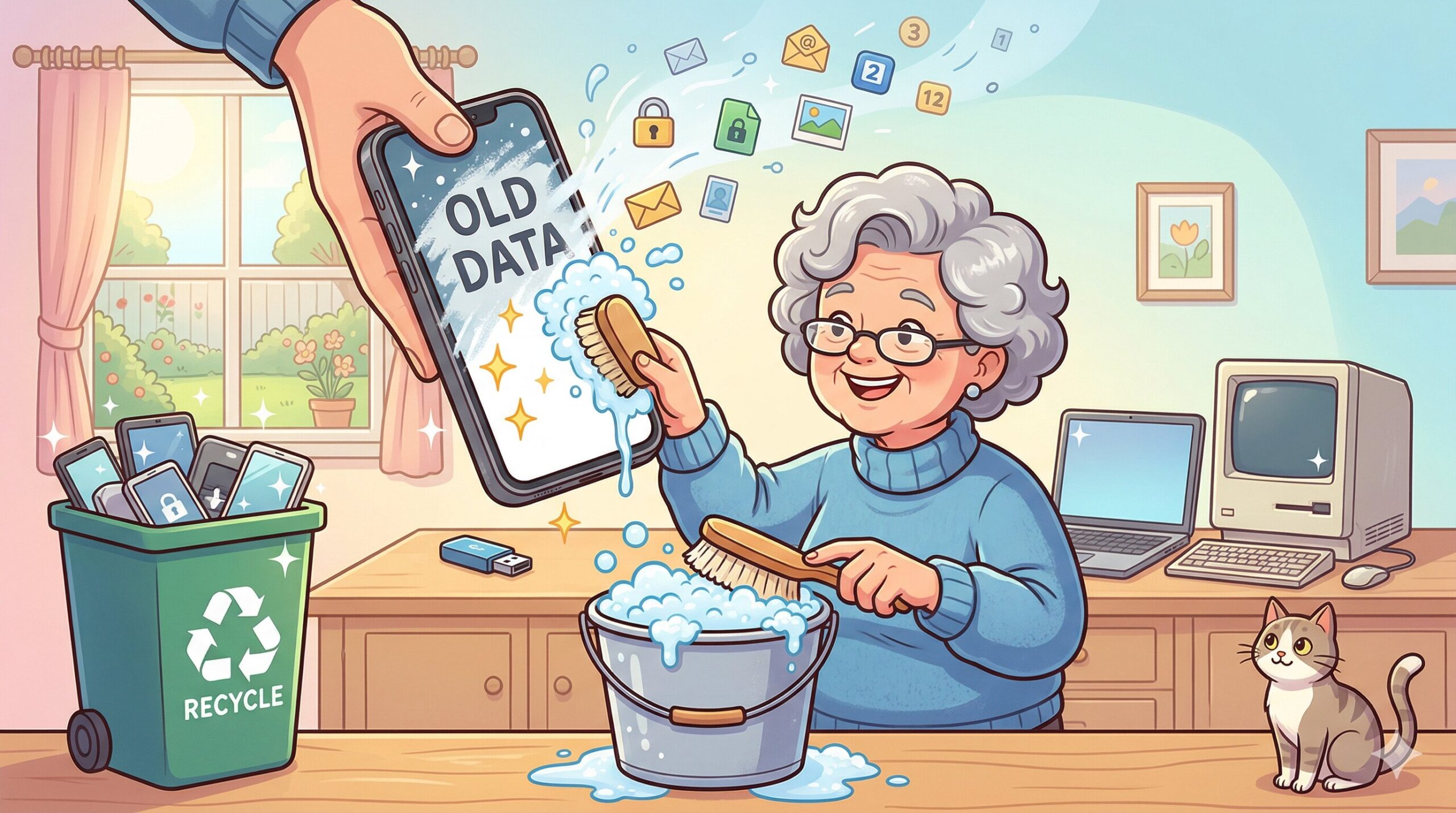
Imagine you’re finally doing some spring cleaning. You open a desk drawer and discover a tangled ball of mystery cords, three dead AA batteries, and that old smartphone you replaced four years ago.
You decide to be a good citizen and donate it. But first, you want to clear your data. So, you manually delete your grandkid’s photos, drag a few old tax documents to the digital “trash bin,” and pat yourself on the back. Safe, right?
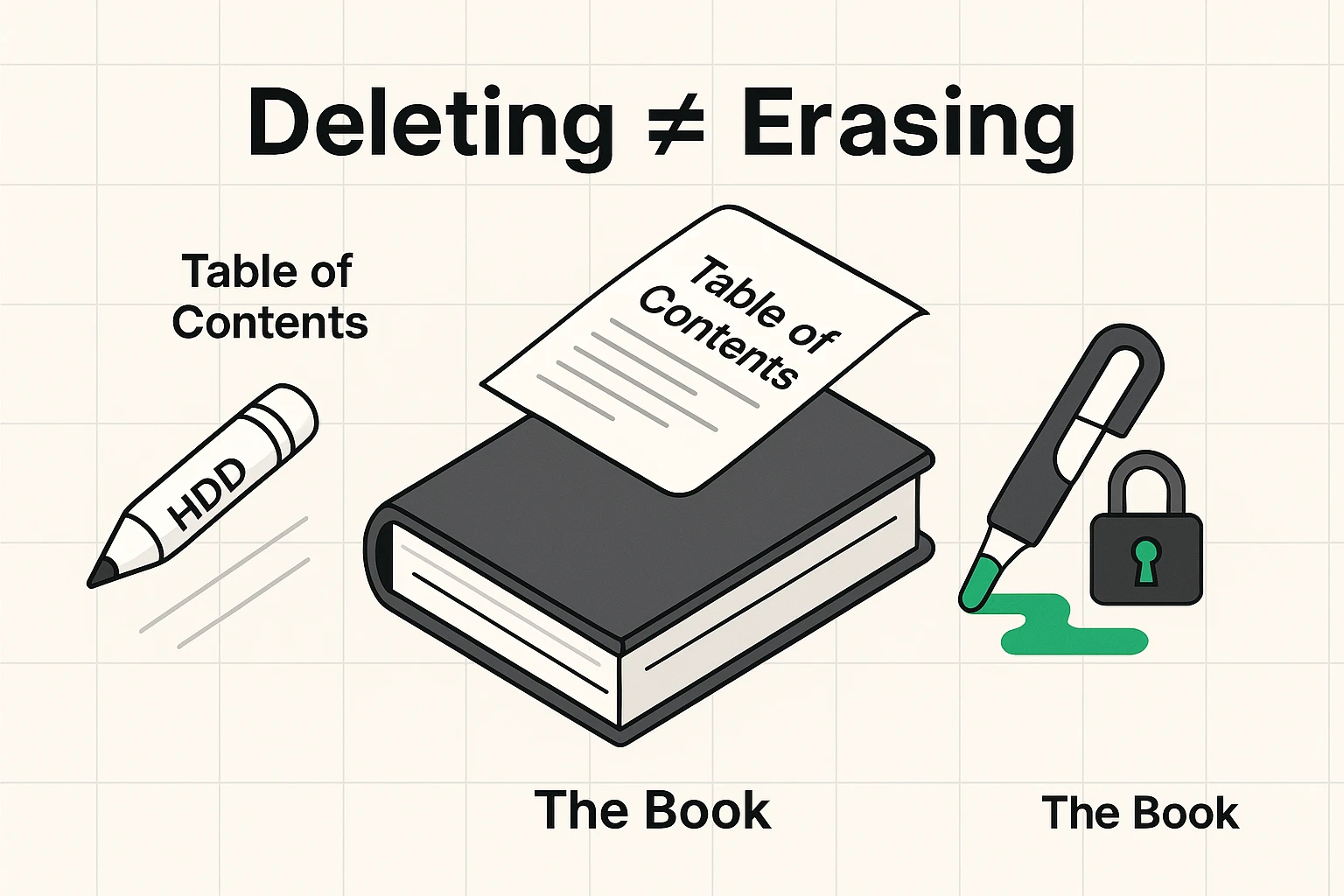
Not exactly. Thinking you’ve erased your device by simply hitting “delete” is a lot like trying to hide your personal diary in a public park by ripping out the table of contents. The chapters are still there, just waiting for someone to flip through them.
In 2019, a cybersecurity researcher named Josh Frantz proved just how dangerous this can be. He spent $650 buying 85 used computers, phones, and flash drives from various resale shops. What did he find?
A staggering 83 of those 85 devices still had the previous owners’ data on them. We’re talking bank details, social security numbers, and enough awkward selfies to last a lifetime.
If this makes you want to lock your old electronics in a vault and bury them in the backyard, take a deep breath. You don’t need a degree in computer science to protect yourself. We’re going to walk through exactly how to wipe your device so thoroughly that even an overly curious secret agent couldn’t recover your data.
To understand why dragging a file to the trash bin doesn’t work, we need a quick, painless lesson in how computers think.
Older computers use Hard Disk Drives (HDDs). Think of an HDD like a massive, heavy encyclopedia. When you hit “delete” on an old PC, the computer doesn’t actually erase the data. It just takes a giant eraser to the book’s index. The information is still written on the pages; the computer has just forgotten how to find it. Anyone with a $10 recovery program can easily flip through the book and get your data back.
Modern devices like smartphones and newer laptops use Solid State Drives (SSDs). Instead of a heavy book, think of an SSD as writing in permanent ink. You can’t just erase it. Instead, modern devices use “Encryption.”
Encryption is like locking your permanent ink book inside an indestructible steel safe. When you properly wipe a modern phone, you aren’t actually deleting the ink. Instead, you are legally taking the only key to that safe and tossing it into an active volcano. Even if someone steals the safe, they can never, ever open it.
Before we start destroying keys, we need to pack our bags and move out of the device. The biggest mistake people make is wiping a phone while still logged into their accounts.
If you wipe an Apple or Android phone without logging out first, the device triggers an “Activation Lock.” The phone thinks it was stolen and bricks itself, meaning the charity or person you gave it to now owns a very expensive, rectangular paperweight.
First, back up any photos or contacts you want to keep. Then, systematically log out of your accounts. On an iPhone, go to Settings, tap your name at the top, scroll to the very bottom, and hit “Sign Out.” On an Android, go to Settings, find “Accounts,” and remove your Google account.
This is also a great time to log out of any banking apps. You might be surprised by how much app access you’ve granted over the years, so it’s best to sever those digital ties completely before passing the device along.
Now that your digital spirit has left the machine, it’s time to remove the physical stowaways.
Grab a paperclip (or that little metal tool that came in the box you probably lost five years ago) and pop open the SIM card tray on the side of your phone. The SIM card is a tiny chip that tells the phone carrier who you are. If you leave it in, the next owner could potentially make calls on your dime.
Don’t forget to check for a MicroSD card, too! These are tiny, easily forgotten storage chips often found in older Android phones and digital cameras. They are notorious for hoarding thousands of vacation photos you forgot you took.
Note: If you have a newer phone (like the iPhone 14 or newer), you might have an “eSIM.” This is an invisible, digital SIM card. Don’t go digging into your phone with a butter knife looking for it. The digital wiping process in Phase 3 will erase the eSIM automatically.
This is the main event. It’s time to trigger the factory reset, which will wipe the slate entirely clean. Make sure your device is plugged into a charger—you do not want the battery dying halfway through this process.
For iPhones and iPads: Go to Settings > General > Transfer or Reset iPhone. Then, tap “Erase All Content and Settings.” The screen will go black, an Apple logo will appear, and a little progress bar will start filling up.
For Android Phones: Because every Android is slightly different, the easiest way is to open Settings and tap the magnifying glass icon. Type “Factory Reset” into the search bar. Tap the result, and follow the on-screen instructions to wipe the phone.
For Windows PCs: If your computer is relatively new (Windows 10 or 11), go to Settings > Update & Security > Recovery, and choose “Reset this PC.” Make sure to select the option that says “Remove Everything.”
If things go wrong and you end up with a getting your phone ready stuck screen that just won’t budge, don’t panic. Sometimes old hardware struggles with the final wipe and just needs a forced restart to finish the job.
For Mac Computers: Click the Apple menu in the top left corner, select System Settings (or System Preferences), and look for “Erase All Content and Settings.” Follow the prompts.
A quick warning for ancient PCs: If you are donating a heavy Windows computer from a decade ago (like Windows 7), a simple reset isn’t enough to clear the old Hard Disk Drive. You’ll need to physically destroy the hard drive, which brings us to our next point.
How do you know the wipe actually worked? Simple. Once the device restarts, look at the screen.
If you see a cheerful “Hello!” or “Welcome” screen asking you to choose a language, congratulations! The device has temporary amnesia and thinks it just rolled out of the factory. If it asks you for a passcode or shows your old background photo, the wipe didn’t work, and you need to try again.
But what if the device is dead? What if the screen is cracked, it won’t hold a charge, and it’s basically a very expensive coaster?
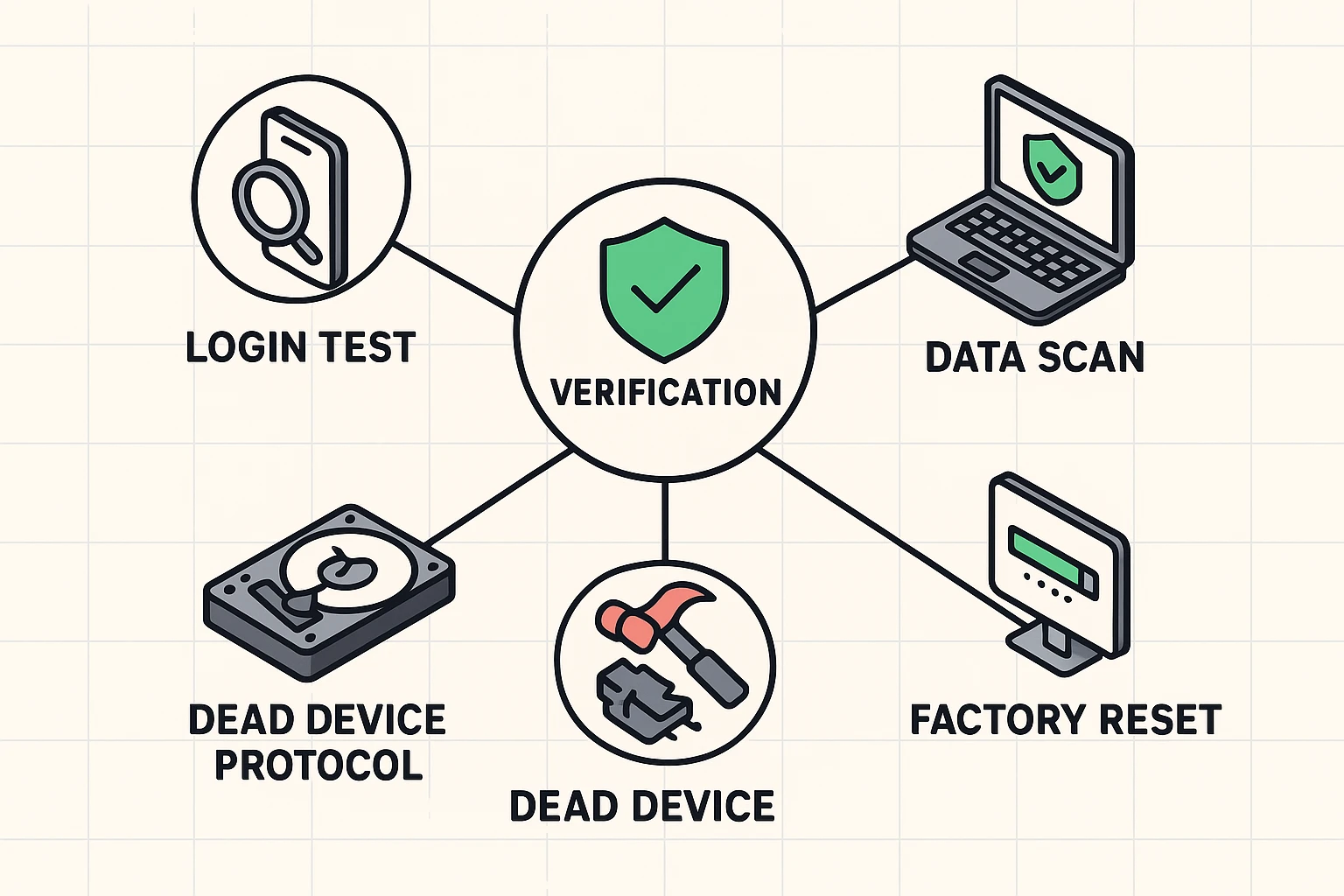
If a device won’t turn on, you can’t digitally wipe it. If you’re throwing it away or recycling it, you must practice what the tech world calls “physical destruction.”
For old computers, unscrew the back, pull out the rectangular hard drive, and take a power drill or a hammer to it. (Please wear safety goggles; we want to protect your privacy, but we also want to protect your corneas). Once you drill a few holes right through the center of the drive, the data is gone forever.
For dead smartphones, take them to a certified electronics recycler like Best Buy. They have specialized shredders that chew up old phones like mechanical monsters, ensuring your data never sees the light of day.
Let’s quickly decode some of the tech-babble we’ve encountered today:
No! As long as your photos are backed up to a cloud service (like iCloud or Google Photos), wiping your old phone won’t delete the pictures stored in the cloud. Just make sure you log out of the old phone first (Phase 1) before you wipe it.
We’ve all been there. If you forgot your Apple ID or Google password, you will need to use their “Forgot Password” feature to reset it on a computer or your new phone first. You must have that password to turn off the anti-theft locks.
Yes, absolutely! Once you follow the steps above to log out and perform a factory reset, your phone is completely safe to give to a domestic violence shelter, a veterans charity, or a family member.
While highly therapeutic, smashing a modern smartphone with a hammer is a fire hazard. Smartphone batteries contain lithium, which can explode or catch fire if punctured. Leave the physical destruction of phones to the professional recycling shredders!
Taking the time to securely wipe your old devices might feel like a chore, but it is the single best way to protect your privacy in the modern world. You wouldn’t hand a stranger the keys to your house, so don’t hand them the keys to your digital life! Take control, wipe that slate clean, and enjoy the peace of mind that comes with knowing your secrets are safe.