Newsletter Subscribe
Enter your email address below and subscribe to our newsletter

Enter your email address below and subscribe to our newsletter
You’ve done the prep work. You popped the corn. You poured your beverage of choice. You settled into your favorite chair, ready to watch the latest blockbuster that everyone is talking about. You press play, and for a glorious thirty seconds, life is good.
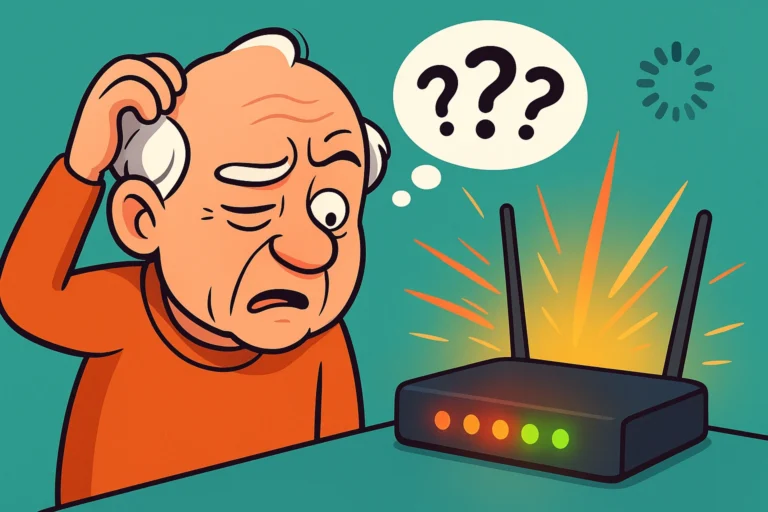
Then, it happens. The picture freezes. A little circle appears in the center of the screen, spinning and spinning like a tiny digital hypnotist trying to convince you that you didn’t actually want to watch this movie anyway.
You check your phone. The internet works fine there. You check your tablet. Blazing fast. So why is your expensive Smart TV acting like it’s trying to download a movie over a telegraph wire from 1895?
If this sounds familiar, welcome to the club. It is a large, frustrated club, but the snacks are terrible because we’re all stuck in the kitchen waiting for the movie to load. The natural instinct is to blame your Internet Service Provider (ISP) and shake your fist at the sky. But here is the “aha moment” that might save your sanity: It probably isn’t your internet. It’s your TV.
Let’s dig into why your Smart TV is the weak link in your digital chain and, more importantly, how to fix it without throwing the remote through the screen.
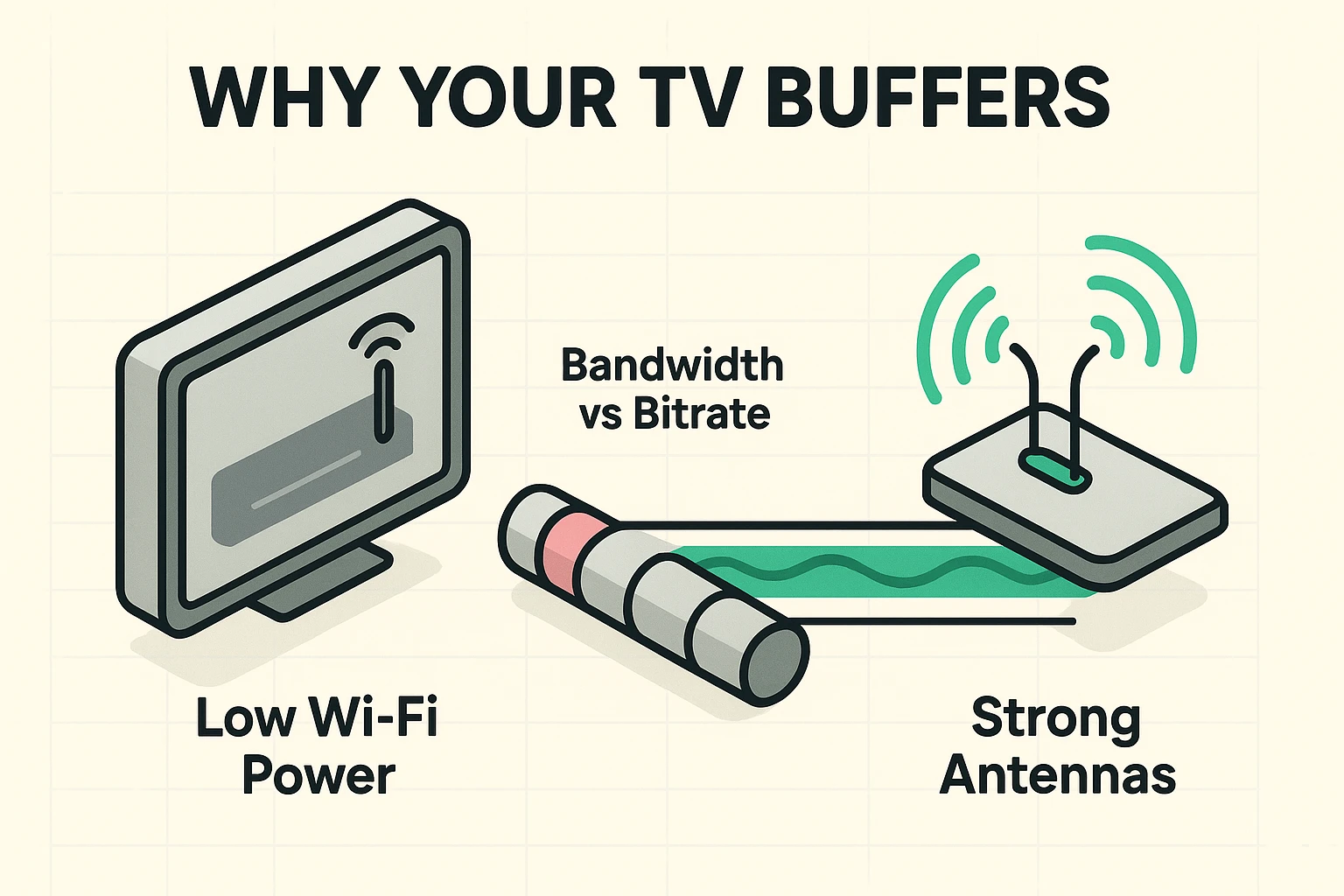
Here is something the nice salesperson at the electronics store probably didn’t mention. While your Smart TV has a stunning 4K screen that makes nature documentaries look better than real life, the computer parts inside it—specifically the Wi-Fi chips—are often… well, let’s be polite and call them “economical.”
Your smartphone is a marvel of engineering. It has powerful antennas designed to grab Wi-Fi signals from the air like a desperate outfielder catching a fly ball. Your TV, however, often has a cheap Wi-Fi chip buried behind a massive sheet of metal and plastic (the screen and casing).
Think of it this way: Your internet is a fire hose of water (bandwidth). Your router is the faucet. Your smartphone has a wide bucket to catch that water. Your TV is trying to catch that same water with a thimble. It doesn’t matter how much water is coming out of the hose if your TV can’t catch it fast enough.
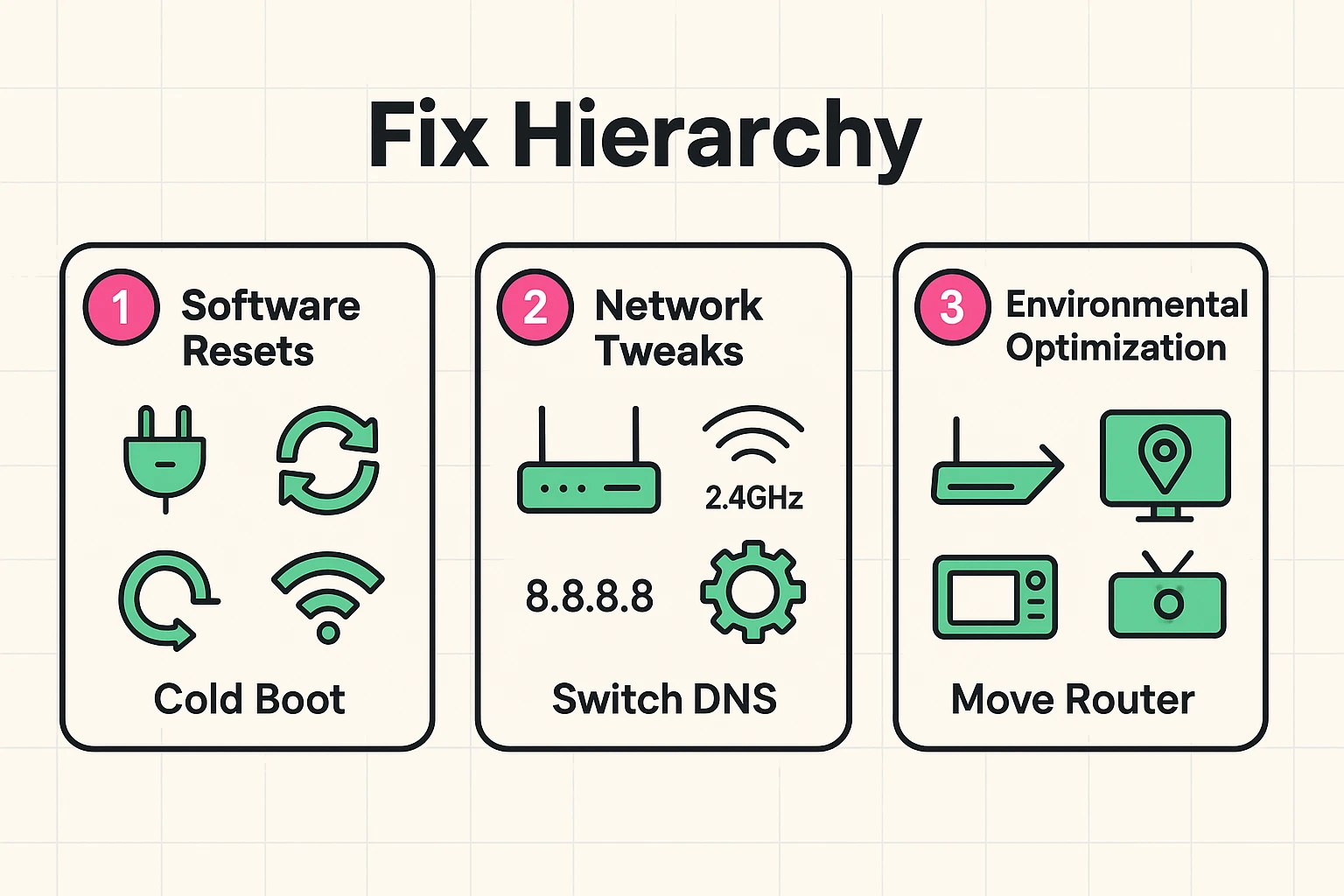
When you press the power button on your remote to turn off the TV, you aren’t actually turning it off. You are putting it into “Standby Mode.” It’s just napping. It does this so that when you turn it back on, it wakes up instantly rather than taking two minutes to warm up like an old tube TV from the 70s.
The problem? Software errors, digital “junk,” and cache files build up over time. If you never fully restart the system, the TV gets groggy and slow.
The Fix: You need to perform a “Cold Boot.”
This forces the TV to completely reload its software and clear out the cobwebs. You might be shocked at how many “broken” TVs are fixed just by yanking the cord for a minute.
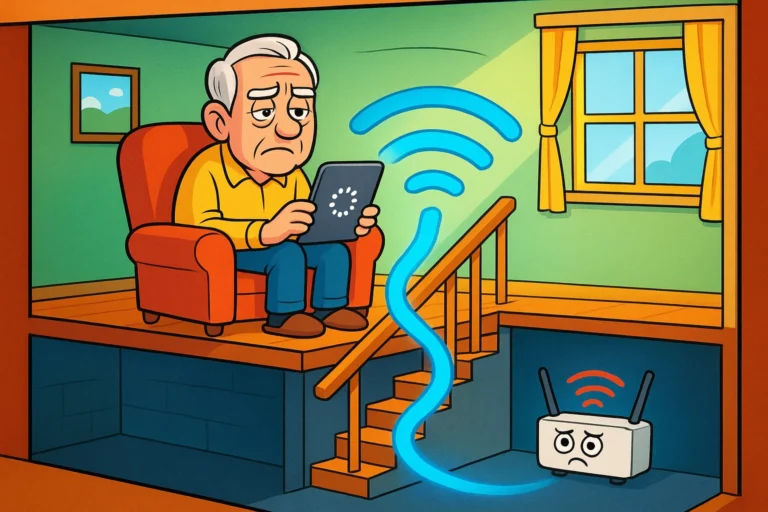
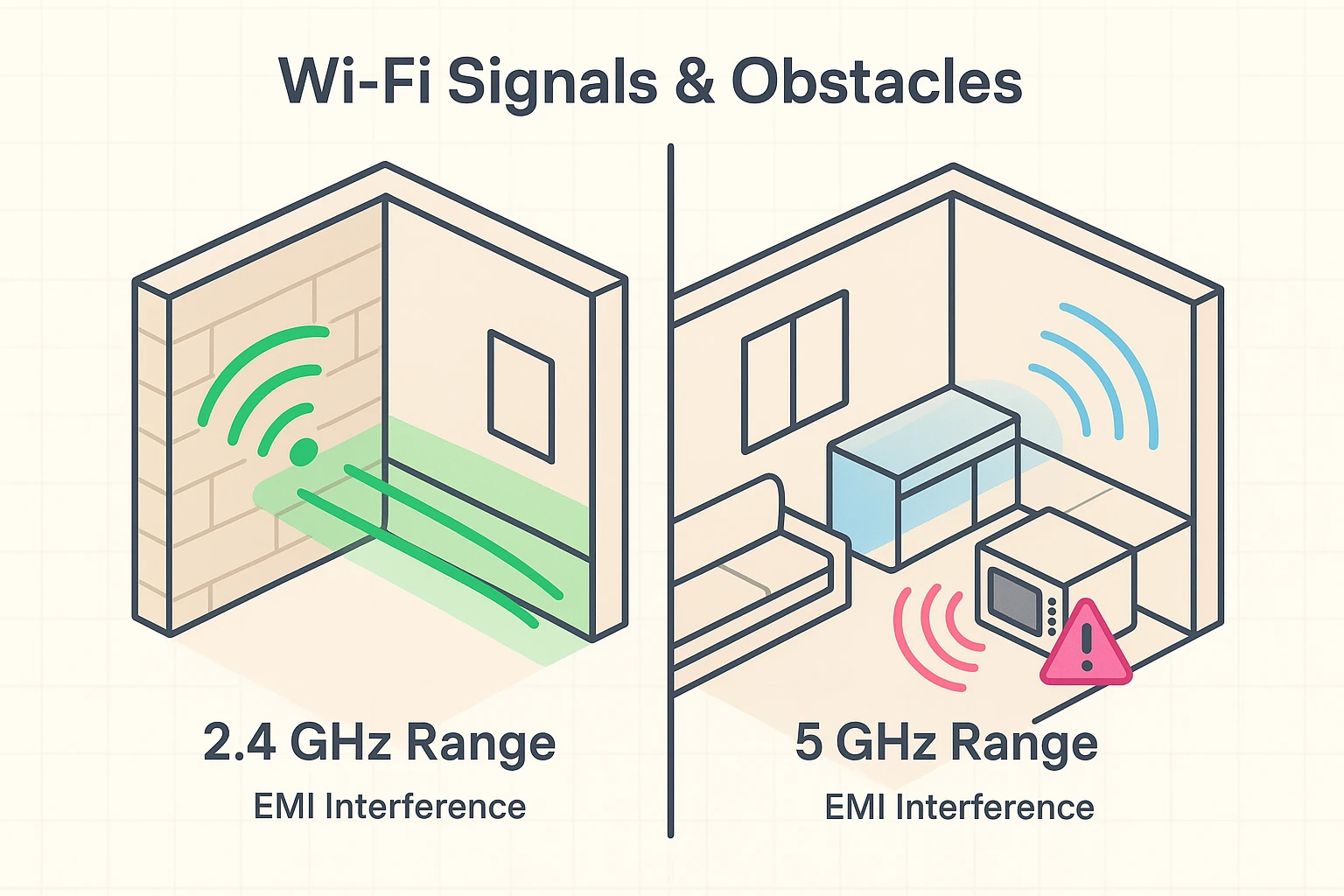
Wi-Fi signals are radio waves. They do not like metal, they do not like thick concrete, and they absolutely hate water (which includes fish tanks). If your router is in the basement and your TV is on the second floor on the opposite side of the house, the signal has to fight through floors, ducts, and walls to get there.
Furthermore, there is the mystery of the “Dinner Time Buffer.” Does your TV start acting up right around 6:00 PM? Check your kitchen.
Microwaves operate on the same 2.4GHz frequency as many Wi-Fi routers. When you heat up that leftover lasagna, you are essentially blasting “noise” that drowns out the Wi-Fi signal. If your router is near the microwave and your TV is trying to stream, the lasagna wins. The internet loses.
Modern routers usually offer two different Wi-Fi networks: 2.4GHz and 5GHz. You might see them in your list of available networks as “SmithFamily” and “SmithFamily_5G.”
Here is the non-geek translation:
The Fix: If your router is far away from the TV, try connecting the TV to the 2.4GHz network. You might lose some top-end speed, but you gain stability. A steady, slower connection is better for streaming than a fast one that keeps dropping out.
Sometimes, you need to get specific with your brand of TV. Here are a few “secret handshakes” for the big players.
Samsung TVs are notorious for holding onto bad data. If the unplugging method (above) doesn’t work, try this:
If you use a streaming stick plugged into the back of your TV, you might be suffocating it. The back of a TV is a chaotic place full of electronic noise and metal shielding.
If your LG is buffering, it might be a “Quick Start” issue.
We have to be honest here. Smart TVs are not built to last forever. Manufacturers stop updating the software after a few years. The apps for Netflix or Hulu get bigger and more demanding, but your TV’s processor stays the same age. Eventually, the TV just can’t keep up.
If you have tried everything and your TV still buffers, do not buy a new TV.
Buy a dedicated streaming device like a Roku, Amazon Fire Stick, or Apple TV. These devices are cheap ($30-$50), they are purely dedicated to streaming, and they have much better Wi-Fi antennas than your TV does. You plug it into the HDMI port, connect it to Wi-Fi, and use its remote instead of your TV’s remote. It’s like giving your TV a brain transplant.
That is plenty! Netflix only needs about 5 Mbps for HD video and 15-25 Mbps for 4K video. If you have 300 Mbps and you are buffering, speed isn’t the issue—connection quality is.
If you can, absolutely yes. A wired connection is much more stable, though be aware that most TVs limit wired speeds to 100 Mbps.
It’s unlikely your neighbor is the cause of your buffering unless they are running a data center in their garage. However, you can usually check the “Attached Devices” list on your router’s app to see if there are any devices you don’t recognize (like “Bob’s iPhone” when you don’t know a Bob).
Technology is wonderful when it works and a test of spiritual endurance when it doesn’t. Remember, that spinning circle isn’t a personal attack. It’s just a mismatch between a cheap antenna and a wall in your hallway.
Start with the simple stuff: unplug the TV, move the router out from behind the aquarium, and maybe ask the microwave to keep it down during the season finale. And if all else fails, a $30 streaming stick is a lot cheaper than a therapy session.
Now, go reheat that popcorn (carefully!) and get back to the movie.