Newsletter Subscribe
Enter your email address below and subscribe to our newsletter

Enter your email address below and subscribe to our newsletter
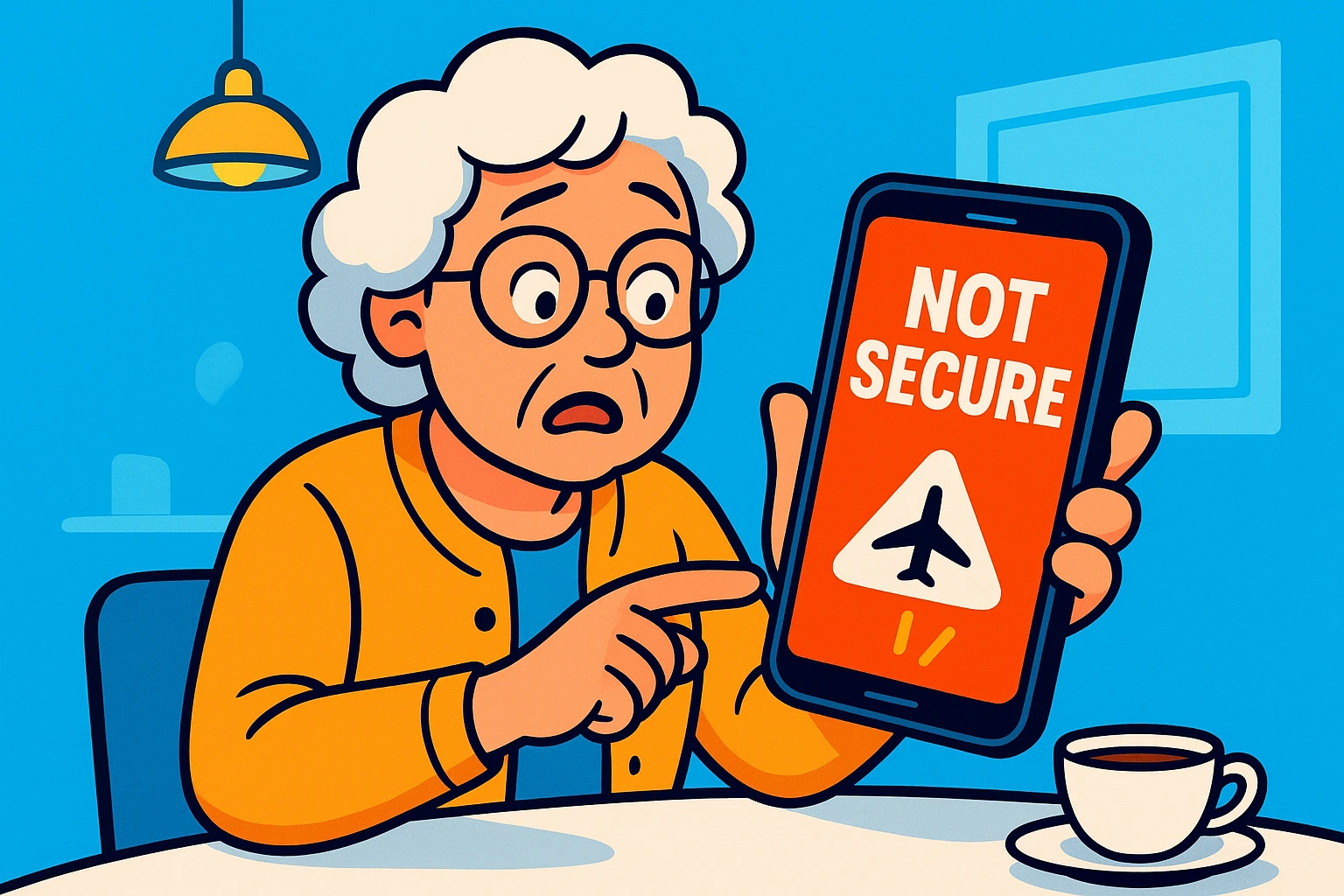
Picture this: You’re sitting in a delightfully overpriced coffee shop. You’re just trying to look up a recipe for a pot roast, or maybe check to see if your grandson finally posted pictures from his graduation. You tap a button, your phone connects to the local Wi-Fi, and suddenly, a terrifying little message pops up on your screen: “Not Secure.”
Your heart drops. You suddenly feel like you’ve accidentally walked into a digital bad neighborhood wearing a neon sign that says, “Free Social Security Numbers Here!” You wonder if Russian hackers are currently draining your checking account to buy a yacht.
If this sounds familiar, take a deep breath. You are not alone. Accidentally joining an unsafe public Wi-Fi network is a digital rite of passage, right up there with accidentally turning on your phone’s flashlight and not knowing how to turn it off. The good news? You don’t need to throw your phone in the nearest river. You just need a digital first-aid kit. Let’s walk through exactly what to do when that “Uh-Oh” moment strikes.
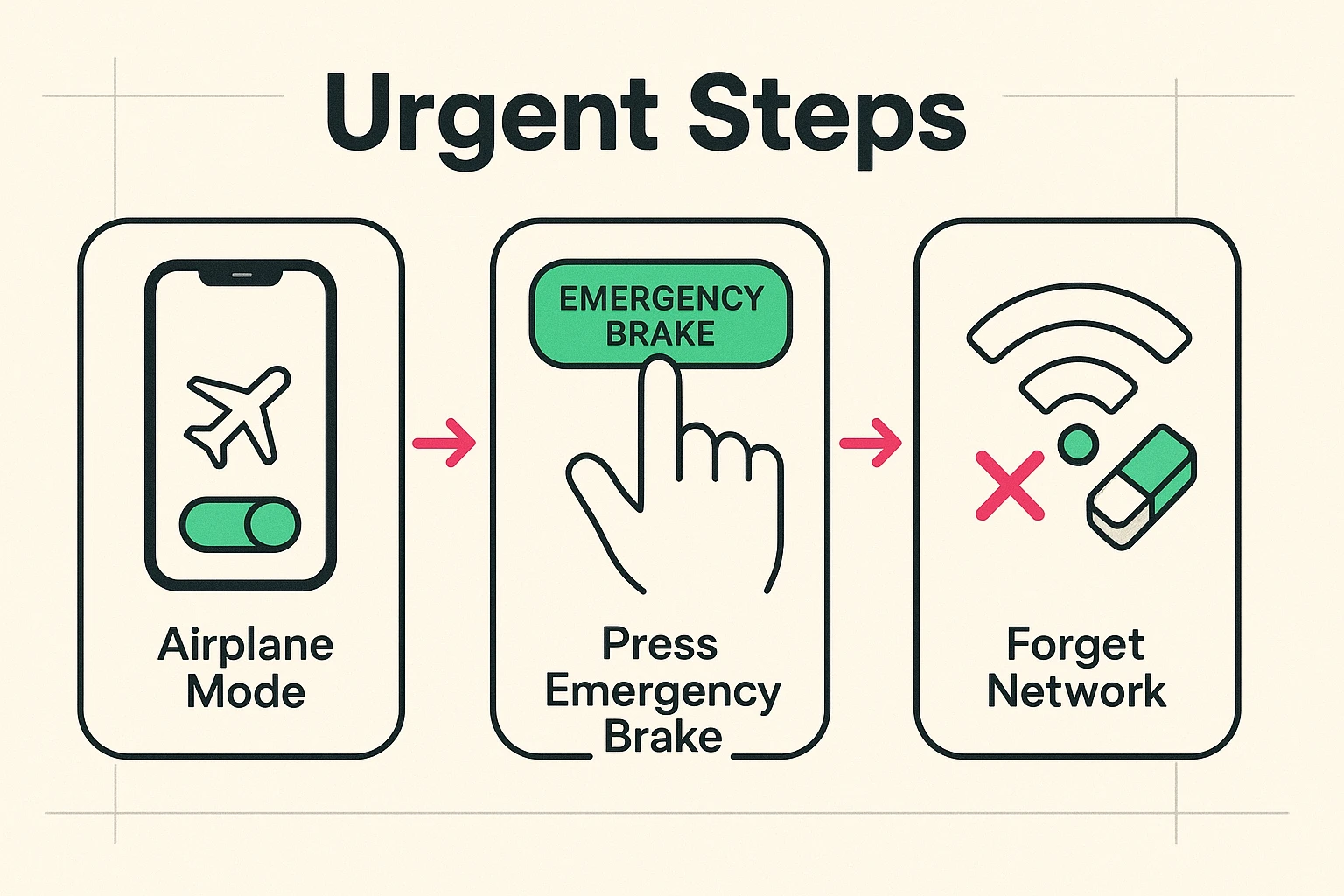
When you realize you’ve connected to a sketchy Wi-Fi network, your first instinct might be to panic. Don’t panic. Instead, we are going to pull the “Emergency Brake” on your device. In the tech world, this emergency brake is called Airplane Mode.
Turning on Airplane Mode instantly cuts off all wireless connections. It’s the equivalent of slamming the door shut and locking it. It stops any data from going out or coming in, instantly neutralizing any potential threat from the network you just joined.
On an iPhone, simply swipe down from the top right corner (or swipe up from the bottom on older models) and tap the icon that looks like an airplane. On an Android, swipe down from the top of the screen and tap that same little airplane. Boom. You are now invisible to the bad guys.
Next, you need to make your phone “Forget” this bad network so it doesn’t automatically reconnect the second you turn Airplane Mode off. Go into your Wi-Fi settings, tap the little “i” or the gear icon next to the suspicious network’s name, and bravely tap “Forget This Network.” Take that, hackers!
Now that the immediate danger is over, it’s time to play detective. We need to figure out what you were actually doing while connected to that unsafe network.
Think of public Wi-Fi like having a conversation in a crowded elevator. If you were just reading the news, checking the weather, or looking up the cast of a 1980s sitcom, you are perfectly fine. Nobody cares if an eavesdropper finds out you were reading about Betty White.
However, if you were logging into your bank account, entering a credit card number, or typing in a password, we have a slightly bigger issue. That’s like shouting your bank account routing number in that same crowded elevator.
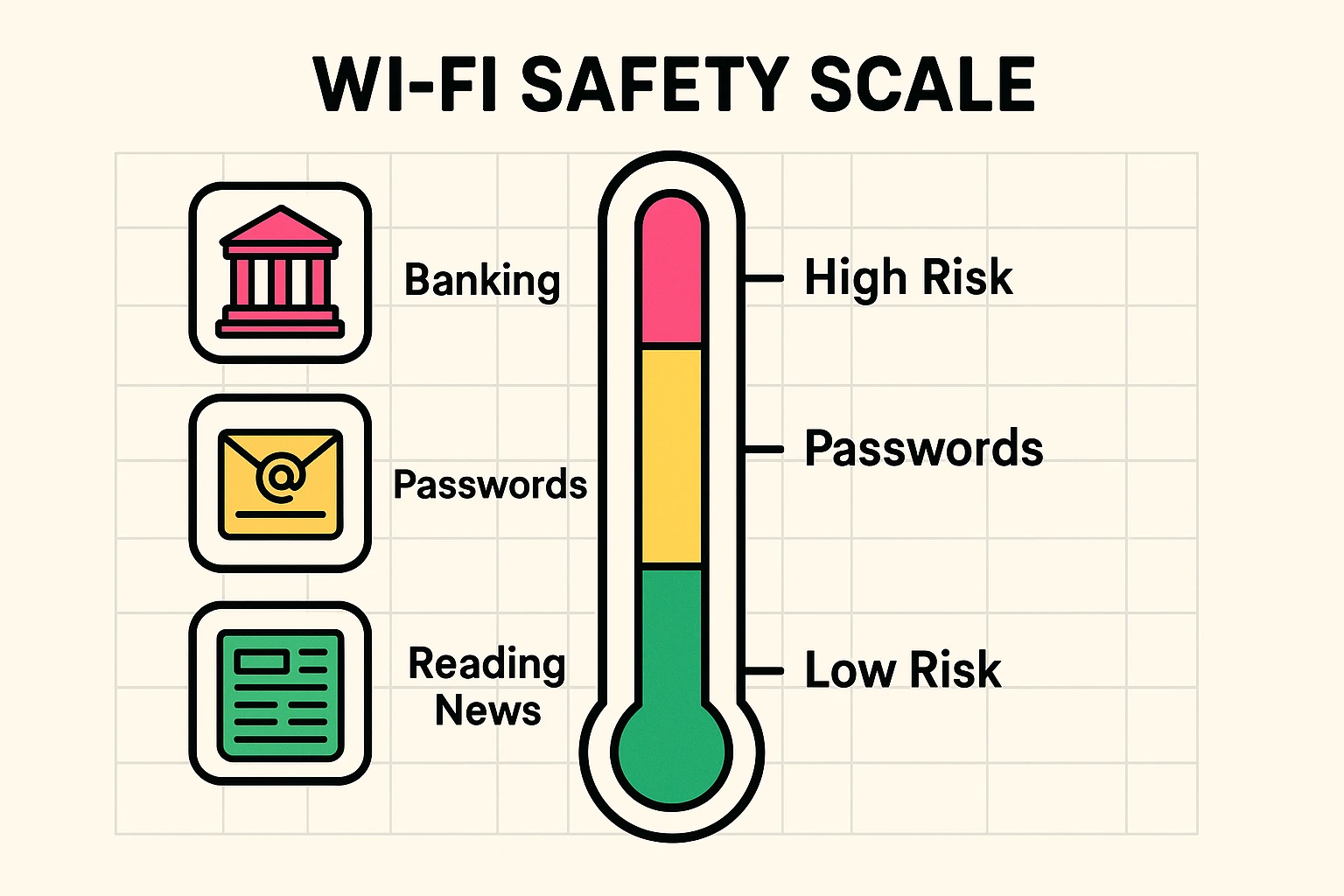
If you did accidentally check your bank balance or type in a password while connected to the bad Wi-Fi, it’s time for some quick triage. First, wait until you are back on a secure network—like your password-protected Wi-Fi at home, or your cellular data plan.
Once you’re safe, change the password for whatever account you were using. If you logged into your email, change your email password. If you checked your bank, change your bank password. It’s a minor hassle, but it’s much better than explaining to your spouse why you accidentally bought 400 lawn gnomes from a hacker in Estonia.
This is also the perfect time to set up Two-Factor Authentication (2FA) if you haven’t already. Think of 2FA as double-locking your front door. Even if a scammer steals your password (the first key), they still can’t get into your account without the special code sent directly to your phone (the deadbolt).
Tech experts love to use big, scary words like “Man-in-the-Middle Attacks” or “Packet Sniffing” to describe what happens on bad Wi-Fi. We prefer plain English. Let’s talk about “The Uninvited Listener.”
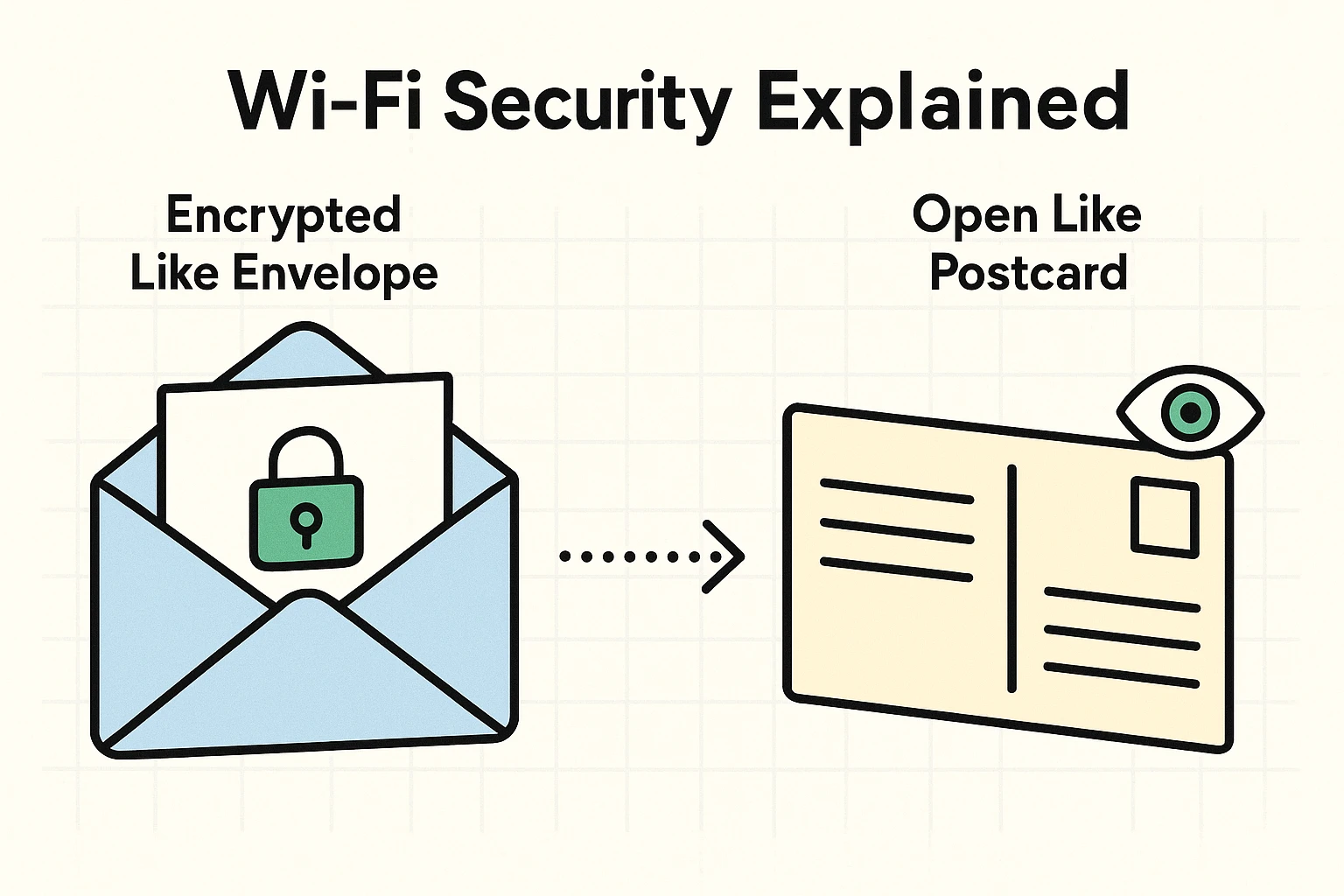
A secure Wi-Fi network (like the one in your house) is like a room with thick, brick walls. You and the internet are talking, and nobody outside can hear you. An unsecured public Wi-Fi network is like a room with glass walls. Anyone walking by can see exactly what you are doing.
A recent surge in internet searches for “secure wifi” in cities with big digital equity pushes—often called the “Stockton Signal”—shows that thousands of new internet users are running into this exact confusion daily. They see a little padlock symbol on a website (which means the site uses HTTPS) and think they are totally safe, even on a bad Wi-Fi network.
So, how do we avoid this mess next time? The most common trick scammers use is creating an “Evil Twin” network. This is when a scammer sets up a fake Wi-Fi network with a name that looks perfectly legitimate just to trick you into joining.
For example, if you are at “Joe’s Cafe,” the real network might be called “JoesCafeGuest.” The Evil Twin, set up by a guy drinking a suspiciously small espresso in the corner, might be called “FreeJoesCafe_WiFi.” It looks real, but it’s a trap designed to intercept your information.
Always ask an employee for the exact name of their Wi-Fi network before connecting. If you’re ever in doubt about the legitimacy of a business’s network or digital presence, it’s always smart to check their website to verify their official information. When in doubt, just turn off your Wi-Fi and use your phone’s cellular data. It’s much safer!
When your phone says a network is “Not Secure,” it simply means the Wi-Fi connection doesn’t require a password and isn’t encrypting (scrambling) your data. It’s a helpful warning, not a guarantee that you’ve been hacked. It just means you should be extra careful about what you do while connected.
Highly unlikely! Simply connecting to a network rarely results in an instant hack. The real danger comes from what you do after connecting. If you only read a news article or checked sports scores, your personal information is perfectly safe.
A Virtual Private Network (VPN) is a great tool—it creates a secure, private tunnel for your data, even on public Wi-Fi. However, if you simply avoid doing sensitive things (like banking or online shopping) on public networks, you can get by just fine without paying for one.
There you have it! You are now officially equipped to handle the dreaded public Wi-Fi “Uh-Oh” moment. You know how to pull the emergency brake, assess the damage, and spot the digital bad guys hiding behind fake network names.
Technology is supposed to make our lives easier, not give us palpitations over a cup of coffee. By keeping these simple, plain-English tips in your back pocket, you can browse the web with confidence. Stay safe out there, keep your digital doors locked, and remember: when in doubt, Airplane Mode is your best friend!