Newsletter Subscribe
Enter your email address below and subscribe to our newsletter

Enter your email address below and subscribe to our newsletter
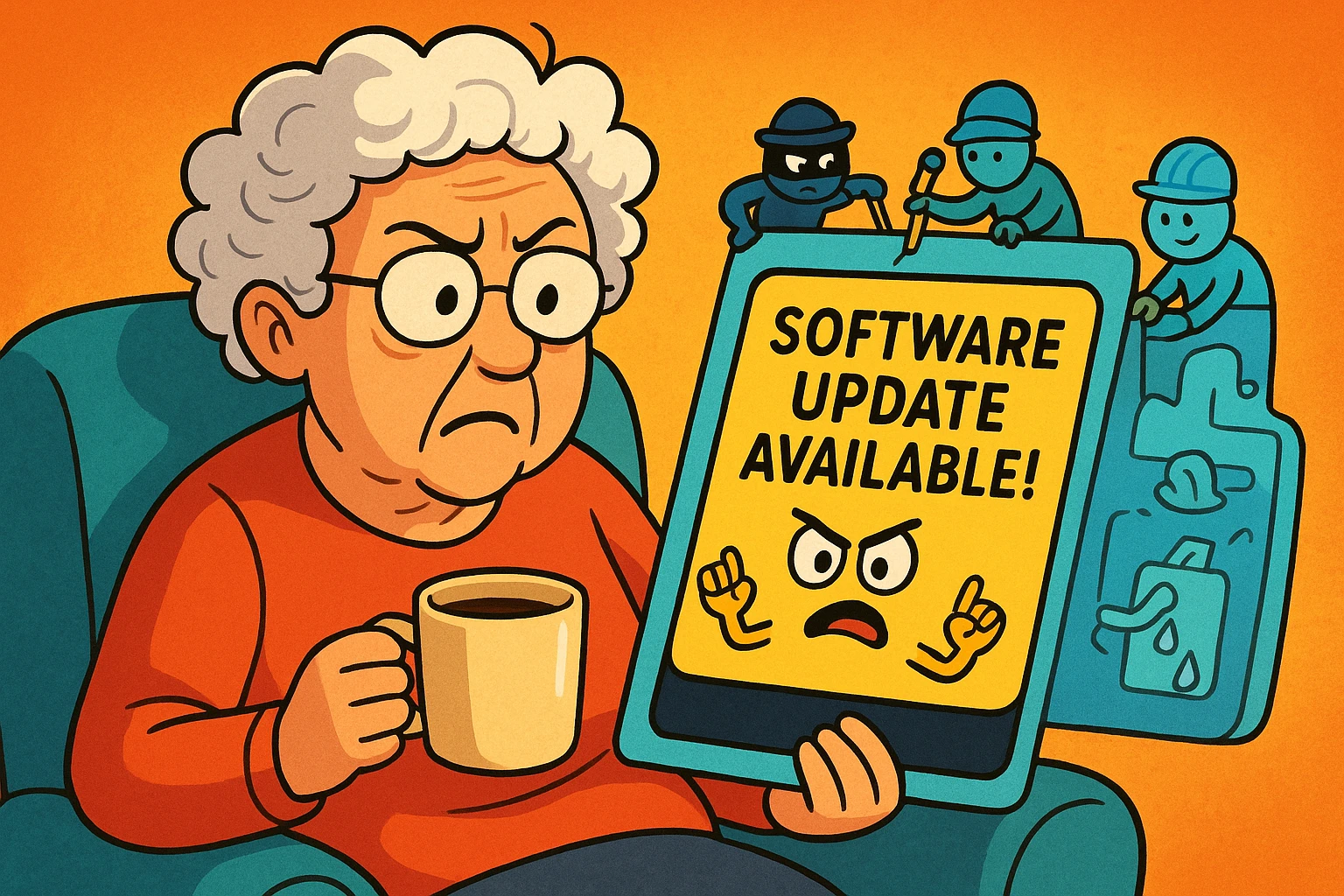
You are sitting comfortably in your favorite chair, coffee in hand, ready to check the weather or perhaps look at photos of your granddaughter’s new puppy. You press the button on your tablet or computer, and instead of your familiar screen, you are greeted by a bossy little pop-up box.
It says something vague like “Software Update Available” or “System Update Ready to Install.” It usually has a button that says “Install Now” and another that says “Remind Me Later” (which, let’s be honest, is the digital equivalent of shoving dirty laundry under the bed).
If you’re like many of us, you view this notification with deep suspicion. Is this safe? Will it change all my colors to neon green? Will it move my solitaire game to a location I can never find again? It feels a bit like a houseguest asking for your keys so they can “rearrange the furniture” while you sleep.
But here is the truth: while updates can be annoying, they are the single most important thing you can do to keep your digital life safe. Let’s demystify what is actually happening inside that little metal box, why it matters, and how you can handle it without losing your mind (or your files).
To understand updates, think of your computer or smartphone as a house. When you first bought it, the locks were strong, the windows were sealed, and the roof was perfect.
But over time, burglars (the internet bad guys) figure out how to pick those locks. Or, the weather changes, and you realize you need better insulation.
A software update is essentially a crew of digital contractors coming in to perform three main tasks:
This is the most critical part. Tech companies like Apple and Microsoft are constantly finding “unlocked backdoors” in their software—tiny flaws that hackers could use to sneak in. An update installs a “patch” (think of it as a digital deadbolt) to seal that door shut. If you ignore the update, you are essentially leaving your front door unlocked in a bad neighborhood.
Sometimes, the software just has a mistake in it. Maybe your battery drains too fast, or an app crashes every time you type the letter ‘Q’. These are called “bugs.” An update is the flyswatter. It corrects the code so the device runs the way it was supposed to in the first place.
This is the part that causes “Interface Shock.” Sometimes, the update includes new tools or a fresh look. They might change the shape of the icons or add a new way to organize photos. While these are often improvements, they can be jarring because muscle memory is a powerful thing, and nobody likes it when the cheese gets moved.
The biggest reason people avoid updates isn’t laziness; it’s fear. Fear that the screen will go black and never come back, or that precious photos will vanish into the digital ether.
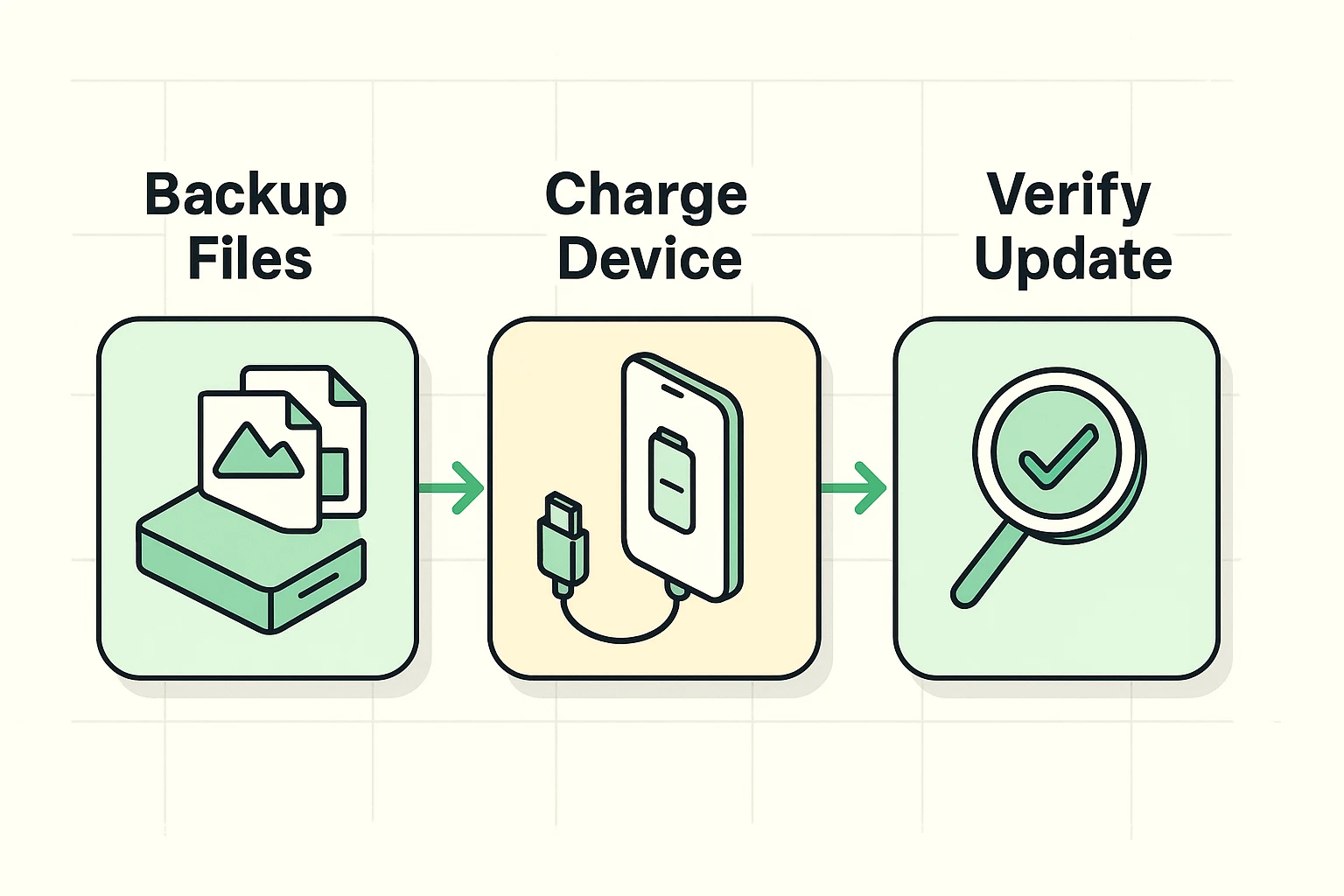
To combat this, we recommend the Safety Sandwich method. It turns a scary process into a routine checklist.
Before you let a doctor operate, you make sure your affairs are in order. Before you let a device update, you make sure your memories are safe. This is the foundation.
If you are an Apple user, for example, your photos are your most digital precious cargo. Before hitting “Install,” ensure you know how do i backup my iphone photos. Whether you use the cloud"The cloud" refers to storage and services that are accessed over the internet instead of being stor... More or a physical drive, having a copy means that even if the update goes sideways (which is rare), your memories are untouchable. Once you backup pictures from iphone or Android, you can proceed with confidence.
Updates take a lot of energy. If your battery dies in the middle of an installation, the device can get confused and stuck.
Once the device restarts, check to make sure things look right. Open your email. Check your text messages. Verify that the “digital contractors” finished the job and cleaned up after themselves.
Here is what terrifies most people: You hit “Install,” and the screen goes black.
Then, an Apple logo or a Windows icon appears. A progress bar starts moving… very… slowly. It might stop at 99% for what feels like three days.
This is normal.
Think of this as your device undergoing brain surgery. It has put itself to sleep so it can rewire its own thoughts. Do not turn it off. Do not press buttons to see if it’s alive. Just let it be. Go have a cup of tea. If you interrupt it now, that is when problems happen.
Congratulations! The update is done. You log back in, and… gasp. The clock looks different. The “Start” button moved from the left corner to the middle (looking at you, Windows 11).
This is called Interface Shock, and it’s the number one cause of “I hate technology” mutterings. But don’t panic. The machine isn’t broken; it’s just redecorated.
If you can’t find something, stop looking with your eyes and start looking with the Search Bar.
On almost every device (Windows, Mac, iPhone, Android), there is a magnifying glass icon or a search box. If you can’t find your email, type “Email” in that box. It will find the app for you instantly. The Search Bar is your universal key to finding anything the update moved.
Technically, yes, but we strongly advise against it. Skipping updates is like driving a car that has been recalled for faulty brakes. It might run fine for a while, but you are taking a massive safety risk. If the notification says “Security Update,” treat it as mandatory.
Great question. Scammers love to fake these. A real update notification comes from your System Settings, never from a website. If you are browsing the internet and a box pops up inside your web browser screaming “WARNING: UPDATE NEEDED,” close it immediately. That is a scam. To be safe, never click the pop-up. Close everything, go to your phone or computer’s Settings menu, and look for “Software Update” there. If it’s real, it will be waiting for you in the Settings.
Update: Free, software-based, downloadable. (e.g., moving from iOS 17.1 to iOS 17.2). It’s maintenance. Upgrade: Usually involves buying new hardware or a major paid software change. (e.g., trading your iPhone 12 for an iPhone 15).
You now possess the knowledge to tame the update beast. Remember, that little notification isn’t there to annoy you (even if it does a great job of it); it’s there to protect you.
The next time your device politely coughs and says “Update Available,” don’t shove it under the bed. Plug it in, back it up, and let the digital contractors do their work. Your device—and your peace of mind—will be better for it.