Newsletter Subscribe
Enter your email address below and subscribe to our newsletter

Enter your email address below and subscribe to our newsletter
Imagine you get a text from your daughter. “Look at what little Timmy did!” It’s a video. You watch it, chuckle alone in your living room, and type back, “LOL.” (Which you now know means “Laugh Out Loud,” not “Lots of Love,” thanks to that awkward text you sent to your neighbor about their dying houseplants).
But wouldn’t it be vastly superior to actually see your daughter’s face and hear her laugh at the exact same time? Instead, we are reduced to sending little yellow cartoon faces from a thousand miles away. It feels a bit like eating a picture of a sandwich instead of the sandwich itself.
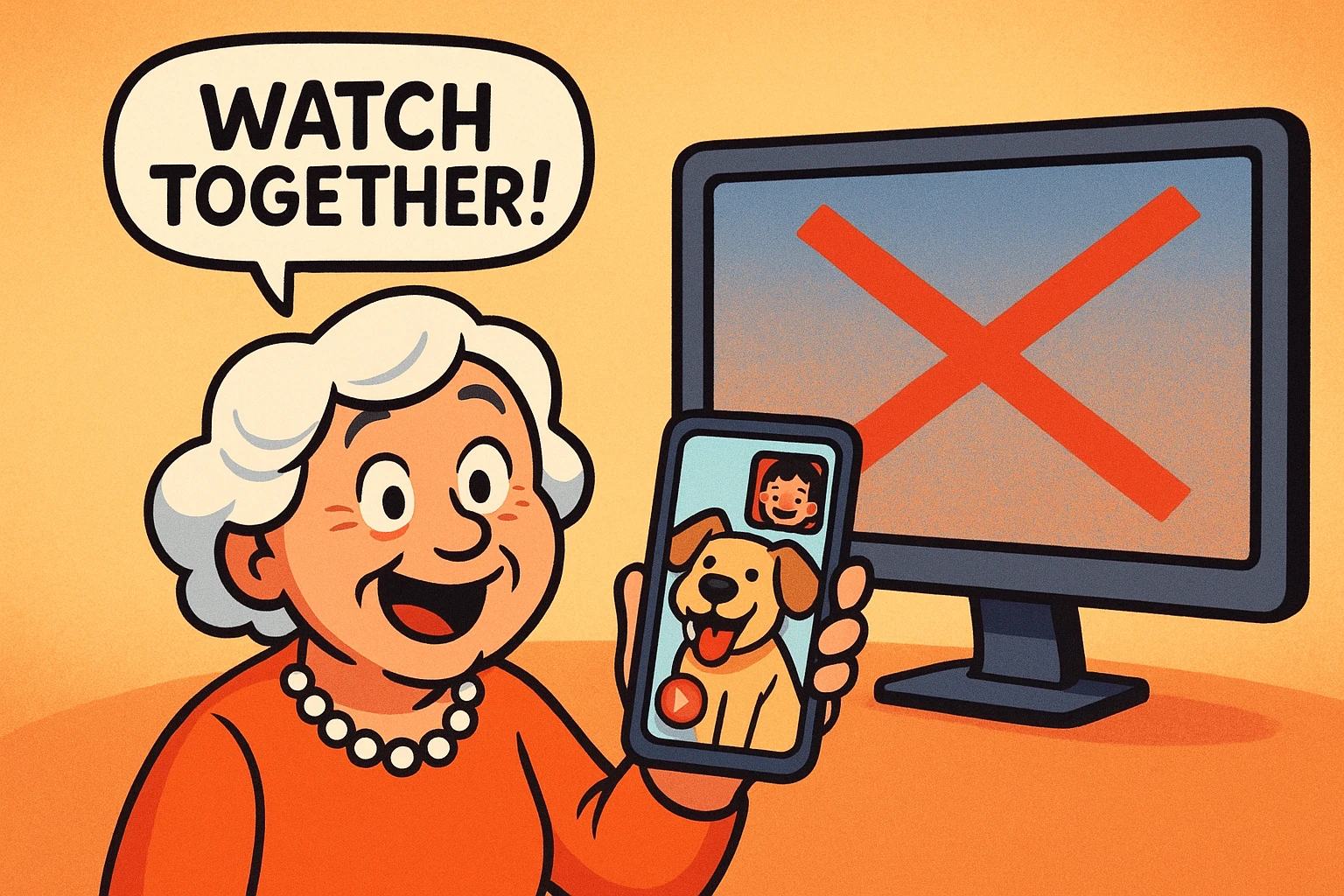
Enter Facebook Messenger’s “Watch Together” feature. It sounds like a neighborhood block watch program, but it’s actually a clever little tool hidden right inside your phone. It allows you to watch videos with your family or friends while you are on a video call.
You see the video on your screen, you see their face in a little box, and they see yours. It’s exactly like sitting on the same couch together, minus the inevitable fight over who gets to hold the television remote.
However, tech companies love to hide their best features like digital Easter eggs. Finding them can sometimes feel like trying to open a jar of pickles with slippery hands. Don’t worry, we are going to walk through this together, step by simple step.
Before we get to the fun part, we need to address the elephant in the room. We call it “The Desktop Trap.” Many of us prefer our big desktop computers or laptops because the screen is the size of a billboard, and we can actually read the text without squinting.
But “Watch Together” is an exclusive club, and desktop computers are not on the guest list. This feature lives entirely inside the Facebook Messenger app on your smartphone or tablet (like an iPad).
If you try to find this feature on your desktop computer, you will spend an hour clicking your mouse in quiet desperation. You’ll eventually wonder if you’ve lost your mind. You haven’t! You just need to switch to your mobile device.
To save you from a headache, we’ve created the “Two Rules for Success” when it comes to this feature. Rule one: You must use the Messenger App on your phone or tablet. Rule two: You must already be on an active video call with the person before you can start watching things.
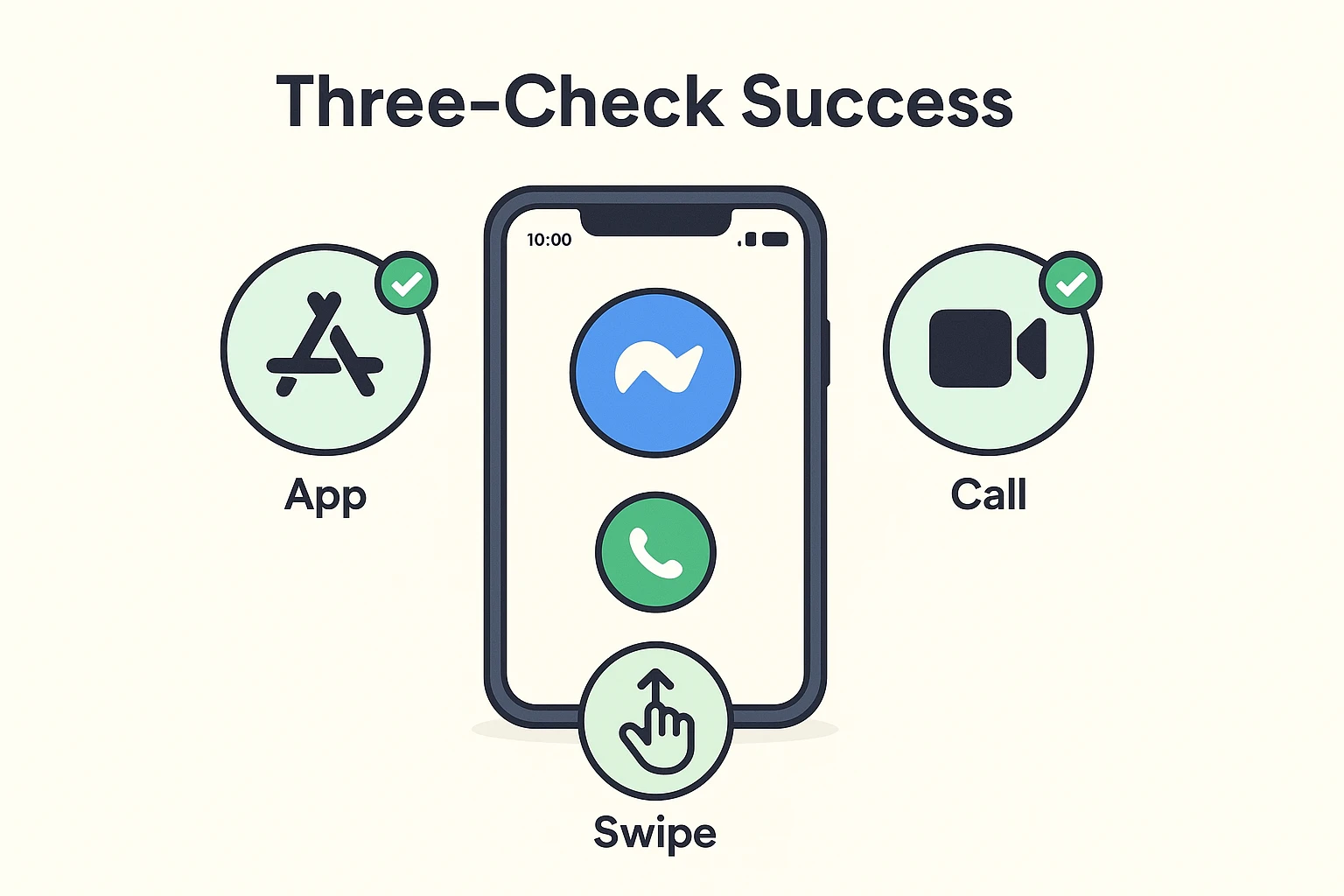
Now that you are holding your phone or tablet, it is time to make the magic happen. First, open the Messenger app and tap the little video camera icon next to your friend or family member’s name to start a video call.
Once they answer and you’ve exchanged your initial “Can you hear me? Is my microphone on?” pleasantries, you are ready for the secret maneuver. We call it “The Swipe Up.”
While you are looking at your screen, place your finger near the bottom and gently slide it upward toward the top. Think of it like trying to launch a tiny, invisible rocket off the top of your phone.
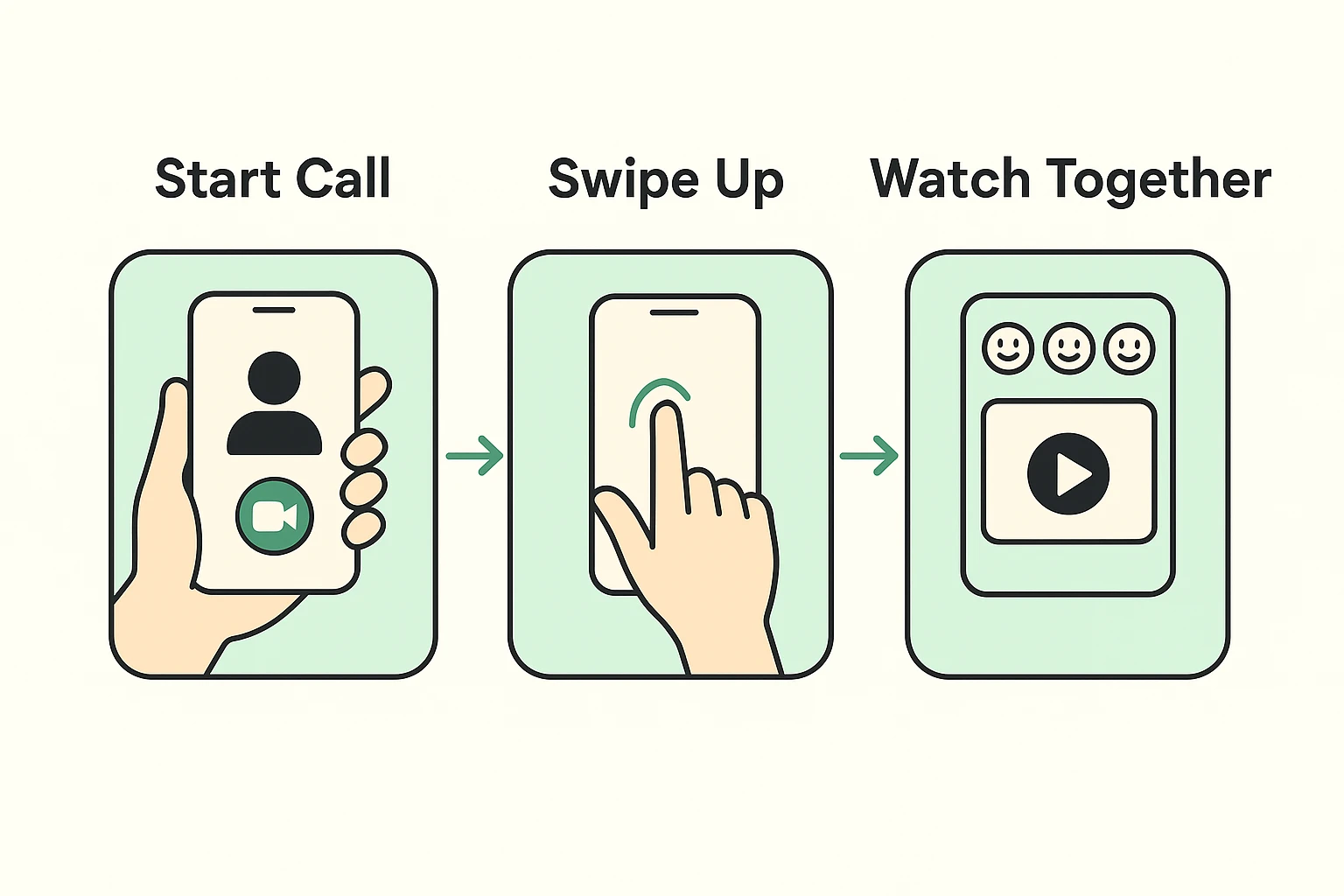
When you successfully swipe up, a new menu will magically slide into view. Right there, practically waving at you, will be an icon that says “Watch Together.” Tap that button, and a whole new world of video options will open up.
You might be hoping to fire up a two-hour historical documentary on Netflix or an old Johnny Carson clip on YouTube. Sadly, those apps don’t play nicely with Messenger. Facebook likes to keep you inside their own walled garden.
But fear not! You have access to millions of videos directly through Facebook. The best things to watch together right now are called “Reels.” These are short, snappy videos that are incredibly popular.
You can use the search bar at the top of the Watch Together menu to find exactly what you want. Type in “funny golden retrievers,” “baking tips,” or “classic car restorations.” Suddenly, you and your grandkids can laugh together at a dog trying to carry a giant stick through a narrow door.
One of the biggest fears we hear from seniors is the dread of pressing the wrong button and “breaking” the video call. Let us officially put that fear to rest right now. You cannot break this.
When you use Watch Together, think of it like everyone in the room holding their own magical television remote. If the video is playing and you want to point something out, you can just tap the screen to pause it.
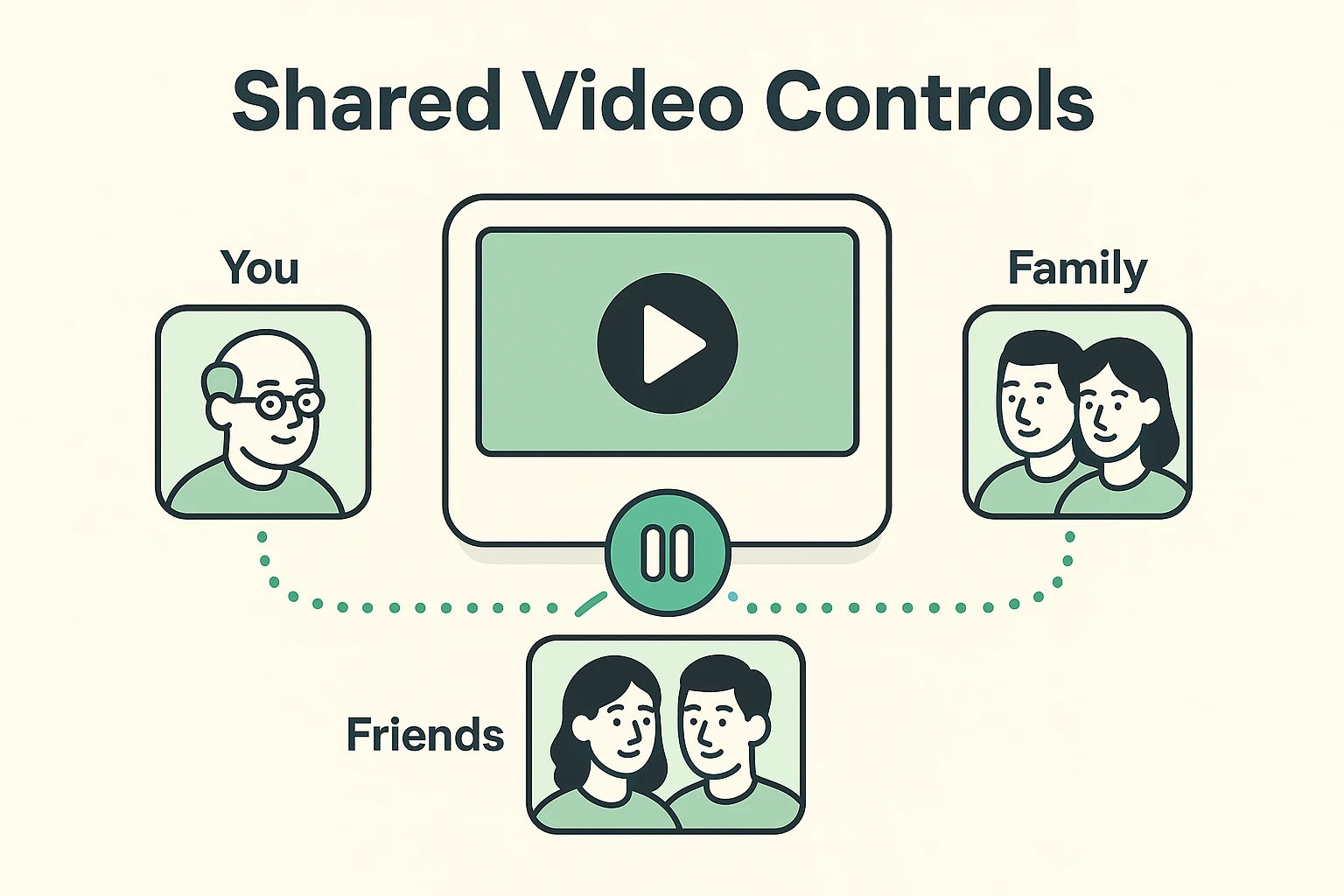
When you pause the video on your phone, it pauses the video on your grandchild’s phone, too. If they fast-forward to the funny part, your video skips ahead automatically. It is a completely shared experience, and everyone has equal control.
Whenever a camera is involved, it is perfectly natural to wonder exactly who is looking at you. Are the people who made the video watching you watch their video? Is the whole internet staring at your living room curtains?
The answer is a resounding no. Watch Together is completely private. The only person who can see you is the person you are on the video call with.
It is exactly the same as a standard, private video call, just with a funny animal video playing in the middle of your screen. You can enjoy your digital movie date with total peace of mind.
No, it is completely free! As long as you are connected to Wi-Fi or have a cellular data plan, you won’t be charged a single penny to use this feature.
First, double-check that you are using a smartphone or tablet, not a computer. Second, make sure your Messenger app is updated to the latest version in your phone’s App Store. Sometimes old, outdated apps hide the newest features.
Yes! In that Watch Together menu, you will see an option labeled “Uploaded” or “Your Videos.” This allows you to share videos right from your own Facebook page, making it perfect for sharing family memories.
Reading about technology is good, but trying it is where the real fun begins. We challenge you to set up a digital “movie date” this week.
Send a message to a loved one—a grandchild, a sibling, or a friend who moved away—and ask them for a 10-minute video call. Tell them you have a funny video you want to show them.
Once you get them on the line, take a deep breath, swipe up, and hit that Watch Together button. You’ll be amazed at how quickly the miles between you disappear when you’re laughing at the same exact time.