Newsletter Subscribe
Enter your email address below and subscribe to our newsletter

Enter your email address below and subscribe to our newsletter
You have settled into your favorite armchair, a fresh cup of coffee in hand, ready to stream the latest episode of that mystery show everyone is talking about. You press “Play.” The screen goes black. Then, the dreaded spinning wheel of doom appears, mocking your plans for a relaxing afternoon.
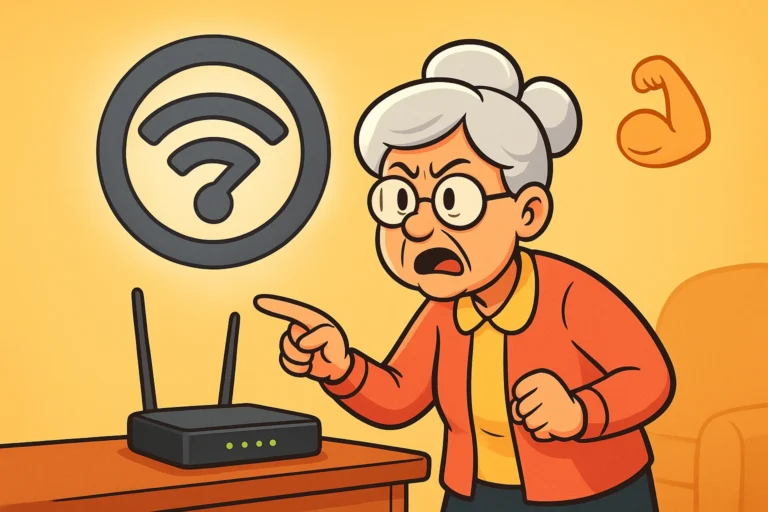
Naturally, you look over at your internet equipment—that mysterious box with the blinking lights in the corner of the room. It’s flashing like a disco ball having a nervous breakdown. Green lights, amber lights, maybe a frantic blue one. It looks like it’s trying to communicate in Morse code, or perhaps land an airplane in your living room.
If you’ve ever stared at your router wondering if “blinking fast” means “working hard” or “about to explode,” you are not alone. These devices are notoriously bad at communicating with humans. They don’t have screens that say, “Hey, just downloading an update, back in five minutes.” Instead, they give us a cryptic light show.
The good news? You don’t need an engineering degree to understand what your internet box is saying. We are going to decode the language of these lights so you can tell the difference between a simple “I’m busy” and a desperate cry for help.
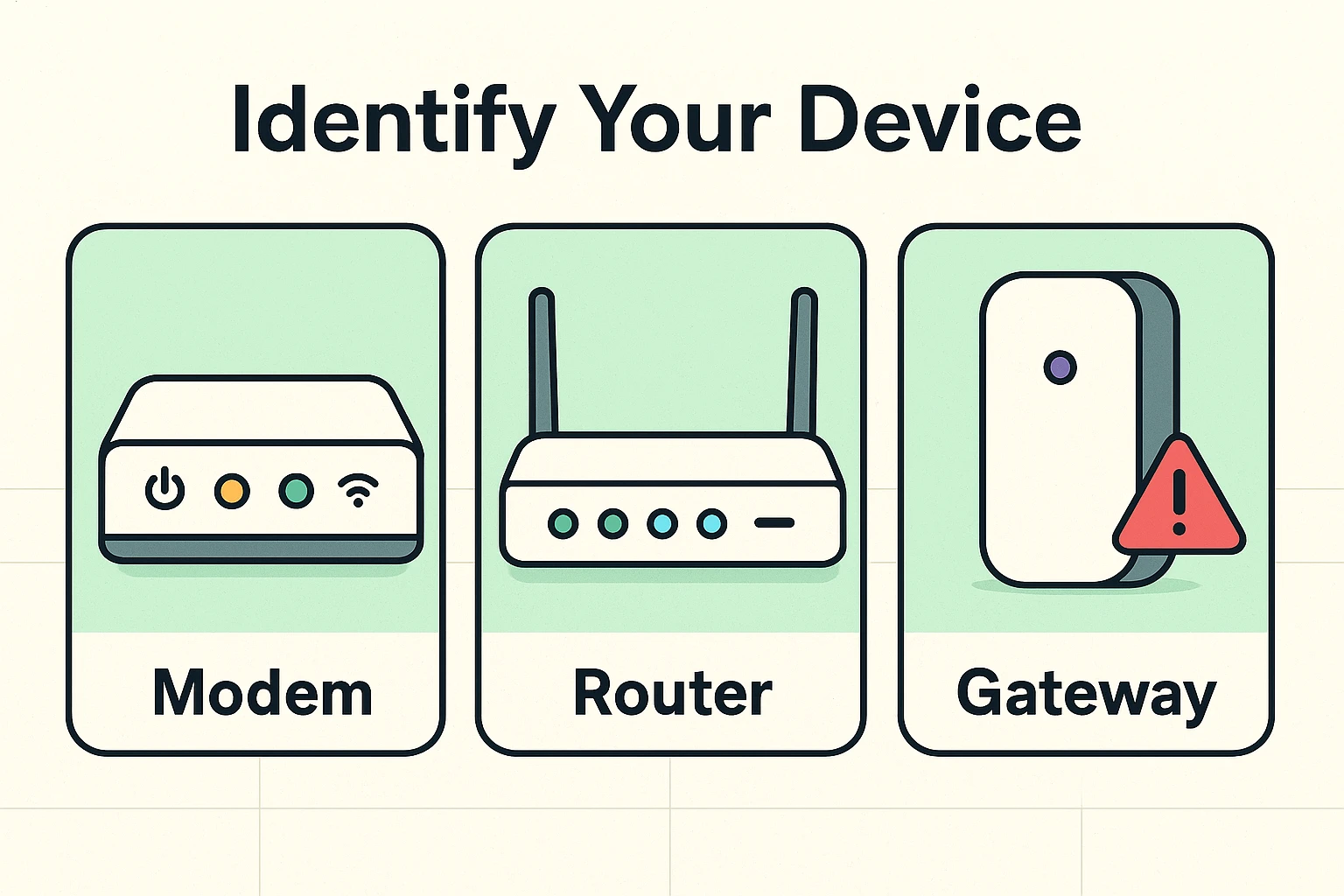
Before we start interpreting the light show, we need to know who is performing. Most home internet setups involve two distinct jobs: the Modem and the Router. Sometimes they are two separate boxes, and sometimes they are mashed together into one “super-box.”
The Modem is the gateway to the outside world. It brings the internet from the street into your house. Think of it as the front door.
The Router is the traffic cop. It takes that internet signal and directs it wirelessly (Wi-Fi) to your iPad, your smartphone, and your smart TV.
Many internet providers (like Xfinity or AT&T) now give you a Gateway, which is just a fancy word for a modem and router combined into a single plastic tower. If you only have one box with lights, you have a Gateway. If you have two, the one plugged into the wall outlet is your modem, and the one broadcasting Wi-Fi is your router.
Despite being made by different companies, most internet boxes speak a similar language. They use color and movement to tell you their emotional state.
Think of your router like a highway. When the lights are solid, the road is open and traffic is flowing smoothly. When the lights are blinking, cars are moving—data is being sent or received.
Here is the general rule of thumb for deciphering the colors:
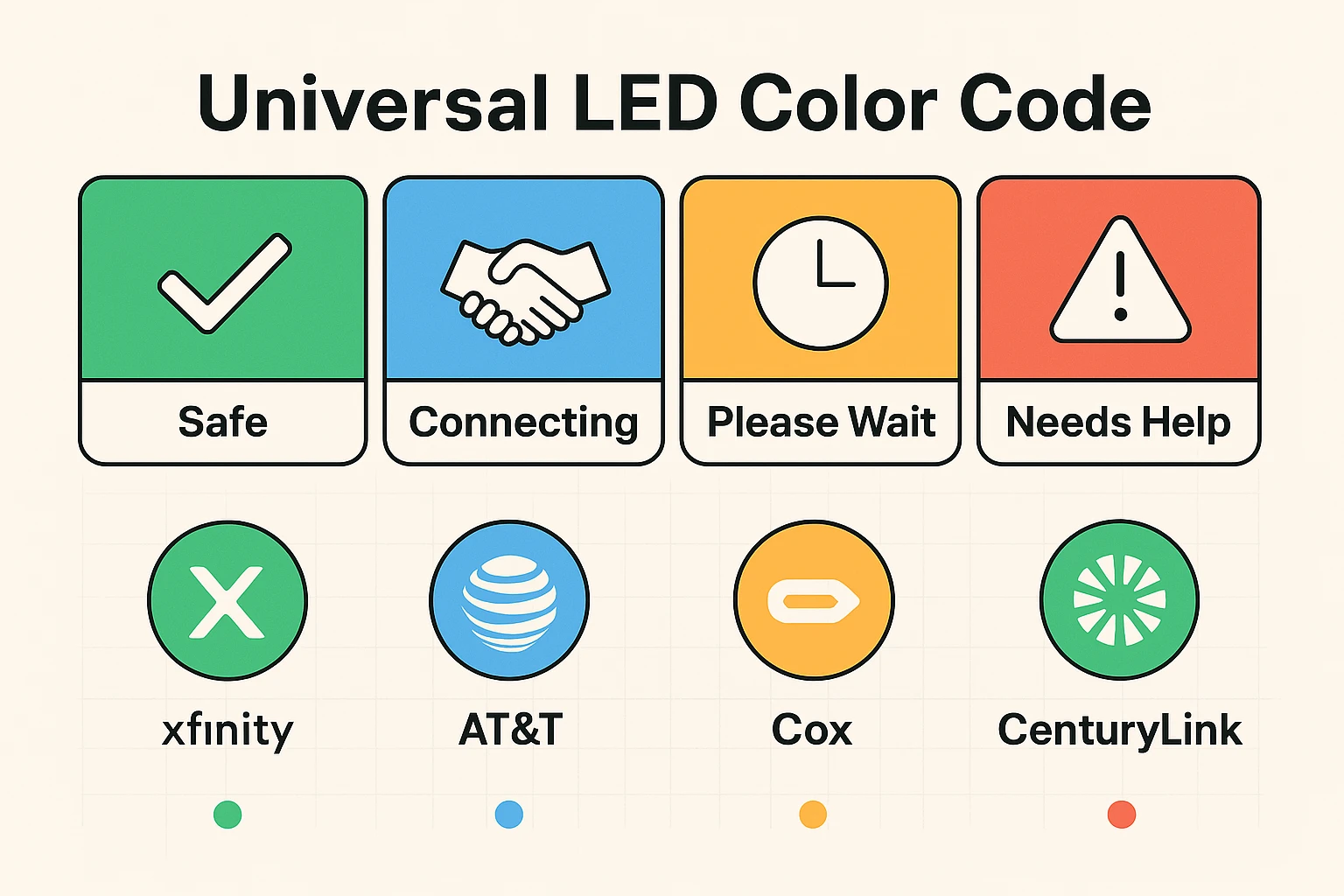
Translation: “I am happy and working.”This is the gold standard. A solid green or white light usually means the power is on, the internet connection is established, and you are good to go.
Translation: “I am busy working.”Do not panic! A rapidly blinking green light often just means data is moving. It’s like watching the speedometer in your car go up. If you are downloading a movie or your computer is updating, this light will flicker like crazy. It’s a sign of activity, not a malfunction.
Translation: “I am starting up” or “I am updating.”You usually see this when you first turn the device on. It’s the machine’s way of saying, “Give me a minute, I haven’t had my coffee yet.” If it stays amber for more than 20 minutes, however, something might be stuck.
Translation: “I am trying to find a connection.”This is the “searching” signal. Your box is yelling out to the internet company, “Hello? Is anyone there?” If this continues for a long time, it means the line is down or the cable is loose.
Translation: “Houston, we have a problem.”Red is almost never good. A red light means the connection has failed, the device is overheating, or there is a service outage in your area.
Translation: “I am looking for a friend.”You will typically see a blue light when you press the “WPS” button to easily connect a printer or a new device without typing in a password. It means the router is in “pairing mode.”
If the colors weren’t confusing enough, manufacturers label these lights with tiny, impossible-to-read symbols. Here is a quick legend to help you squint at the right one:
So, your internet is down, and the lights are doing something suspicious. Before you spend forty minutes on hold listening to elevator music while waiting for tech support, try this “First Aid” routine.
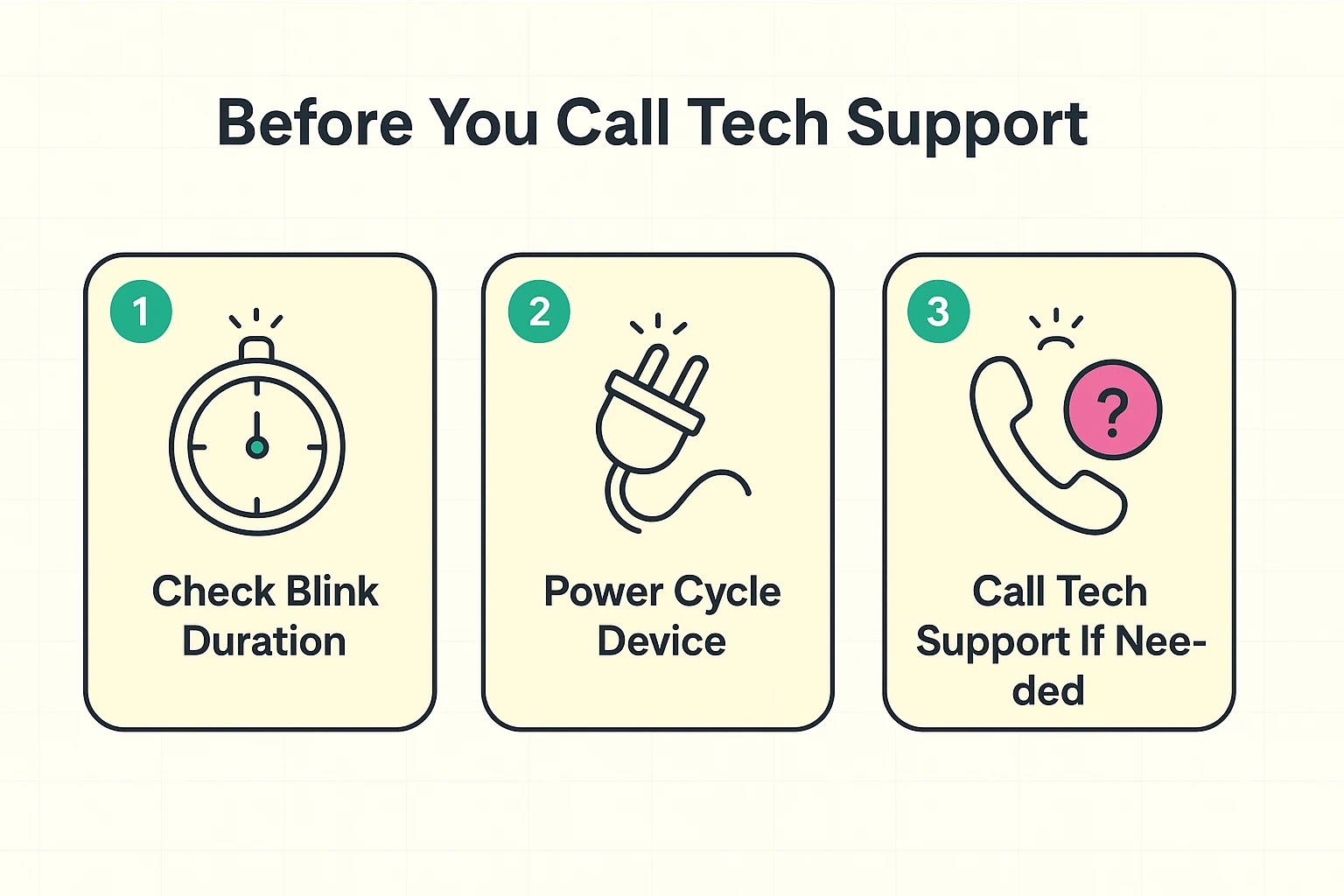
Patience is a virtue, especially with technology. If your router is blinking amber or orange, wait 20 minutes. It might be downloading a critical security update from your provider. Interrupting this process is like turning off your car while the mechanic is still working on the engine. If it’s still blinking after 20 minutes, then you have permission to intervene.
When tech support asks, “Have you turned it off and on again?” they aren’t just trying to get rid of you. This actually fixes about 90% of home internet issues. But there is a specific way to do it.
Don’t just press the button. Here is the correct ritual:
This is a common source of anxiety. “Is someone hacking me?” “Is my neighbor stealing my Wi-Fi?”
Likely, no. Your devices (phones, tablets, smart TVs) are constantly chatting with the router even when you aren’t using them. They might be checking for emails, updating the weather app, or backing up photos to the cloud"The cloud" refers to storage and services that are accessed over the internet instead of being stor... More. A rapid blink usually just means your gadgets are whispering to each other in the background.
Absolutely. If your router lives in your bedroom and looks like a strobe light, feel free to put a piece of black electrical tape over the lights. It won’t hurt the device (just don’t cover the ventilation holes where the heat comes out).
If you have done the Power Cycle Ritual (unplugged for 60 seconds) and the light returns to solid red, it is time to call your Internet Service Provider. This usually indicates a line cut outside your house or a dead modem that needs replacing.
Now that you have deciphered the secret language of your router, you can look at that blinking box with confidence rather than confusion. It’s not a magical mystery machine; it’s just a traffic cop directing data.
Remember, technology is supposed to work for you, not the other way around. If the lights are green, the road is open—get back to streaming that mystery show.