Newsletter Subscribe
Enter your email address below and subscribe to our newsletter

Enter your email address below and subscribe to our newsletter

Have you ever opened your cell phone bill and gasped at a sudden “data overage” charge, even though you barely touched your phone all month? You sit there wondering if your smartphone has a secret double life. Is it sneaking out at night to stream high-definition movies with the neighbor’s tablet? You only use it to check the weather and occasionally text a thumbs-up emoji to your grandkids, yet somehow, your data allowance has vanished into thin air.
If this sounds familiar, take a deep breath. You are not losing your mind, and your phone isn’t throwing secret midnight watch parties. What’s actually happening is a classic case of hidden apps quietly snacking on your mobile data while your phone is sitting peacefully in your pocket.
Today, we are going to play digital detective. We’ll show you exactly how to find out which apps are treating your data plan like an all-you-can-eat buffet, and more importantly, how to cut them off.
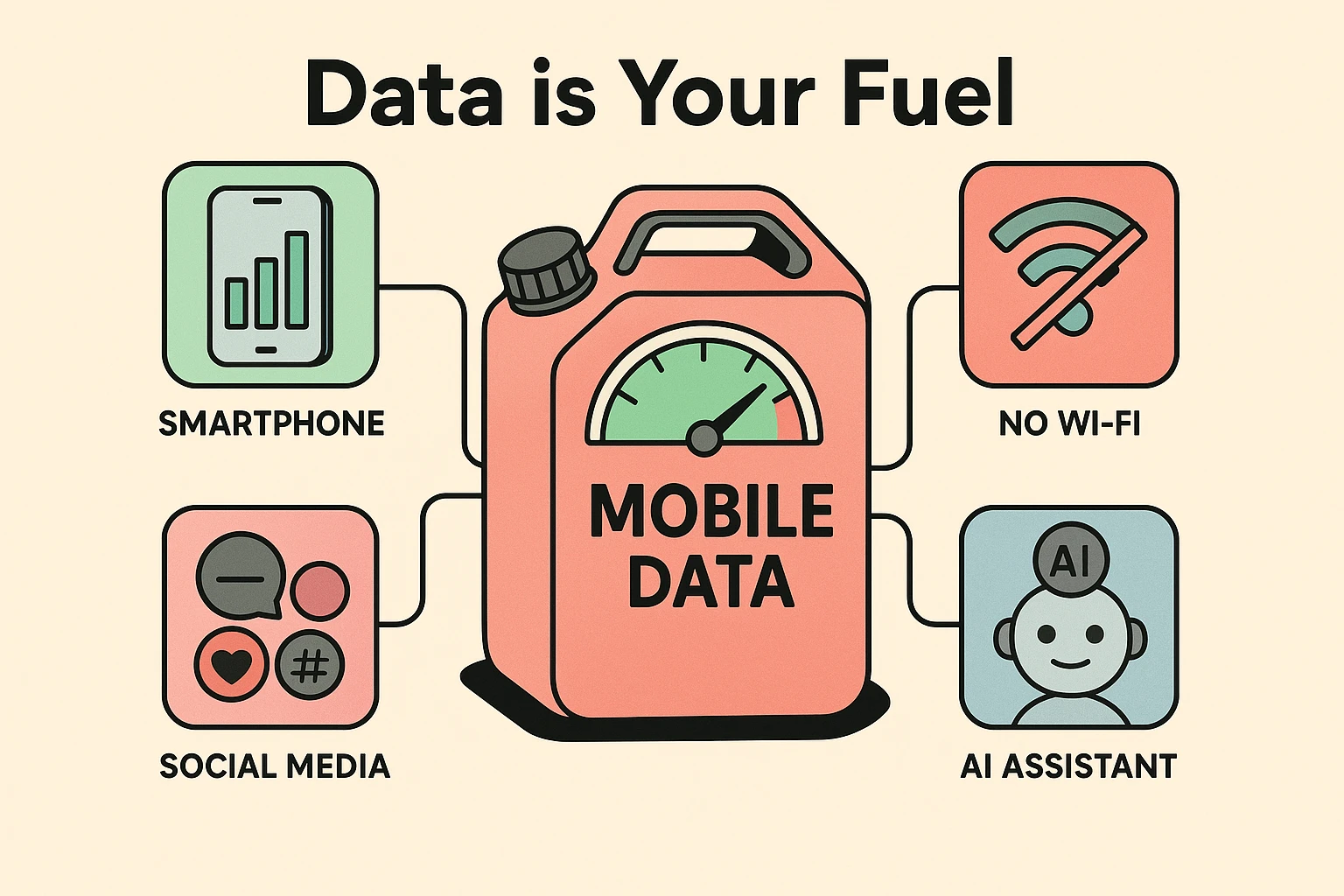
To understand mobile data, it helps to think of your phone like a car, and your data plan as the gas tank. When you are connected to your home Wi-Fi, it’s like your car is safely parked in the garage and plugged into a free wall outlet. You can browse, watch, and download all you want without spending a dime. But the second you step out the front door, your phone switches to mobile data, which means the gas meter starts ticking.
Not all phone activities burn gas at the same rate. Sending a text message or reading an email is like idling in the driveway; it barely uses a drop. But watching a YouTube cooking video while riding the bus? That is the digital equivalent of driving 80 miles per hour uphill towing a boat.
Here is the trickiest part: apps use data in two different ways. There is “Foreground” data, which is like the actors on a theater stage performing right in front of you. Then there is “Background” data, which is the backstage crew running around in the dark. Even when you aren’t actively using an app, that backstage crew is constantly checking for new emails, downloading updates, and silently refreshing your social media feeds.
Now that we know how data disappears, it’s time to find the culprits. Both Apple and Android phones have built-in tools that act like a detailed receipt, showing exactly who used what. Best of all, checking this receipt doesn’t require a degree in computer science.
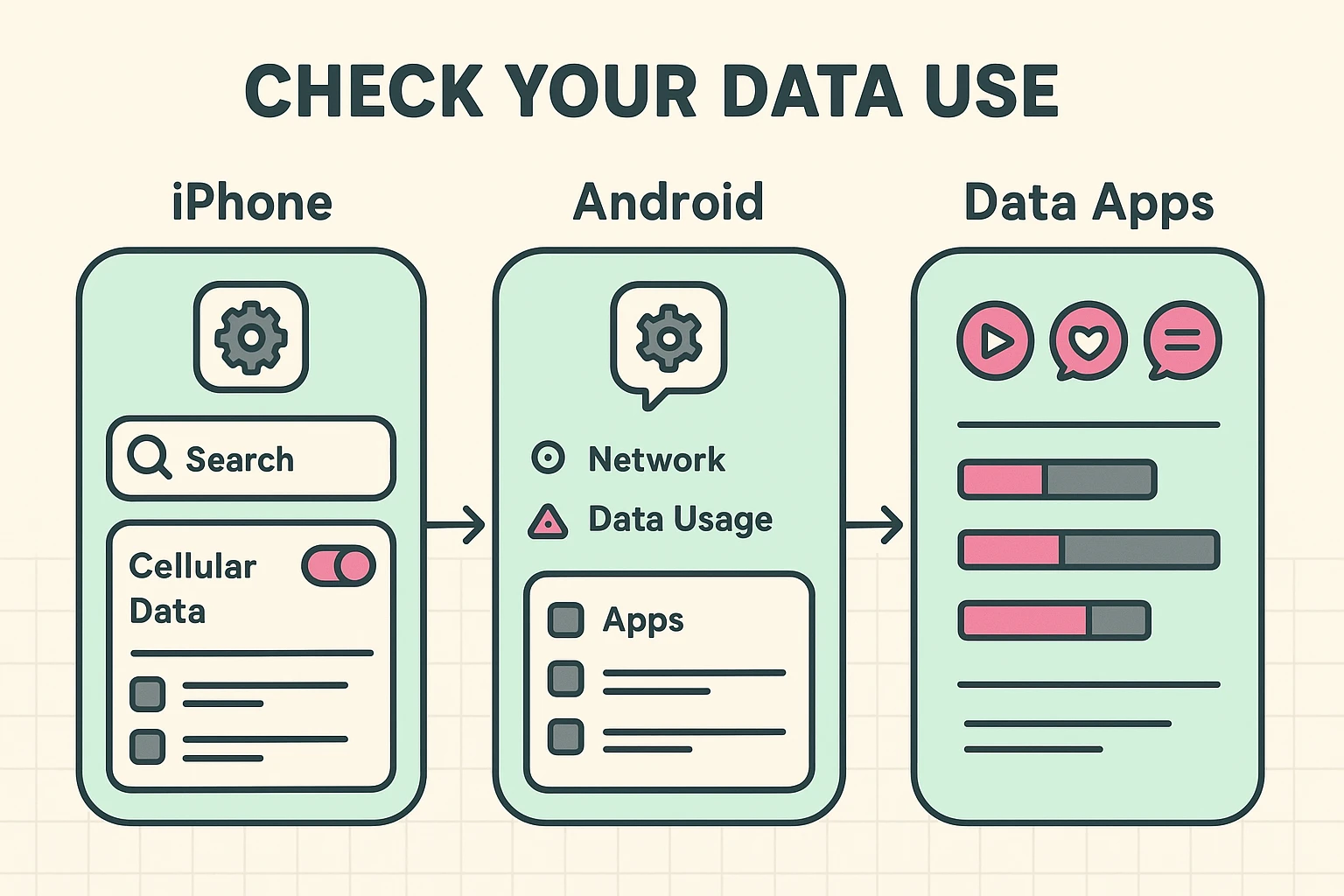
Grab your iPhone and tap on the Settings app (the one that looks like a silver gear). From there, tap on Cellular (or Mobile Data in some regions). Scroll down past the confusing carrier options until you see a list of your apps.
Right under the name of each app, you’ll see a number, like “45 MB” or “1.2 GB.” The apps at the top with the biggest numbers are your heaviest data drinkers. If you see an app you rarely use hogging massive amounts of data, you can simply tap the green switch next to it to turn it off.
If you have an Android phone, open your Settings app. Tap on Network & Internet, and then select Internet or Mobile Network. Look for an option that says App Data Usage and give it a tap.
You will be greeted with a handy chart and a list of apps sorted by how much data they’ve used. Just like on the iPhone, you can tap on any app in this list. If it looks suspiciously high, you can toggle off the switch that says Background Data to stop it from syncing when you aren’t looking.
When you look at your list, a few usual suspects will probably jump out. Social media apps like Facebook and Instagram are notorious data hogs because they automatically play videos as you scroll past them. Even if you only watch a dog on a skateboard for two seconds, your phone downloads the whole high-definition clip.
Cloud backup services are another major drain. If you take photos of your garden while out on a walk, apps like Google Photos or iCloud might immediately try to save those pictures to the internet using your mobile data. The newer, highly-talked-about AI assistants like ChatGPT can also consume surprising amounts of data, especially if you use their voice chat features while away from Wi-Fi.
A quick note on safety: if you ever spot a totally unfamiliar app on your list using massive amounts of data, it’s smart to investigate. You can always check their website to verify if it’s a legitimate company or an old app you forgot to delete. It is always better to be safe than sorry when it comes to your digital privacy.
You don’t have to turn off your phone and live off the grid to save data. First, look for your phone’s “Data Saver” or “Low Data Mode” switch in your cellular settings. Flipping this switch is like hanging a “Do Not Disturb” sign on your phone; it tells all your apps to stop their backstage background refreshing until you connect to Wi-Fi.
Next, beware of “The Silent Switch,” officially known as Wi-Fi Assist on iPhones (or Adaptive Connectivity on Android). This sneaky feature tells your phone to automatically switch to your paid cellular data if your home Wi-Fi connection gets a little weak. You might think you’re safely browsing on your home internet, but your phone has quietly started billing your data plan!
You can turn this off easily. On an iPhone, go to Settings > Cellular, scroll all the way to the very bottom (past the giant list of apps), and turn off Wi-Fi Assist. For Android, search your settings for Adaptive Connectivity and toggle it off.
Sometimes you go into your settings ready to take charge, only to find that the switches are greyed out and you can’t click them. It is incredibly frustrating, like trying to turn a doorknob that has been glued shut. This is a surprisingly common problem that most technical manuals completely ignore.
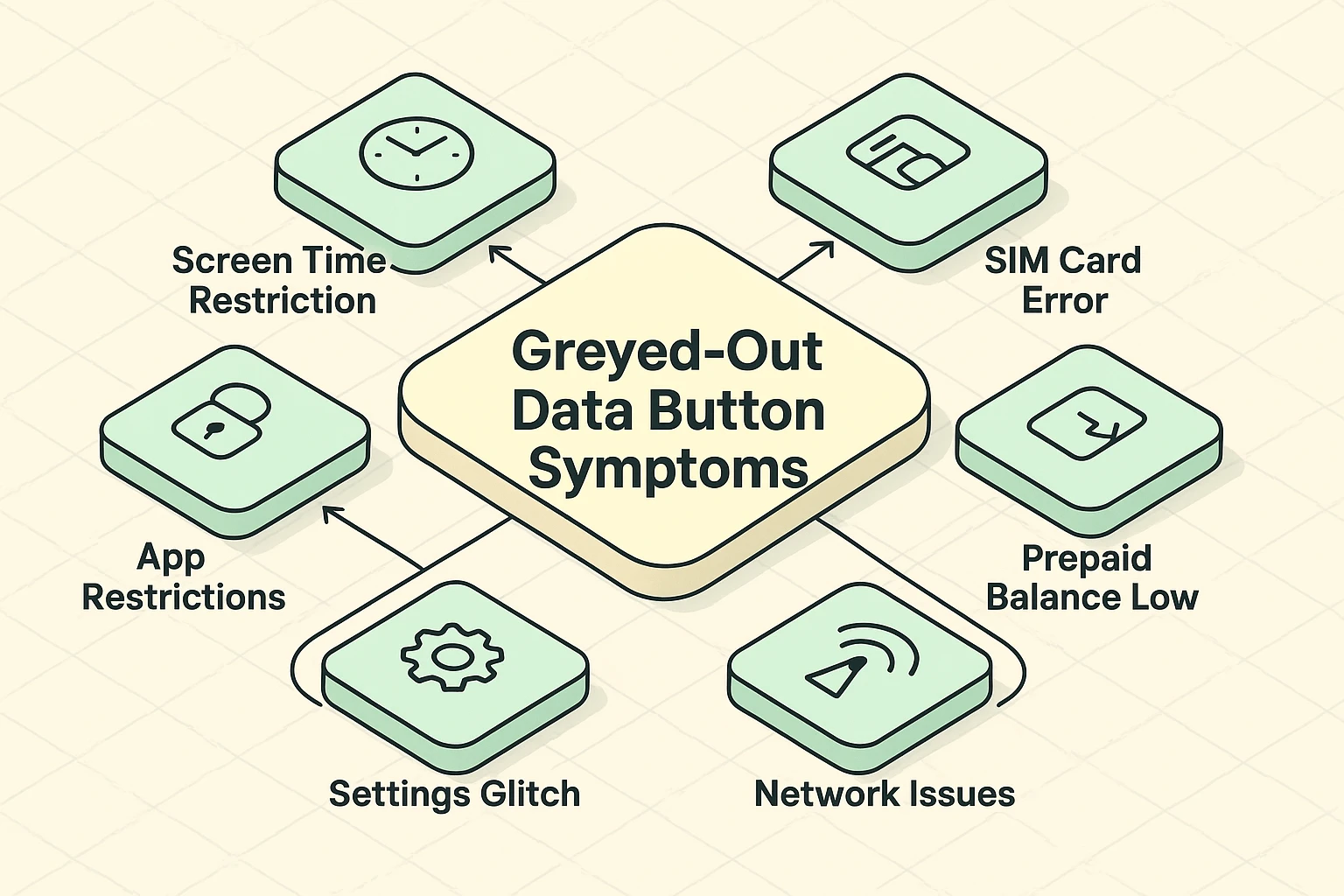
Usually, a greyed-out button means your phone is under some kind of restriction. If you share a family plan, a well-meaning child or spouse might have set up “Screen Time” or “Content Restrictions” that accidentally locked your cellular settings. You can fix this on an iPhone by going to Settings > Screen Time > Content & Privacy Restrictions and allowing changes to Cellular Data.
For traveling seniors using prepaid digital SIM cards (like SoSim or Nomad), a greyed-out button often means your travel plan has expired or run out of funds. You aren’t doing anything wrong; the company simply locked the connection until you check your balance through their app or website.
Yes, but usually not much. If your phone is connected to your home Wi-Fi while you sleep, it uses no mobile data at all. If you don’t have Wi-Fi, the “backstage” apps might use a tiny bit of data to check for emails or messages, but it shouldn’t cause a massive spike.
When you check your data usage, you might see “System Services” using a chunk of data. Don’t panic! This isn’t a hacker; it’s just your phone doing basic housekeeping chores, like updating its internal clock, checking for voicemail, or finding your location for maps.
No! Constantly swiping up to close your apps actually drains your battery faster because the phone has to restart them from scratch later. Instead, use the “Background Data” switches we discussed earlier to keep them quiet while they are open.
Congratulations! You have just graduated from mobile data basic training. You now know how to check your data gas tank, identify the apps joyriding on your bill, and put a stop to hidden background syncing.
Managing your technology shouldn’t feel like wrestling a greased pig. By taking a few minutes to tweak these settings, you are taking back control of your device and your monthly bill. Stay curious, keep exploring, and remember: your phone is supposed to work for you, not the other way around!