Newsletter Subscribe
Enter your email address below and subscribe to our newsletter

Enter your email address below and subscribe to our newsletter
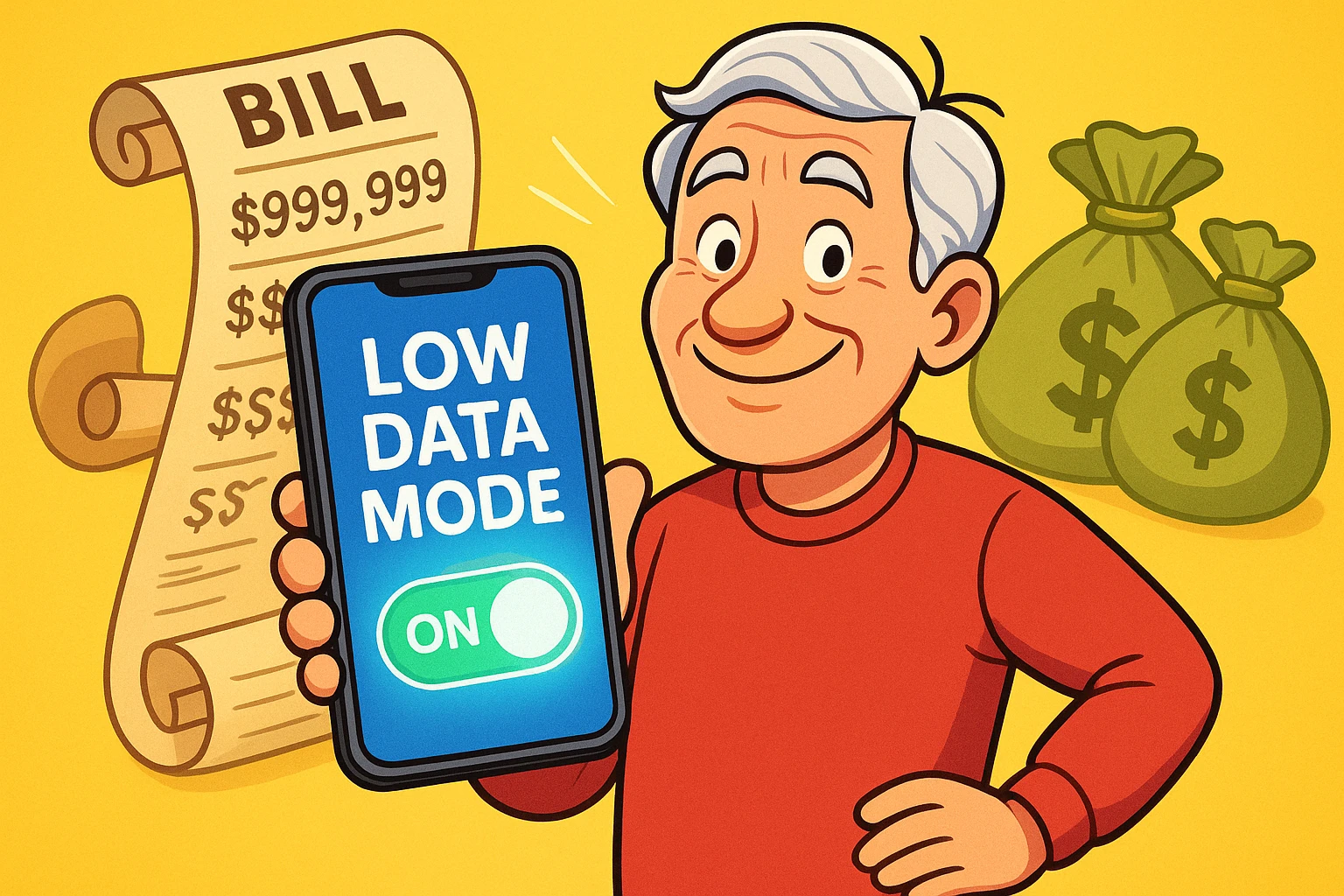
You open your monthly phone bill, and the total makes you wonder if you accidentally funded a secret space mission. You haven’t made any international calls, and you certainly haven’t bought any new gadgets. Your only crime? Watching a ten-minute video of a golden retriever adopting a baby duckling while waiting in line at the pharmacy.
If this scenario sends a cold shiver down your spine, you are not alone. For many seniors on fixed incomes, data overage charges—often called “bill shock”—are a universal, modern-day nuisance. It feels like your smartphone is secretly spending your money behind your back.
The good news is that you have a built-in financial bodyguard living right inside your phone. It’s called “Low Data Mode” (or “Data Saver” if you use an Android). Let’s demystify this brilliant little safety switch, figure out how it works, and learn exactly when you should use it.
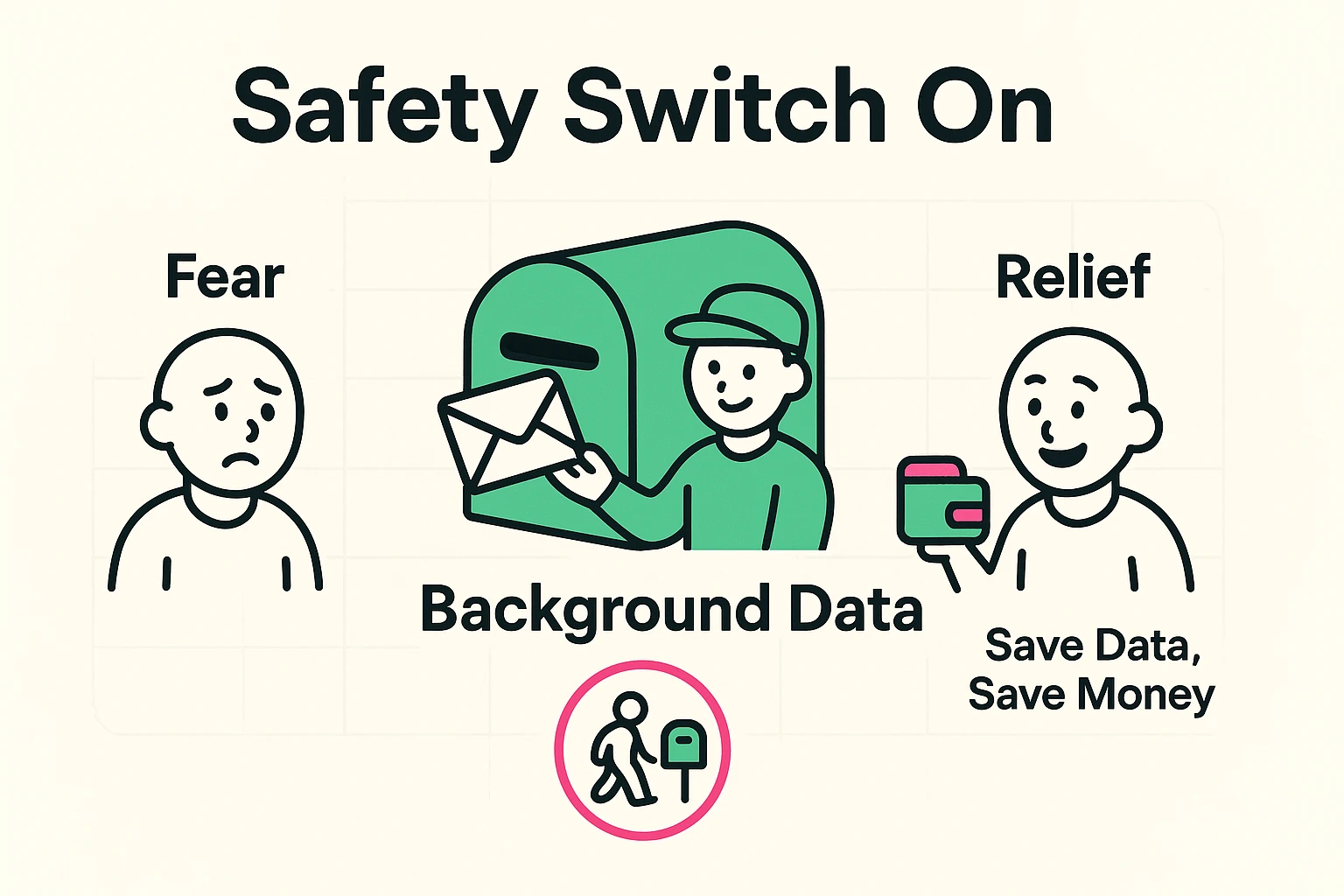
To understand how to save data, we first need to understand how your phone spends it. Your smartphone is a bit like a nosy neighbor. Even when it’s sitting quietly in your pocket, it is constantly checking for gossip. It’s checking the weather, fetching new emails, and seeing what your cousin posted on Facebook.
Tech folks call this “Background App Refresh,” but we prefer to call it what it is: your phone snacking on your data plan when you aren’t looking. When you turn on Low Data Mode, you are simply putting your phone on a strict data diet.
Think of it like getting your daily mail. Normally, the digital mail carrier runs up to your front door every five minutes to hand you a new letter. When you turn on Low Data Mode, the mail carrier stays at the Post Office. Your mail is still there, and it’s perfectly safe. But if you want to read it, you have to actively open your email app—essentially walking to the Post Office yourself.
Before you flip any switches in your settings menu, let’s address the elephant in the room. Many seniors are terrified that changing a setting will completely break their phone. Let’s bust the three most common myths about Low Data Mode right now.
Myth 1: It blocks my phone calls. False! Standard voice calls use cellular radio signals, not your internet data. You can keep Low Data Mode on all day, and Aunt Martha can still call to tell you about her new casserole recipe.
Myth 2: It will delete all my photos. Not a chance. Low Data Mode simply tells your phone to pause backing up your photos to the “cloud” while you are out and about. The second you connect to your home Wi-Fi, your photos will safely back themselves up.
Myth 3: It breaks the internet. Also false. You can still browse the web, read the news, and send text messages. Low Data Mode doesn’t stop you from using the internet; it just stops your apps from using the internet without your permission.
Modern smartphones have more “modes” than a complicated washing machine. It’s incredibly easy to get them confused. Let’s clear the air so you don’t accidentally turn off your internet when you just meant to save a few bucks.
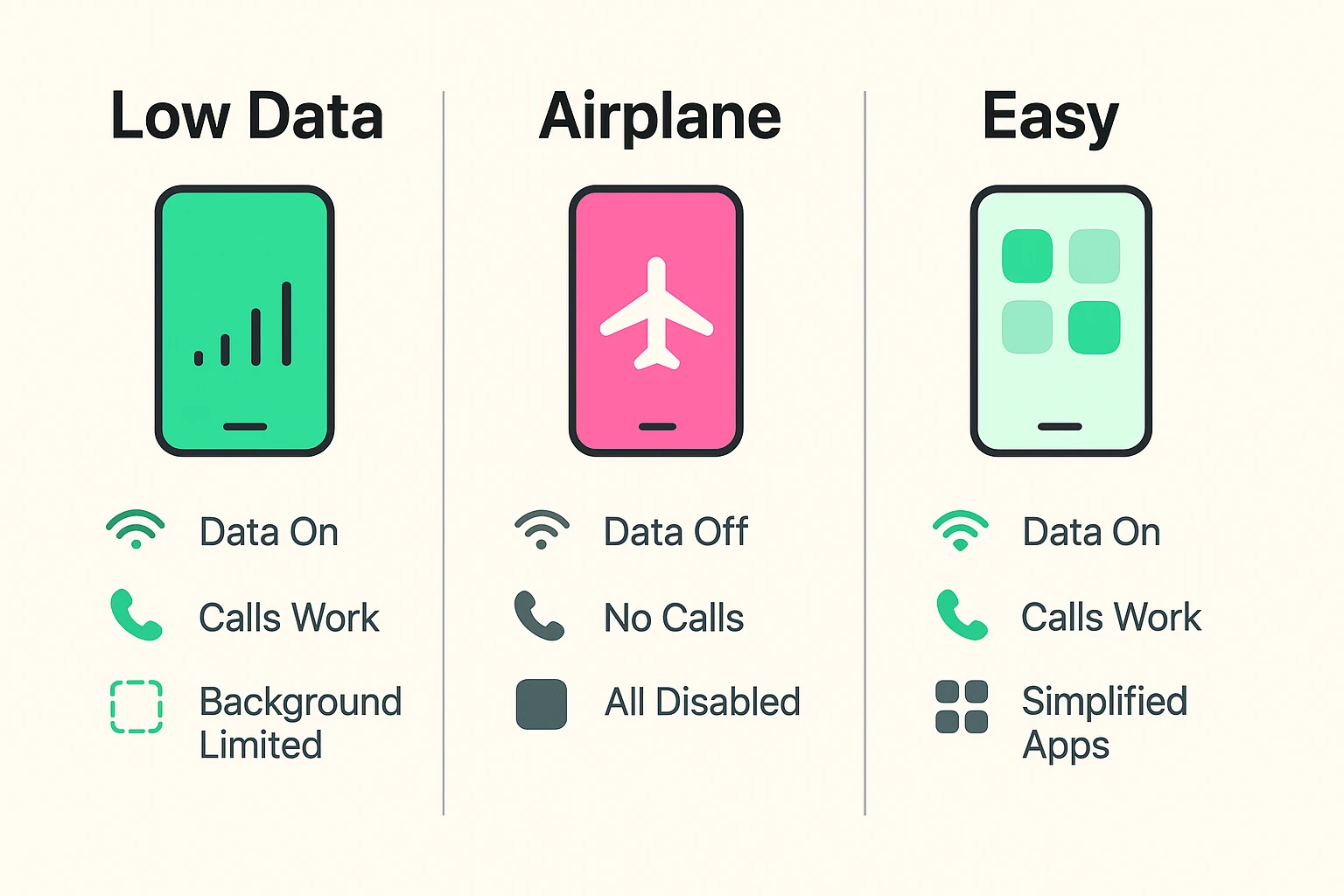
Low Data Mode (iPhone) / Data Saver (Android): This keeps you fully connected to the world but stops background apps from secretly draining your data plan. Use this when you want to save money.
Airplane Mode: This completely severs all cellular and Wi-Fi connections. Your phone becomes a very expensive pocket watch. Use this when you are literally on an airplane, or when you want the entire world to leave you alone.
Easy Mode: This is an entirely different feature (mostly found on Samsung phones) that makes your screen icons bigger and your menus simpler to read. It has absolutely nothing to do with saving internet data.
When you flip the switch, your phone changes how it behaves. Let’s set some expectations so you aren’t caught off guard when your apps act a little differently.
Facebook & YouTube:Those videos that usually start playing loudly all by themselves as you scroll? They will stop doing that. In Low Data Mode, a video will sit quietly and wait for you to physically tap the “Play” button.
FaceTime & Video Calls:You can absolutely still video chat with your grandkids. However, the video quality might look a little fuzzy or pixelated. Your phone is slightly lowering the picture quality to save massive amounts of data.
Email & Notifications:Remember the Post Office analogy? You won’t hear a “ding” every time a retail store sends you a coupon. You will only see those new messages when you actually tap your Mail app to check for them.
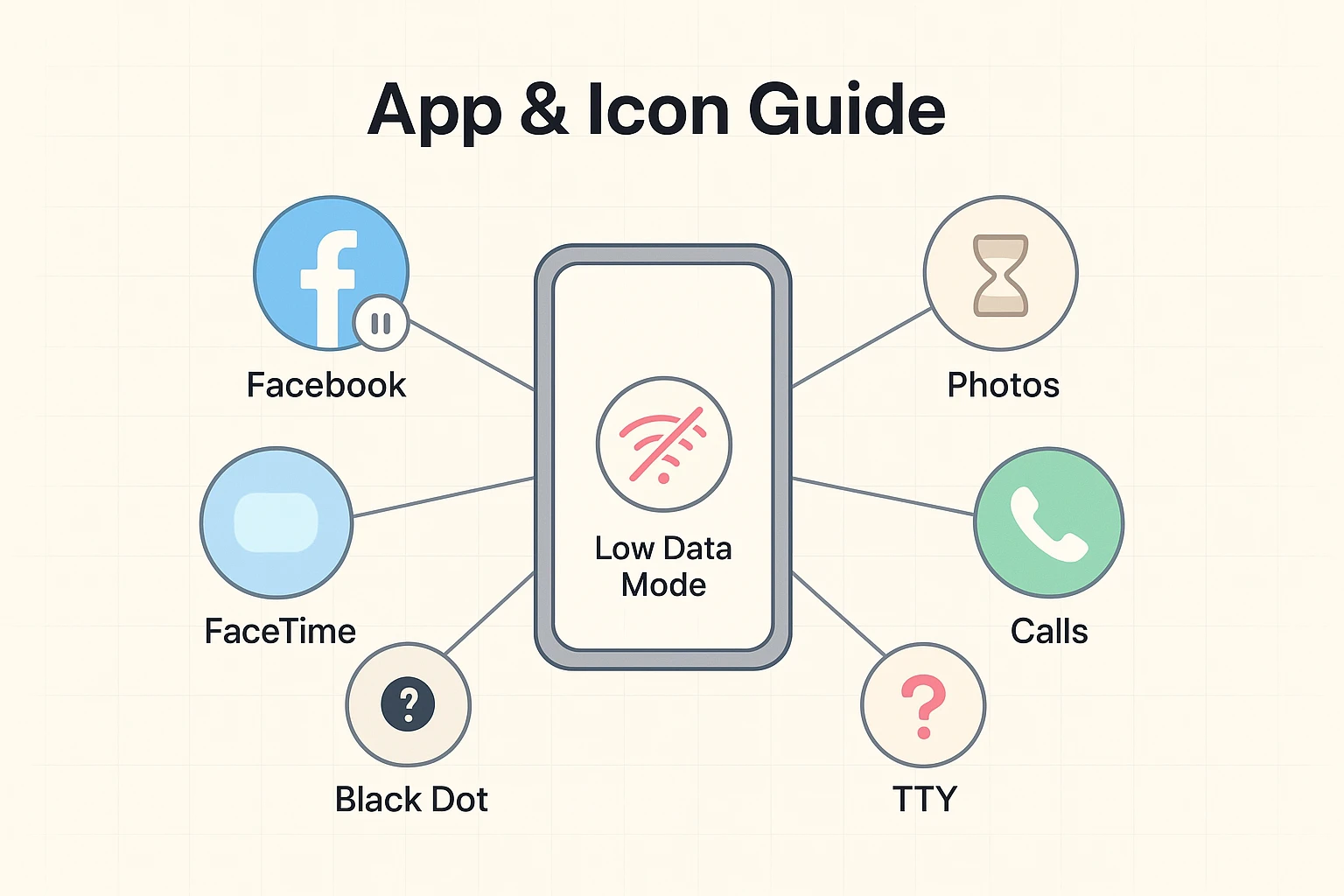
(A quick note on confusing icons: When you turn on Data Saver on an Android, you might see a new symbol at the top of your screen, like a plus sign inside a circle or triangle. Don’t panic! Your phone isn’t broken. It’s just reminding you that your data bodyguard is currently on duty.)
You don’t need to live in Low Data Mode forever. It’s a tool, much like an umbrella—you really only need to open it when it looks like rain. Here are the best times to turn it on:
The End-of-the-Month Crunch: If your cellular provider texts you to say you’ve used 90% of your data for the month, turn this mode on immediately. It will help you coast across the finish line without incurring any extra fees.
When Traveling: Roaming charges while on vacation can be brutal. Turning this on keeps your phone from secretly downloading a massive software update while you’re busy looking at the Grand Canyon.
When Borrowing a Friend’s Internet: If a friend is kind enough to let you connect to their mobile hotspot, turning on Low Data Mode is just good manners. It ensures your phone doesn’t accidentally guzzle all of their data.
Yes, it certainly does! Because your phone isn’t working as hard behind the scenes to constantly check for updates, your battery gets a nice little vacation too. It’s a wonderful two-for-one bonus.
For iPhone users: Open your Settings app, tap Cellular, tap Cellular Data Options, and toggle on Low Data Mode. For Android users: Open your Settings app, tap Network & Internet, tap Data Saver, and turn it on.
You absolutely can. If you have home internet with a strict data cap (like some satellite internet plans or mobile hotpots), you can go into your Wi-Fi settings and tell your phone to treat that specific home network as a low-data zone.
Taking control of your smartphone shouldn’t require an engineering degree, and it certainly shouldn’t cost you extra money. By understanding how to use Low Data Mode, you can enjoy all those wonderful golden retriever videos with complete peace of mind.
Stay curious, stay connected, and keep exploring your tech safely!