Newsletter Subscribe
Enter your email address below and subscribe to our newsletter

Enter your email address below and subscribe to our newsletter
Picture this: You’re on the phone with your dad, trying to help him attach a photo to an email. “Okay, Dad, do you see the little paperclip icon?” you ask. A pause. “I see a picture of a pelican,” he replies. You take a deep breath. You are now playing a high-stakes game of Battleship, except your opponent is playing Scrabble, and the board is invisible.
If you’ve ever tried to provide tech support over the phone to a parent or grandparent, you know this pain. It usually ends with elevated blood pressure, a mysteriously deleted hard drive, and a mutual agreement to just communicate via carrier pigeon from now on.
But fear not. There is a magical, relationship-saving technology out there called screen sharing. It allows you to see exactly what they are seeing and, better yet, take control of their mouse so you can just fix the darn thing yourself.
We are going to walk you through how to set up remote tech support without the headaches. We’ll cover the easiest tools, how to handle the terrifying “black screen of security,” and even how to turn on their computer when it’s completely powered off and you live three states away.
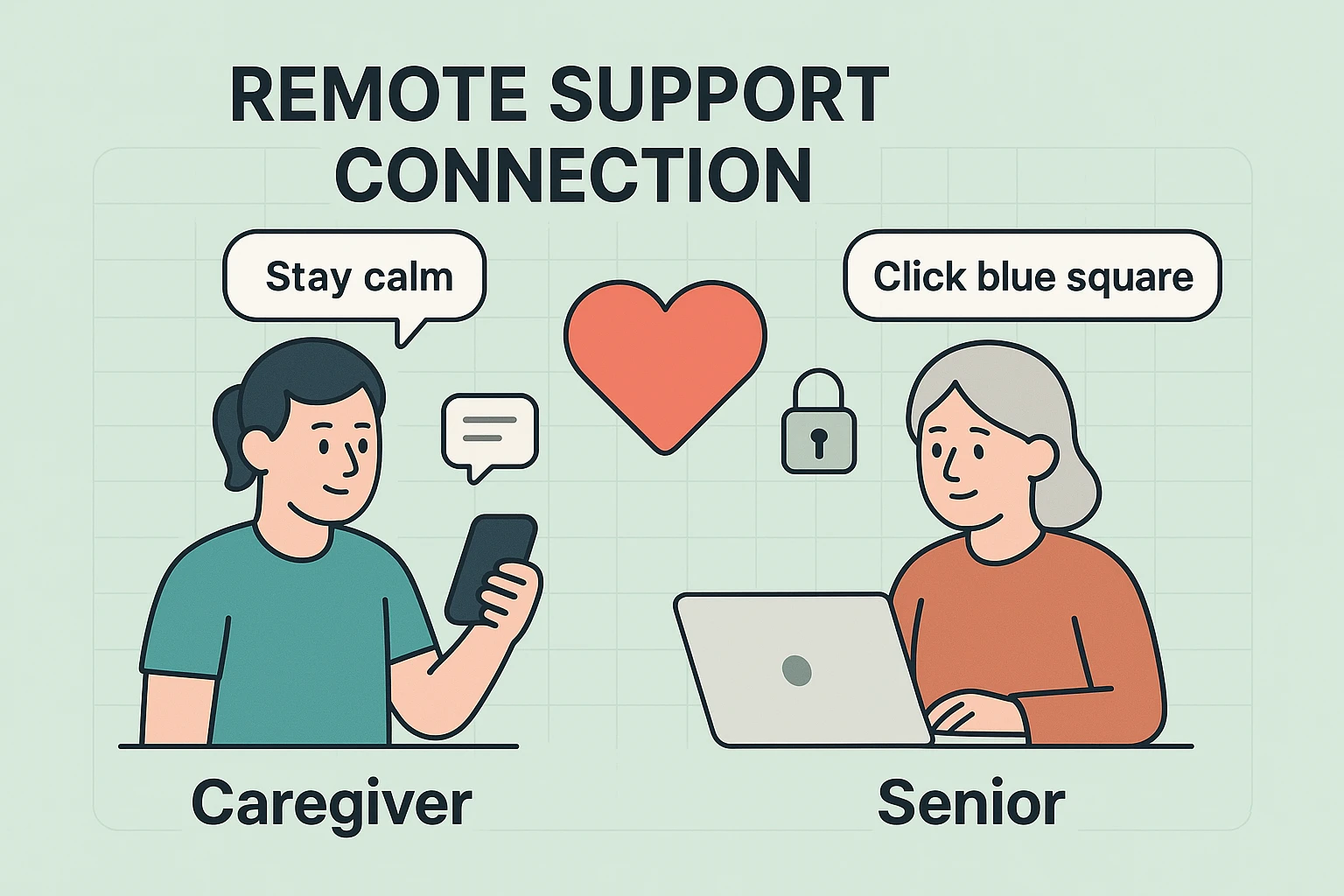
When we try to explain technology over the phone, we often forget that we don’t share the same vocabulary with our older relatives. To you, a “browser” is Chrome or Safari. To them, a “browser” is someone leisurely looking at sweaters in a department store.
Most tech support guides focus entirely on the software, completely missing the human element. Remote support isn’t just about clicking buttons; it’s about preserving dignity. Seniors don’t want to feel helpless, and you don’t want to feel frustrated.
By setting up a remote access tool, you eliminate the confusing back-and-forth translation. Instead of asking them to navigate a labyrinth of menus, you can simply say, “Go make a cup of coffee, Mom, I’ll have the printer working by the time you get back.”
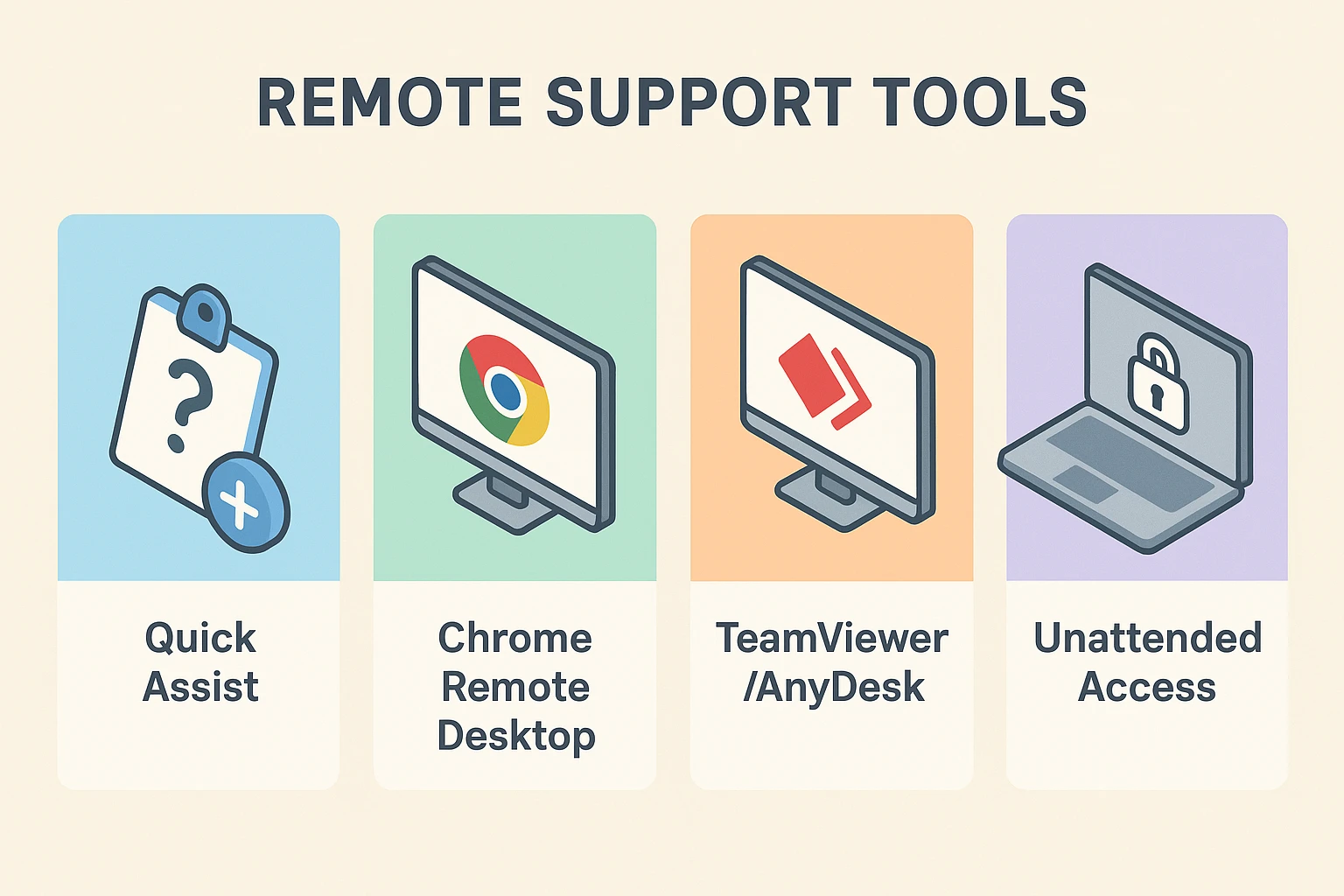
If your senior relative breaks into a cold sweat at the phrase “download the application,” we have a secret weapon for you. Many people don’t know this, but Windows computers have a built-in remote support tool called Quick Assist.
Because it’s already installed on their Windows 10 or 11 computer, there is zero downloading required. You simply ask them to click their Start button, type “Quick Assist,” and press Enter.
On your end, you open the same program and generate a 6-digit code. You read the code to them over the phone, they type it in, and voila! You are connected. Use this golden rule to reassure them: “If you see a screen asking for a 6-digit code, you are doing great—we are exactly 50% done!”
When guiding them, abandon all tech jargon. Do not say, “Open the application.” Instead, use color and shape descriptions. Say, “Click the blue square with the white arrow in it.” Describe the screen exactly as it looks.
Quick Assist is great for emergencies, but it still requires the senior to be at the computer to let you in. What if you want to run an antivirus scan, update their software, or fix their email at 2:00 AM while they are sound asleep?
Enter tools like TeamViewer or AnyDesk. These require a one-time download and setup, but once they are installed, you can configure them for “Unattended Access.” This means you can log into their computer with a password you create, without them needing to click a single thing.
If you use these tools, you will eventually encounter the final boss of remote support: The User Account Control (UAC) prompt. This happens when you try to install something, and Windows suddenly throws up a security warning.
To you, remotely, the screen might just go pitch black or freeze. This is because Windows is protecting the computer from invisible hackers. Don’t panic! Simply tell your senior, “You’re going to see a little shield pop up asking for permission. Go ahead and click ‘Yes’ for me.” Once they click it, your screen will magically return.
We have now solved the software problem. But here is a universal truth: software cannot fix a computer that is physically turned off.
If you live two hours away, driving there just to press a plastic power button is enough to make anyone question their life choices. Luckily, we have some creative, low-tech solutions for this high-tech problem.
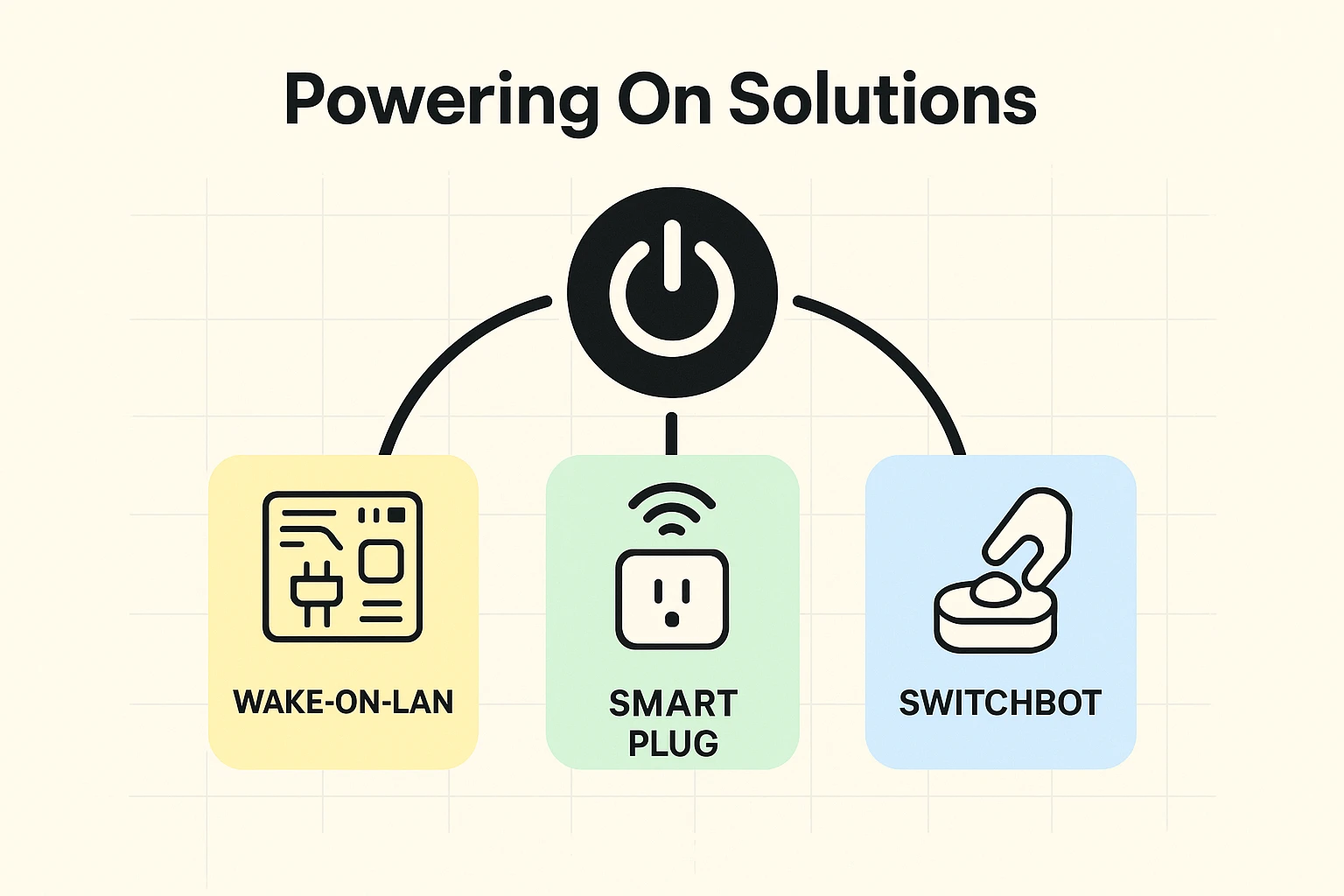
You can buy a $15 smart plug (like a Kasa or Wyze plug) and connect the computer’s power cord to it. You will need to dive into the computer’s BIOS settings one time (when you are visiting in person) and change the power settings to “Restore on AC Power Loss.”
Once that’s done, if the computer is off, you simply use an app on your phone to turn the smart plug off and back on. The computer thinks there was a power outage, realizes the electricity is back, and boots itself up. Magic!
If messing with BIOS settings sounds like a foreign language, meet the SwitchBot. It is a tiny, battery-operated box that you stick next to the computer’s power button with heavy-duty tape.
When you tap a button on an app on your phone, a tiny mechanical finger pokes out of the box and physically pushes the computer’s power button. It is delightfully absurd, incredibly effective, and completely bypasses any need for technical know-how.
Here is the most important part of setting up remote access: you must have the “Scammer Talk.” Scammers love remote software just as much as we do, and they use it to steal personal information.
When you set this up, give your parent a firm, unbending rule: “I am the only person on earth who will ever ask to share your screen.”
Tell them that Microsoft will never call them. Apple will never call them. The Geek Squad will never call them. If a stranger on the phone ever asks them to look for a 6-digit code or download a support tool, they should immediately hang up the phone and call you.
Apple’s ecosystem is a bit tighter on security, so you can’t take full “mouse control” of an iPad or iPhone easily. However, you can use FaceTime! Have them call you on FaceTime on their phone, switch to the rear-facing camera, and literally point the phone at their computer or TV screen so you can see what’s happening.
Yes, as long as it’s only you using it. With tools like TeamViewer, ensure you use a very strong, unique password for unattended access. Remind them that they can always turn the computer off if they feel uncomfortable.
Unfortunately, remote screen sharing relies entirely on the internet. If their Wi-Fi router is unplugged or the internet is out, no amount of remote software will save you. This is why having them physically check the lights on their router is still step number one!
Setting up remote screen sharing isn’t just about fixing a frozen email inbox or updating a printer driver. It’s about keeping your older loved ones safely connected to the modern world without making them feel burdensome or overwhelmed.
By using simple tools like Quick Assist, investing in a quirky SwitchBot finger, and relying on clear, jargon-free communication, you can transform tech support from a shouting match into a five-minute favor.
Ready to dive deeper into making technology enjoyable and stress-free? Browse through our other practical guides at Senior Tech Cafe, where we translate the digital world into plain English—no pelicans required.