Newsletter Subscribe
Enter your email address below and subscribe to our newsletter

Enter your email address below and subscribe to our newsletter

You know the feeling. You’re at lunch with a friend, ready to show off that absolutely adorable picture of your grandson covered in spaghetti sauce. You whip out your phone, tap the colorful little flower icon, and… nothing.
You swipe up. You swipe down. You tap frantically. But the spaghetti photo is gone. Vanished. It’s like a digital Bermuda Triangle opened up in your pocket and swallowed your memories whole.
Panic sets in. Did you delete it? Did the phone eat it? Is it currently floating in the atmosphere somewhere, raining pixels down on a unsuspecting cornfield in Nebraska?
If your heart rate just spiked reading that, take a deep breath. You are not losing your mind, and you (probably) haven’t lost your photo. You have simply entered the Twilight Zone of Cloud Storage.
For many of us, “The Cloud” sounds like a lovely, fluffy place where angels play harps and store our digital files. In reality, it’s an invisible, often confusing system that acts like a digital hypnotist—convincing you things are there when they aren’t, or gone when they’re actually just hiding.
But here is the good news: We are going to demystify this invisible beast. We’ll find your missing photos, explain why they play hide-and-seek, and make sure you never have to endure the “Spaghetti Photo Panic” again.
Before we go on a treasure hunt for your missing pictures, we need to understand the terrain. When tech support people talk about “The Cloud,” they make it sound mystical. It’s not.
Imagine you have a physical photo album in your living room. If your house (heaven forbid) had a flood, that album would be ruined.
Now, imagine you have a magical photocopy machine. Every time you take a photo, a copy is instantly zipped over to a gigantic, fireproof, waterproof fortress in the middle of a desert (this is actually what data centers look like). That fortress is The Cloud.
Companies like Apple (iCloud) and Google (Google Photos) own these fortresses. They rent you a little locker inside to keep your memories safe.
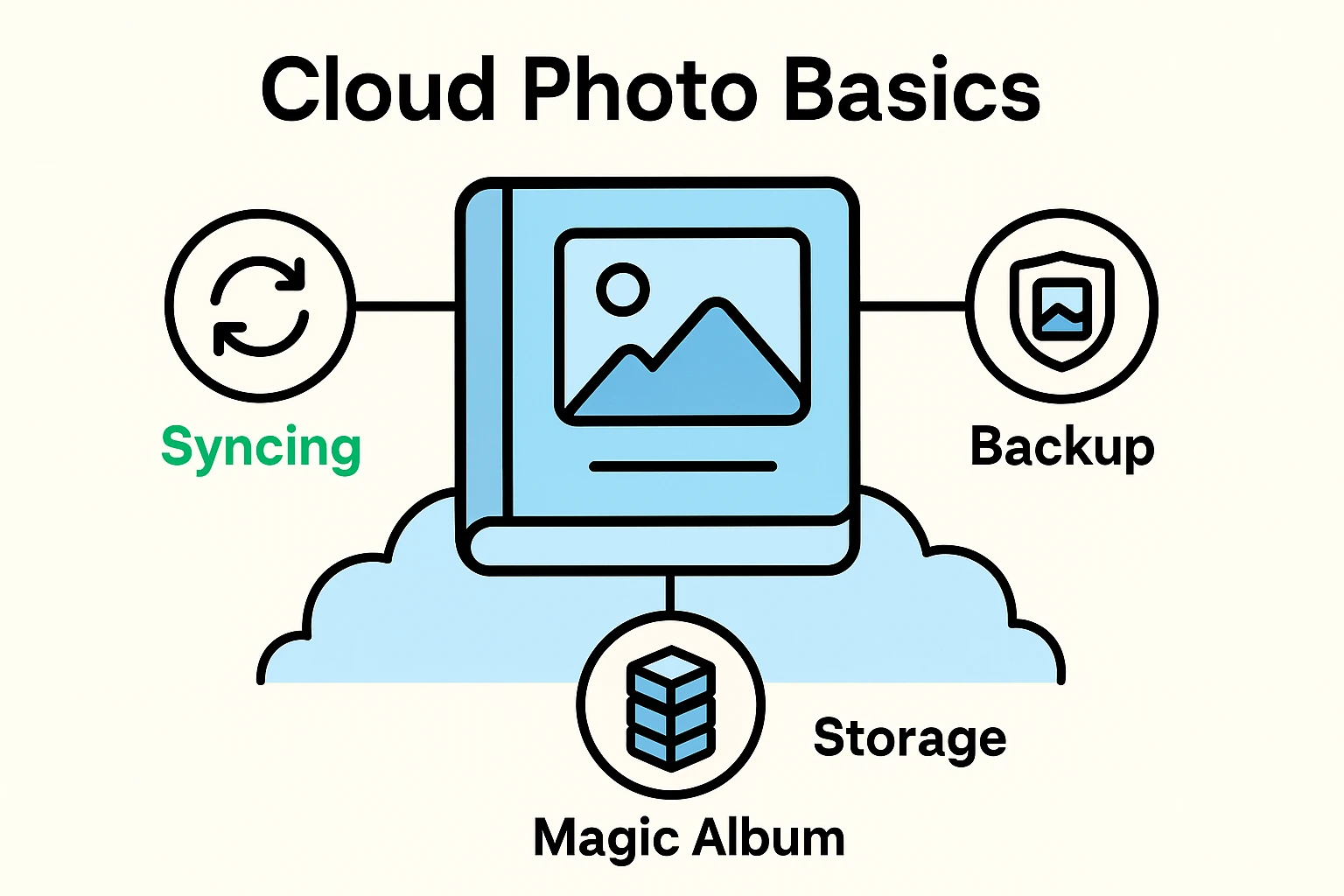
However, there is a catch. This system relies on three concepts that sound the same but are very different:
Okay, enough theory. Let’s play detective. If you open your photo gallery and see empty spaces where memories used to be, don’t throw the phone across the room. Try these steps first.

If you are an Apple user, your photos live in the “Photos” app, but they often like to play dress-up and hide in different folders.
Check the “Recently Deleted” Folder: This is the digital trash can. Apple is kind enough to keep your “deleted” photos here for 30 days before shredding them forever.
Check the “Hidden” Folder: It is surprisingly easy to accidentally hide a photo. It’s right next to the “Recently Deleted” folder in the menu. Check there, too.
Are You Signed In? Sometimes, your phone gets grumpy and logs you out of iCloud. Go to your Settings (the grey gear icon). If you see a message at the top asking you to sign in, do it. Your photos might just pop back into existence.
If you are still nervous about losing these precious moments, you might be asking, “how do i backup my iphone photos so this never happens again?” The key is ensuring iCloud Photos is turned ON in your settings, which automates the process.
Google Photos is brilliant, but it loves to organize things for you, even if you didn’t ask it to.
Check the “Bin” (or Trash): Just like Apple, Google holds onto deleted items for 60 days.
Check the “Archive”: This is where Google puts photos it thinks are “clutter,” like pictures of receipts or screenshots. Sometimes, it gets confused and hides real photos here. Check the Archive folder in your Library.
Check Your Account: Tap your profile picture in the top right corner. Make sure you are signed into the correct Google account. If you share a tablet with your spouse, you might be looking at their photos of fishing trips instead of your photos of the garden.
So, you found the photo! But wait… why does it look like it was taken with a potato?
To save space on your phone, services like iCloud will keep a “thumbnail” (a tiny, low-quality version) on your device while keeping the high-quality master copy in the Cloud.
When you tap the photo, your phone has to quickly download the clear version from the internet. If your Wi-Fi is slow, or if you have no signal, the photo stays blurry. It’s not ruined; your phone is just buffering. Give it a second (or get better Wi-Fi).
If you open a photo and the subject suddenly winks at you, you haven’t had too much coffee. This is a “Live Photo” (Apple) or “Motion Photo” (Android). It captures 1.5 seconds of video with the picture. It’s a feature, not a haunting.
This is the most important part of this entire article. If you take nothing else away, please remember this: Syncing is not the same as Backing Up.
Many seniors think, “My photos are in the cloud, so I can delete them off my phone to make room for more apps.”
STOP! DO NOT DO THIS!
Because most phones use syncing (the mirror effect we talked about earlier), deleting a photo from your phone usually deletes it from the cloud, too. It’s a package deal. If you want to clear space, use the specific “Free Up Space” or “Optimize Storage” tools provided by the apps—don’t just start hitting the trash can icon on your favorite memories.
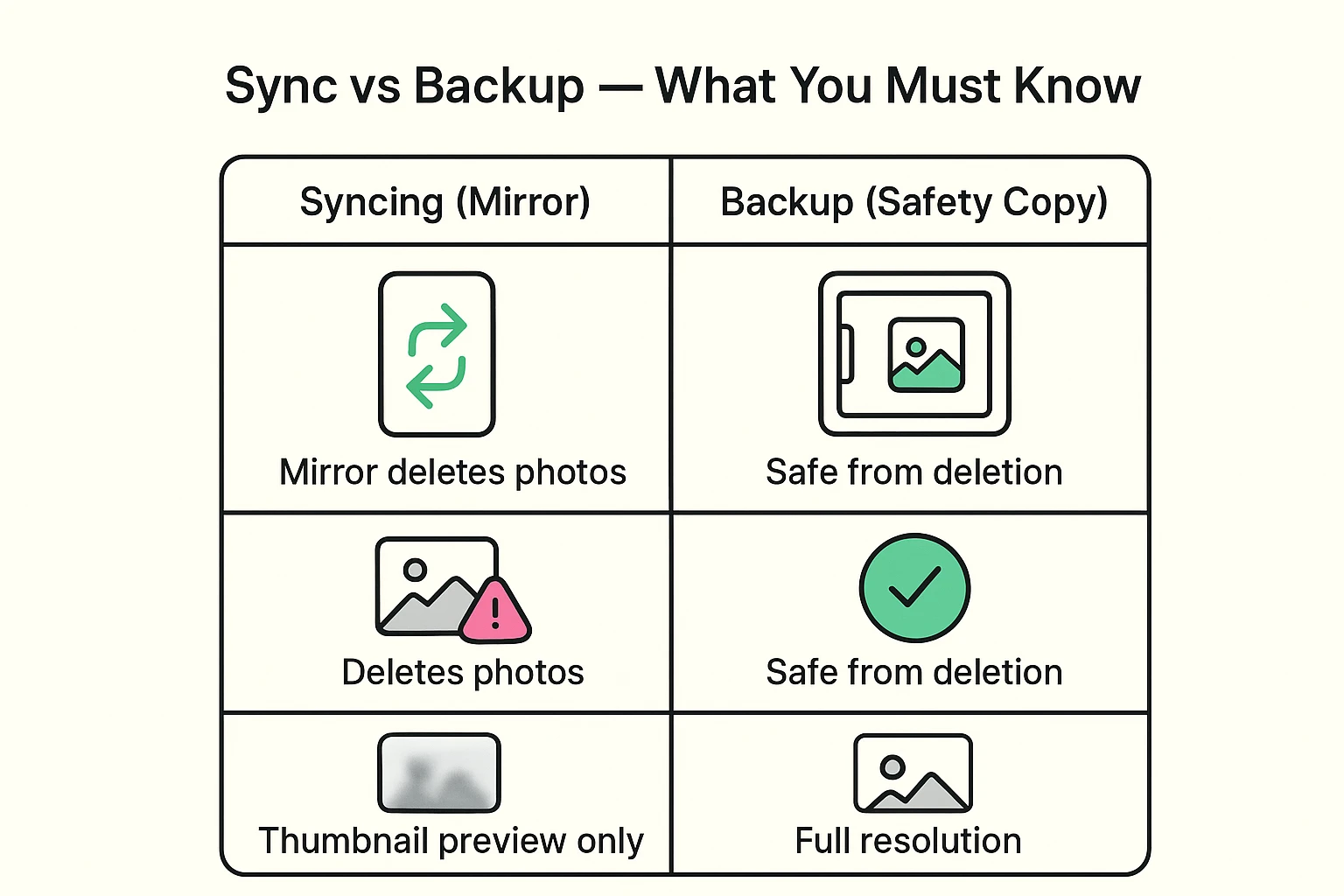
If you really want to ensure your memories are safe regardless of what happens to your device, you need to understand the proper way to backup iphone photos. A true backup is a safety net that catches you when the syncing tightrope snaps.
Generally, no. There isn’t a person in a room laughing at your selfie. It is all automated by computers (robots) to help organize things by faces or locations. However, always be mindful that anything online has a tiny risk.
They won’t delete your photos immediately, but they will lock the door. You won’t be able to save new photos or email things until you pay up or delete enough old files to get back under the limit.
This usually happens when you use both iCloud and Google Photos, or when you restore a phone from a backup. It’s annoying, but harmless. Both Apple and Google now have “Merge Duplicates” tools in their utility folders to help clean up the mess.
Technology is supposed to help us, not give us high blood pressure. To keep your photos safe and your mind at ease, run through this quick checklist:
The Cloud doesn’t have to be a mystery. It’s just a tool—a slightly confusing, invisible tool—but a tool nonetheless. And now that you know how to navigate the fog, you can get back to what really matters: taking way too many pictures of your pets.
Need more help securing your memories? Check out our complete guide on how to backup pictures from iphone to ensure your digital legacy is safe and sound.