Newsletter Subscribe
Enter your email address below and subscribe to our newsletter

Enter your email address below and subscribe to our newsletter

You have prepared for this moment. You combed your hair, positioned the lamp so you look distinguished rather than like a suspect in a noir film, and you have your coffee mug ready. You click “Join Meeting” to see your adorable grandkids. They wave excitedly. You wave back. You start to ask how school was, and they stare at you blankly.
“Grandpa, you’re frozen!”
Or worse: “Grandma, why do you sound like a robot underwater?”
There is nothing quite as deflating as being defeated by a silent microphone or a black screen. It feels like the digital equivalent of showing up to a party and realizing the door is locked from the outside. But here is the secret that tech companies don’t tell you: half the time, the problem isn’t that you “broke” something. It’s that your computer, tablet, or phone is just being stubborn.
We are going to walk through the most common audio and video hiccups. We will ignore the complex engineering jargon and focus on getting you back to chatting with your family, loud and clear.
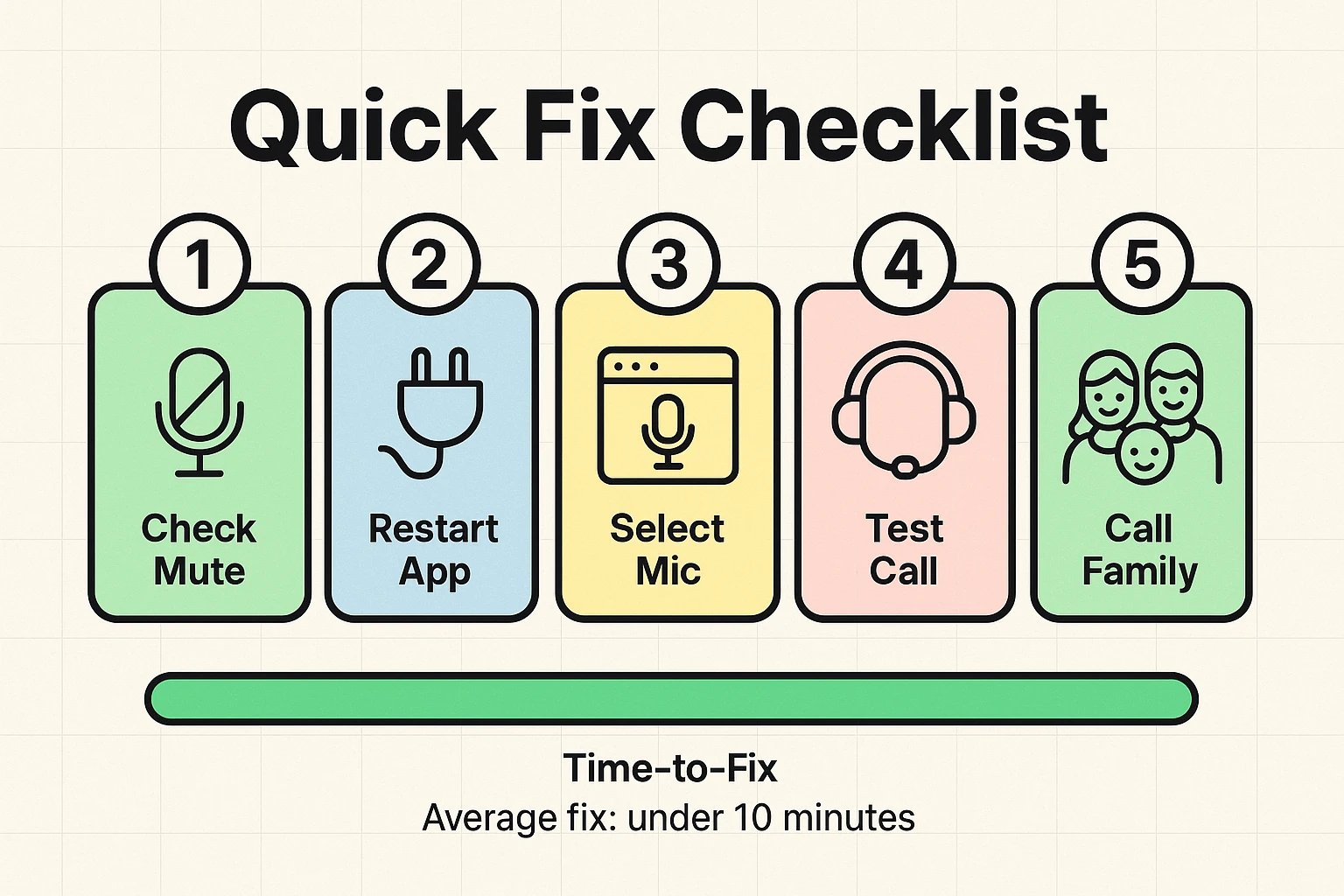
Before we start diving into menus and settings that look like the cockpit of a 747, let’s check the basics. You would be amazed at how often a “broken” computer is simply a muted one.
If your family can’t hear you, or you can’t see them, do a quick physical inspection. If you are using an external webcam or a fancy microphone, follow the wire. Is it plugged in all the way? Sometimes a cable pulls loose just enough to stop working, but stays in place just enough to look innocent. Push that connector in until it clicks.
Next, look for the “mute” trap. Modern technology loves to mute things. There is a mute button on the screen. There might be a mute button on your keyboard. There might even be a physical button on your headset cable. If any one of these is on, you are giving a silent speech.
If your friends say your screen is black, check your webcam lens. Many modern cameras (especially Logitech models or built-in laptop cameras) come with a privacy slider. This is a little plastic shutter that physically blocks the lens.
It is a great feature for ensuring no one spies on you while you eat cereal. However, it is also very easy to forget you closed it. If you see a red dot or a plastic cover over the lens, slide it open. Voila! You have returned to the visual world.
Sometimes the issue isn’t a loose wire; it’s the device itself having an identity crisis. Different gadgets fail in different ways. Here is how to handle the usual suspects.
Apple makes beautiful phones, but they hide things. If you cannot hear audio on certain video apps, check the physical switch on the side of your iPhone (above the volume buttons).
If you see a strip of orange color, your phone is in Silent Mode. While this is great for the movie theater, it can sometimes interfere with audio in specific apps. Flip it so the orange is gone. Also, check your Control Center and ensure “Do Not Disturb” (the moon icon) isn’t blocking your calls.
If you bought a nice Logitech C920 webcam to look sharp in high definition, but it refuses to turn on, Windows might be “protecting” you a little too aggressively.
Windows 10 and 11 have strict privacy settings. Sometimes, the operating system acts like an overzealous bouncer at a nightclub, refusing to let your apps use the camera.
If that is off, no amount of clicking in Zoom will make your video appear.
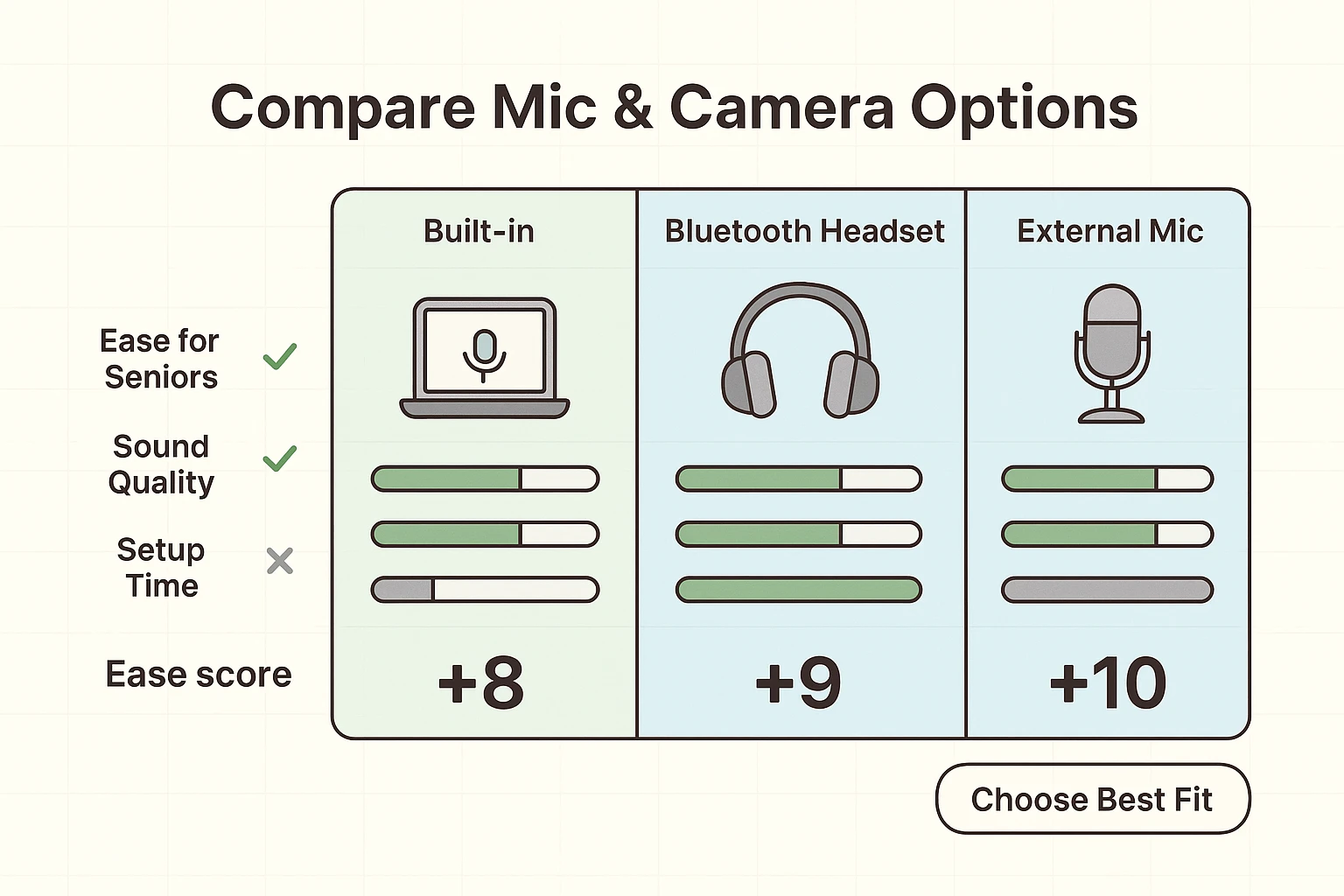
Wireless headphones (like Sony or Bose) are wonderful until you try to use them for a video call on a computer. You might hear sound, but it sounds tinny and awful, or the microphone doesn’t work.
This happens because Bluetooth headphones have two modes: “Stereo” (for high-quality music) and “Hands-Free AG Audio” (for phone calls). If your computer tries to use the “Stereo” mode for the microphone, it won’t work.
When you are in your sound settings, make sure both your Input (Microphone) and Output (Speaker) are set to the same mode—usually the “Hands-Free” or “Headset” option during calls. It lowers the audio quality slightly, but it guarantees the microphone will actually turn on.
You have checked the wires. You have checked the privacy settings. But Zoom still says “Cannot detect microphone.” This is usually because your computer has too many options and got confused.
Your laptop has a built-in microphone. Your webcam has a microphone. Your headphones have a microphone. When you launch Zoom or Skype, the app has to guess which one to use. Often, it guesses wrong.
In Zoom, look for the little arrow next to the microphone icon in the bottom left corner. Click it. You will see a list. If “Microphone (Realtek Audio)” is selected but you are wearing a headset, switch it to your headset’s name.
Pro Tip: Zoom has a “Test Speaker & Microphone” feature in that same menu. Use it! It will play a little tune and ask you to speak. It’s a low-pressure way to fix things before you actually join the call.
If you start talking and hear your own voice bouncing back at you a second later, or if there is a high-pitched squeal, you are experiencing a feedback loop. This happens when your microphone picks up the sound coming out of your speakers and feeds it back into the system, creating a loop of noise.
The fix is usually physics, not software.
Now that you are back online, let’s keep it that way. Technology is like a garden; if you ignore it for too long, weeds start to grow.
First, keep an eye on your internet speed. If you are using a Wi-Fi camera like a Blink or Ring for video, these devices require a steady upload speed (usually at least 2 Mbps). If your video is choppy or the audio sounds like a robot, your Wi-Fi signal might be too weak where you are sitting. Moving closer to your router can work miracles.
Second, don’t ignore those pesky “Update Available” notifications forever. I know they are annoying. I know they always appear right when you want to check your email. But those updates often contain fixes for audio drivers and camera glitches. Think of them as vitamins for your computer—boring, but necessary for long-term health.
Almost certainly not. Audio and video settings are software issues, not hardware damage. Unless you dropped your laptop in the bathtub, you haven’t “broken” anything. You just changed a setting, and settings can always be changed back.
This is actually a good thing! It is a security feature. You don’t want rogue apps listening to you without your knowledge. By asking for permission, your computer is making sure you are in charge of who hears you.
Before you spend money, grab a microfiber cloth (the kind used for glasses) and wipe the lens. You would be shocked at how often “technological failure” is actually just “thumbprint smudge.”
The oldest trick in the book is still the best: Restart your computer. It sounds like a joke, but restarting clears out the digital cobwebs and resets drivers that might have crashed. When in doubt, turn it off and turn it back on.
Video calls are a lifeline to our families. Don’t let a confused microphone or a shy camera keep you disconnected. With a little patience and these steps, you’ll be back to chatting—and seeing those grandkids—in no time.