Newsletter Subscribe
Enter your email address below and subscribe to our newsletter

Enter your email address below and subscribe to our newsletter

You know the feeling. You’re settling in for a video call with the grandkids, or perhaps you’re right at the climax of a streaming movie where the detective is about to reveal the killer. Suddenly, everything freezes. The audio turns into a robot gargle. The dreaded “spinning wheel of death” appears on your screen, mocking you with its hypnotic twirl.
You look at your router. The lights are blinking. You look at your device. It says you have Wi-Fi. Yet, for all practical purposes, you have been cast out into the digital wilderness.
Then, ten seconds later—poof!—it’s back. The detective is arresting the butler, and you missed the entire confession.
If this sounds familiar, you aren’t suffering from slow internet; you are suffering from intermittent internet. It is the digital equivalent of a car that runs perfectly fine at 60 miles per hour, except for the random moments where the engine simply vanishes.
This ghost-in-the-machine problem is incredibly frustrating because it’s hard to diagnose. When you call the cable company, they say, “Well, it looks fine from here!” And they’re technically right—it is working, except for when it isn’t.
But fear not. We are going to put on our digital detective hats and figure out why your connection is playing hide-and-seek. We’ll skip the jargon, ignore the complex engineering diagrams, and get straight to fixing the problem.

First, we need to debunk the biggest myth in technology: the “Wi-Fi Bars” icon.
We have been trained to believe that if we see three curved lines (full bars) on our phone or laptop, our connection is perfect. But those bars only tell you how loud the signal is, not how clear it is.
Imagine you are trying to have a conversation with a friend.
This is what techies call the Signal-to-Noise Ratio (SNR). If your Wi-Fi keeps dropping, your router is likely the shouting friend in the sports bar. Your device can “hear” the router, but the signal is getting garbled by interference, causing the connection to momentarily snap.
So, who is making all that noise in your digital sports bar? You might be surprised to learn that your home is filled with Wi-Fi enemies.
Your router broadcasts radio waves. These waves are allergic to two main things: heavy metal and water. (Which, coincidentally, would make a terrible name for a rock band).
Here are common household items that act as “shields,” bouncing your Wi-Fi signal away before it reaches your iPad:

Most modern routers are “Dual Band.” They broadcast two networks: 2.4GHz and 5GHz.
Try This: If you are sitting close to the router and losing connection, switch your device to the 5GHz network if available. It’s usually less crowded.
Sometimes, the problem isn’t your router; it’s the device itself. There are specific gadgets that are notorious for having connection tantrums.
Wireless printers are famous for going offline. You hit “Print,” and nothing happens.The Cause: Printers are aggressive about saving energy. When they go into “Deep Sleep” mode, they often power down their Wi-Fi radio to save electricity. When you try to wake them up, they’ve forgotten where the network is.The Fix: Go into your printer’s settings menu (usually on the little screen on the printer itself) and look for Energy Settings. Turn off “Deep Sleep” or set the “Sleep Delay” to the maximum time allowed.
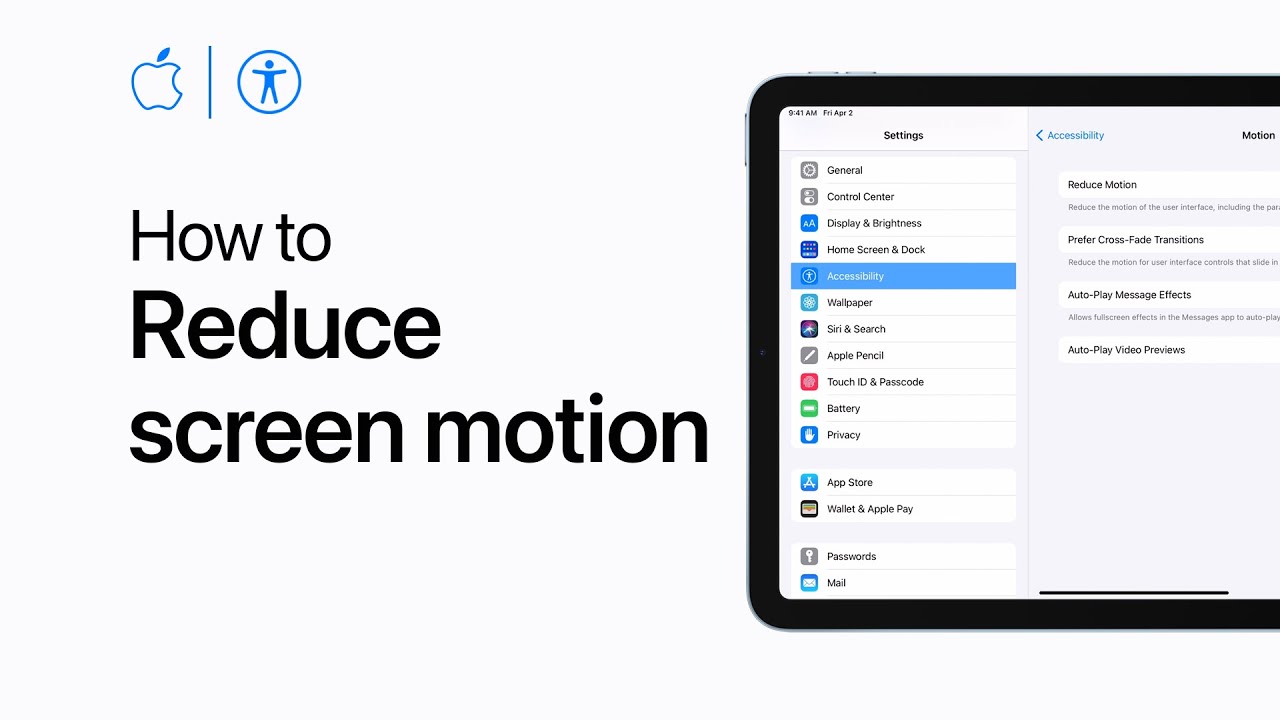
Newer iPhones, iPads, and Android phones have a great privacy feature called Private Wi-Fi Address or MAC Randomization.Think of your device having a nametag. Usually, your router sees “Dave’s iPad” and says, “Come on in!”With this privacy feature, your iPad puts on a fake mustache and glasses every time it connects. It says, “Hello, I am a Stranger.” Your router has to stop, check the credentials, and issue a new “lease” (permission to connect). This constant re-negotiation can cause brief dropouts.The Fix: If your home network is secure, you can turn this off just for your home connection.
Sometimes, your computer gets confused. It has a cache of old data about where the internet “lives,” and if that data gets stale, it gets lost. It’s like trying to navigate using a map from 1995.
You can “flush the digital pipes” using a scary-looking black box called the Command Prompt. Don’t worry; you can’t break anything if you type exactly what is below.
ipconfig /flushdnsCongratulations! You just performed digital plumbing.
Here is a concept few people know: Airtime Fairness.Imagine you are at a grocery store checkout. There is one express lane. A teenager with a bag of chips zips through. Then, a person with two overflowing carts and a checkbook that they can’t find starts paying. Everyone behind them has to wait.
Older devices (like that iPad 2 from 2011 or an old smart bulb) are the slow shoppers. On many older routers, if a slow device is talking to the router, the fast devices (your new laptop) have to wait their turn. This waiting appears to you as a “drop” or a lag spike.
The Fix: If you have ancient tech connected to your Wi-Fi that you rarely use, turn it off. If your router is more than 5 years old, it might be time to upgrade to a router that supports “Airtime Fairness” or Wi-Fi 6, which handles slow and fast traffic simultaneously.

Maybe, but be careful. Cheap “extenders” often cut your speed in half and create a separate network name (like “Home-WiFi-EXT”). As you walk through the house, your phone has to disconnect from the main router and reconnect to the extender. This “handoff” is where drops happen. A “Mesh System” is a much better (though more expensive) investment for stability.
Yes, but do it right. Unplug it. Count to 10 slowly. (This drains the capacitors—the little batteries that hold short-term charge). Then plug it back in. This clears out the router’s short-term memory and fixes about 50% of glitches.
The “One Room Rule.” If the internet drops on your laptop, look at your phone. If your phone is still streaming video perfectly on the same Wi-Fi, the problem is your laptop. If every device in the house goes dead at the same time, call your ISP.
Intermittent internet is a nuisance, but it doesn’t have to be a mystery. By checking for interference, managing your “sleeping” devices, and ensuring your older tech isn’t clogging the pipes, you can turn that flickering connection into a solid beam of digital reliability.
Now, go finish that movie. I won’t spoil who the killer is.
Ready to master more tech basics? Don’t let your smartphone outsmart you. Check out our guides on privacy, passwords, and staying safe online to keep your digital life running smoothly.