Newsletter Subscribe
Enter your email address below and subscribe to our newsletter

Enter your email address below and subscribe to our newsletter

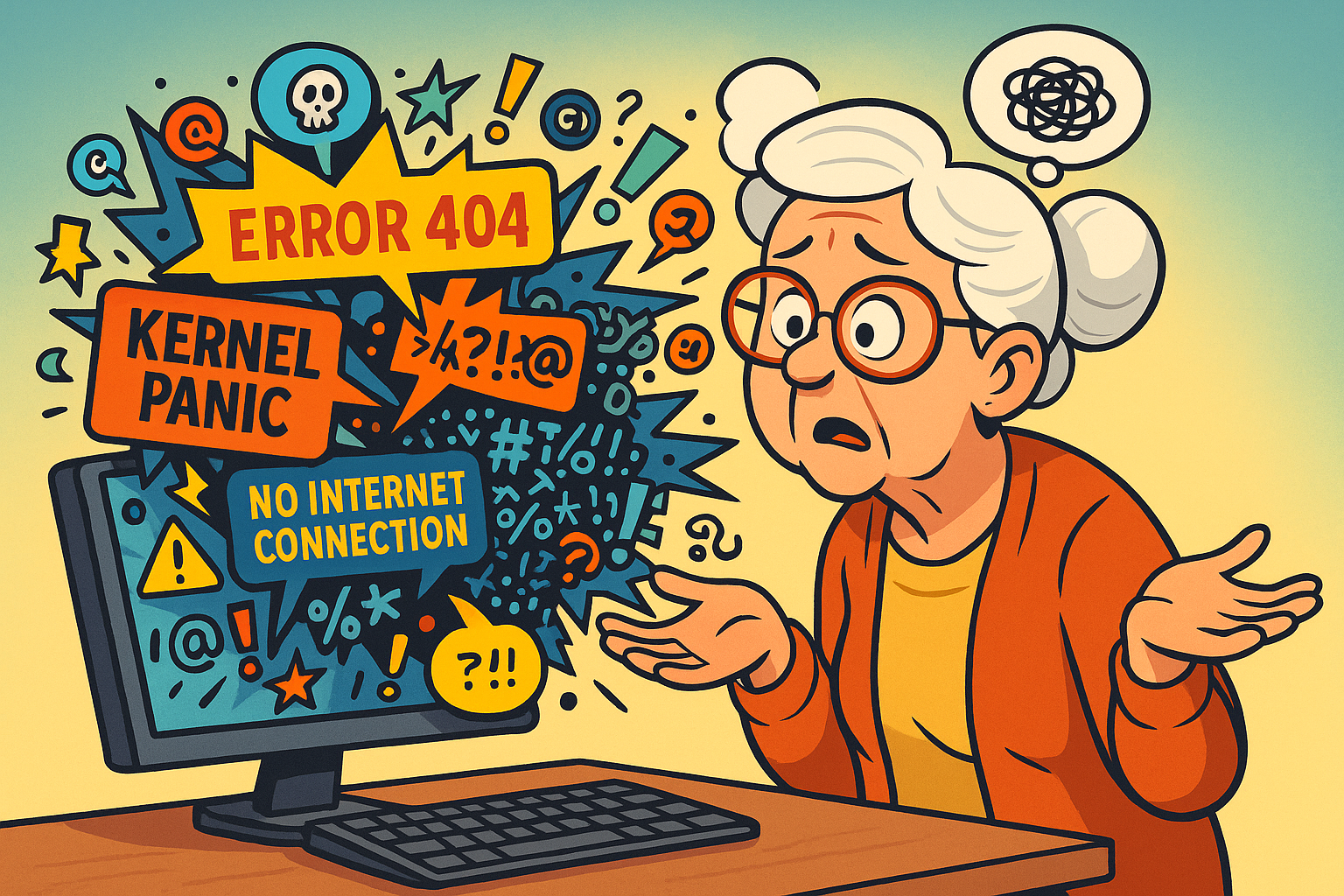
Have you ever sat down to check the weather, clicked the link, and then waited long enough to experience three different seasons pass outside your window before the page actually loaded? You watch the little circle spin, mocking you. You wonder if the internet is “broken” or if the squirrels are chewing on the wires again.
It’s incredibly frustrating. You might even pay for “High-Speed Internet,” yet your computer moves at the speed of a sloth navigating a puddle of molasses.
Here is the good news: It’s probably not your computer, and it’s probably not your internet connection. Your web browser (the tool you use to surf the web) has likely just become a bit of a hoarder. It’s stuffed with “digital dust”—old images, outdated files, and website clutter—that act like an anchor on a ship.
Today, we are going to perform a “Digital Spring Clean.” We’re going to clear your browser’s cache. Don’t worry; it sounds technical, but it’s actually easier than vacuuming the living room, and you don’t even have to stand up.
To understand why your internet feels slow, we have to look at how your browser thinks. Whether you use Google Chrome, Safari, or that purple planet icon on your Samsung phone, they all do the same thing: they try to be helpful.
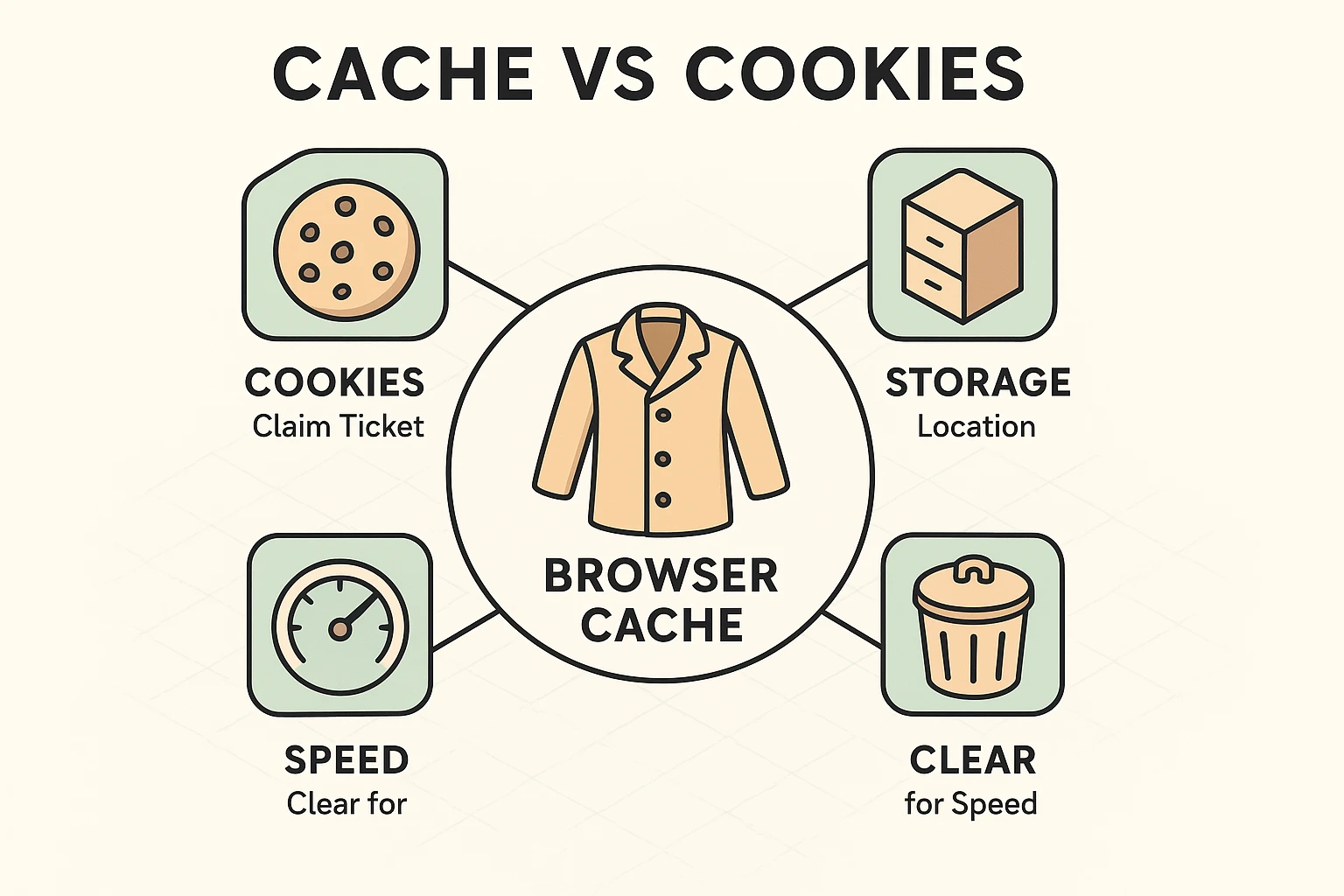
When you visit a website—let’s say, a news site—your browser downloads the logo, the background images, and the fonts so you can see them. To save time for your next visit, it keeps a copy of those items in a special storage space called the Cache (pronounced “cash,” like the money we all wish we had more of).
The logic is sound: “Why download the logo again tomorrow? I’ll just keep it here!”
But over months and years, your browser collects thousands of these files. It becomes like a garage filled with newspapers from 1998 because “you might need to read an article about Beanie Babies again someday.” Eventually, the browser spends more time rummaging through its own messy garage looking for files than it would take to just download them fresh.
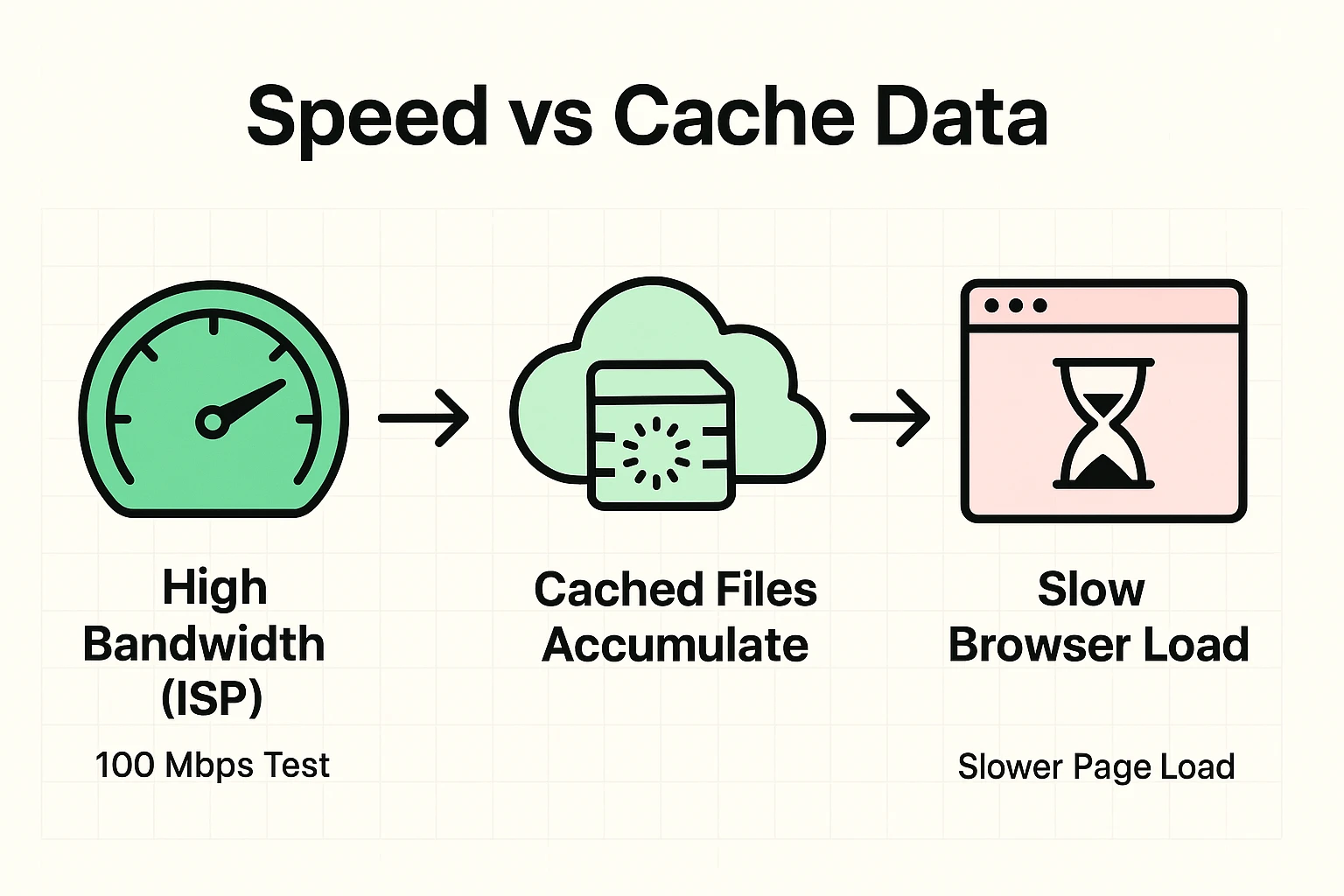
This leads to a very common confusion among seniors. You might ask your service provider to check your line, or you might run a “Speed Test” that says your connection is blazing fast.
“If the speed test says I’m fast,” you ask, “why does my recipe take 30 seconds to open?”
Ideally, web browsing should be seamless. But think of it this way: The Speed Test measures how fast the water flows through your pipes. The Cache is the clog in the drain. It doesn’t matter how much water pressure you have if the drain is full of hair and soap scum (or in this case, old data from websites you haven’t visited since the last Olympics).
When the cache is full, your computer has to sift through megabytes of junk before it can show you the new page.
Before we start cleaning, let’s address the elephant in the room. Many people are terrified to press “Delete” or “Clear” on anything computer-related, for fear that they will accidentally erase their grandkid’s wedding photos or forget their Facebook password.
Let’s distinguish between the three big things stored in your browser:
The Golden Rule: If you know your passwords (or use a password manager), you can clear everything. If you hate typing passwords, just clear the Cached Images and Files.
Ready to speed things up? Here is how to do it on the most common devices.
If you are on a laptop or desktop computer (Windows or Mac) using Chrome, Edge, or Firefox, there is a secret handshake.
Many of our readers use Samsung Galaxy phones and tablets. The default browser here is “Samsung Internet” (the purple planet), and it loves to hoard data.
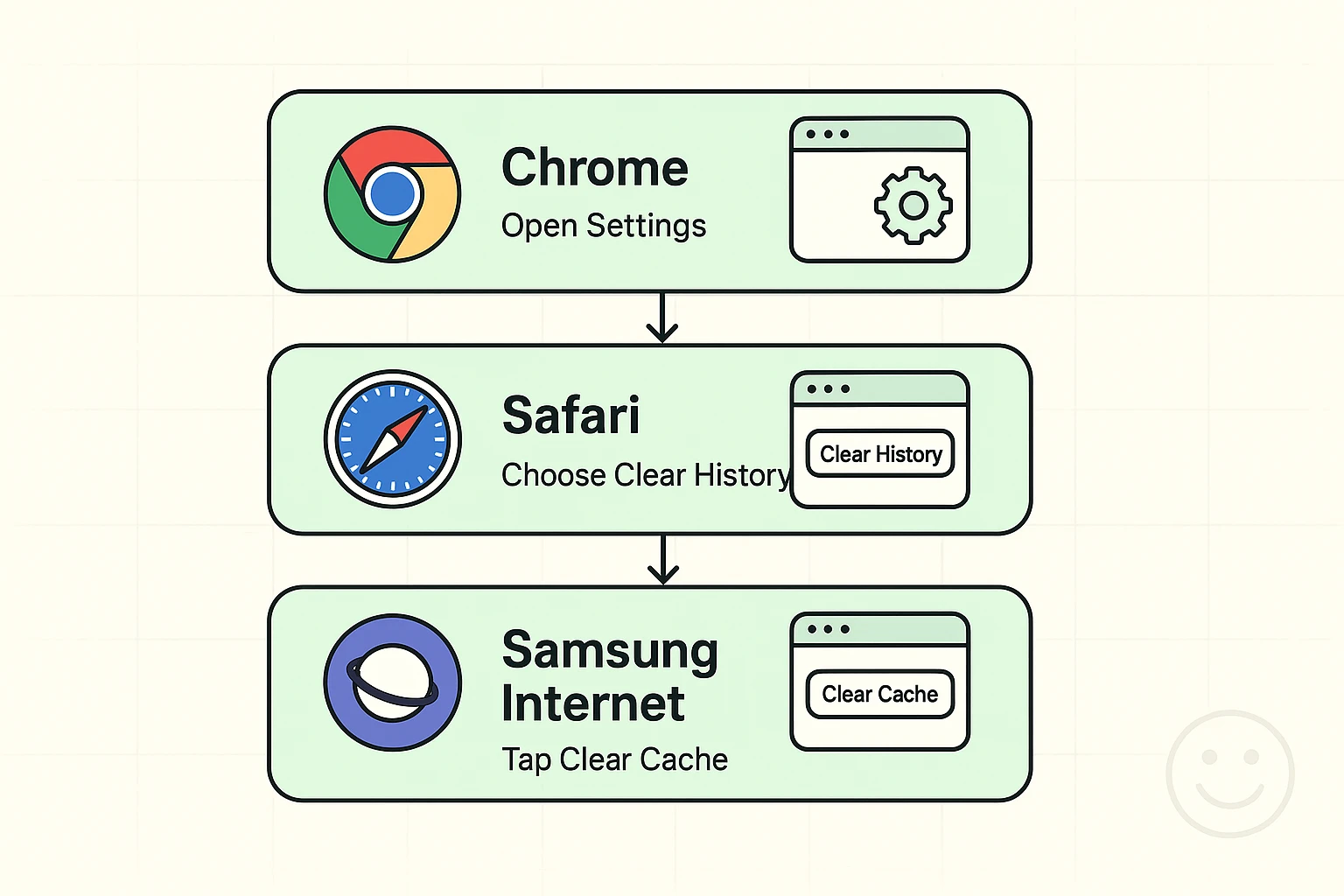
Apple keeps it simple, but they hide the button in the main Settings app, not the browser itself.
After you clean the cache, you might notice something strange. The very first time you visit your favorite news site, it might take an extra second to load.
Don’t panic! This is normal. You just emptied the garage, so the browser has to go fetch a fresh copy of the logo and images. But once it has that fresh, clean data, you should notice that clicking around the site feels snappier, lighter, and much less frustrating.
No! Your bookmarks (your saved favorite sites) are safe. Clearing the cache is like washing the car; it doesn’t change who is sitting in the driver’s seat.
There is no hard rule, but think of it like an oil change for the web. Doing this once every month or two is a great habit. If you notice web pages acting weird or loading slowly, do it then.
If the digital spring clean didn’t help, you might have too many tabs open (each open tab uses memory!) or your device might simply need a good old-fashioned restart. Turn it all the way off and back on again—it’s the oldest trick in the book because it works.
Now that your browser is lean and mean, you’ve removed one of the biggest invisible barriers to enjoying the internet. Technology shouldn’t be a struggle; it should be a tool that serves you.
If you are feeling brave and want to organize your digital life further, you might want to look into how to manage those passwords we talked about earlier. But for now, enjoy the speed. You’ve earned it!