Newsletter Subscribe
Enter your email address below and subscribe to our newsletter

Enter your email address below and subscribe to our newsletter

Discover which accessibility features affect battery life and how to optimize your device for comfort and power.
Have you ever adjusted your phone’s settings to perfection? The text is finally big enough to read without grabbing a magnifying glass, the screen is bright and clear, and everything feels just right. You feel like a tech wizard. But by 3 p.m., your phone’s battery is gasping for air, displaying a percentage so low it looks like a typo.
You start to wonder. Was it the glorious, billboard-sized font you chose? Is your phone punishing you for prioritizing comfort over squinting? It’s a common fear, and frankly, a reasonable one. After all, if a fancy feature makes your life easier, it must come at a price, right?
The good news is, you’re not crazy for thinking this. The better news is, you’re mostly wrong. Let’s bust some myths and find the real culprits behind a draining battery, so you can have your big text and use it, too.
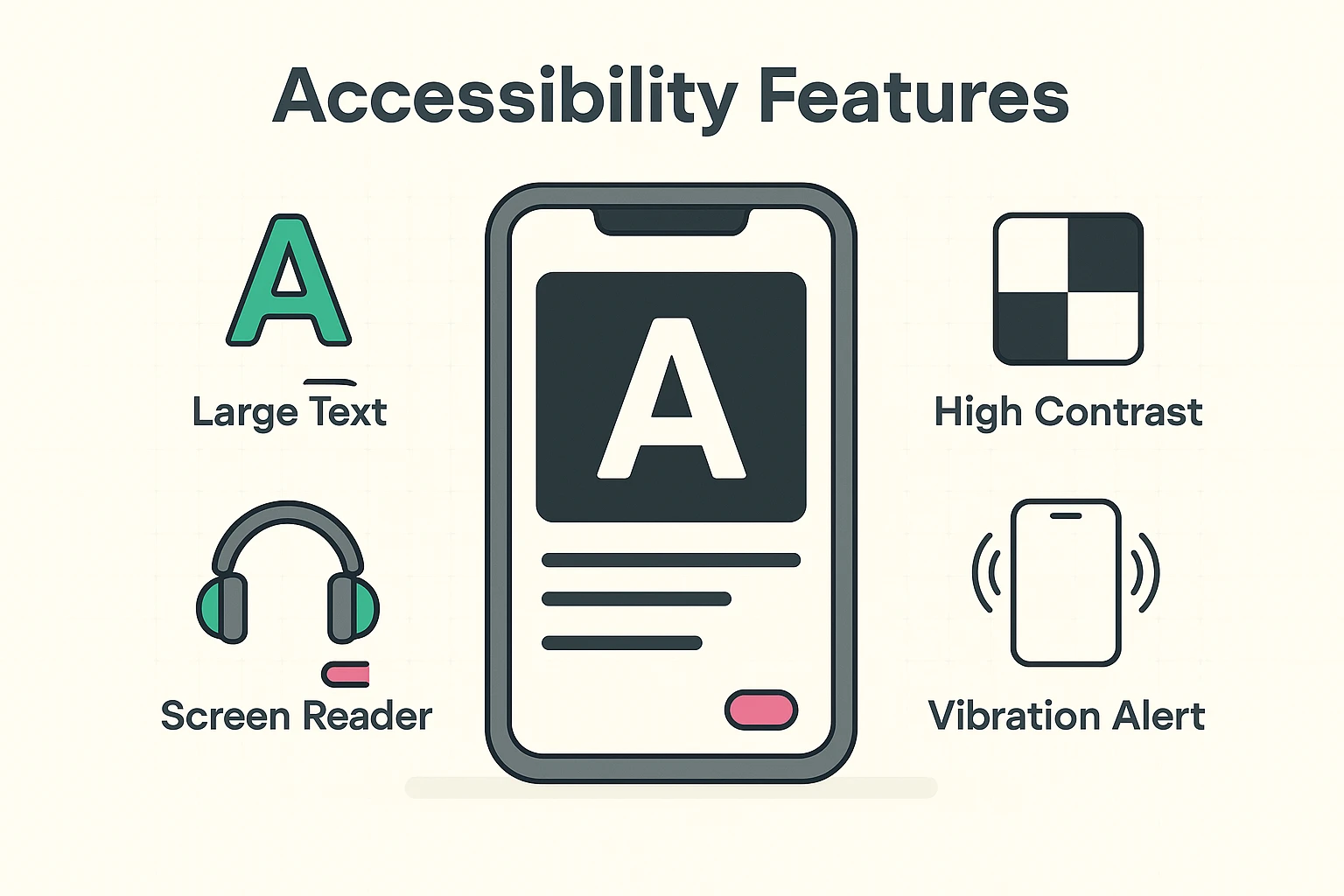
Before we start pointing fingers, let’s get acquainted with the cast of characters. “Accessibility Settings” is just a fancy tech term for the comfort controls on your phone or tablet. They’re designed to make your device easier to use, regardless of your vision, hearing, or dexterity.
Think of them as the digital equivalent of a comfy recliner or a large-print book. Here are the most common ones:
These tools are fantastic, but they’ve gotten a bad rap as power-hungry monsters. It’s time to separate fact from fiction, a topic we love to tackle, just like in our guide on 9 Big Tech Myths Busted.
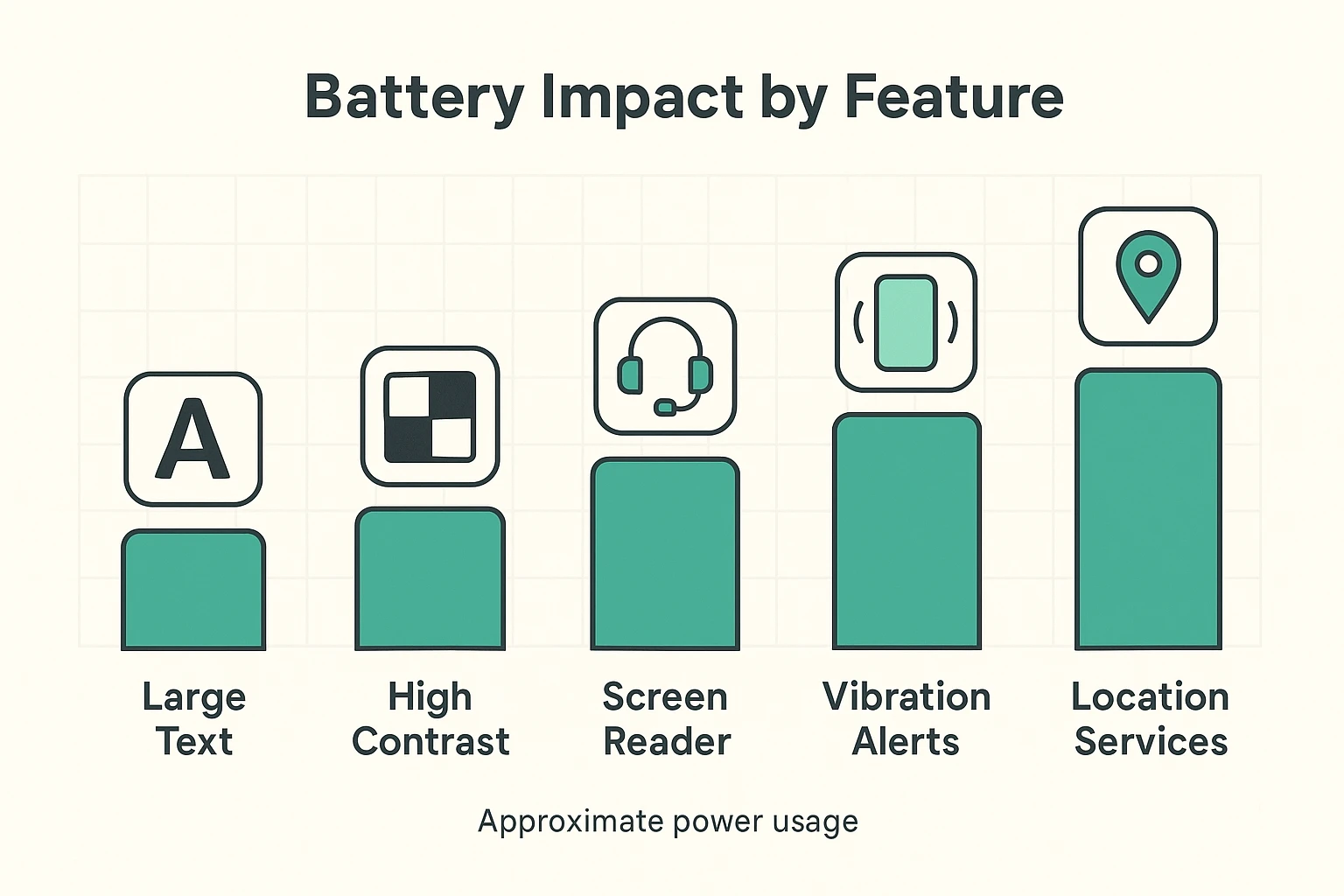
Let’s put these settings on trial. You might be surprised to find out who the real power hogs are.
Here’s the big reveal: Increasing your text size or making it bold has a nearly zero effect on your battery life. Seriously. Your phone doesn’t work any harder to show a big “A” than a small “a.”
Worrying about large text draining your battery is like blaming the car’s radio for an empty gas tank. It’s technically using some power, but it’s so minuscule you’d never notice. So go ahead, make that font as big as you want!
In fact, some high-contrast settings, like Dark Mode, can actually save battery on certain types of screens (called OLED, common in newer iPhones and many Androids).
These features use a bit more power, but only when they’re active.
A screen reader needs to use the phone’s brain (the processor) to figure out what to say, which takes a little energy. A vibration alert uses a tiny physical motor to make your phone shake.
Think of it this way: they’re like lightbulbs. They only use power when you flip the switch. If your phone is vibrating all day long or you’re having it read War and Peace to you, you’ll see a dip. But for typical use, the impact is modest.
Now for the real villains. These are the settings that drain your battery silently in the background, often without you even realizing it. They’re the ones truly responsible for that lunchtime power panic.
The key takeaway? Your accessibility settings aren’t the problem. The problem is usually other power-hungry features running alongside them.
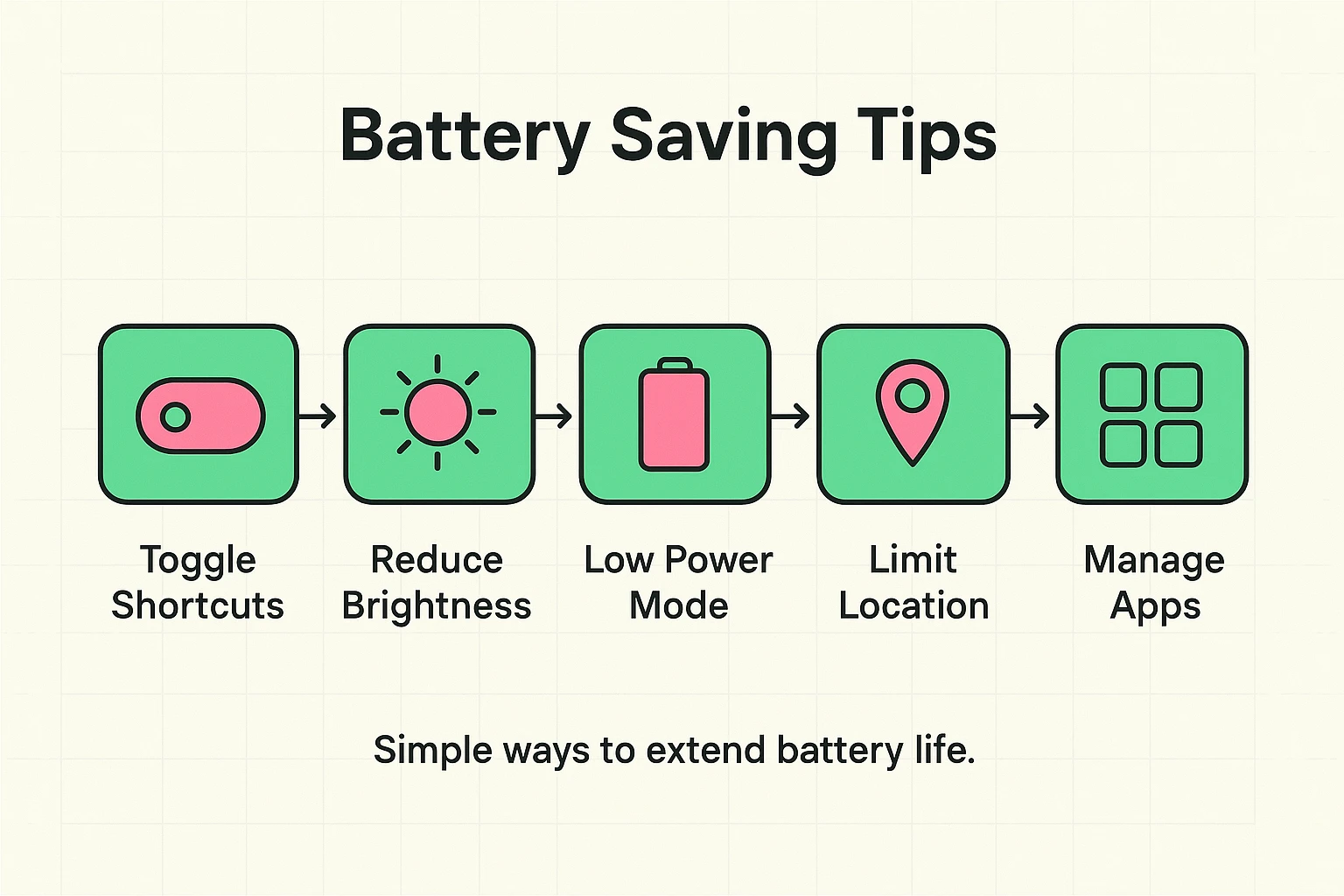
You don’t have to choose between a usable phone and a long-lasting one. With a few tweaks, you can have both. It’s all about being smart with your settings, a core principle for staying safe and in control online. For more on that, check out our piece on Why You Need 2-Factor Authentication (2FA) in Your Life.
Here are some simple strategies:
That’s right. It’s one of the safest and most battery-friendly adjustments you can make. Prioritize your comfort and readability without fear!
It uses some, but it’s all relative. It uses much less power than watching a 10-minute video, playing a game, or using your phone for GPS navigation in the car. If you rely on it, the battery cost is well worth the benefit.
Lower your screen brightness. It is the undisputed, heavyweight champion of battery drain. Using Auto-Brightness is the easiest way to manage it.
Yes! If your phone has an OLED or AMOLED screen (most newer models do), using Dark Mode can significantly reduce power consumption. That’s because on these screens, a black pixel is a pixel that’s turned off, using no energy at all.
Your smartphone is supposed to work for you, not the other way around. Don’t ever feel like you have to sacrifice comfort and usability just to squeeze a few more minutes out of your battery.
The truth is, the features that make your phone a joy to use—like large text and clear contrast—are rarely the cause of a power crisis. The real culprits are almost always hiding in the background, like screen brightness, location tracking, and chatty apps.
So go ahead: crank up that font size, turn on those helpful alerts, and customize your phone with confidence. By being a savvy detective with your other settings, you can create a device that’s both easy on the eyes and easy on the battery.