Newsletter Subscribe
Enter your email address below and subscribe to our newsletter

Enter your email address below and subscribe to our newsletter

Discover how AI captions help you catch every word and improve video call clarity with easy-to-use live transcription features.
Have you ever been on a video call with your grandkids, and the conversation moves faster than a squirrel with an espresso shot? You’re nodding and smiling, trying to piece together the story, but the audio keeps cutting out. Did your grandson say he “aced his math test” or that he “raced a moth nest”? One is cause for celebration, the other for a mild extermination.
This digital game of telephone is a modern frustration we can all relate to. Trying to catch every important detail from a doctor, a friend, or a fast-talking family member through a screen can be exhausting. It feels like you need the hearing of a bat and the lip-reading skills of a secret agent just to keep up.
But what if you had your own personal court reporter, typing out everything being said, right there on your screen, in real time? Good news: you do. It’s called AI-powered live captioning, and it’s a game-changing tool that’s probably already built into the apps you use every day. Let’s turn on the subtitles for your digital life.
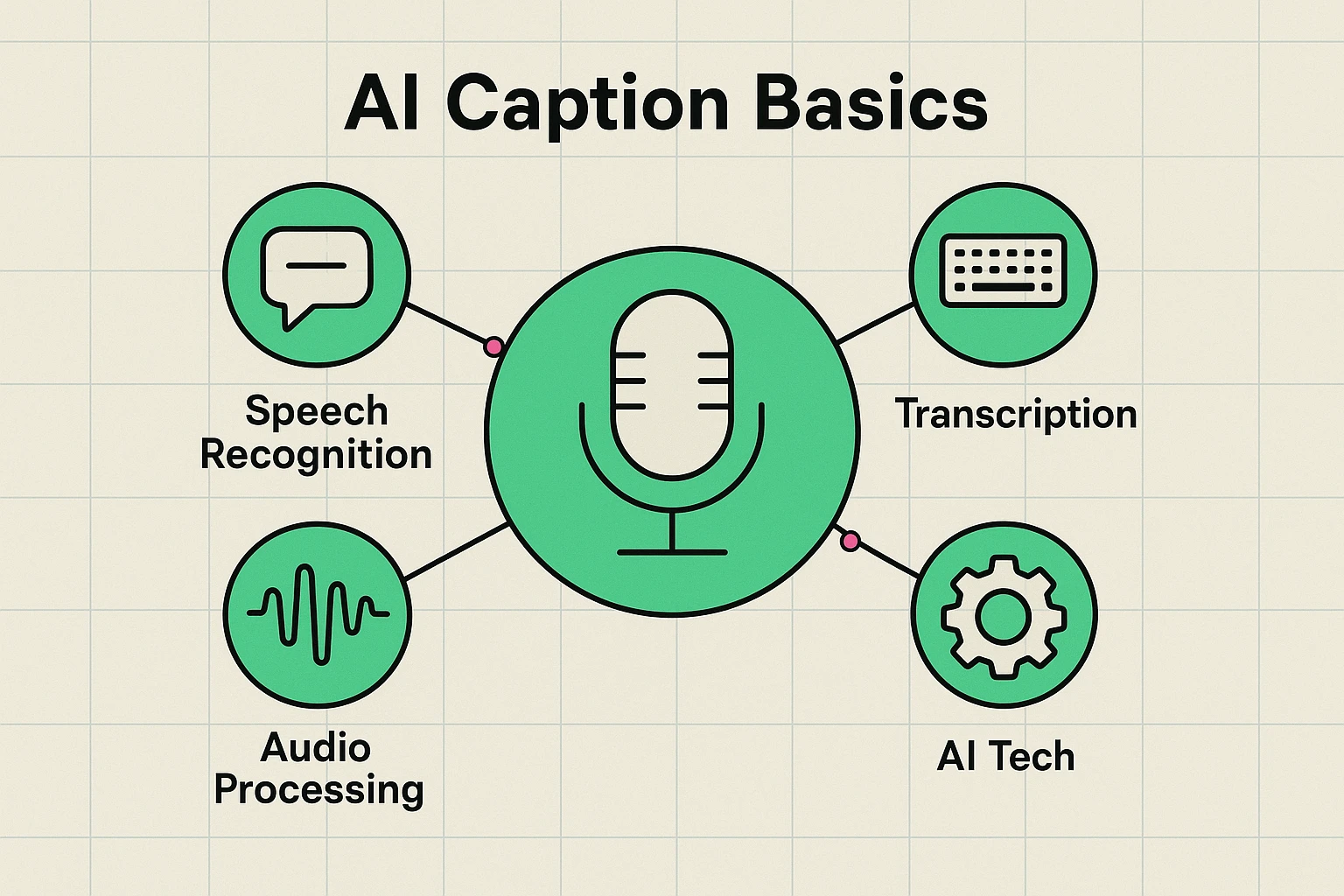
Before your eyes glaze over at the term “AI,” let’s break it down. Think of it this way: inside your computer, there’s a tiny, ridiculously fast typist who listens to the audio from your video call and turns it into text on your screen. It’s like having subtitles for your life.
This little digital wizard uses a few clever tricks:
Essentially, captions and transcriptions are your secret weapon for clarity. They catch the words you might miss, making every conversation less of a guessing game and more of a… well, conversation.
This isn’t just about catching a stray word here and there. Live captions can be a total game-changer in many situations:
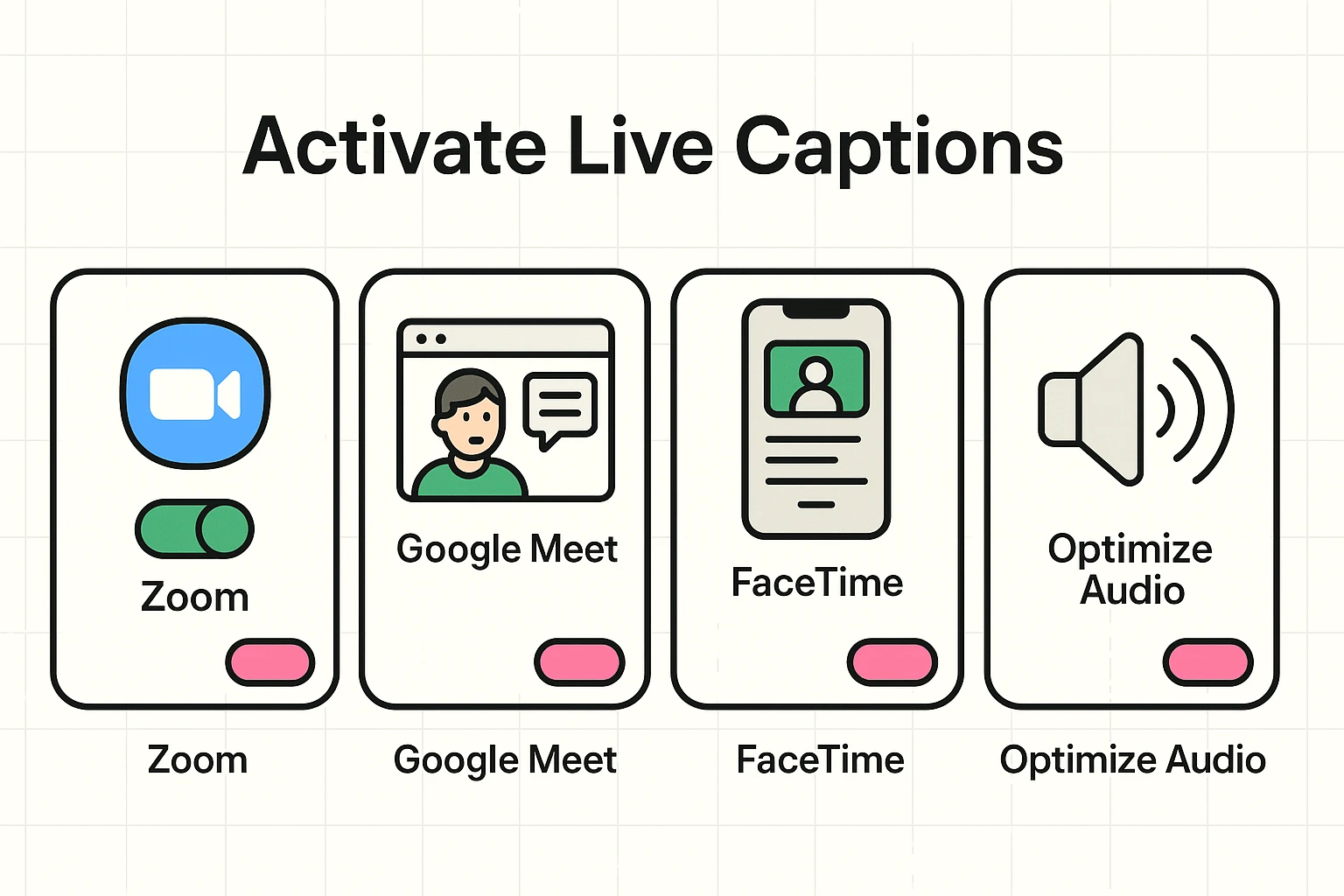
Activating live captions is usually just a click away. While every app is a little different, the button you’re looking for often has a “CC” (for Closed Captions) on it.
For these features to work smoothly, a stable connection is your best friend. If you’re new to the world of video chats, our guide on Video Calling Made Easy is a great place to start. And to ensure your signal is strong enough for clear audio and captions, it helps in Understanding Wi-Fi vs. Mobile Data.
Here’s a quick look at where to find the magic button on popular platforms:
The AI typist is fast, but it’s not a mind reader. The better the audio it hears, the better your captions will be. Here are a few simple tricks to help it out:
Using live captions isn’t just a technical fix; it’s about inclusion. It ensures that everyone can participate fully in the conversation, regardless of hearing ability or a spotty internet connection. It transforms video calls from a source of frustration into a genuine moment of connection.
You’re no longer on the sidelines trying to keep up. You’re in the game, catching every joke, every story, and every important piece of information.

Think of them as a very capable B+ student. They’re surprisingly accurate, especially in quiet environments, but they can still make funny mistakes. If the audio is fuzzy, they might mistake “I need to walk the dog” for “I read the wok log.” They’re a fantastic aid, not a flawless transcript.
They’re getting much better! Tech companies are constantly training their AI on a wider range of voices and dialects. However, a very thick accent or speaking very quickly can still throw it for a loop sometimes.
Absolutely not. This is one of the most important points. The entire process is automated and handled by the computer program (the AI). There isn’t a person in a headset somewhere typing out your conversation.
Nope! For most personal users on major platforms like Zoom, Google Meet, and FaceTime, live captioning is now a standard, free feature. It’s there waiting for you to use it.
The next time you hop on a video call, take a moment to look for that “CC” button. Give it a click. You have nothing to lose and a world of clarity to gain. Don’t be afraid to poke around in the settings—you can always turn it off again.
This simple tool can make the digital world a little less confusing and a lot more connected. Go ahead and give yourself the superpower of perfect hearing—no cape required.