Newsletter Subscribe
Enter your email address below and subscribe to our newsletter

Enter your email address below and subscribe to our newsletter

There is a distinct scientific phenomenon that occurs the moment you turn 55. Your reading glasses, inanimate objects which theoretically have no motor skills, develop the ability to play hide-and-seek. And they are winning.
You hear the “ding” of a text message. It could be your grandchild sending a photo of their first day of school. It could be the pharmacy telling you your prescription is ready. Or, more likely, it’s a politician asking for five dollars. But you can’t know for sure, because your glasses are currently vacationing in the sofa cushions or sitting on top of the refrigerator, mocking you.
So, you do the “trombone maneuver”—holding the phone at arm’s length, squinting until your eyes water, trying to decipher if that blur is the letter “B” or a smudge of lasagna on the screen.
But here is the good news: You don’t actually need to read that screen. Your smartphone, tablet, and smart speakers have a hidden superpower. They can talk. And not just in that choppy, 1980s robot voice that sounds like it wants to conquer the galaxy. Modern Artificial Intelligence (AI) can read your texts, emails, and news articles aloud to you in a voice that is surprisingly pleasant.
Let’s put down the magnifying glass and teach your device to do the heavy lifting.
Before we start pushing buttons, let’s explain what we are actually doing. You might hear terms like “Text-to-Speech” (TTS) or “Voice Assistants.” It sounds like something from a sci-fi movie where the doors go whoosh, but it’s actually quite simple.
Think of it as having a personal butler living inside your phone.
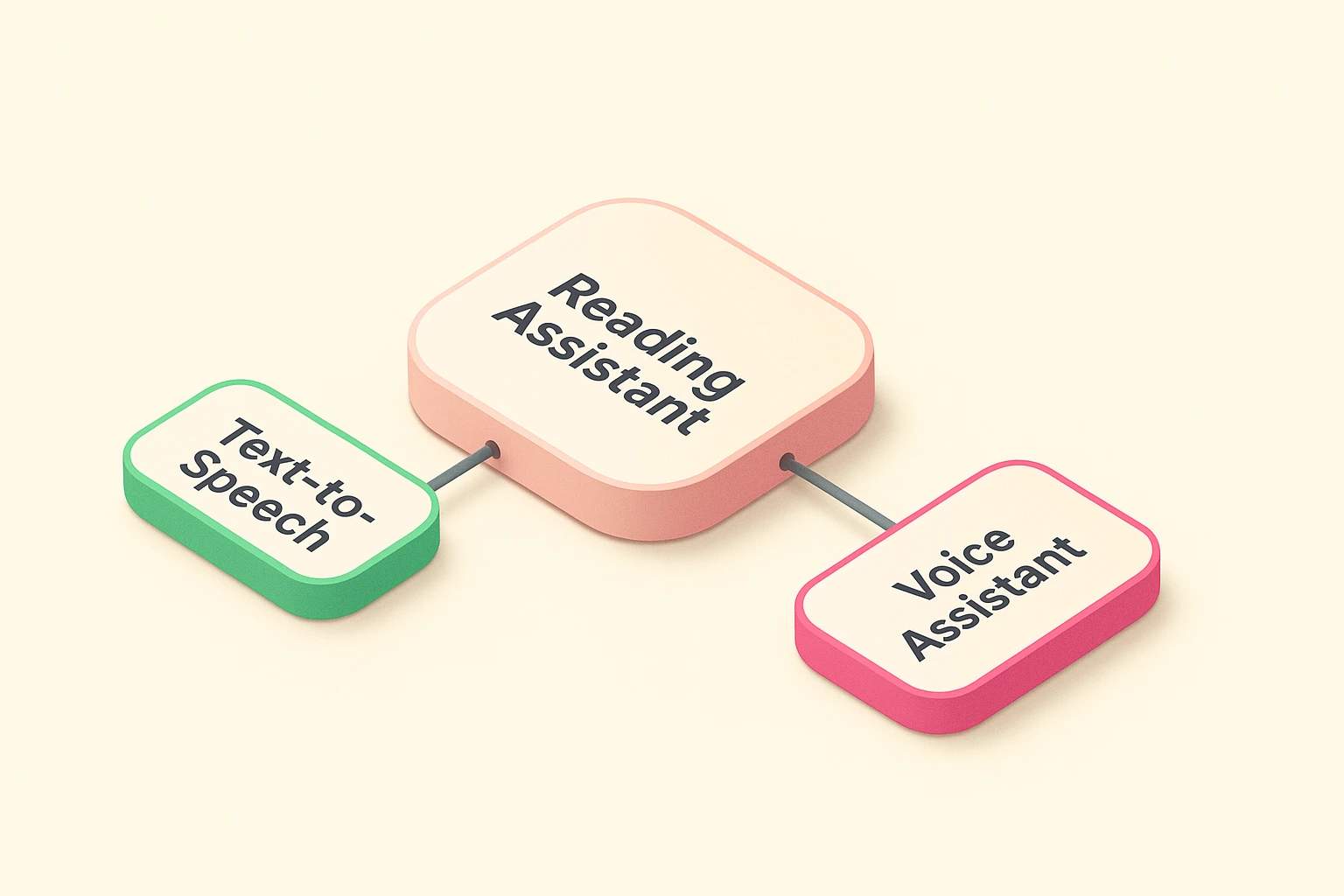
We are going to look at the “Big Three”: iPhone, Android, and Alexa. Don’t worry if you aren’t a “tech whiz.” If you can program a coffee maker, you can do this.
Apple hides its best reading features in the “Accessibility” menu. It’s like a secret club for people who want their phones to be actually useful.
How to use it: Now, whenever you are reading an email or a web page, simply press and hold on the text to highlight it. A menu will pop up. Tap Speak, and your phone will read it to you. It’s that easy.
Pro Tip: In the same menu, turn on Speak Screen. Now, if you swipe down with two fingers from the top of your screen, Siri will read everything on the page. It’s perfect for long articles.
Android calls this feature “Select to Speak,” and it places a handy little button on your screen so you don’t have to go digging through menus every time.
How to use it: You will see a small figure or a speaker icon in the corner of your screen. Tap that icon, then tap the specific text you want to hear. Or, just press “Play” to hear everything.
If you have a smart speaker sitting on your kitchen counter, you don’t even need to pick up a device. This is excellent for when your hands are covered in flour or potting soil.
Note: These devices act as excellent assistants for many daily tasks. Beyond reading texts, they can check the weather, play radio stations, or even serve as a reliable medication timer to ensure you never miss a pill.
Once you get used to your device talking to you, you might find you prefer it. Why strain your eyes reading the morning news when you can have it read to you while you butter your toast?
Most news apps (like the New York Times or Apple News) now have a “Play” button at the top of their articles. It turns the news into a mini-podcast.
If you love reading but hate the eye strain, apps like Libby allow you to borrow audiobooks from your local library for free. It connects to your library card, and suddenly you have thousands of books being read to you by professional actors. It’s much better than the robot voice, though the robot is getting better every year.
This feels like magic. There are apps, such as Seeing AI (Microsoft) or Google Lookout, that use your phone’s camera. You point your phone at a physical letter, a menu at a dark restaurant, or a pill bottle label, and the phone speaks the text aloud in real-time. It is essentially a talking magnifying glass.
We at Senior Tech Cafe love technology, but we don’t wear rose-colored glasses (mostly because we can’t find our glasses). There are things you need to know to stay safe.
When you use a voice assistant like Alexa or Siri, the device is waiting for its “wake word.” Generally, they are not recording everything you say, but they are listening for their name. If privacy is a major concern, stick to the “Text-to-Speech” features on your phone (like the iPhone/Android steps above), as these usually happen right on the device and aren’t sent to the cloud.
Here is the scary part: AI is getting so good at imitating voices that scammers are using it. You might get a call that sounds exactly like your grandson saying he’s in trouble and needs money.
How to protect yourself:
Not anymore! Modern phones allow you to choose from dozens of voices. You can have a British butler, an energetic American, or a calm narrator. Go to your Accessibility settings to “Voices” and audition them until you find one you like.
Reading text aloud uses very little battery power—much less than watching videos or playing games.
Absolutely. Most modern hearing aids can connect to smartphones via Bluetooth. This means the text is read directly into your ears, crisp and clear, without disturbing anyone else in the room.
Technology often feels like it’s leaving us behind, complicating things that used to be simple. But features like Text-to-Speech are the opposite—they are there to make life easier. They allow you to stay connected and informed without the headache (literally) of squinting at tiny screens.
So go ahead. Dive into your settings. Turn on that “Spoken Content.” Let your phone do the talking. Your eyes will thank you, and your reading glasses can enjoy their permanent vacation in peace.