Newsletter Subscribe
Enter your email address below and subscribe to our newsletter

Enter your email address below and subscribe to our newsletter

You are standing in front of something magnificent. Maybe it’s the Grand Canyon, or perhaps it’s your grandson blowing out the candles on his birthday cake. You raise your phone to capture this fleeting, beautiful moment. You tap the button.
And then, it happens.
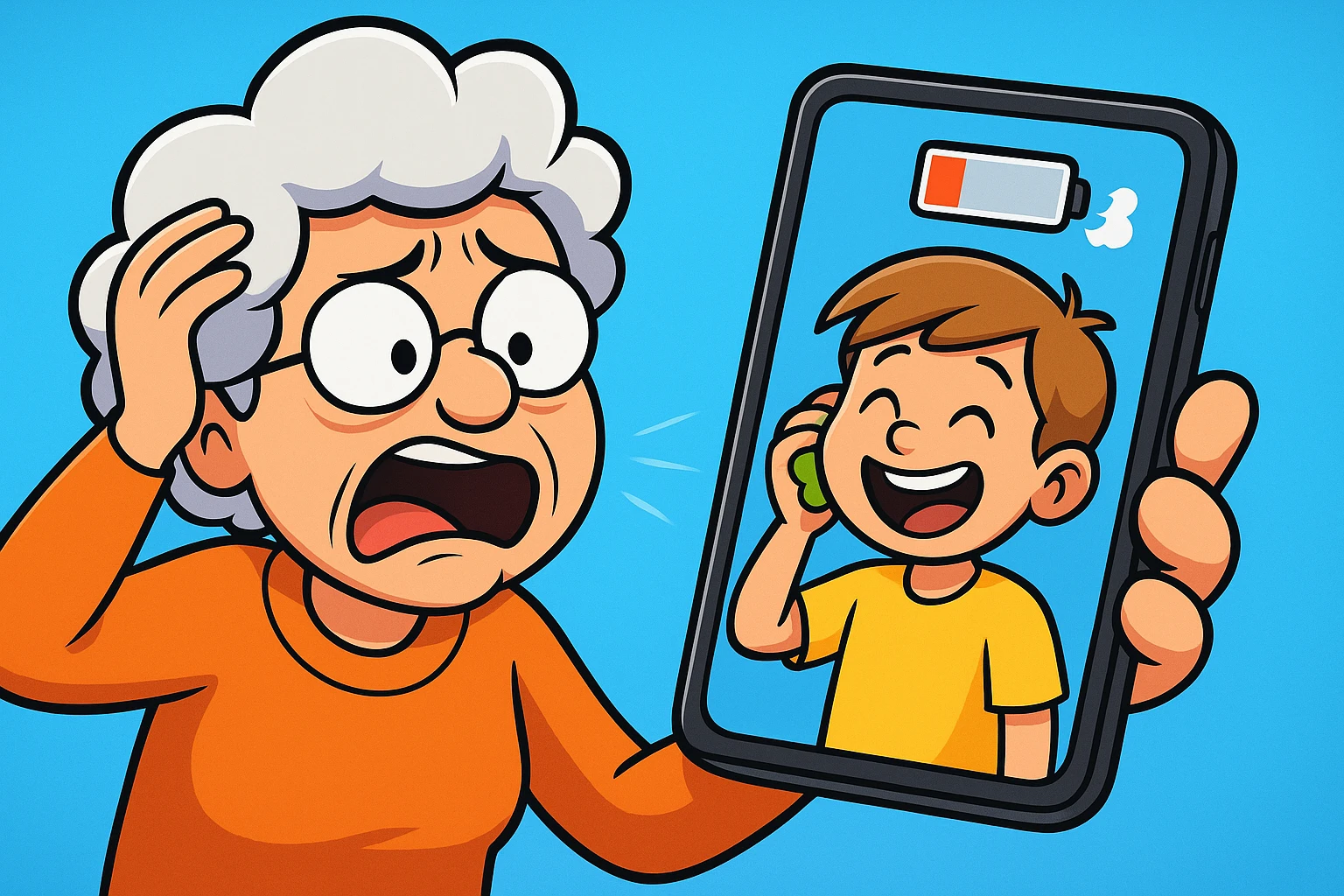
The dreaded pop-up appears: “Storage Full.”
In that split second, while you are frantically tapping “Done” and trying to find an old picture of a sandwich to delete so you can make room, your grandson has already blown out the candles and is currently smearing icing into the carpet. The moment is gone, sacrificed to the digital clutter gods.
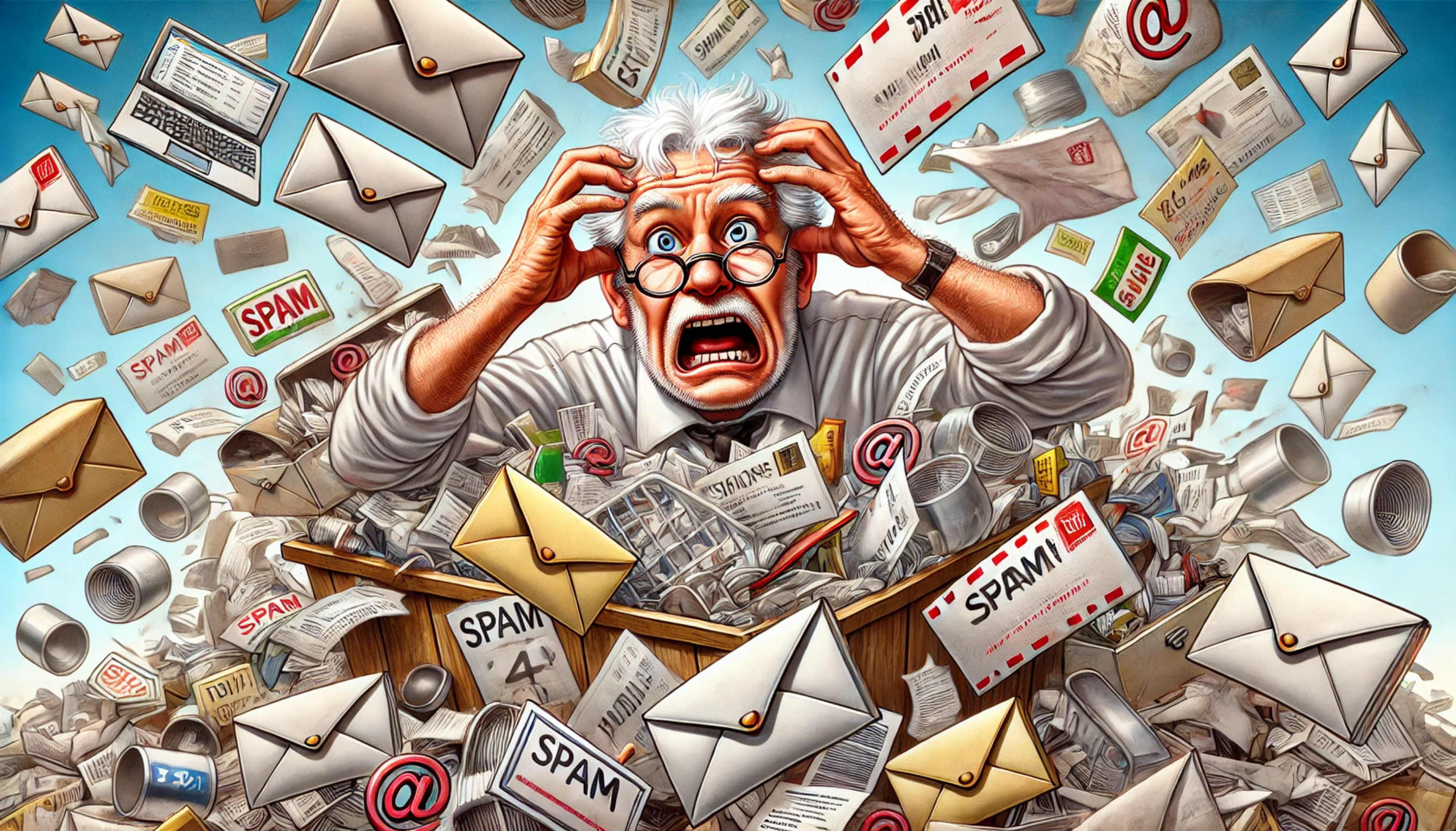
If this sounds familiar, welcome to the club. Our phones have become the modern equivalent of that one “junk drawer” in the kitchen—stuffed with things we might need someday, but mostly filled with blurry receipts, accidental screenshots of our lock screens, and seventeen identical photos of the dog sleeping.
But don’t worry. We’re going to clean out that drawer together. We’ll look at how to safely identify the junk, keep the treasures, and reclaim your space without accidentally deleting your wedding photos.
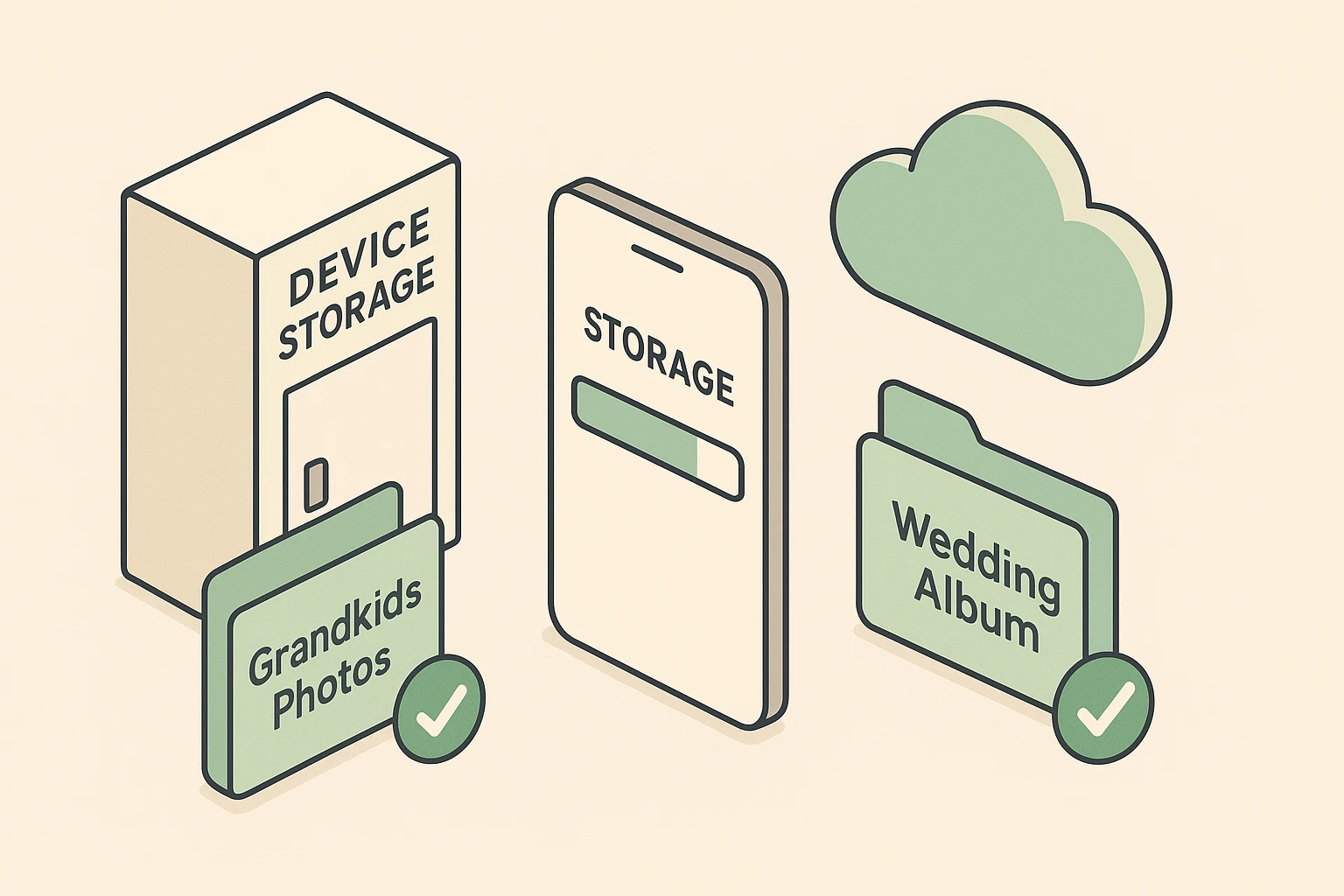
Think of your phone’s storage like a physical closet in your hallway. It has a fixed size. You cannot stretch the walls. When you buy a phone with 64GB or 128GB of storage, that’s the size of your closet.
Over time, we fill that closet with boxes. Apps are like small shoeboxes. Text messages are like loose papers. But photos and videos? They are the grand pianos and oak wardrobes of the digital world. They take up massive amounts of space.
The problem isn’t usually that you have too many apps; it’s that you have 4,000 high-definition photos and videos sitting in your pocket. And just like a real closet, if you don’t do a little spring cleaning now and then, the door eventually refuses to shut.
Before we start tossing things out, we need to address the single biggest fear seniors have about their phones: “If I delete it here, is it gone forever?”
This is where things get tricky, so let’s use an analogy.
Most modern phones (iPhones with iCloud or Androids with Google Photos) use a system called Syncing. Think of your phone as a magic mirror. If you stand in front of the mirror and shave off your mustache, the mustache is gone from your face and the reflection. They are connected.
If your phone is synced to the cloud (which most are by default), deleting a photo from your phone usually deletes it from the cloud, your iPad, and your computer too.
Many people think the cloud is a separate “backup box” where photos live safely while they clear their phone. Often, it is not. It is a mirror. To be safe, always ensure you know how to backup pictures from iphone or Android to an external source (like a computer or a separate service) if you are nervous about losing precious memories.
Now that we are appropriately cautious, let’s have some fun. The easiest way to free up space is to find the photos you absolutely do not need.
Did you know your phone might have a built-in detective that finds duplicates for you?
Apple has a “Duplicates” album that appears in your Photos app (under the “Utilities” section at the bottom). It scans your library and says, “Hey, look! You took these two identical photos of a park bench.” You can tap “Merge,” and it keeps the highest quality version and trashes the rest. It is incredibly satisfying, like popping bubble wrap.
If you use the “Files by Google” app, there is a “Clean” tab that specifically hunts for duplicates and blurry photos. It serves them up on a silver platter for you to delete with one tap.

Once you’ve handled the technical duplicates, you have to make some executive decisions. This is the manual labor part of the job. But you don’t have to agonize over every image. Use this simple mental checklist:
Here is the best “Aha!” moment for anyone struggling with space. You can actually keep all your photos and have empty space on your phone.
Both Apple and Google offer a setting usually called “Optimize Storage.”
Here is how it works: Your phone takes your massive, high-definition photo and sends it to the cloud for safekeeping. Then, it leaves a tiny, low-resolution version (a thumbnail) on your phone.
When you look at your album, you still see the picture. If you tap on it to view it, your phone quickly downloads the sharp version from the cloud. It’s like keeping the catalogue picture in your pocket but leaving the heavy furniture in the warehouse until you actually need to sit on it.
You’ve spent an hour deleting blurry photos and old screenshots. You check your storage settings. Nothing has changed. You still have 0 GB available.
Why? Because your phone is trying to save you from yourself.
When you hit “delete,” your phone doesn’t incinerate the photo. It moves it to a folder called “Recently Deleted” (on iPhone) or “Trash/Bin” (on Android). It sits there for 30 days, just in case you change your mind.
It’s exactly like throwing a newspaper in the wastebasket under your desk. It’s technically “trash,” but it’s still in the room taking up space. To actually free up the space, you have to take the trash to the curb.
Go to your Albums, scroll down to Recently Deleted, and hit “Delete All.”
WARNING: Once you do this, they are gone. Poof. Vaporized. This is the moment to ask yourself, “how do i backup my iphone photos“ one last time to ensure you aren’t erasing something vital.

The best way to avoid the “Storage Full” panic is to do a little bit of cleaning regularly. You don’t wait until your house is condemned by the health department to wash a dish; don’t wait until your phone freezes to delete a photo.
Try the “Commercial Break Clean-Up.” When you are watching TV and the commercials come on, open your photos. Look at the last week. Delete the screenshots, the bad selfies, and the duplicates. By the time your show is back on, you’ve saved yourself megabytes of space and future headaches.

You can see the small versions (thumbnails) without internet. To see the photo in crystal-clear full quality, you will need a data or Wi-Fi connection so the phone can grab the original from the cloud.
You likely forgot to empty the “Recently Deleted” or “Trash” folder. Your phone holds onto deleted items for 30 days unless you force it to let go.
Yes! This is actually the safest method. Copy them to your computer (or a USB drive), verify they are there, and then delete them from your phone.
Now that you have reclaimed your digital closet, you can snap photos of the grandkids (and your lunch) without fear. Remember, technology works for you, not the other way around.
If you are still feeling uneasy about the safety of your memories, it might be time to look at a more permanent solution. Check out our guide on how to backup pictures from iphone to turn your digital clutter into a secure digital legacy.