Newsletter Subscribe
Enter your email address below and subscribe to our newsletter

Enter your email address below and subscribe to our newsletter
Remember when a “subscription” just meant a teenager on a bicycle throwing a newspaper somewhere in the general vicinity of your hydrangeas once a day? Life was simpler then. You knew what you were paying for, and if you wanted to cancel, you just yelled out the window.
Today, we live in the Era of the Invisible Charge. You download an app to help you identify bird calls, or perhaps a game where you crush digital candy. It offers you a “Free 7-Day Trial,” which sounds delightful. You accept. You play for three days, get bored, and delete the app.
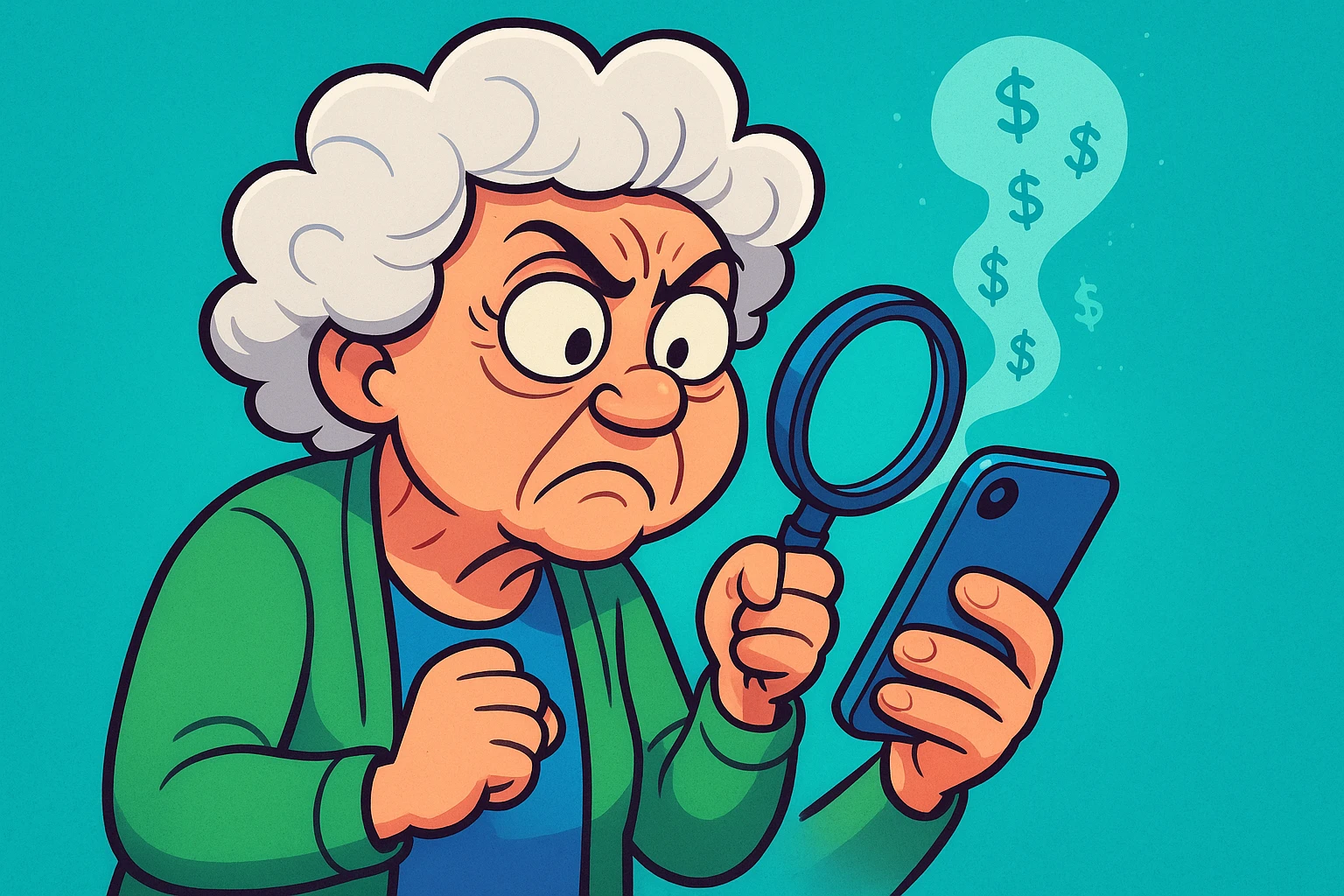
You assume the transaction is over. But six months later, you’re looking at your bank statement and wondering why you are paying $9.99 a month to a company called “Mega-Bird-Sounds Ltd.”
Here is the hard truth that tech companies don’t put on the billboards: Deleting an app does not cancel your subscription.
It’s like throwing away your gym membership card and assuming the gym will stop billing you. (Spoiler: They won’t. They will bill you until the sun burns out.)
If you have ever felt held hostage by a recurring charge you can’t find, you are not alone. Today, we are going to put on our detective hats and hunt down these digital stowaways.
Before we start pressing buttons, we need to understand why this is so confusing. Most people think they are paying the app directly. You assume you are paying the bird-watching app people.
Usually, you aren’t.
When you subscribe to something on an iPhone or Android device, you are actually paying Apple or Google. Think of Apple and Google as the “Digital Landlord.” The app developers are just tenants renting space in the store. You pay the Landlord (Apple/Google), and the Landlord pays the tenant.
This is why you can’t call the bird app people to cancel. They don’t have your money yet. You have to go to the Landlord’s office—which is hidden inside your phone’s settings—to tell them to stop the payments.

Now that we know who has our money, let’s go get it back. We’ve broken this down by device. Grab your reading glasses and your device of choice.
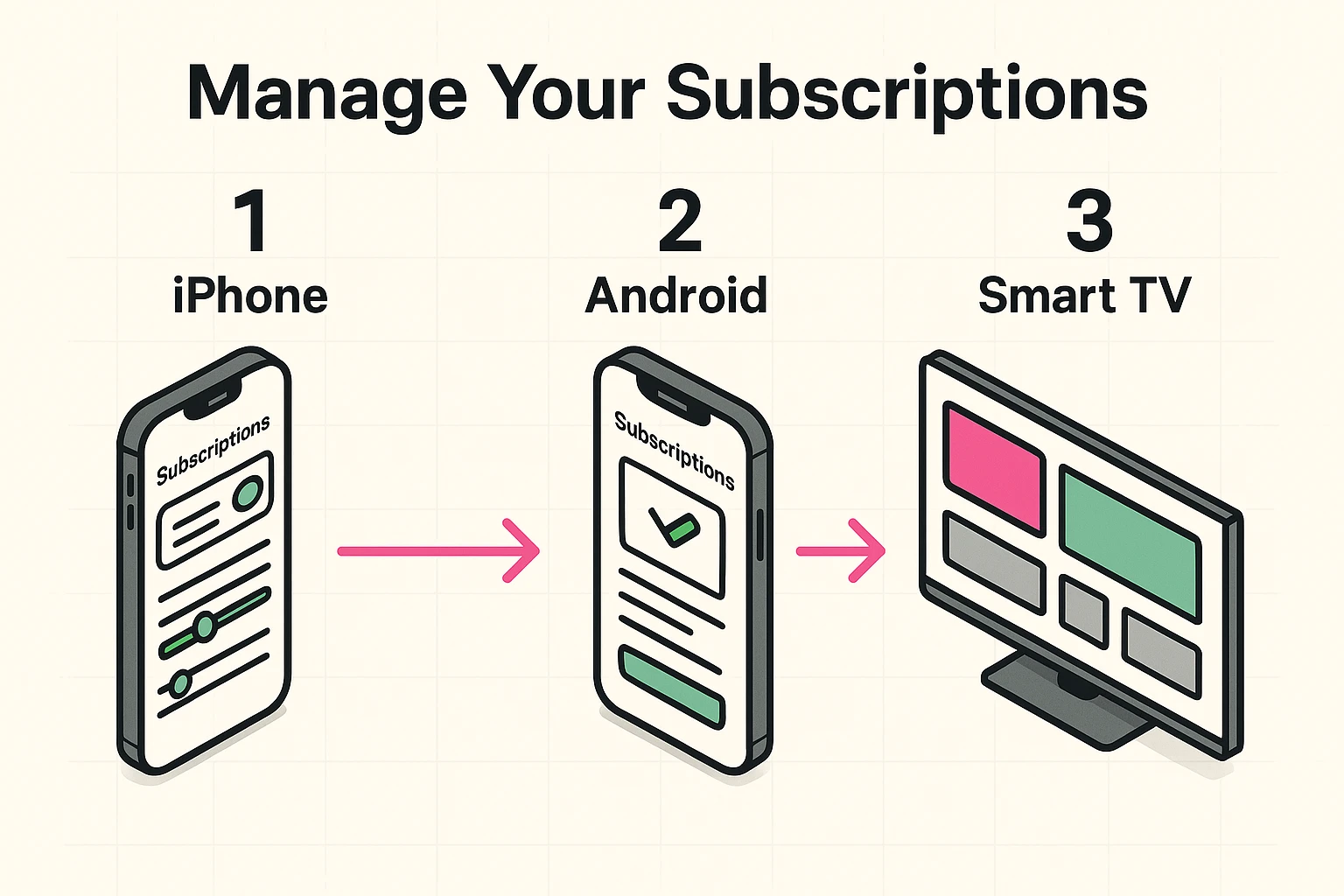
Apple likes to keep things tidy, but they also like to tuck things away in drawers you didn’t know existed. Here is how to find the “Subscription Drawer.”
Important Note: If you don’t see a “Cancel” button, but you see red text that says “Expires on [Date],” congratulations! You already cancelled it. It will simply finish out its term and then disappear.
Google operates similarly to Apple, but the buttons are in slightly different spots.
Smart TVs are the Wild West of technology. Every remote has 400 buttons, and none of them seem to do what you want. However, many streaming subscriptions (like HBO Max, Disney+, etc.) are managed through your TV’s main account.
If you have a Roku:
If you have an Amazon Fire TV:It is actually easier to do this on a computer. Go to Amazon.com, log in, and search for “Appstore Subscriptions.” Trying to do this with a TV remote is a recipe for carpal tunnel syndrome.
You checked your iPhone settings. You checked the Google Play store. You checked the Roku. But your credit card statement still shows a charge for “Premium Yoga for Cats.”
What gives?
This usually means you bypassed the “Digital Landlord” and paid the company directly. This often happens if you signed up for a service (like Netflix or Spotify) on your computer before you downloaded the app on your phone.
In this case, Apple and Google have no record of the transaction. You cut out the middleman.
To fix this, you have to go to the source.
We recommend doing a “Subscription Audit” once every few months. It takes five minutes and can save you hundreds of dollars a year.
Grab your latest credit card statement and scan for small, recurring numbers. $4.99 here, $9.99 there. If you see a charge you don’t recognize, Google the name on the statement.
Remember, technology is supposed to serve you, not siphon money from your wallet while you sleep. By taking control of these settings, you aren’t just saving money; you’re proving that you are still smarter than your smartphone.
Usually, no. If you paid for a month, you get the month. Canceling just stops the next payment. You can keep doing yoga with your cat until the billing cycle ends.
Maybe. Apple and Google both have “Report a Problem” features where you can request a refund, but they aren’t guaranteed. It’s like asking a waiter to take back a steak you’ve already eaten half of—sometimes they’re nice about it, but don’t count on it.
Both Apple and Android allow you to set up “Ask to Buy.” This means if little Timmy tries to buy a $50 coin pack for his game, your phone will ding and ask for your permission first. It is highly recommended unless you want to accidentally fund Timmy’s virtual empire.
At the end of the day, subscriptions are only a problem when they stay hidden. Once you know where to look, they lose their power. A few taps, a quick check of your statements, and suddenly you are back in control instead of quietly paying rent to apps you forgot existed.
Make it a habit to check in on your subscriptions the same way you check your email or clean out a drawer. It is not about being cheap; it is about being intentional. Your money should go toward things you actually use, enjoy, and choose on purpose, not digital ghosts quietly helping themselves every month.