Newsletter Subscribe
Enter your email address below and subscribe to our newsletter

Enter your email address below and subscribe to our newsletter
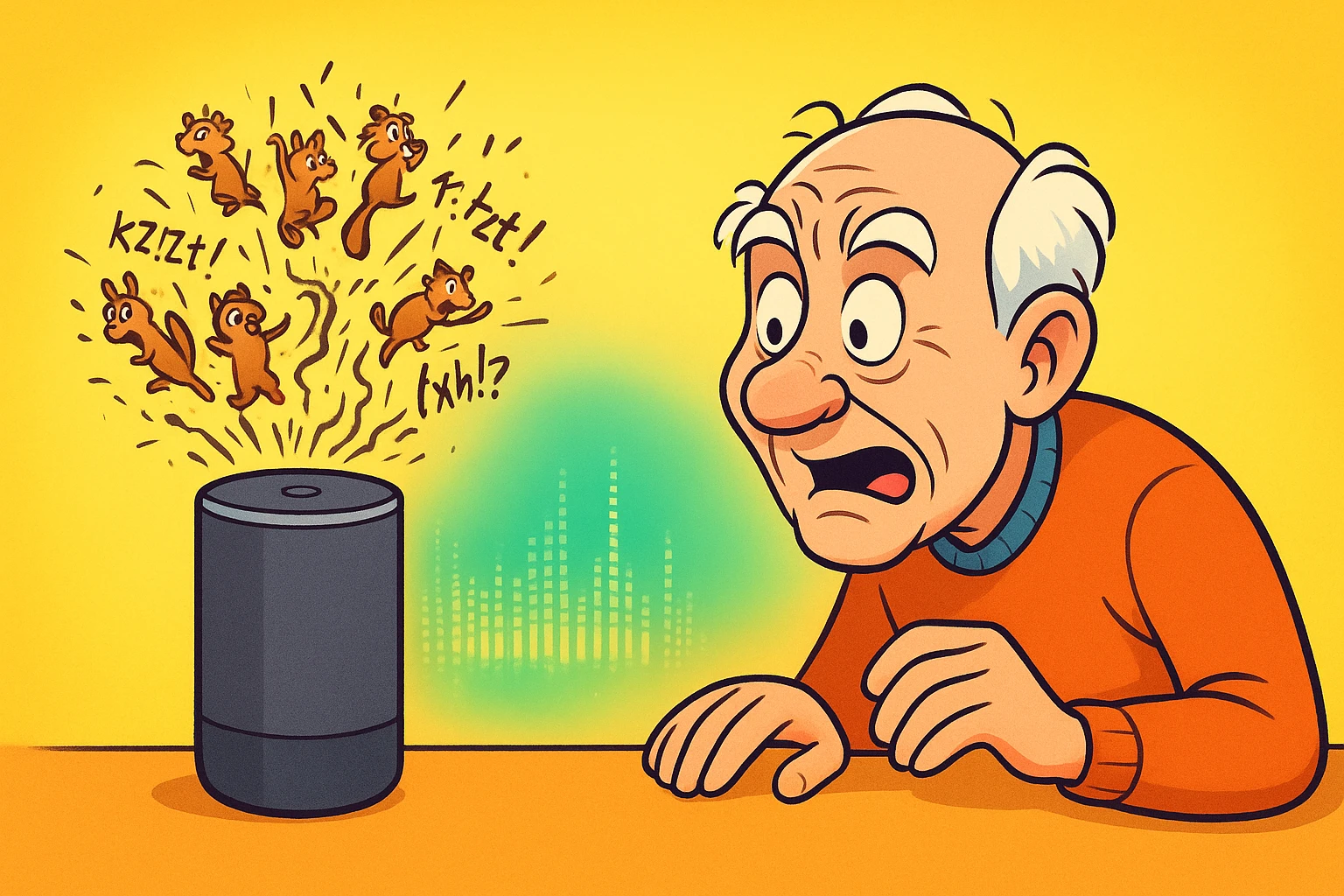
Picture this: You are relaxing in your favorite chair, and you ask your new smart speaker a simple question, like, “What’s the weather today?” The glowing little cylinder responds in a chipper, rapid-fire voice that sounds exactly like a caffeinated chipmunk talking through a tin can.
You say, “What?” It repeats the same garbled nonsense. You shout, “TURN IT UP!” Now, the speaker is just a louder caffeinated chipmunk, and your dog has retreated under the sofa in protest.
If this scenario sounds familiar, you are absolutely not alone. For many hard-of-hearing seniors, talking to a smart speaker right out of the box is like trying to converse with an auctioneer who just drank four espressos. But the good news is that you don’t need a degree in computer science to fix it.
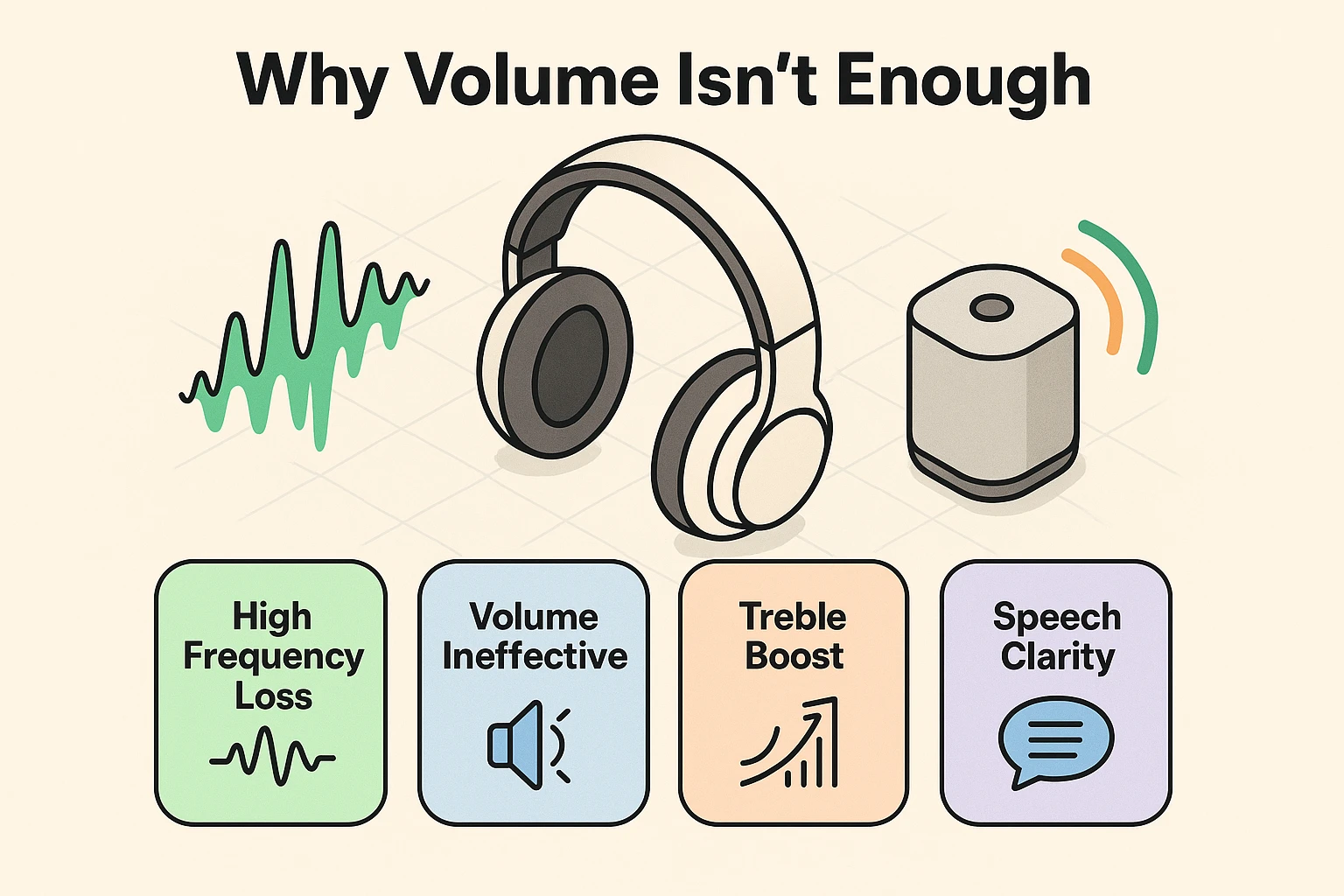
Before we press any buttons, we need to understand a fancy medical word: Presbycusis. This is the scientific term for age-related hearing loss. It usually means losing the ability to hear high-frequency sounds first.
Think of it like a piano where the highest keys have stopped working. Vowels (which are low-frequency sounds) come through loud and clear, but consonants like “S,” “T,” and “F” (which are high-frequency) completely disappear.
This is why turning up the volume on a smart speaker rarely helps. When you crank the volume, you are mostly making the low, booming vowels louder, which just creates more noise. To actually understand what the robotic voice is saying, we have to change how the speaker produces sound, not just how loud it is.
Before we dive into the digital settings, let’s look at where your device actually lives in your home. Smart speakers are notoriously picky about their real estate.
If you shove your speaker into a bookshelf or tuck it behind a large decorative fern, the sound waves get trapped. When sound bounces off tight corners or walls, it artificially boosts the bass. That creates a muddy, muffled sound that is incredibly difficult for hard-of-hearing (HoH) individuals to understand.
Instead, practice the “3-Foot Rule.” Place the speaker at least three feet away from corners and walls if possible, and keep it at ear level where the senior usually sits. By getting the device out in the open, the sound waves can travel directly to the listener without bouncing around the room like a confused ping-pong ball.
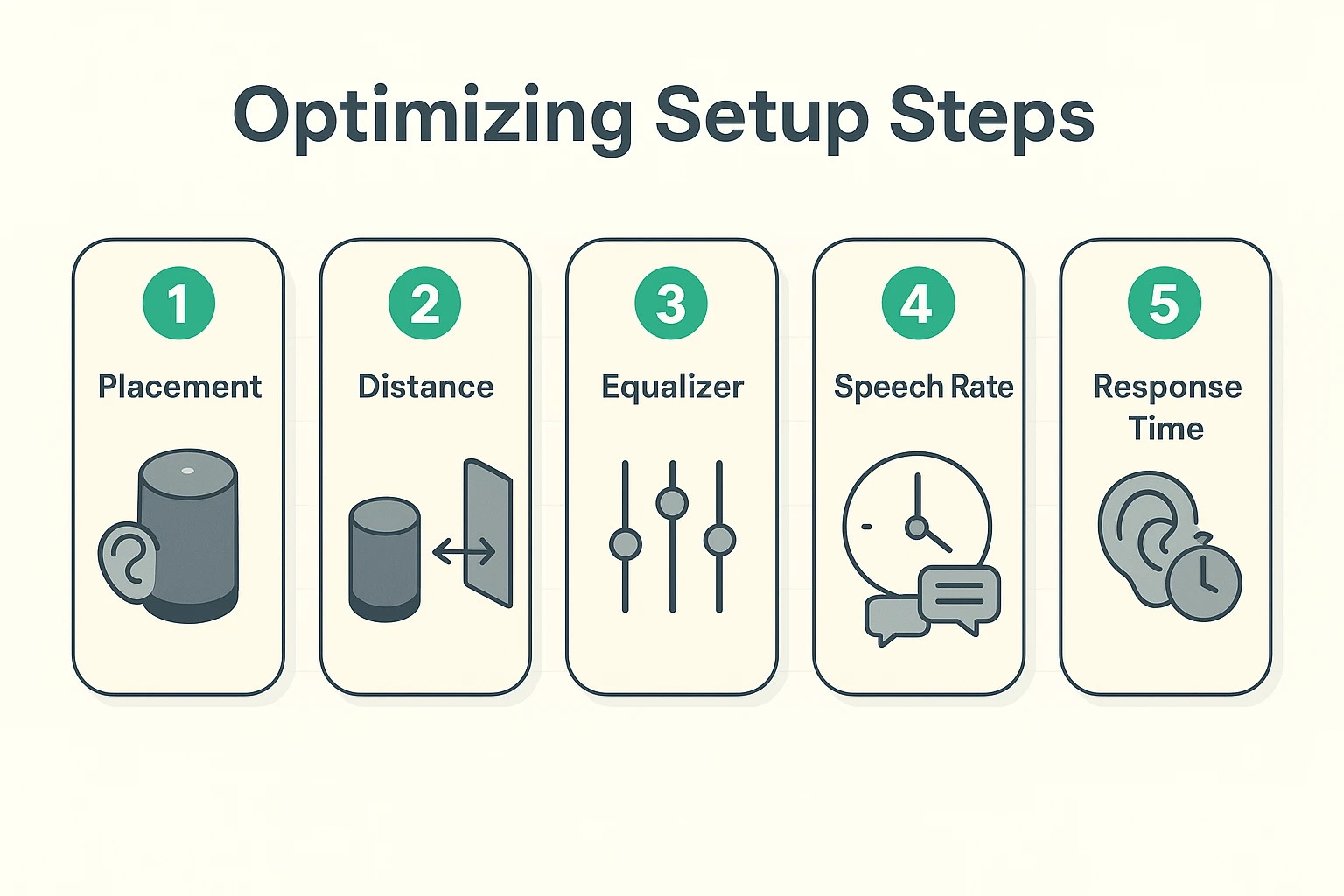
Now that your speaker has a good home, it’s time to teach it some manners. Factory default settings are designed for twenty-somethings who want to listen to thumping bass lines. We are going to change that.
Every major smart speaker (Amazon Echo, Google Nest, and Apple HomePod) has an “Equalizer” setting hidden in its smartphone app. This is your secret weapon.
You want to turn the “Bass” down a notch or two, and turn the “Treble” up. Increasing the treble naturally highlights those missing “S” and “T” consonant sounds we talked about earlier. This simple tweak is often a massive “Aha!” moment that instantly clears up the robotic voice.
AI voices are programmed to speak quickly to save time. But you can actually ask them to pump the brakes.
If you have an Amazon Echo, simply say, “Alexa, speak slower.” (You can do this multiple times until she sounds like she’s taking a leisurely Sunday stroll). For Google and Apple devices, you can adjust the speech rate in their respective accessibility menus on your smartphone.
Sometimes, we all need an extra second to gather our thoughts. Smart speakers are notoriously impatient and will often cut you off if you pause to take a breath.
To fix this, go into the accessibility settings and turn on “Adaptive Listening” (or “Longer Time to Speak”). This tells the digital assistant to patiently hold its digital horses and wait a few extra seconds before deciding you are finished talking.
If auditory tweaks aren’t quite enough, it’s time to bring in visual reinforcements. Devices with screens, like the Amazon Echo Show or the Google Nest Hub, are absolute game-changers for seniors with hearing loss.
By diving into the “Accessibility” settings on these devices, you can turn on “Alexa Captioning” or “Live Caption.” Every time the assistant speaks, its words will appear as large, readable text right on the screen. It is exactly like watching television with the subtitles on.
You can also enable Call Captioning. If your grandkids call you through the device, their words will be transcribed on the screen in real-time. Just a quick tip: prepare the senior for this “First Call” experience in advance, so they aren’t startled by the sudden appearance of floating text while talking to their family.
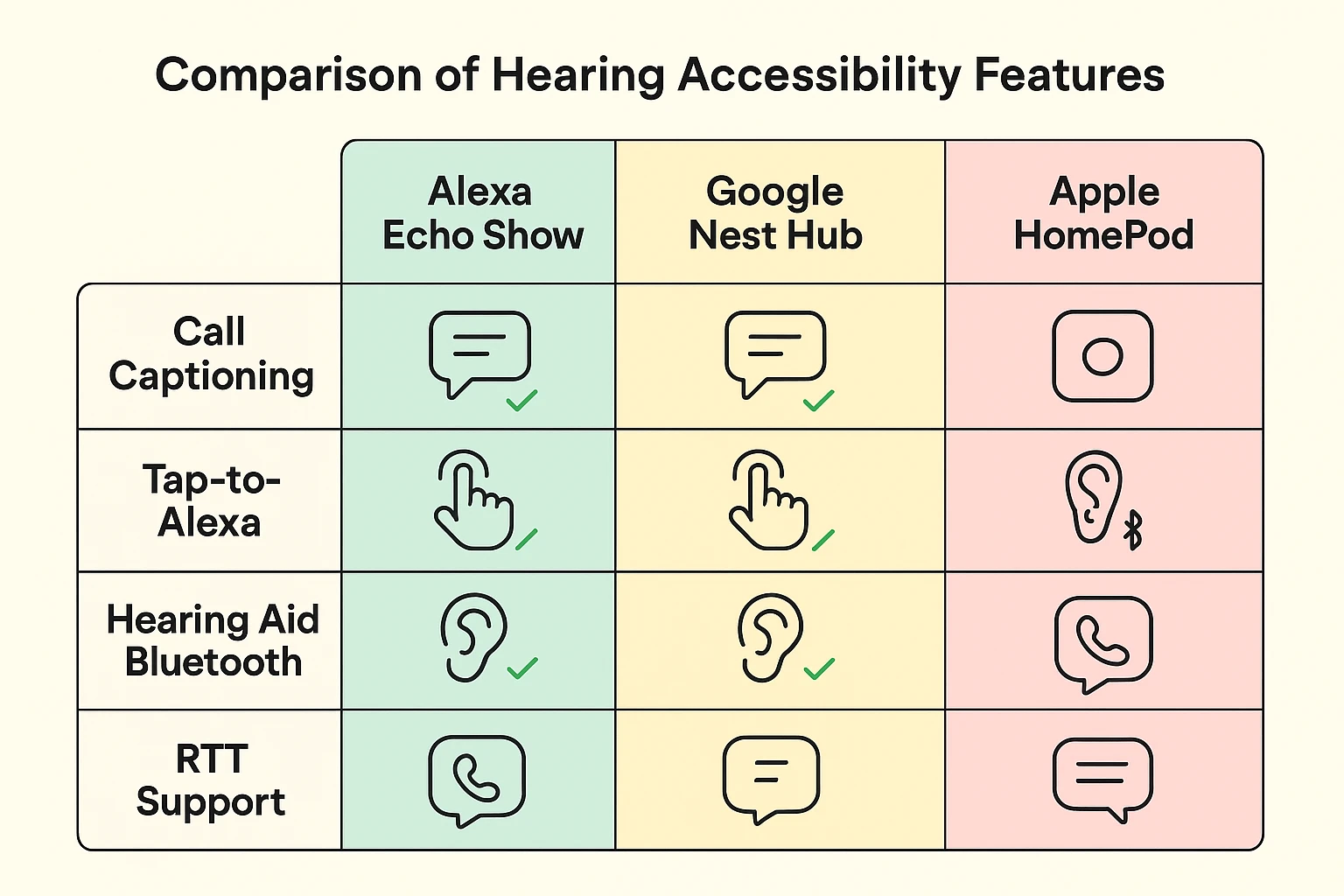
For those who rely on modern Bluetooth-enabled hearing aids, you might be wondering if you can beam the smart speaker’s voice directly into your ears. The short answer is: mostly yes, but with a catch.
You can pair many hearing aids to an Amazon Echo or Apple HomePod via Bluetooth. However, there is a crucial limitation to understand. Your hearing aids will act as the speakers, but they usually cannot act as the microphones. You will hear the assistant in your ears, but you still have to project your voice toward the device sitting on the counter to give it commands.
For seniors with severe hearing or speech challenges, look into Real-Time Text (RTT) features. This allows users to type their requests on a smartphone or tablet screen and have the smart speaker execute them, bypassing voice entirely.
Once you have the treble boosted, the voice slowed down, and the captions rolling, your smart speaker transforms from a frustrating noisemaker into a genuinely helpful companion. The default settings were the problem, not you.
Now that everything is dialed in perfectly, you can start exploring all the practical ways this technology makes daily life safer and more entertaining. If you’re looking for inspiration, we highly recommend checking out our guide on the best alexa for seniors to discover features you probably didn’t even know existed.
Adjusting the equalizer is the best first step. Lower the bass and raise the treble. This highlights the high-frequency consonant sounds that age-related hearing loss naturally muffles, making speech much clearer.
Modern terminology favors “Hard of Hearing” (HoH) because it is widely preferred by the deaf and hard-of-hearing community. “Hearing impaired” implies something is broken and needs to be fixed, whereas HoH is a neutral, respectful description of a person’s physical reality.
Yes, if your hearing aids have Bluetooth capabilities. You can pair them through the device’s companion app. Just remember that you still need to speak loudly enough for the physical smart speaker to hear your voice commands.
Devices with built-in screens, like the Amazon Echo Show or Google Nest Hub, are highly recommended. The ability to display large-text captions and real-time call transcriptions makes them incredibly accessible for visual learners.
Mastering these accessibility settings is your first major victory in the digital world. You’ve successfully taken a piece of complex, one-size-fits-all technology and customized it to fit your actual life.
Take a few days to practice speaking with your newly adjusted, slower-talking AI assistant. Once you feel comfortable, start experimenting with setting daily medication reminders, adding items to your grocery list, or just asking it to play your favorite music. Technology is supposed to work for you, and with these tweaks, it finally will!