Newsletter Subscribe
Enter your email address below and subscribe to our newsletter

Enter your email address below and subscribe to our newsletter
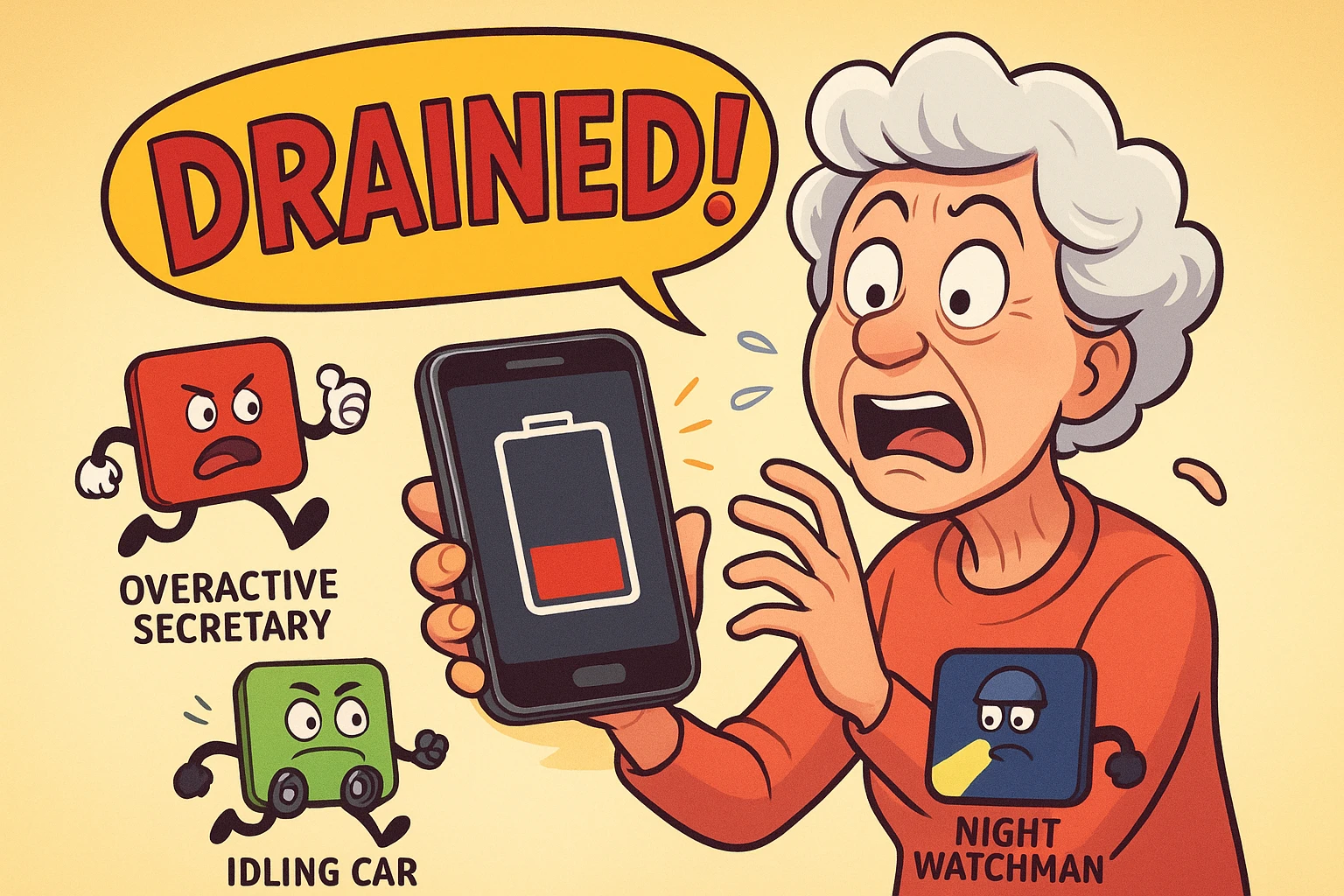
You charge your phone to 100%. You put it in your pocket. You ignore it for three hours while you play pickleball or watch a fascinating documentary about the history of cheese. You pick it up to check the time, and… 42%?
Where did the power go? Did your phone run a marathon while you weren’t looking? Did it secretly mine cryptocurrency?
It feels personal. It feels like your phone is gaslighting you. You didn’t even touch the thing, yet the battery is exhausted. If this sounds familiar, don’t worry—you haven’t lost your mind, and your phone isn’t necessarily broken. It’s just very, very busy behind your back.
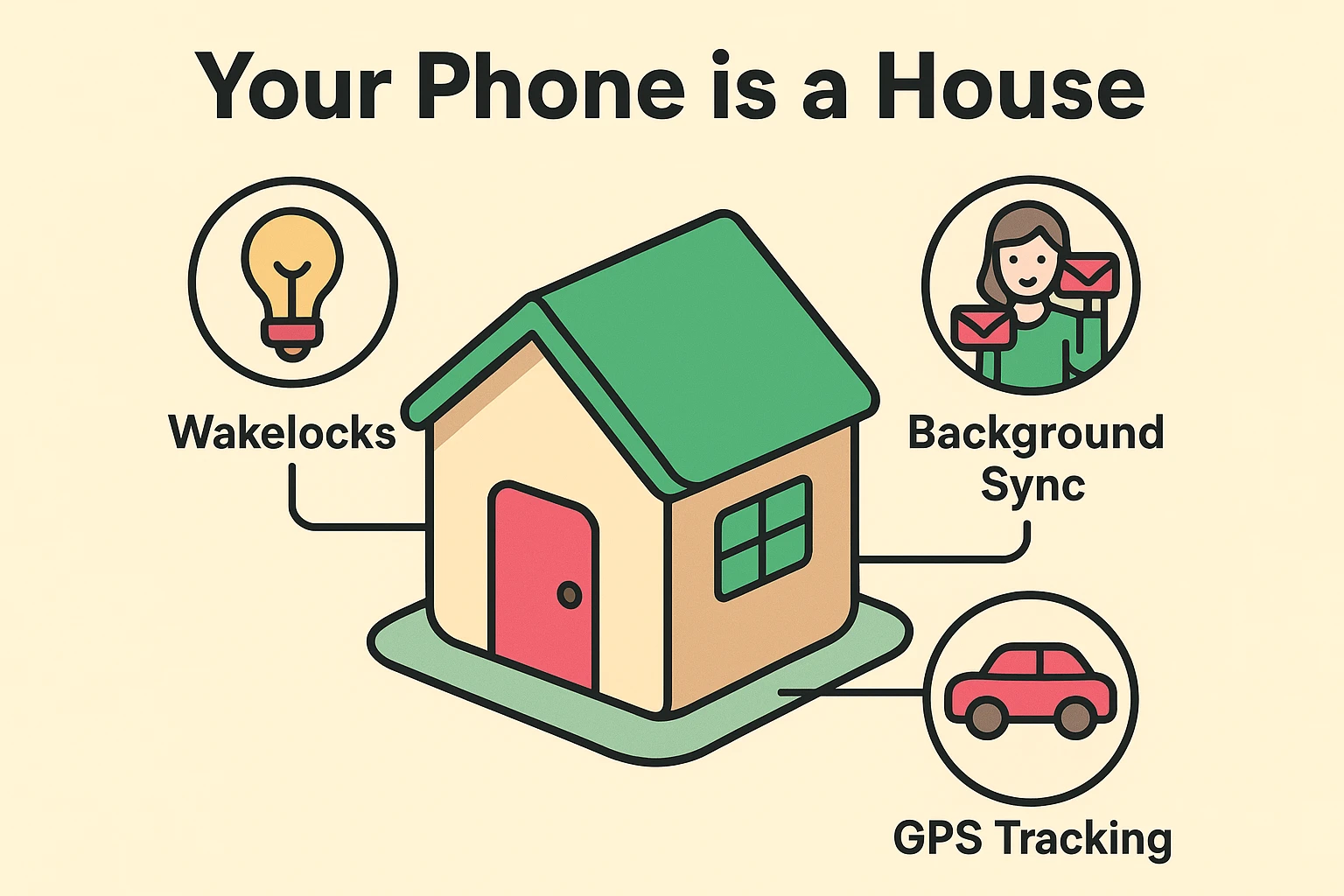
Think of your smartphone like a house. Just because you locked the front door and left for the day doesn’t mean everything inside stopped working. The refrigerator is humming, the water heater is heating, and the Wi-Fi router is blinking away in the dark.
Your apps act the same way. Even when you aren’t staring at them, they are partying in the basement of your phone, eating your digital snacks (battery) and drinking your digital soda (data).
To understand why your battery dies so fast, we have to look at the “motives” of the apps installed on your device. Most app developers operate under the assumption that their app is the most important thing in your life.
Facebook assumes you want to know immediately if your second cousin posted a photo of a sandwich. The Weather Channel assumes you need to know the exact barometric pressure of your location every 45 seconds.
To make this happen, apps use what techies call “Background Processes.” We prefer to call them The Three Villains.
Imagine you hired a secretary to check your physical mailbox. A normal secretary might check it once a day. But an “Overactive Secretary” runs to the mailbox every two minutes, sprints back to tell you “No mail yet!”, and then runs back out again.
This is what your email and social media apps are doing. They are constantly waking up your phone to ask, “Anything new? How about now? Now?” All that running back and forth burns a lot of energy.
You know how your car uses gas even if you’re just sitting in the driveway with the engine running? That’s your GPS.
Map apps, weather apps, and even some shopping apps constantly “ping” satellites to figure out exactly where you are. They do this so that if you open the app, it instantly knows you are at the grocery store. But keeping that engine idling all day is a massive waste of fuel.
This is the sneakiest one. Your phone wants to “sleep” (turn off its brain) when the screen is dark to save power. But some poorly designed apps act like a Night Watchman who keeps poking the phone saying, “Hey! Stay awake! I might need to do something soon!” This prevents the phone from entering deep sleep mode, draining the battery while it sits on your nightstand.
Now that we know why it’s happening, let’s find out who is doing it. You don’t need a degree in computer science to do this; you just need to look at your “Household Budget.”
Your phone actually keeps a very detailed receipt of who spent your battery life.

Here is how to check your receipts (the steps may vary slightly depending on if you have a Samsung, Pixel, or Motorola, but the icons are usually the same):
You will see a list of apps with percentages next to them. If you see “Solitaire” at the top with 40%, and you played Solitaire for three hours, that’s fair. You used the app, you paid the price.
However, if you see an app taking 15% or 20% and you haven’t opened it in days? That, my friend, is a battery hog. You have caught them red-handed.
While any app can go rogue, there are some usual suspects that appear on almost everyone’s list. We call this the Hall of Shame.

You don’t have to delete these apps to save your battery. You just need to change their rules. Here is how to tell those apps to behave.
Most apps don’t need to know where you are 24/7.
Tell the apps to stop checking for mail every two seconds.
Newer Android phones (especially those running Android 14 or 15) have a brilliant feature called Adaptive Battery. It’s like a smart thermostat for your phone. It learns that you rarely use the “Bird Identification” app at night, so it cuts power to it automatically.
I need you to lean in closely for this one because it goes against everything you’ve been told.
Stop swiping your apps closed.
You know that screen where you see all your open apps like a deck of cards, and you swipe them away to “clean up”? Many seniors (and their grandkids!) think this saves battery. It actually does the opposite.
Closing an app completely is like turning off your car engine at every single stop sign. Restarting that app later takes more energy than just letting it sit idly in the background (frozen by the phone’s system).
Let your phone manage the memory. It’s smarter than we are. Only swipe an app closed if it’s frozen or acting weird.
It is safe, but it’s a trade-off. Battery Saver is like putting your phone on a strict diet. It stops email syncing, dims the screen, and slows down the processor. It’s great for emergencies, but you might find your phone feels a bit sluggish for daily use.
Check your signal strength. If you are in an area with one bar of service, your phone screams at the top of its digital lungs trying to find a cell tower. This “shouting” drains the battery rapidly. If you have bad signal but good Wi-Fi, try turning on “Wi-Fi Calling.”
Before you spend the money, try the tips above for a week. Batteries do degrade over time (usually after 2-3 years), but often the problem is software, not hardware. If your phone is brand new and dying in four hours, take it back—that’s a lemon.
Your smartphone is a tool that should work for you, not the other way around. You shouldn’t have to carry a charging cable everywhere you go like a digital umbilical cord.
By tightening up permissions and quieting down those “Chatterbox” apps, you can get hours of life back into your device. That leaves you more time to focus on the important things—like finally beating that level in Solitaire or figuring out why your cousin posted another sandwich photo.