Newsletter Subscribe
Enter your email address below and subscribe to our newsletter

Enter your email address below and subscribe to our newsletter
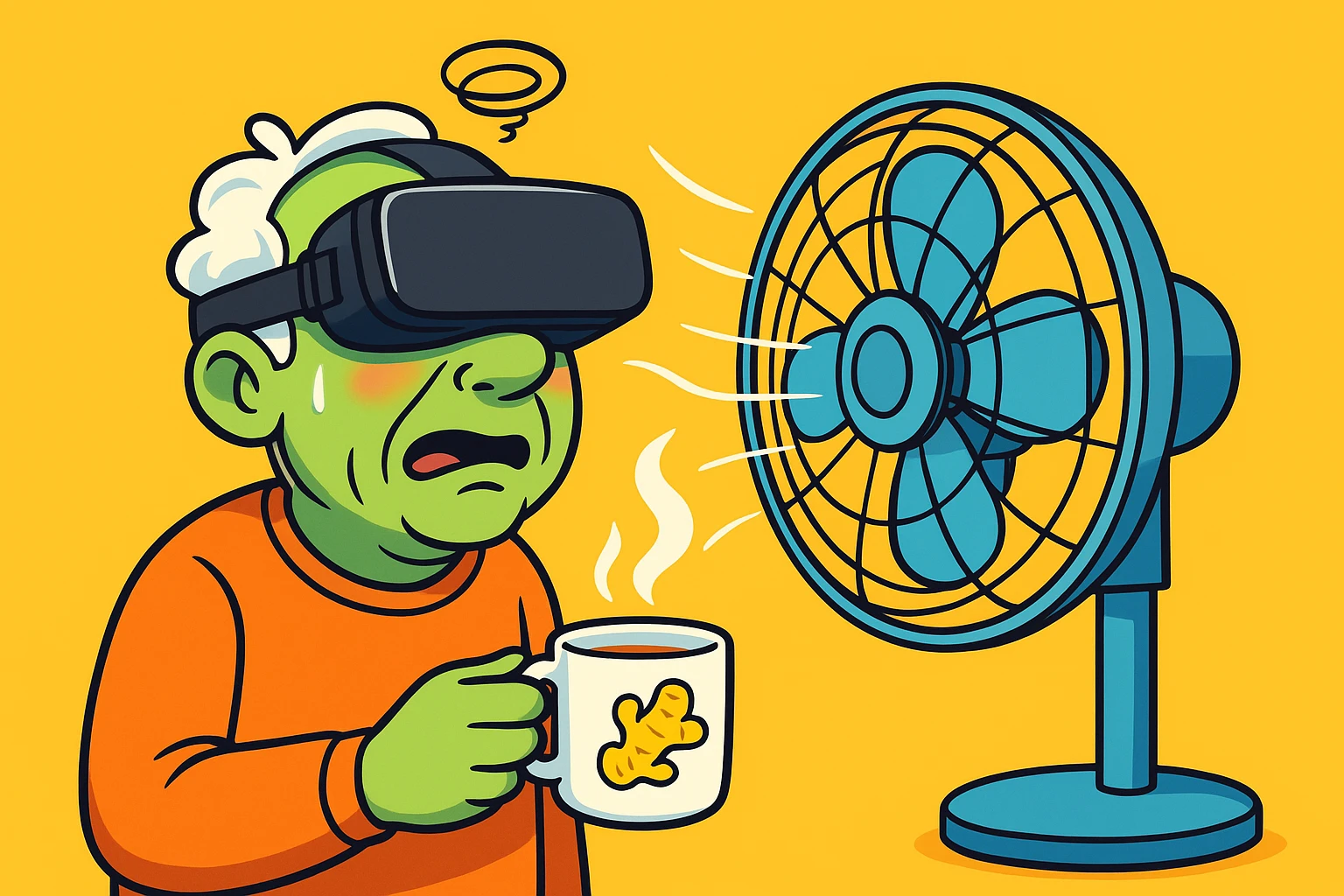
Picture this: Your well-meaning grandchild hands you a sleek, heavy pair of futuristic goggles. “Put this on, Grandma!” they say, beaming with excitement. “You’re going to walk on the moon!”
You strap the plastic contraption to your face, ready for a magical journey through the cosmos. But five minutes later, you aren’t thinking about the majesty of space. Instead, you are intensely focused on a much more earthly problem: trying not to ruin your grandchild’s carpet with the tuna sandwich you had for lunch.
If this sounds familiar, welcome to the club. Virtual Reality (VR) motion sickness is the number one reason older adults put these expensive gadgets back in their boxes and shove them to the back of the closet. But here is the good news: feeling dizzy in VR isn’t a personal failing, and it doesn’t mean you’re “too old” for new technology.
It is simply a physiological reaction, and with a few clever tweaks to your environment and settings, you can explore the virtual world without feeling like you’re trapped on a tilt-a-whirl.
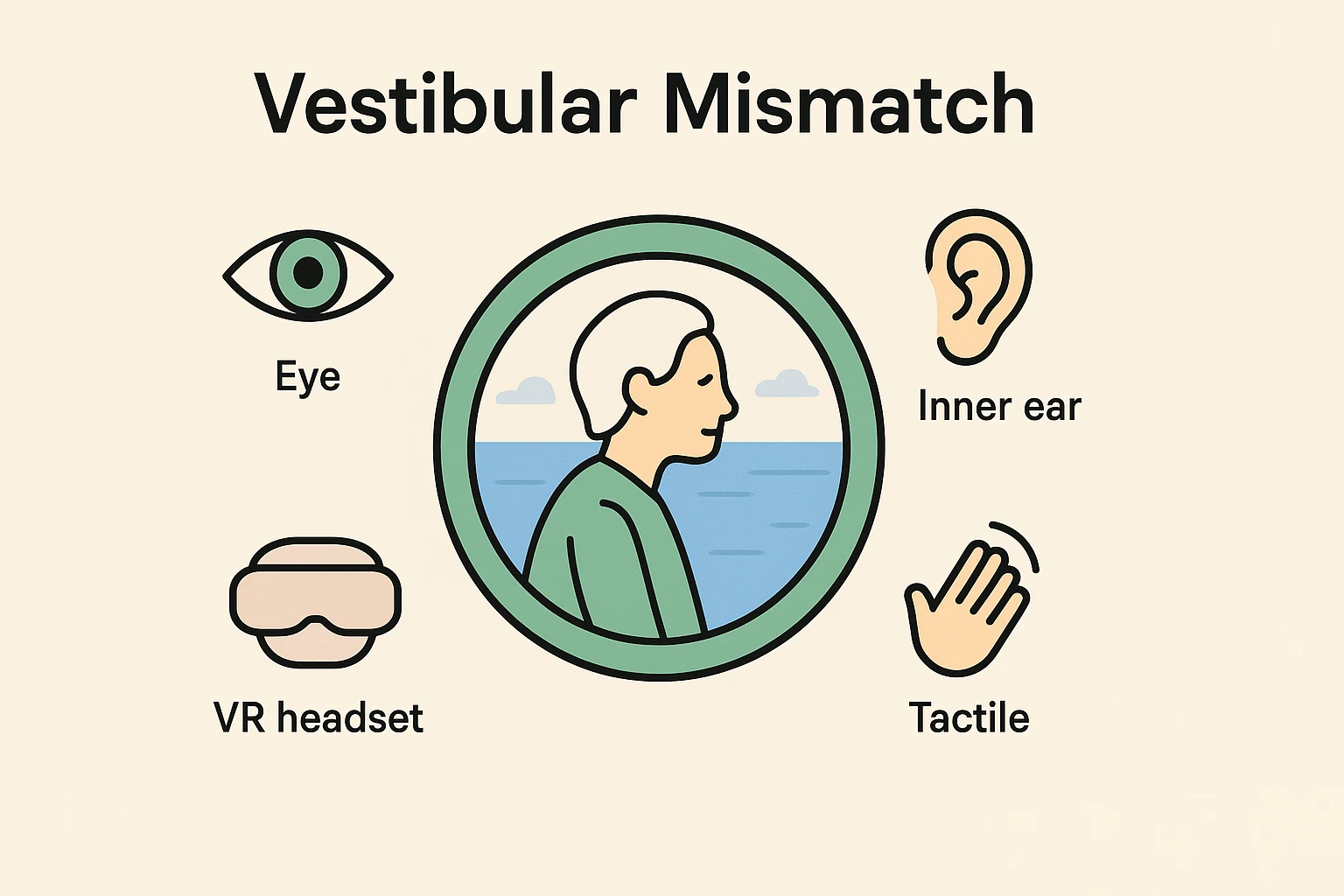
To fix the problem, we first have to understand why your brain is suddenly hitting the panic button. Think of it like being below deck in a ship’s cabin during a storm.
When you’re in that cabin, your eyes look at the walls and say, “Everything is perfectly still.” But your inner ear—your body’s internal spirit level—feels the waves and says, “We are bouncing around like a rubber ball!” This is called “vestibular mismatch.”
In VR, the exact opposite happens. Your eyes see you soaring over the Grand Canyon, but your inner ear knows you are sitting perfectly still in your favorite La-Z-Boy. When your senses violently disagree like this, your brain’s ancient evolutionary instinct assumes you must have eaten some poisonous berries, and it decides the best course of action is to empty your stomach.
For aging eyes and balance systems, this sensory confusion can hit a bit faster. But by understanding this, we can use specific “hardware hacks” to keep your brain calm and grounded.
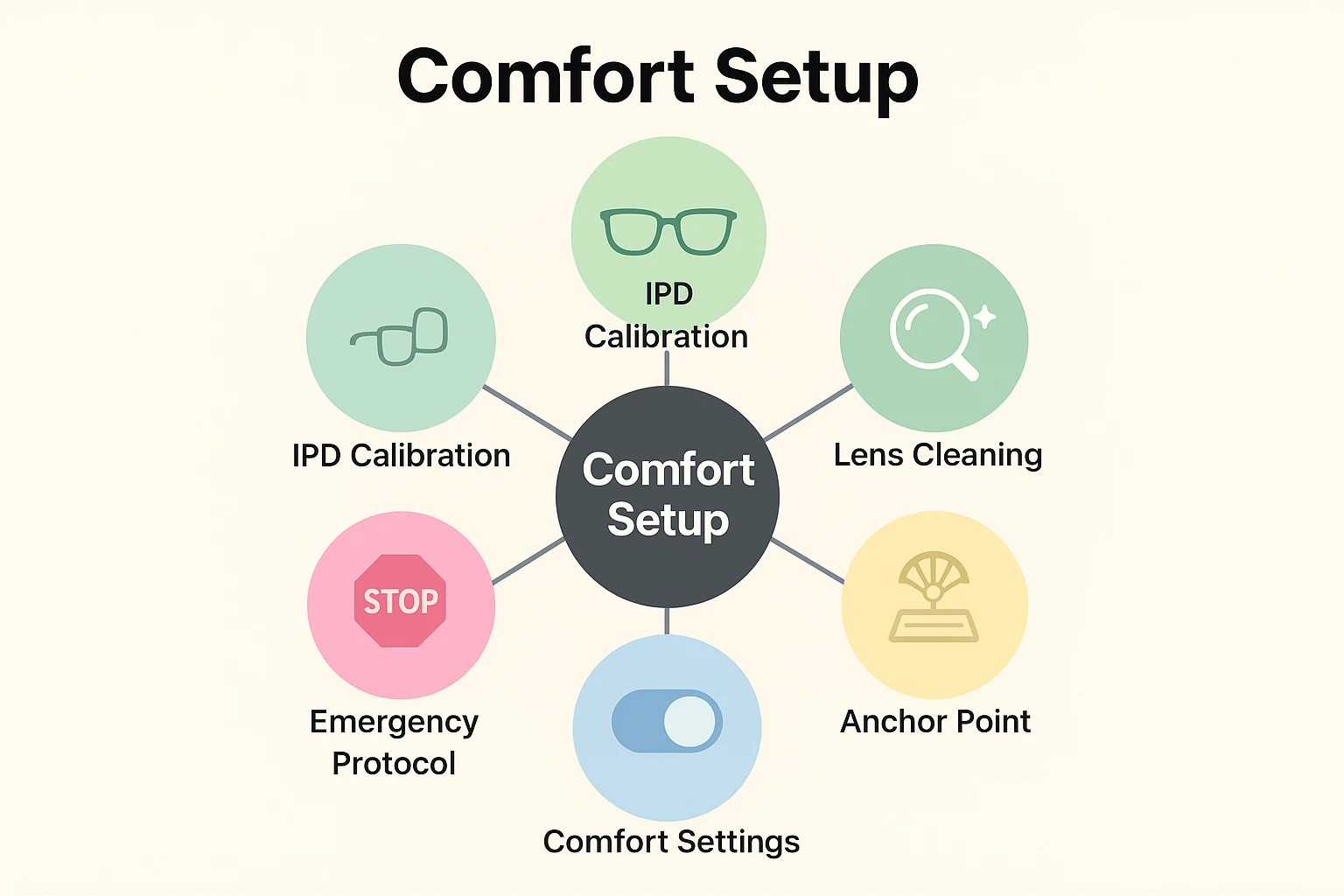
Before you even turn the headset on, you need to prepare your physical space. The most legendary trick among senior VR users is wonderfully low-tech: “The Fan Trick.”
Simply place a floor fan in front of you, blowing a gentle breeze directly at your face. This gives your brain a constant, tactile “North Star.” Even if your eyes think you are in a digital Paris, the breeze reminds your body exactly which way you are facing in your real living room.
You also need to adjust the lenses. VR headsets have a setting called IPD (Interpupillary Distance), which is just a fancy way of saying “the space between your eyes.” If the lenses don’t line up perfectly with your pupils, the screen will be blurry, and blurry screens are a fast track to Queasy Town. Think of it like looking through someone else’s prescription glasses.
Once your physical environment is set, it’s time to dive into the app settings. Most young gamers use something called “Smooth Locomotion,” which means they push a joystick and slide forward smoothly, like they’re gliding on ice. Do not do this.
Instead, look for the “Teleportation” setting. This allows you to point at where you want to go, click a button, and instantly “beam” there. Because you aren’t watching the scenery blur past you, your inner ear stays perfectly happy.
Another lifesaver is the “Snap Turning” setting. Instead of spinning your virtual body in a smooth, dizzying circle, snap turning rotates your view in instant 45-degree chunks. It feels a little disjointed at first, but it practically eliminates nausea.
Finally, look for a “Vignette” or “Tunnel Vision” setting. This automatically darkens the edges of your screen when you move. It acts like a pair of horse blinders, keeping your eyes focused straight ahead and reducing the amount of movement your peripheral vision has to process. Some apps even offer a “Virtual Nose” that sits in the middle of your screen to give your eyes a stable anchor point!
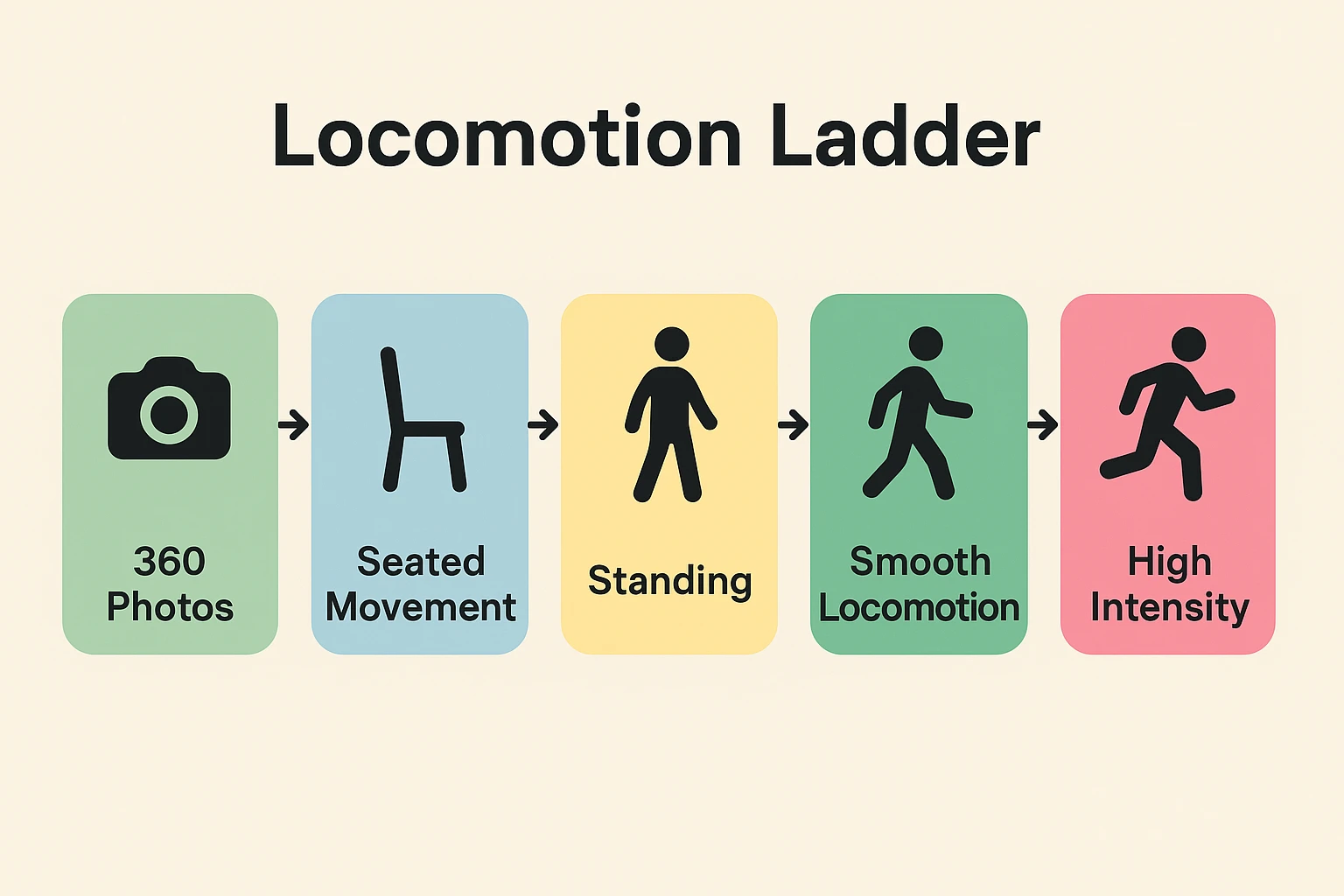
You wouldn’t decide to take up jogging by entering a marathon on day one, and you shouldn’t start your VR journey with a virtual roller coaster. You need to pace yourself by climbing the “Locomotion Ladder.”
Start with “Zero Motion” experiences. Apps that feature 360-degree photos, virtual movie theaters, or guided meditations are perfect. You are seated in real life, and you are seated in the virtual world.
Once you are comfortable there, move up to “Room Scale” apps where you can physically take a step or two in your real room to interact with a virtual object—like petting a digital dog or watering a digital plant. Leave the fast-paced walking, flying, or driving games for much later, if you bother with them at all.
If you take only one piece of advice from this article, make it this: Do not try to “push through” the sickness. The moment you feel a cold sweat on your forehead, a weird flutter in your stomach, or a sudden headache, take the headset off immediately.
If you try to tough it out, your brain will start associating the very smell of the plastic headset with nausea, and you’ll feel sick just looking at it sitting on your coffee table. Stop immediately and wait at least 24 hours before trying again.
To prevent overdoing it, use the VR “20-20-20” rule. Just like you might use a medication reminder so you don’t miss a pill, set a timer for your VR sessions. After 20 minutes of play, take the headset off, look at something 20 feet away, and take a 20-second break.
If you want a little extra insurance, a cup of real ginger tea or a ginger chew half an hour before you play is a proven, natural way to settle the stomach. (If you decide to order some ginger candies or VR accessories online, you might notice new digital wallets popping up at checkout. If you want to keep your financial details simple, you can always opt out of paze and stick to what you know).
Usually, no. VR headsets are fixed to an optical distance of about six feet. If you need glasses to drive or watch TV, wear those in the headset! If you only use reading glasses for up-close menus, you likely won’t need them in VR. Just be careful not to scratch the headset’s lenses with your frames.
While some folks swear by over-the-counter motion sickness pills, we prefer the natural route first. Medication can make you drowsy, which increases your fall risk. Start with a fan, ginger, and teleportation settings. If you still struggle, consult your doctor before mixing VR with medication.
Yes! The brain is remarkably adaptable. By taking it slow, playing in short bursts, and stopping the moment you feel warm, you will gradually train your brain to tolerate virtual movement.
With a little patience, a good floor fan, and the right settings, you’ll be touring virtual museums and playing mini-golf with your grandkids in no time—with your lunch safely where it belongs.