Newsletter Subscribe
Enter your email address below and subscribe to our newsletter

Enter your email address below and subscribe to our newsletter

Have you ever logged into a family Zoom call, only to experience the digital equivalent of a high-noon standoff? You stare at your sister. Your sister stares at her cat. Uncle Bob is entirely off-camera except for his left ear, and someone, somewhere, is running a blender. After the mandatory five minutes of “Can you hear me now?” and “How’s the weather?”, the conversation dries up faster than a puddle in the Sahara. You could have painted the living room in the time it takes someone to unmute themselves just to say, “Well, not much else is new.”
If this rings a bell, you are not alone. Staring at a grid of faces for an hour without a shared activity is a recipe for what the experts call “Zoom Fatigue.” But what the rest of us call it is “Please let the Wi-Fi drop so I can leave politely.”
The good news? You can transform that awkward silence into genuine, belly-laughing fun by hosting a virtual game night. We’re not talking about those complex video games that require the reflexes of a caffeinated teenager. We’re talking about taking the classic family game night and moving it online, with you as the fearless “Digital Emcee.” We’ll walk you through the simple settings to click, the easiest games to play, and how to keep everyone engaged without needing an IT degree.
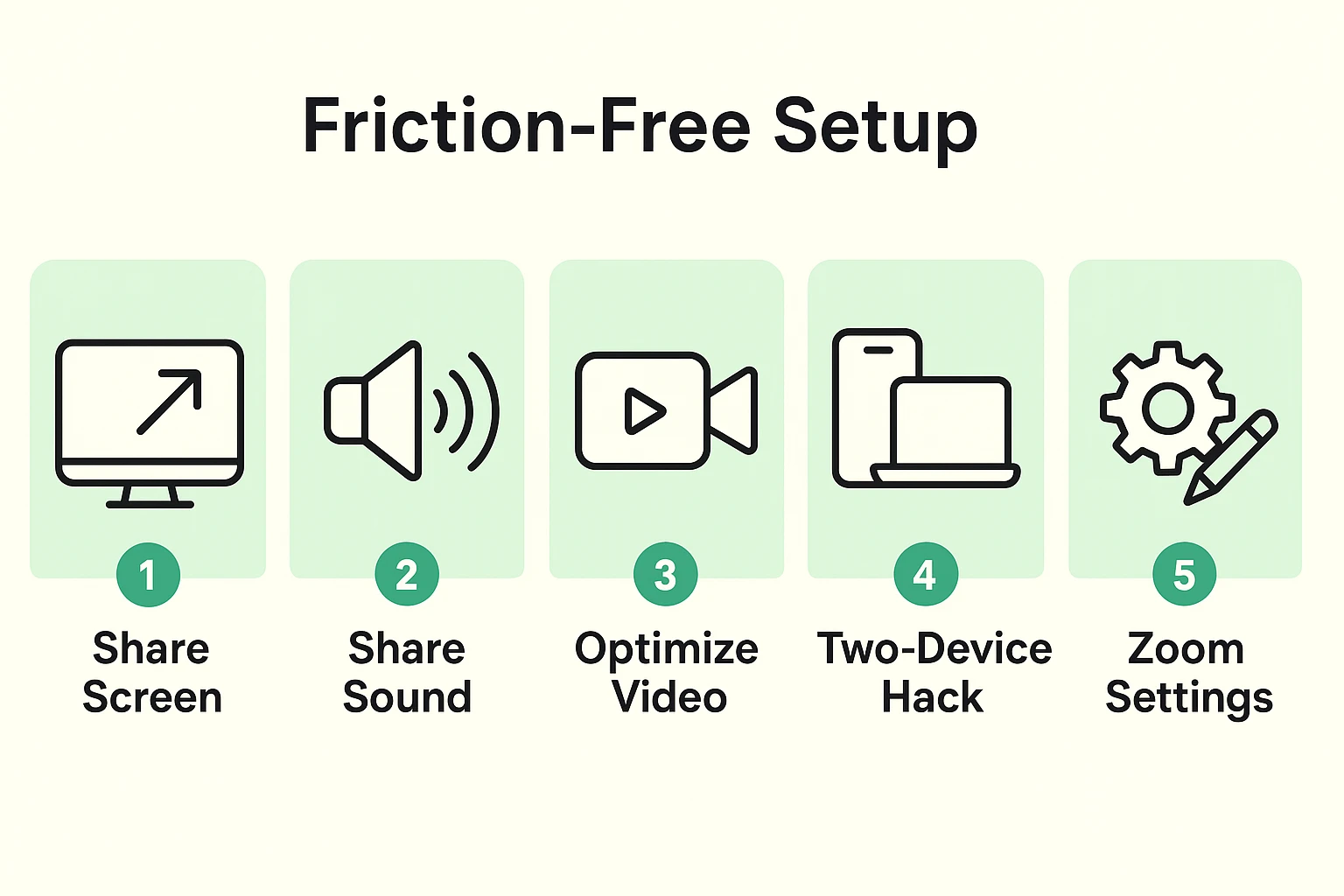
Before we deal the digital cards, we need to set the stage. As the host, you are the “Digital Emcee.” Your job isn’t just to pick the games; it’s to remove the technical hurdles so Aunt Martha doesn’t throw her iPad out the window.
First, let’s fix the two biggest fun-killers on Zoom: silent videos and choppy screens. When you click the green “Share Screen” button at the bottom of your Zoom window, a box pops up. Before you pick what to share, look at the bottom left corner of that box. You will see two magical little checkboxes: “Share Sound” and “Optimize for Video Clip.” Check them both. If you don’t, any game music you play will sound like it’s being broadcast from a submarine, and moving images will look like a flipbook missing half its pages.
Next, let’s talk about the dreaded 40-minute limit on free Zoom accounts. Don’t look at this as a restriction; look at it as a built-in halftime show. When the timer hits 35 minutes, cheerfully announce a five-minute bathroom and snack break. Tell everyone to click the exact same link to get back in. You just turned a technical glitch into a well-timed intermission.
Finally, there’s the “Two-Device Hack.” For interactive games, it is incredibly helpful to have a laptop or tablet propped up so you can see everyone’s smiling faces. Then, use a smartphone in your hand as your “controller” or game-board screen. This keeps the game separate from the video chat, making it much easier to manage without feeling overwhelmed.
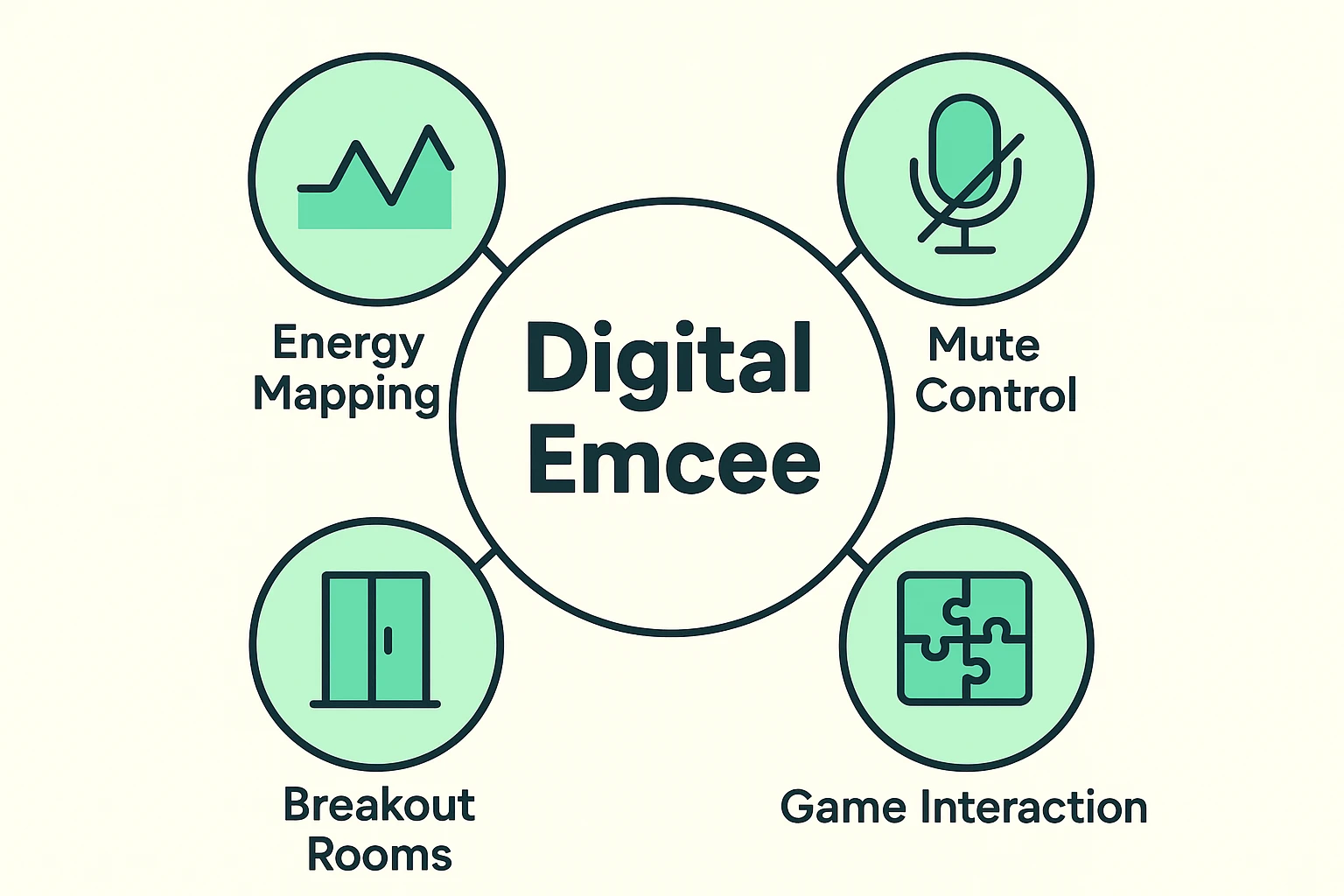
Before you jump into anything involving apps, websites, or passwords, start with something that requires zero technological skill. This builds everyone’s confidence and gets the blood flowing.
A household scavenger hunt is the perfect icebreaker. As the Digital Emcee, you simply call out an item: “First person to bring a wooden spoon to the camera gets a point!” Suddenly, you get to watch your loved ones sprint through their living rooms like they’re on a frantic daytime game show.
Another classic is “Spotlight Charades.” Zoom has a neat little feature where the host can click the three dots next to someone’s video and select “Spotlight for Everyone.” This makes their video front-and-center on all screens. Send the spotlit person a private chat message with a word to act out, and let the wild hand-flapping begin.
Once everyone is warmed up and realizes the computer isn’t going to bite them, you can introduce a little digital magic. Zoom actually has a built-in “Whiteboard” feature that is absolutely brilliant for playing virtual Pictionary.
You share the whiteboard, and everyone can use their mouse or finger to draw on the screen simultaneously. It usually results in abstract art that looks less like a “dog” and more like a “lopsided potato with legs.” But honestly, that’s exactly where the biggest laughs come from.
If your family is ready for the big leagues, look into party platforms like “Jackbox Games.” These use the brilliant “Mobile-as-Controller” concept. You (the host) share your screen showing the main game. Everyone else simply goes to a website on their smartphone and types in a four-digit room code to join. Their phone screen instantly turns into their private buzzer, drawing pad, or voting button. No one else has to buy or download a single thing!
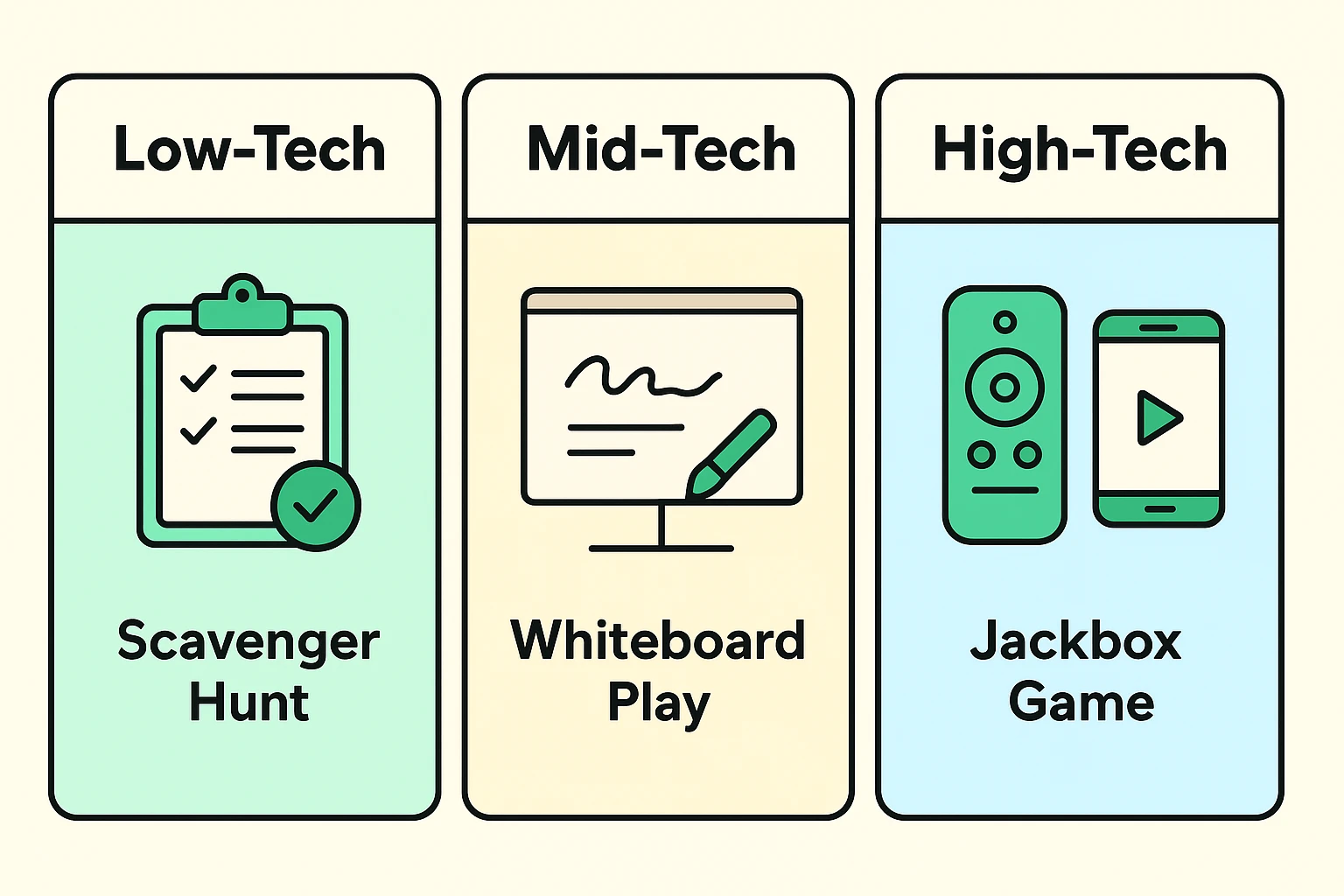
Being a good Digital Emcee is part cruise director, part air traffic controller. Your most powerful tool is the Mute button, but you must use it with grace. If Uncle Bob’s dog is relentlessly barking at the mailman, you can gently mute him from your participant list. Just make sure you cheerfully announce, “Hey Bob, muting you for a second until Buster calms down!” so he doesn’t think his speakers broke.
For larger families, the “Breakout Rooms” feature is a secret weapon. This lets you split a chaotic 15-person call into three smaller rooms of five for team-based games like trivia or Family Feud. It gives people a chance to actually talk without shouting over fourteen other voices. As the host, you can magically bounce between rooms to check on everyone’s progress and drop hints.
Nope! Only the host needs to worry about the account. Your family members just click the link you send them to join the fun. If you are using a free account, just remember the 40-minute “halftime break” rule so nobody panics when the screen goes dark.
It’s usually because your computer is trying to process too much video at once. Make sure you checked the “Optimize for Video Clip” box when sharing your screen. If it’s still sluggish, ask everyone to temporarily turn off their cameras during the fast-paced parts of the game to save internet bandwidth.
Yes, as long as you treat your Zoom link like a key to your actual house. Never post your meeting link on public social media where strangers can find it (which leads to a nasty prank called “Zoombombing”). Send the link directly to your family members via email or text message, and use Zoom’s built-in “Waiting Room” feature to personally approve everyone who knocks on your digital door.
Hosting a virtual game night might seem a bit daunting at first glance. It certainly requires a little more prep than just blowing the dust off an old Monopoly board. But the payoff is immense.
You’re not just playing a game; you’re rescuing your family from the dreaded “Zoom Fatigue” and giving everyone a reason to laugh together, no matter how many miles apart they are. Start small, embrace the inevitable minor technical hiccups as part of the comedy, and remember that the goal isn’t perfection—it’s connection.
So, send out those invites, practice your best game show host voice in the mirror, and get ready to create some fantastic digital memories. Your family will thank you for it!