Newsletter Subscribe
Enter your email address below and subscribe to our newsletter


By Chris Clark, founder of Senior Tech Cafe
Securely delete data from old devices before you sell, donate, hand on or recycle them.
The order matters. Back up what you need, then sign out of your accounts.
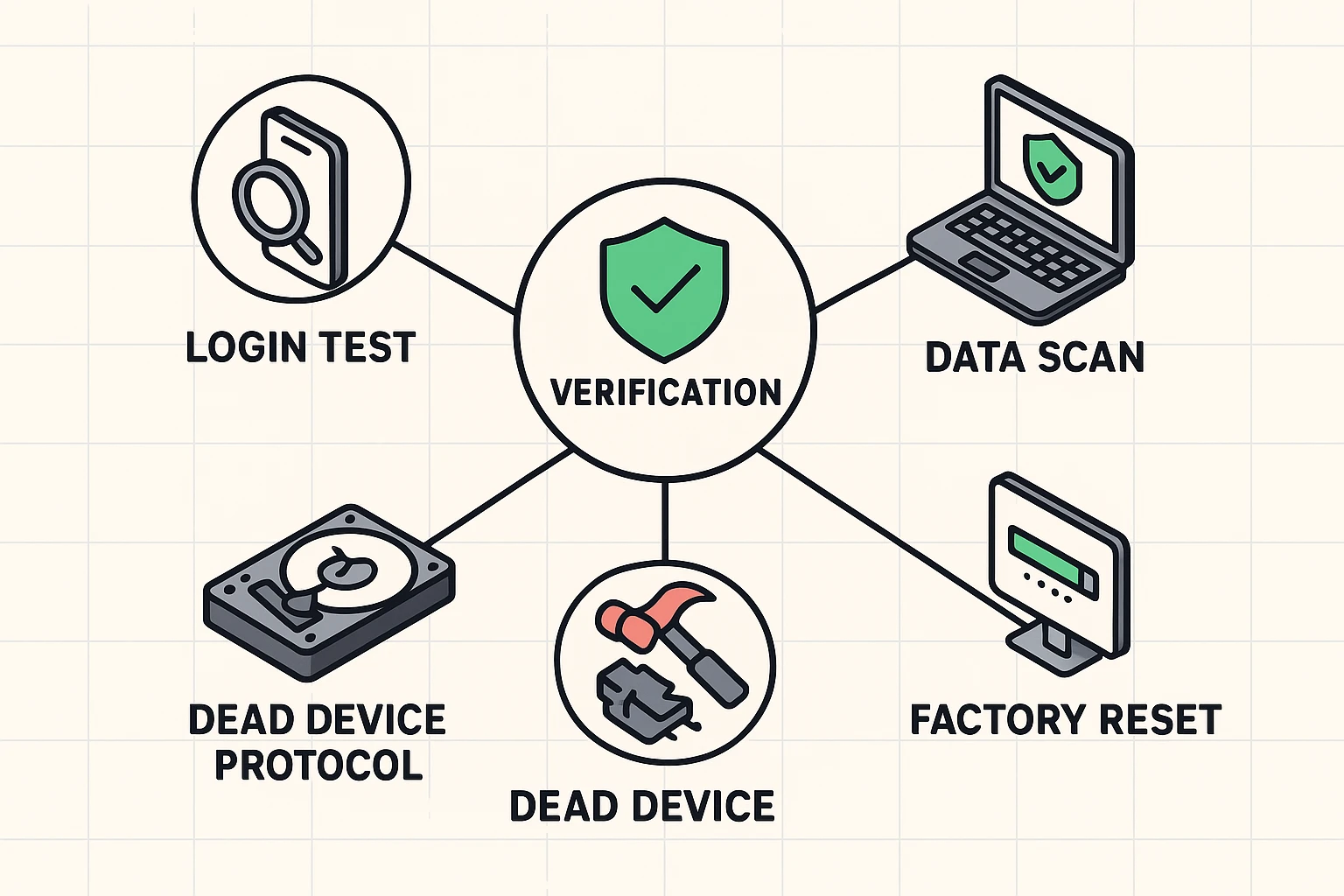
Take out the SIM and any memory card. Run the device’s official erase or reset. Then confirm it restarts at the welcome screen.
Worth saying plainly. That phone in the drawer still holds your photos, your messages and your saved logins. It didn’t forget them when you stopped using it.
And if the device won’t turn on at all, use a certified recycler or a professional data-destruction service. Don’t take a hammer to anything with a battery in it.
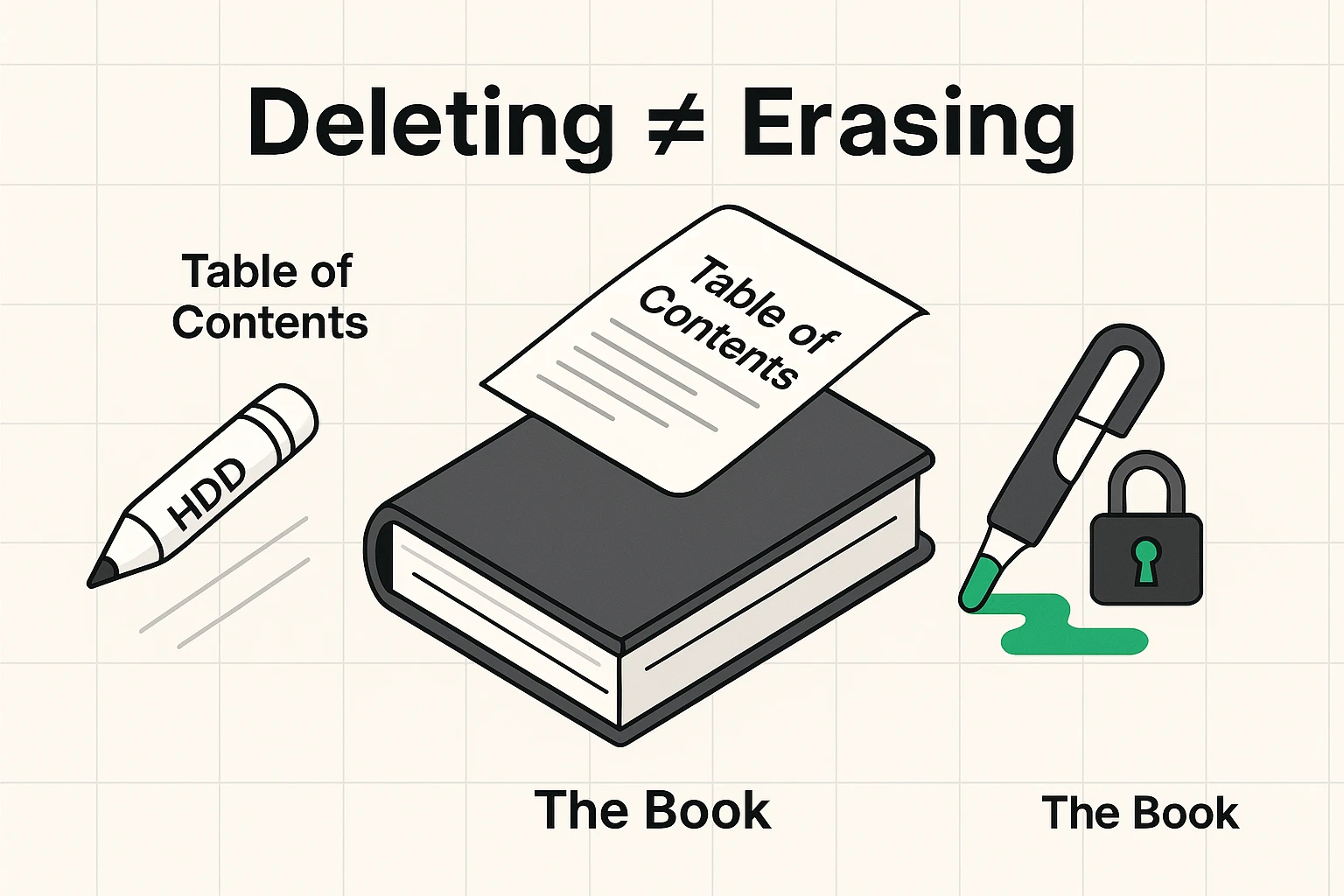
Hitting delete on a file doesn’t erase it right away. Older hard drives just forget where to find it, and cheap recovery software can often get it back.
Modern phones and laptops use solid-state storage and encryption instead. Your data sits scrambled behind a digital key.
A proper factory reset destroys that key rather than the data itself. Without the key, the scrambled data is practically impossible to read with current technology, which is why the reset matters more than manually deleting files one at a time.
Copy off the photos, documents, contacts and authentication details you still want.
Then open a few files from that backup and check they’re really there. An unopened backup is only a hope.
Next, sign out of everything. Apple, Google, Microsoft, banking apps, your password manager. Turn off device-finding or activation lock when it asks. If you can’t sign in to recover an account before erasing, sort that out first.
Take out the physical SIM card and any microSD card.
And during the reset, read the eSIM option carefully. Your eSIM is your phone plan, stored in software rather than on a chip. If the phone is leaving your hands, delete it.
The right button depends on what you’re holding.
On iPhone or iPad, open Settings, then General, then Transfer or Reset, and choose Erase All Content and Settings.
On Android, search Settings for Factory reset or Erase all data, then follow the manufacturer’s prompts.
On a current Windows PC, use Reset this PC and choose Remove everything. Pick the drive-cleaning option when the computer is leaving your control.
On a supported Mac, use Erase All Content and Settings.
Keep the device plugged in and let it finish. This is the one step where walking away is the right move.
Restart it before it leaves the house.
A phone or tablet should show the first-time Hello or Welcome screen. No name, no wallpaper, no accounts, no passcode.
A computer should open its setup assistant rather than your desktop.
Stop there. Don’t create a new account for whoever’s getting it next.
That blank welcome screen is your receipt.
Then check your Apple, Google or Microsoft device list from a different device, and remove the old hardware if it’s still sitting in there.
If you’re selling or donating it, photograph the condition and the serial number before it goes. Take off any accessory that contains storage.
Hand over the charger and the non-sensitive paperwork, and nothing else.
For recycling, use the manufacturer’s take-back program or a recycler listed in a recognized electronics-recycling certification directory.
Phones, tablets and lithium batteries don’t belong in household trash. Ever.
And if the device held financial, tax or health information, keep the receipt or the destruction certificate.
Paper proof matters later, when nobody can remember what happened to that laptop.
Once the old device is gone, take a few minutes to secure your replacement device the right way from the start.
Don’t puncture, crush, drill or hammer a phone, tablet or battery, however satisfying that sounds. Damaged lithium batteries catch fire, and they do it fast.
Instead, ask the manufacturer, a certified electronics recycler, or a professional data-destruction provider whether the storage can be removed or destroyed under controlled conditions.
For an old computer with a removable drive, use professional shredding or a documented secure-erasure service.
Improvised home methods tend to produce a mess, a fire risk, and a drive that’s still perfectly readable.
Let the people with the right equipment handle it. Your old laptop is not worth a trip to the emergency room.
SIM card: the small removable chip that identifies your phone number to the carrier.
eSIM: the same idea, built into the phone’s hardware instead of a removable chip.
SSD (solid-state drive): the storage found in modern phones and most current laptops, with no moving parts.
Encryption: scrambling data behind a digital key, so it’s unreadable without that key.
Taking the time to wipe a device properly, and to hand off the rest through a certified recycler when it can’t be wiped, is what actually protects the information you’ve built up on it over the years.
For the wider picture, our online safety tips for seniors guide covers scams, privacy and security together in one place.
For a working modern phone, yes, as long as you’ve backed up, signed out of your accounts, removed activation lock, and taken out the SIM and memory card first. Then verify it returns to the first-time welcome screen. If your name or wallpaper still shows, the reset didn’t finish.
Yes, if the phone is leaving your possession. Read the reset prompt and choose to erase the eSIM or remove the cellular plan. Behavior varies by phone and operating-system version. The eSIM carries your phone plan, so read that screen slowly rather than tapping straight through it.
Use the manufacturer, a certified electronics recycler, or a professional data-destruction service. Don’t puncture or smash phones, tablets or lithium batteries, because they can catch fire. A dead screen doesn’t mean the storage inside is empty, so the device still needs proper handling.