Newsletter Subscribe
Enter your email address below and subscribe to our newsletter

By Chris Clark, founder of Senior Tech Cafe
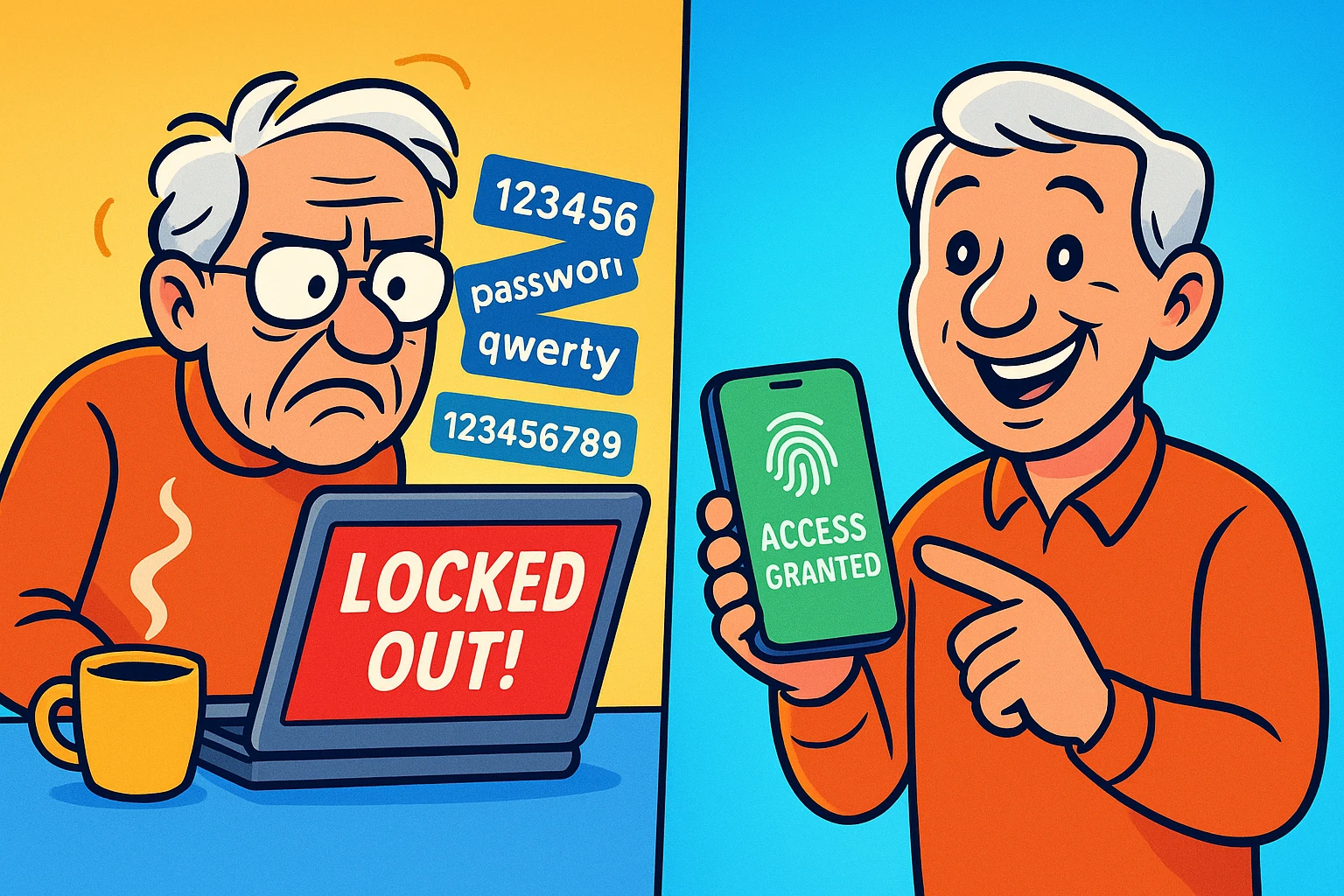
Passkeys login without passwords by swapping the typed password for an approval on a device you already hold.
Your phone, tablet or computer confirms it’s you with its PIN, face scan or fingerprint. Then it sends the website a cryptographic proof, which is a scrambled math answer only your device can produce.
Your face and fingerprint never leave the device. The website never sees them.
That makes passkeys both easier than passwords and much harder to phish, which is a rare combination.
One thing to do first, though. Make sure your account recovery details are current before you switch anything over.
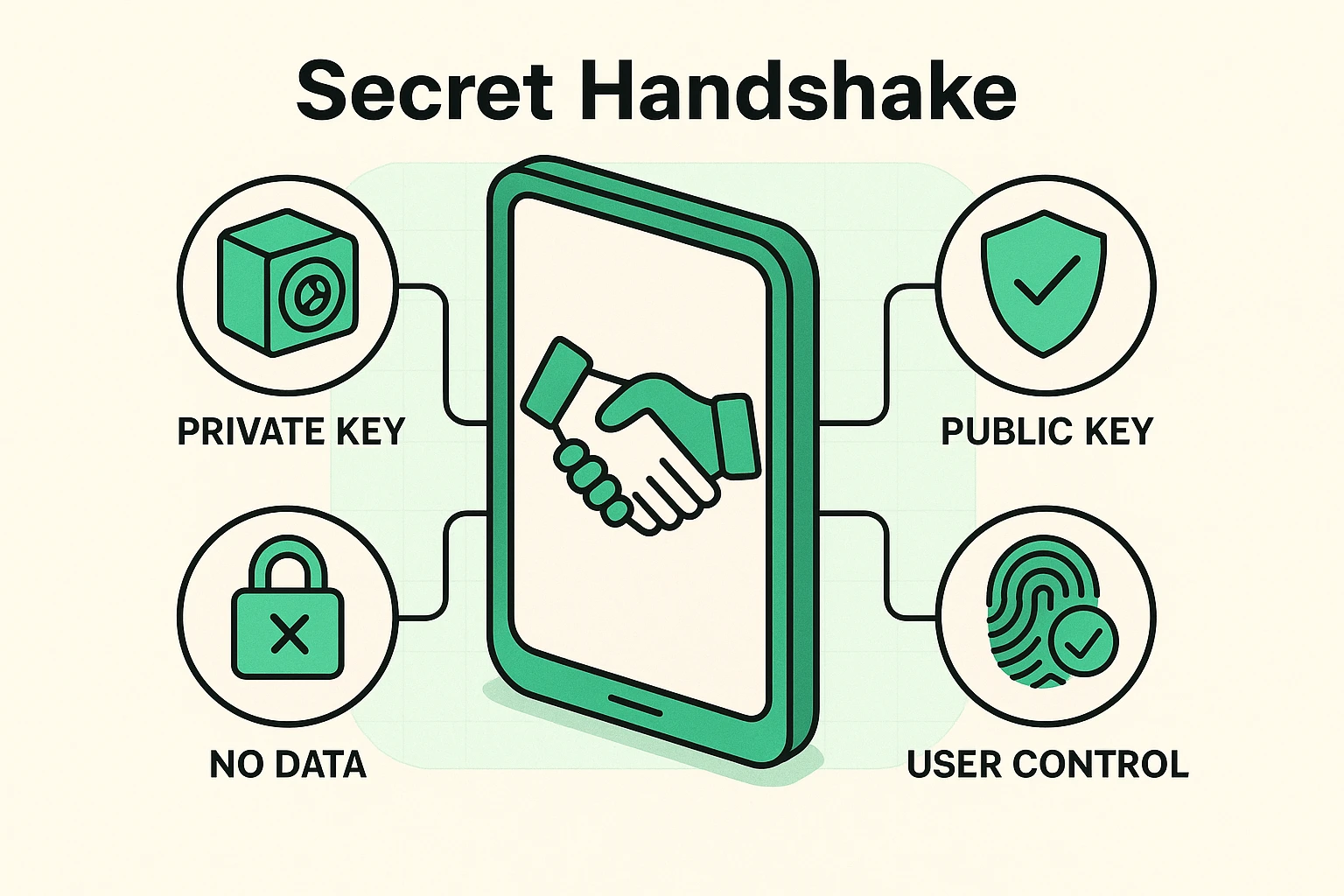
When you create a passkey, two things get made at once.
The website keeps a public key. Your device keeps the matching private key, and never lets go of it.
The public key is a lock. The private key is the only thing that opens it, and it stays in your pocket.
At sign-in, the website sends a challenge that only your private key can answer. Your device asks for its usual unlock method before it answers.
Neither the private key nor your face or fingerprint gets sent anywhere.
Which is why a stolen website database gives an attacker nothing reusable. There’s no password in there to steal.
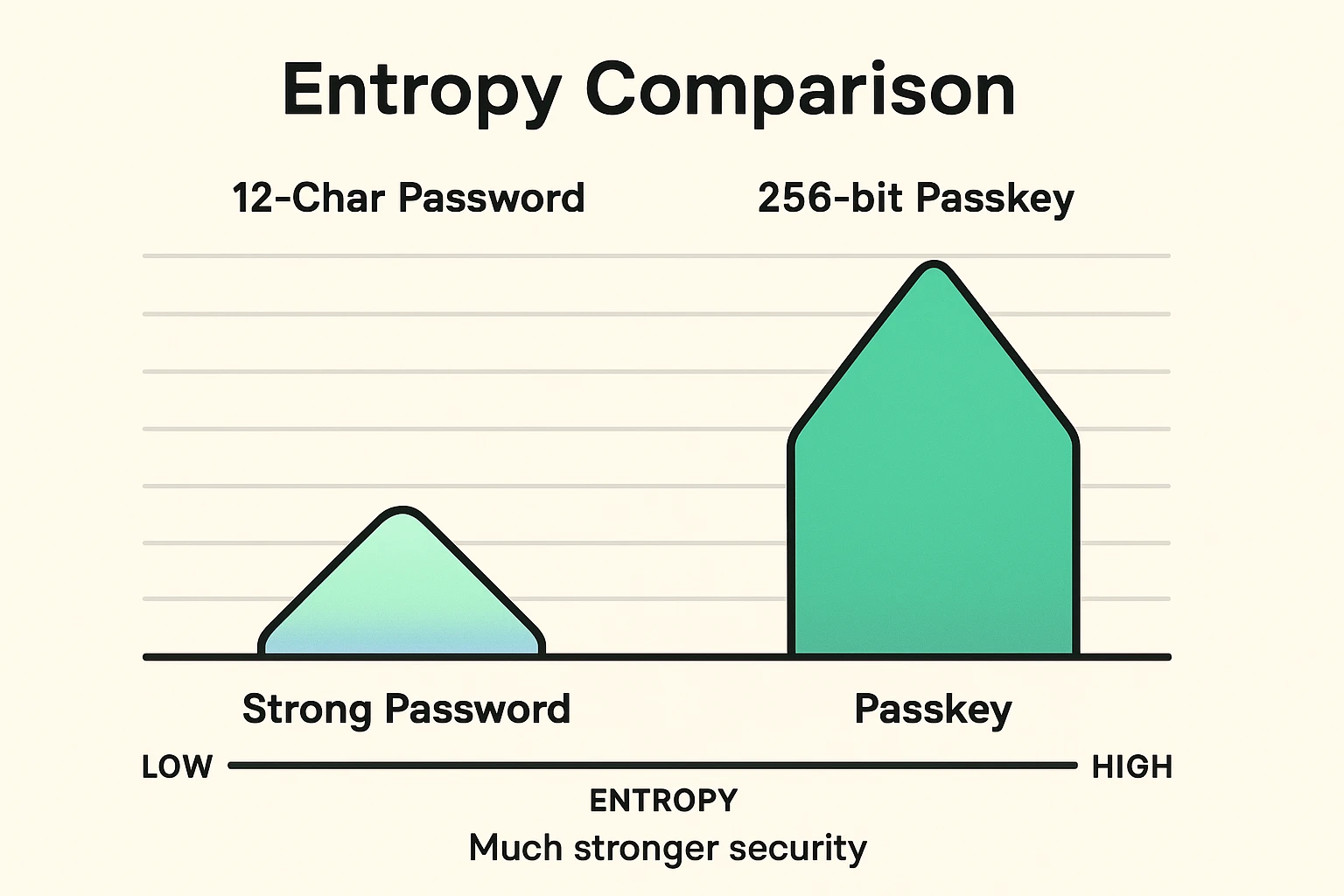
A passkey is tied to the exact website where you made it.
So a look-alike phishing site can’t ask your device to use the real site’s passkey. It simply doesn’t work, however convincing the page looks.
And there’s no password to reuse, no code for a caller to talk you into reading aloud, and nothing to type into the wrong box.
That closes off the three most common ways accounts get taken. Reused passwords, credential stuffing (criminals trying stolen passwords on other sites), and fake sign-in pages.
No method removes every risk, so still protect the email or cloud account that syncs your passkeys.
But there’s nothing here for you to hand over.
Test first, delete later. That order matters more than anything else on this page.
Before you start, check your recovery email and phone number are current, and make sure you can unlock your device.
Then sign in to the account the normal way, open Security or Sign-in settings, and choose Create a passkey. Approve the prompt with your device PIN, face or fingerprint.
Now sign out and sign back in using the new passkey. Actually do this bit.
Only once that works should you remove any older sign-in method. Don’t reverse those two steps.
And if the account offers backup codes, keep them somewhere secure and offline.
If you haven’t already, it’s worth having an account recovery plan in place before you rely on any of this.
An older phone or computer may not support passkeys at all. Some websites haven’t added them yet either.
Neither of those is a problem you caused, and there’s a perfectly good fallback.
Keep using a unique password stored in a password manager, and turn on two-factor authentication options. That combination has been fine for years and remains fine.
If a site offers QR-code sign-in, a newer phone nearby can sometimes approve the login without putting the passkey on the old computer at all.
And don’t remove a working password or recovery method until you’ve tested whatever’s replacing it.
This isn’t an all-at-once change, and nobody expects it to be.
Passwords will stick around on plenty of accounts while passkeys spread, so keep a password manager for those.
Accept a passkey prompt only when you deliberately started at the official site or app. A prompt that appears out of nowhere gets declined, same as anything else.
And look at your saved passkeys occasionally in your Apple, Google or Microsoft account settings, so you know what’s where.
You’re not behind if half your accounts still use passwords. Most people’s do.
For the wider picture, our online safety for seniors guide covers scams, privacy and security together in one place.
A passkey is a sign-in credential your phone, tablet or computer protects for you. You approve the login with your device PIN, face or fingerprint instead of typing anything. There’s nothing to remember, nothing to type, and nothing a caller can talk you into reading out, because no code ever appears.
Use another device where the passkey is synced, or use the account’s recovery method. Keep your recovery email, phone, backup codes and cloud-account security current before you start relying on passkeys. Losing a phone doesn’t lock you out, as long as you set those up first. Do that part before switching.
Some older devices don’t support them. Carry on with a unique password in a password manager plus two-factor authentication, or use a supported device nearby when a site offers QR-code approval. An older phone isn’t a security failure. It just means you keep the password method a while longer.