Newsletter Subscribe
Enter your email address below and subscribe to our newsletter

Learn why video calls drain your phone battery and simple ways to keep it lasting longer while chatting with family.
You’re settled in your favorite chair, phone propped up just right. On the screen, your grandchild is about to demonstrate their newest skill: putting a fistful of mashed peas in their ear. It’s a moment of pure, chaotic joy you wouldn’t miss for the world. You lean in, ready for the grand finale, and… poof. The screen goes black. The battery, once again, has betrayed you at the worst possible moment.
If your phone’s battery life seems to plummet faster than a lead balloon during video calls, you are not imagining things. It’s a common frustration, right up there with discovering the “easy-open” package requires industrial shears. Seeing your family’s faces is a wonderful gift of modern technology, but it asks a lot from that little device in your hand.
But fear not! You don’t need an engineering degree to solve this. We’re going to peek under the hood, figure out what’s drinking all your battery juice, and show you a few simple tricks to make your calls last long enough to see the pea-in-ear masterpiece.
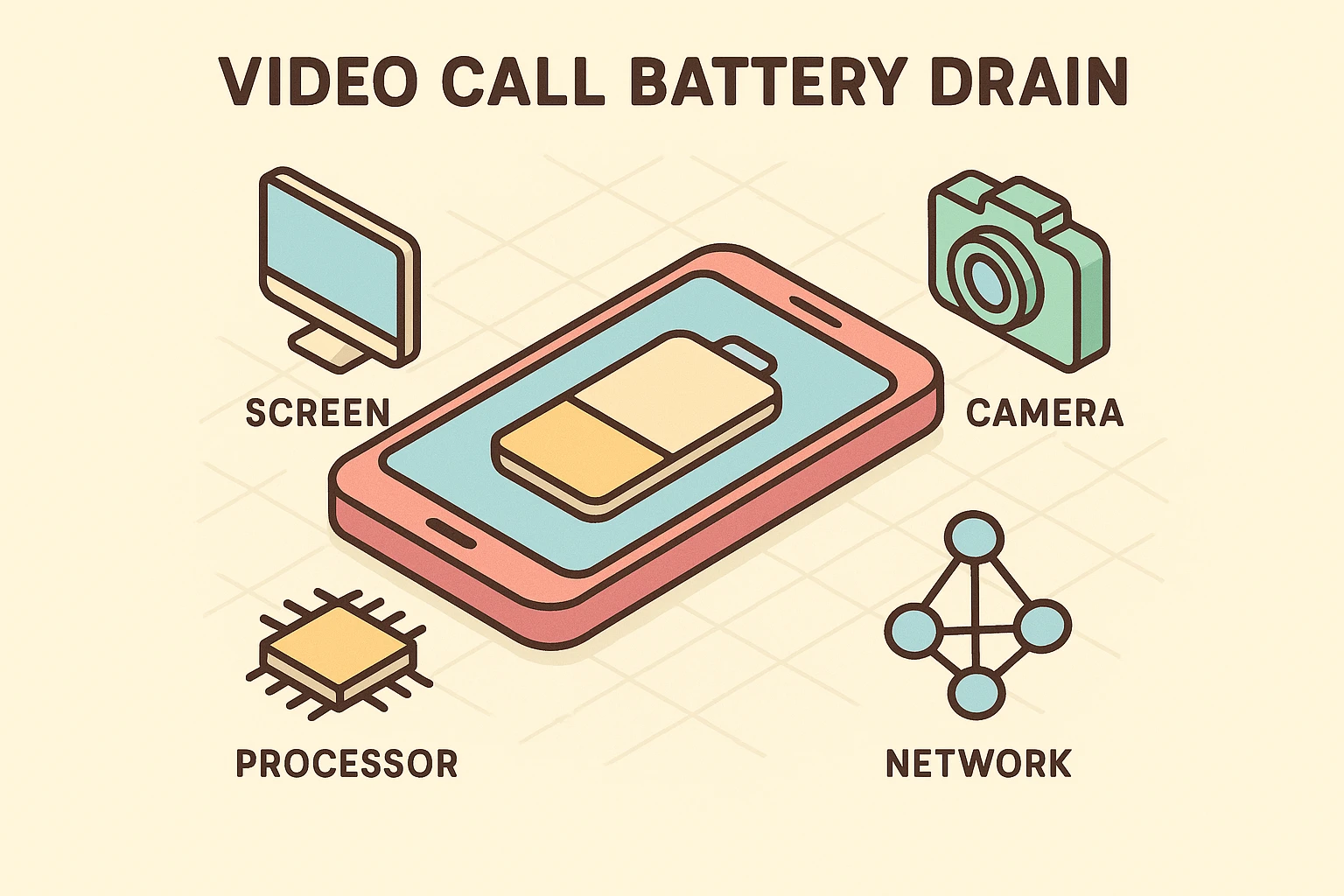
Think of your phone during a video call as a tiny, overworked office manager juggling four demanding tasks at once. Each one requires energy, and together, they form a conspiracy to drain your battery.
The Screen (The Spotlight): Your phone’s screen is its biggest power hog. During a video call, it’s not just on; it’s on brightly, displaying moving, high-resolution video for extended periods. It’s like leaving a giant, energy-guzzling lightbulb on for an hour straight.
The Camera (The Watchful Eye): The camera is working nonstop, capturing your every smile and nod, converting it into digital information, and sending it across the world. It’s a high-tech job that requires constant power.
The Processor (The Brain): This is the central command center. It’s taking the video from your camera, the audio from your microphone, compressing them, sending them out, and simultaneously receiving, decompressing, and displaying the video and audio of your grandchild. It’s doing the mental equivalent of rubbing its tummy, patting its head, and reciting the alphabet backward all at once.
The Network (The Marathon Runner): Whether you’re on Wi-Fi or cellular data, your phone is constantly sending and receiving huge amounts of information. A weak signal forces this little runner to work even harder, burning through your battery as it struggles to stay connected.
When you combine all four of these power-hungry activities, it’s no wonder your battery percentage drops like a rock.
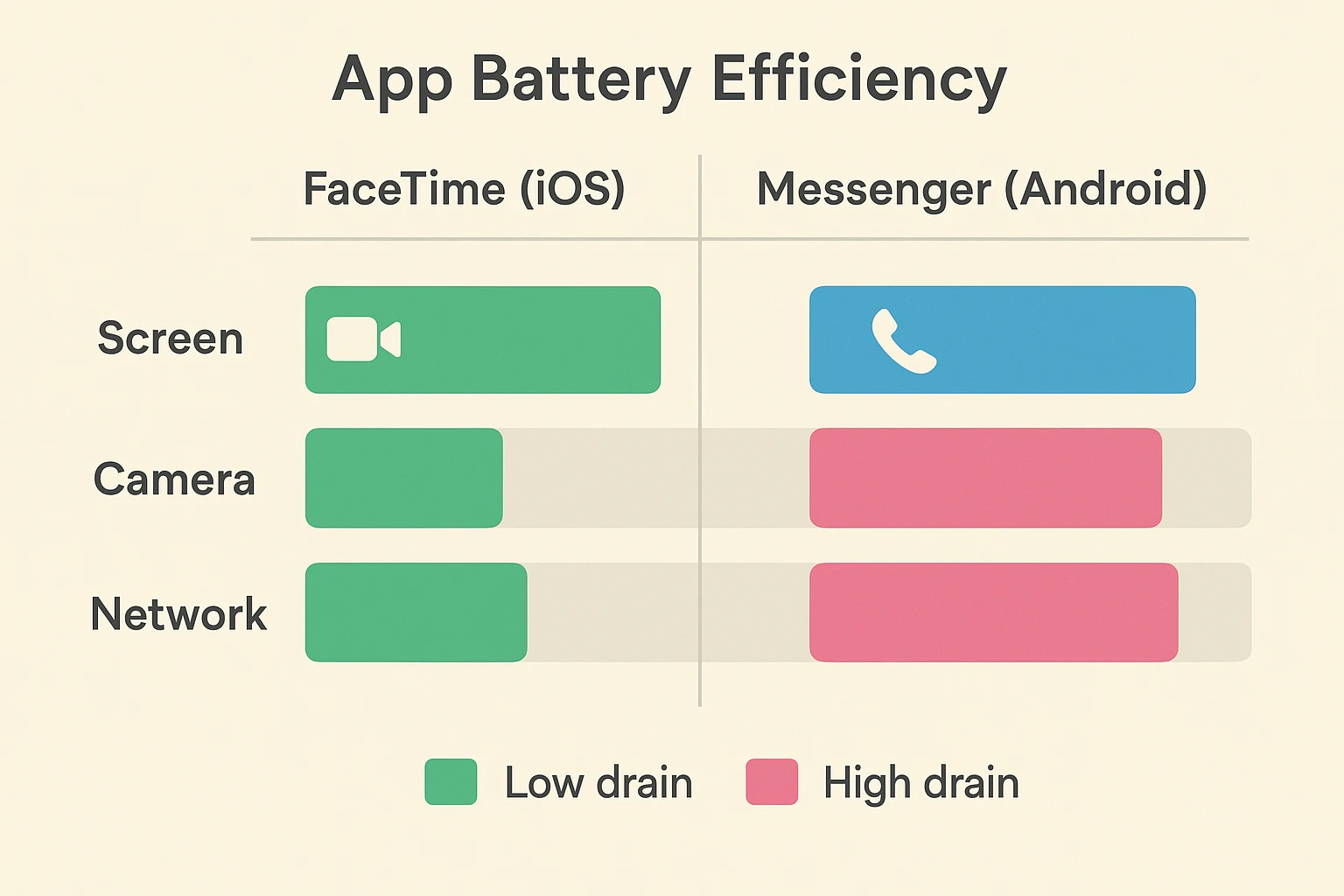
You might be surprised to learn that the app you use to make a call matters. Some apps are like fuel-efficient sedans, while others are like gas-guzzling monster trucks. They all get you there, but some use a lot more juice.
For example, Apple’s FaceTime is famously efficient on iPhones because Apple designed both the app and the phone to work together perfectly. Apps like Facebook Messenger or Zoom, which have to work on thousands of different devices, can sometimes be less optimized and use more power. This doesn’t mean they’re bad—they just might be a bit thirstier.
Alright, enough of the problem. Let’s get to the solutions. Here are five easy adjustments you can make to reclaim your battery life and your peace of mind.
Remember how we said the screen is the biggest energy hog? You can fight back by simply turning down the brightness. You don’t need your screen to be bright enough to land an airplane. Swipe down from the top right (on newer iPhones) or top (on Android) and slide the brightness level down to a comfortable, but not blazing, level.
Apps you aren’t even using can still be running in the background, sipping away at your battery. Before you start a long video call, take a moment to close out other apps, especially ones known for using a lot of power like games or social media.
If you have a choice between using your home Wi-Fi and your cellular data, always choose Wi-Fi. It’s generally a stronger, more stable connection, which means your phone’s “marathon runner” doesn’t have to sprint so hard. A steady signal is a battery’s best friend.
Both iPhones and Android phones have a “Low Power” or “Battery Saver” mode. Think of it as telling your phone to skip its afternoon coffee. It temporarily reduces some background activity and visual effects to squeeze every last drop of life from your battery. You can usually find this in your main settings menu.
This one sounds silly, but it’s the most foolproof solution of all. If you know you’re settling in for a long chat, just plug your phone into the charger. You’ll never have to worry about the battery meter again. A longer charging cable can be a great investment for giving you a bit more freedom to move around.

Let’s clear up a few common concerns and separate fact from fiction.
This is one of those big tech myths that just won’t go away. While it’s a good idea to close apps before a long video call, constantly swiping them away all day can actually use more battery. Phones are designed to manage background apps efficiently. Re-opening an app from scratch often takes more energy than waking it from a suspended state.
Not at all! Modern phone batteries are smart. They can handle being used while charging without any damage. Your phone might get a little warm, but that’s perfectly normal. So go ahead and chat while plugged in, worry-free.
While most apps are safe, it’s always wise to be cautious about what you install. Granting an app permissions it doesn’t need (like access to your microphone or location) can sometimes lead to it running in the background. Staying vigilant about app permissions is a key part of online safety, just as important as setting up 2-Factor Authentication (2FA) on your important accounts.
Your phone’s battery shouldn’t be a barrier between you and your loved ones. By understanding what’s happening behind the screen and making a few small adjustments, you can take back control.
Now you have the power—literally—to make sure your phone lasts through the entire story, the whole song, or even the most detailed demonstration of how to get mashed peas out of one’s ear. Happy chatting