Newsletter Subscribe
Enter your email address below and subscribe to our newsletter

Have you ever tried to send a text message and felt like you were performing finger-based brain surgery on a tiny, slippery patient? Your thumbs, which have dutifully served you for decades opening jars and turning pages, suddenly feel like a pair of overcooked sausages trying to tap dance on a keyboard designed for hummingbirds. Add a little arthritis to the mix, and texting can feel less like communication and more like a medieval torture device.
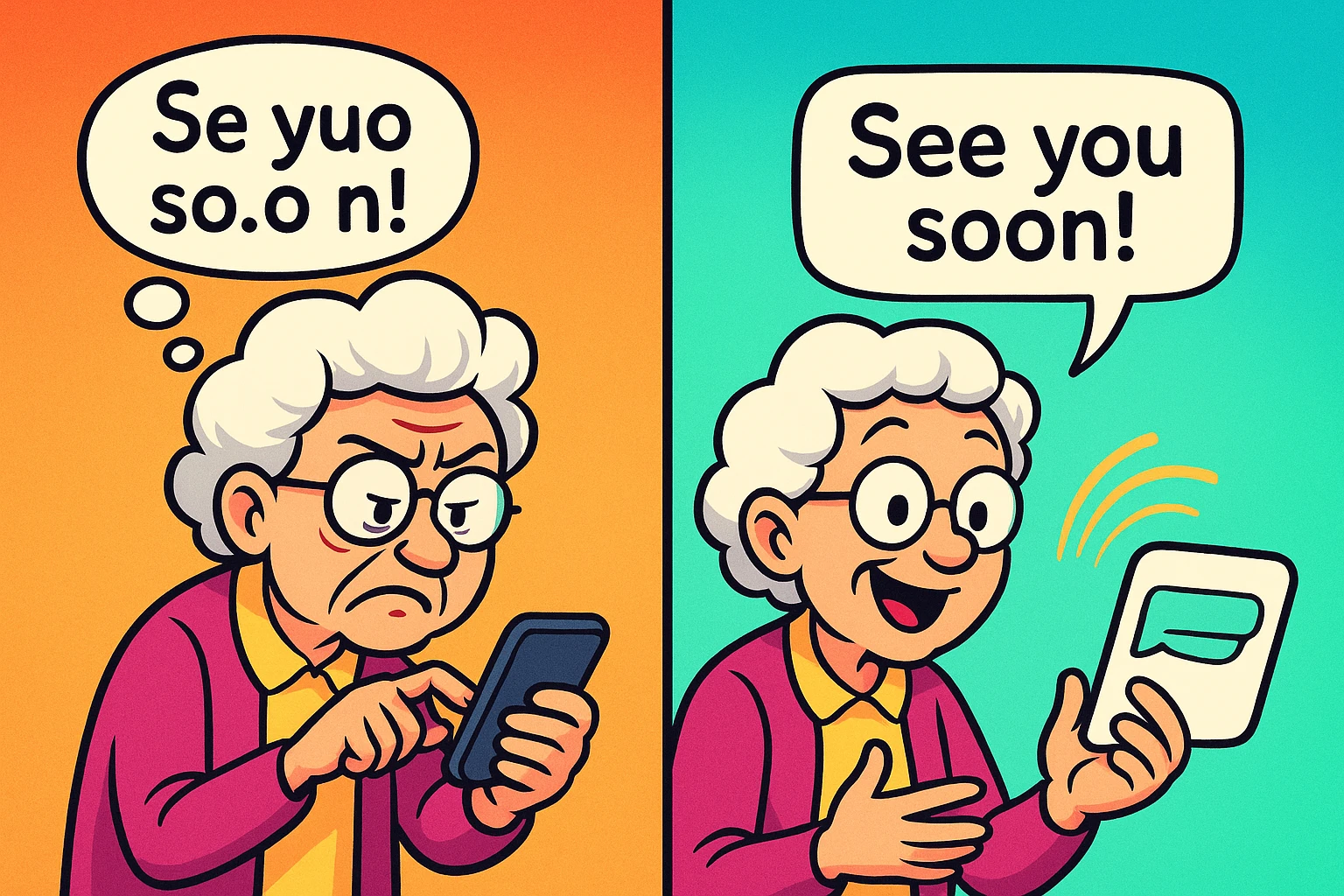
You squint. You tap. You backspace. You tap again. You accidentally send your daughter a message that says, “See you at the doctor’s appointment tomorrow lard,” when you meant to type “love.” It’s frustrating, painful, and makes you want to throw the phone out the window and go back to using carrier pigeons. But what if you could write a perfect text message, punctuation and all, without ever touching the keyboard? Good news: you can, and the magic button is already on your phone.

Before you start imagining some complicated, futuristic gizmo, let’s clear the air. Voice dictation, or “voice-to-text,” isn’t a new app you have to download or a service you have to pay for. It’s a standard feature built right into your smartphone’s keyboard.
Think of it as having a tiny, incredibly fast secretary living inside your phone. You talk, and it types. That’s it. It’s not scary “Artificial Intelligence” coming for your cookie recipes; it’s just a simple “Talk-to-Text” button that makes your life easier.
The real magic isn’t the technology itself—it’s what it lets you do. It means you can send a quick “thinking of you” message to your grandkids without your knuckles aching. It means you can reply to a friend’s invitation instantly, instead of waiting until you can sit down and painstakingly type a response. This isn’t about learning new tech; it’s about reclaiming easy, spontaneous connection with the people you love.
Ready to give your thumbs a well-deserved vacation? The good news is that turning this feature on is simple, whether you have an iPhone or an Android. Just find the little microphone icon on your keyboard.
The process is nearly identical for both types of phones. You’ll open your messaging app, tap into the area where you’d normally type, and look for the microphone icon on the keyboard that pops up.
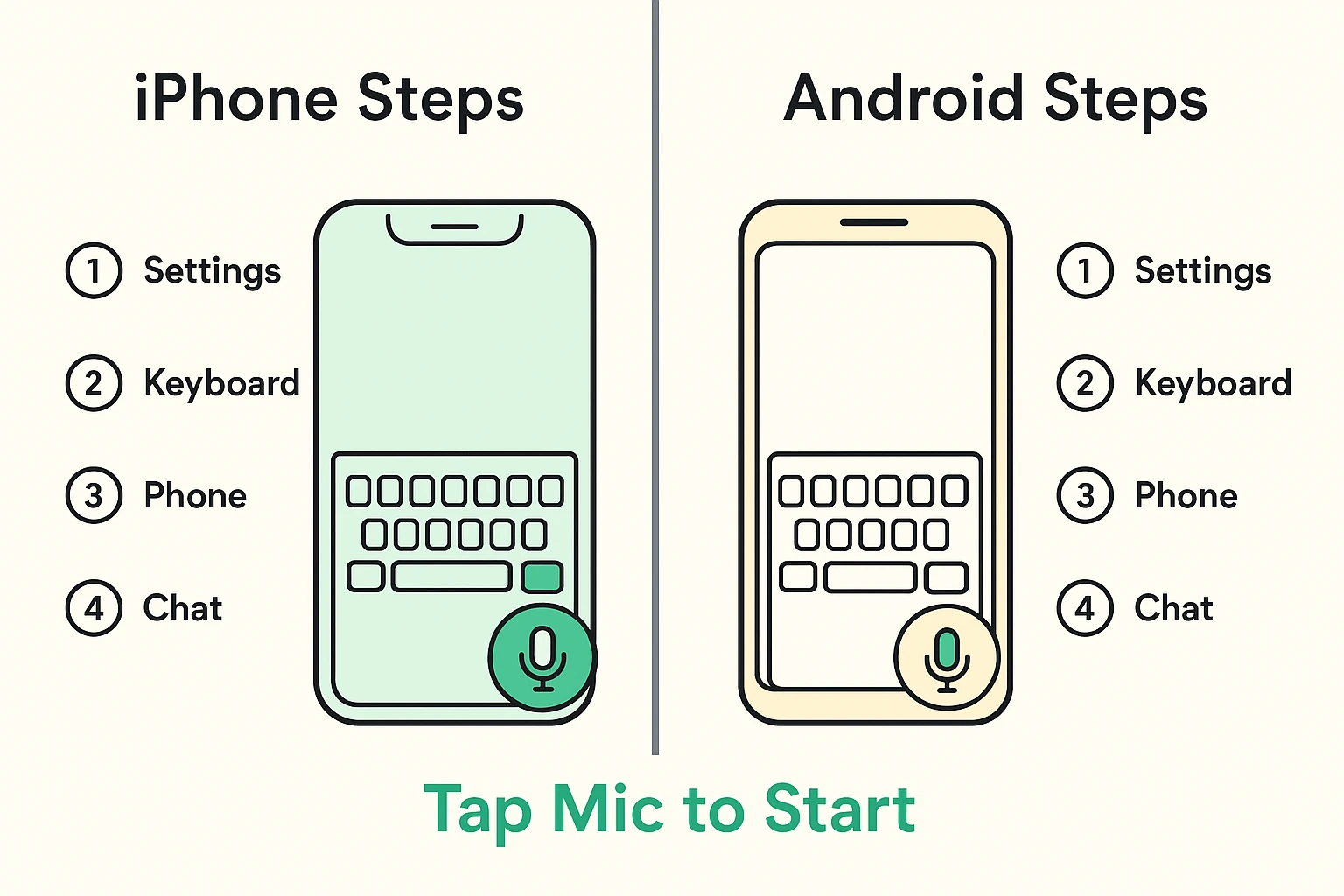
Success! You should now see your spoken words on the screen. It might not be perfect the first time, but don’t worry—we’re about to turn you into a pro.
Now that you’ve got the basics down, a few simple tricks will make you a voice dictation master. It’s mostly about learning to talk to your phone like it’s a slightly dim-witted but eager-to-please intern.
The key is to speak your punctuation. If you pause, the phone will just… wait. It doesn’t know you want a period unless you tell it.
Oops! Did it type the word ‘period’ instead of making a ‘.’? This is a common hiccup. The trick is to say the punctuation command right after the last word, without a long pause. For example, say “I’ll be there soon-period” as one smooth phrase.
Modern voice recognition is surprisingly good. It’s designed to understand a wide variety of accents and speaking styles. The more you use it, the better it gets at understanding you. The trick is to speak clearly and at a natural pace—no need to shout or talk like a robot.
Nope. The voice dictation feature only activates when you tap the microphone icon. It’s not listening in the background. Once you tap the button to stop, it stops listening.
This sometimes happens if the feature was accidentally turned off in your phone’s settings.
Yes, for the most part. Your phone sends your speech to a powerful computer over the internet to figure out what you said, then sends the text back. This is why it works best when you have a decent Wi-Fi or cellular signal.
Technology should make our lives easier, not give us another source of aches and pains. Learning to use your phone’s voice features can simplify all sorts of daily tasks. It’s not just for texting; you can set reminders for appointments or even use apps that work like a digital medication timer, all without fiddling with a tiny keyboard.
So here’s your challenge: Pick up your phone right now. Open a message to a friend, your spouse, or one of your grandkids. Tap that little microphone and send them a message using only your voice.
Tell them about your day. Ask them what they’re doing for dinner. Or simply say, “Hi, thinking of you period.” You’ll be amazed at how liberating it feels. Your thumbs will thank you for it.