Newsletter Subscribe
Enter your email address below and subscribe to our newsletter

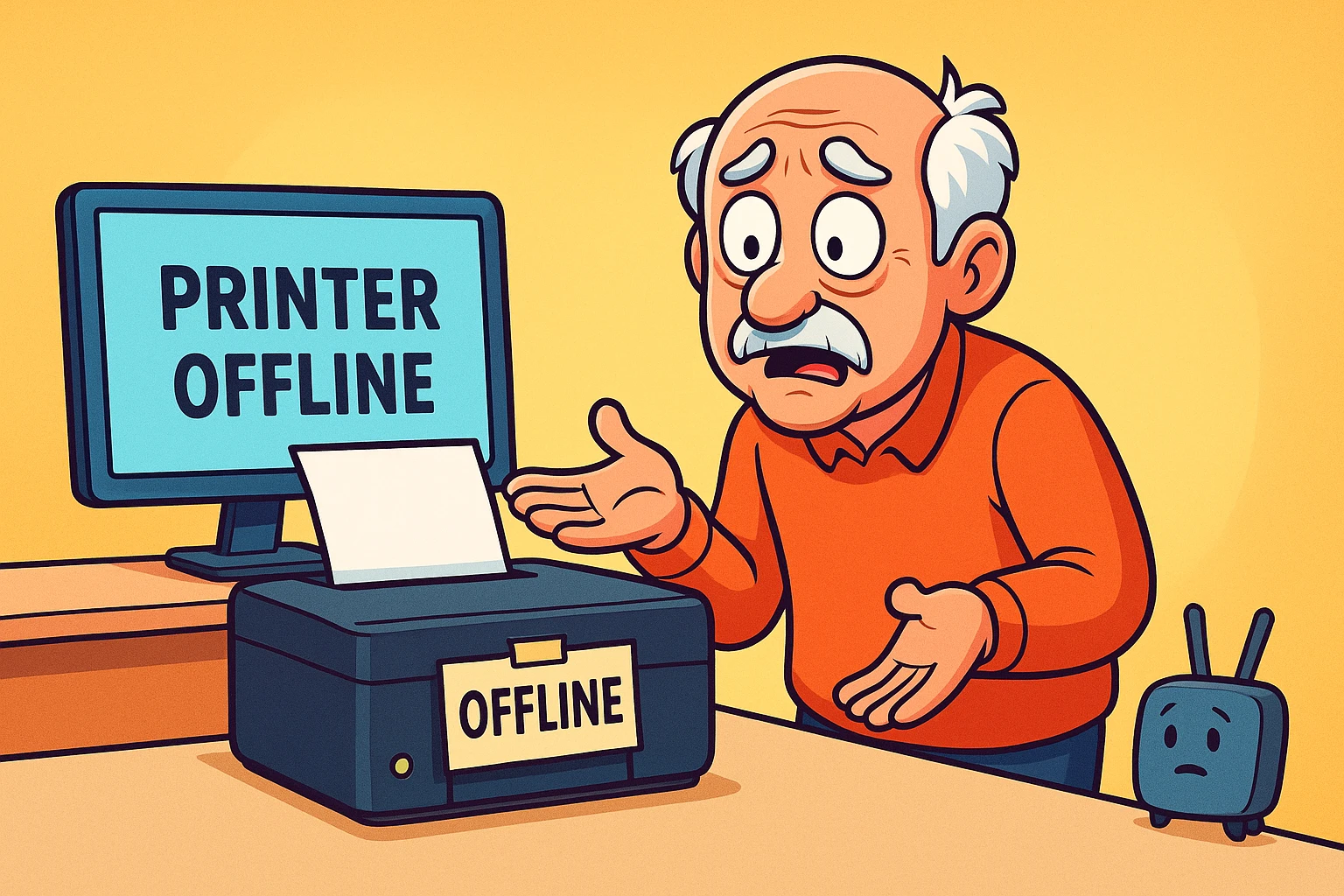
Printers are the undisputed drama queens of the technology world.
You can have a computer capable of calculating the trajectory of a Mars rover, and a smartphone that can access the sum of human knowledge in three seconds. But if you try to print a single page of a return label for Amazon, your printer will suddenly act like it has never met you before.
It sits there on your desk, lights blinking, whirring softly, looking completely normal. Yet, when you hit “Print,” your computer gives you the digital cold shoulder: “Printer Offline.”
Offline? How can it be offline? It’s two feet away! You can touch it. You can see the paper inside. It’s like standing in front of your spouse at the dinner table and having them text you, “I can’t talk right now, I’m in Europe.”
If this scenario is making your blood pressure rise, take a deep breath. You are not alone, and—more importantly—you didn’t break anything. The “Printer Offline” error is the common cold of the computer world. It’s annoying, it happens to everyone, and it’s usually cured with a little patience and the right medicine.
We’re going to fix this together, step by step, without requiring you to get an engineering degree.
Before we start pushing buttons, it helps to understand what is actually going on. When your computer says the printer is “Offline,” it doesn’t necessarily mean the printer is broken or off.
It usually just means they have stopped speaking to each other.
Think of your Wi-Fi printer and your computer like two people talking on walkie-talkies.
When you get that error message, it simply means the Commander shouted an order, didn’t hear a response, and assumed the Soldier had left the building. In reality, the Soldier (printer) is likely still there, but perhaps the signal dropped for a second, or they momentarily “forgot” the channel they were supposed to use.
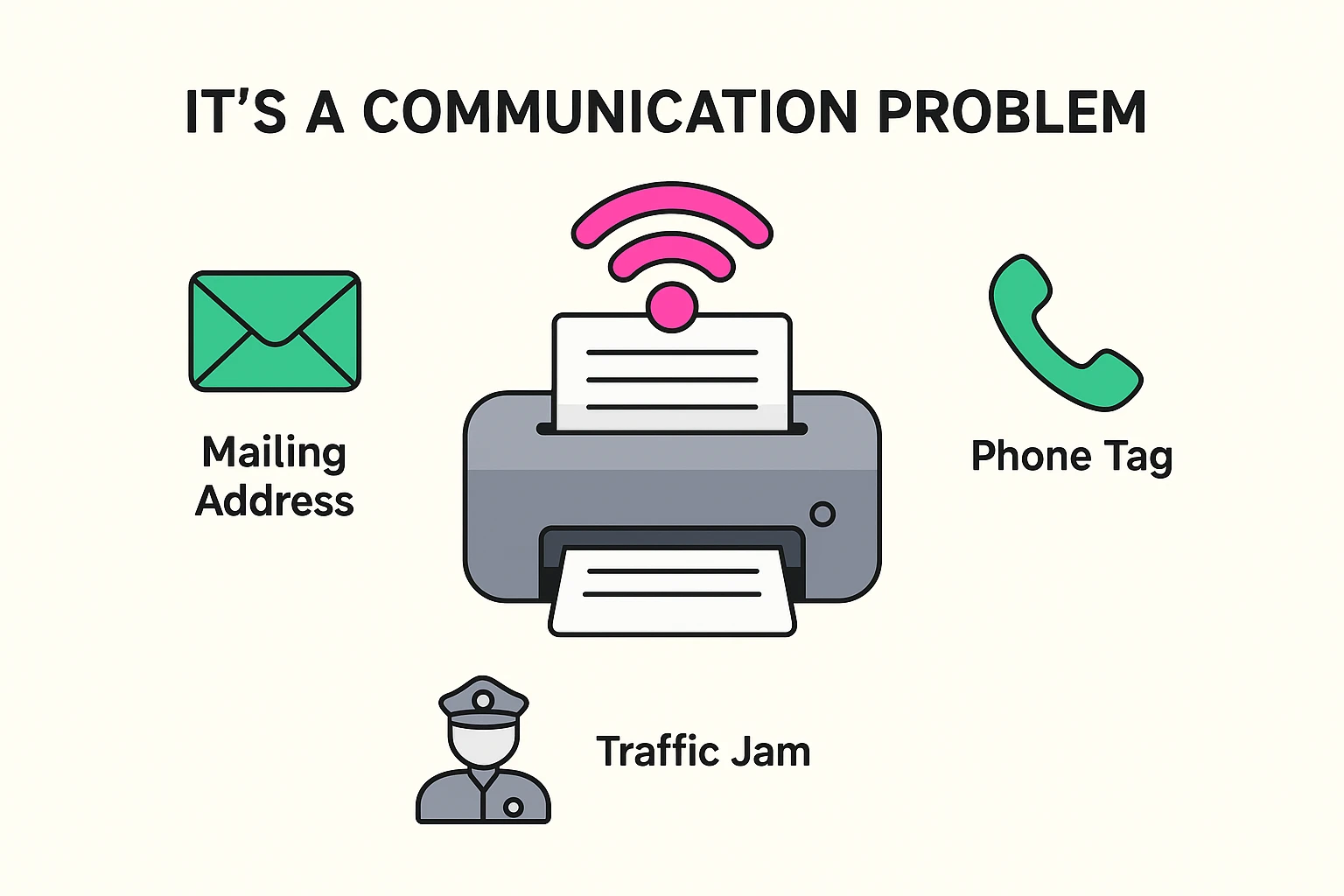
In the tech world, we have a secret. About 80% of problems aren’t solved by complex coding or hacking. They are solved by turning things off and back on again.
It sounds too simple to be true, but digital devices get “brain fog” just like we do. A quick restart clears out the cobwebs.
Here is your “First Aid” routine. Do these in order.
Turn your printer off using the power button. Don’t just press it quickly; hold it down until the lights go out.
If the printer is still giving you the silent treatment, the computer might be the confused one.
This is the step most people skip, but it’s often the culprit. Your router (that blinking box usually in the living room or office) directs traffic for your whole house. Sometimes it assigns “addresses” to your devices, and it might have mixed up the printer’s address.
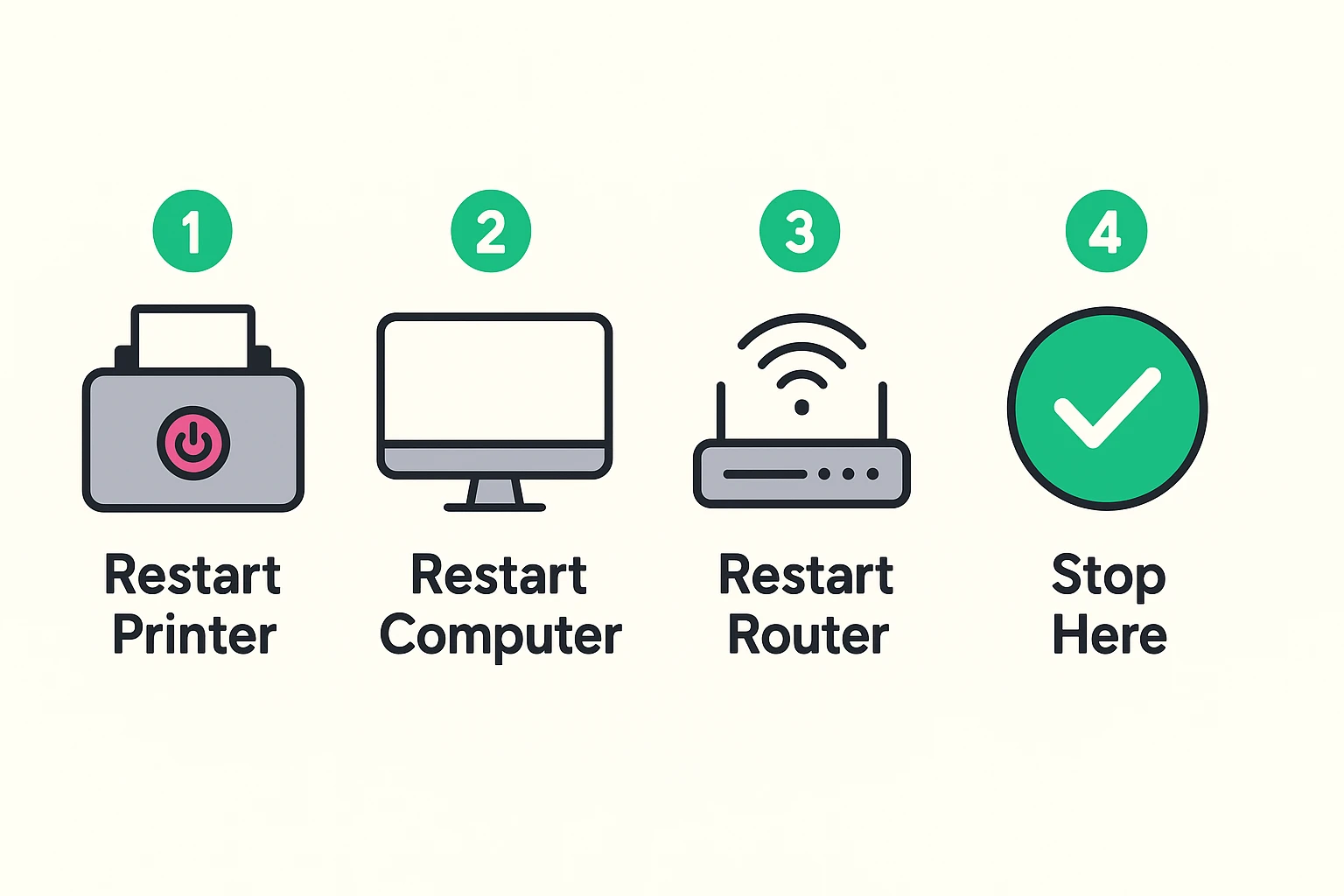
If you did the “Big Three” and your computer still claims the printer is offline, don’t panic. It just means a setting accidentally got switched. We can flip it back.
Believe it or not, Windows has a setting that literally tells the computer, “Ignore the printer.” Sometimes, if the Wi-Fi dropped for a second last week, the computer automatically checked this box and forgot to uncheck it.
How to check on Windows:
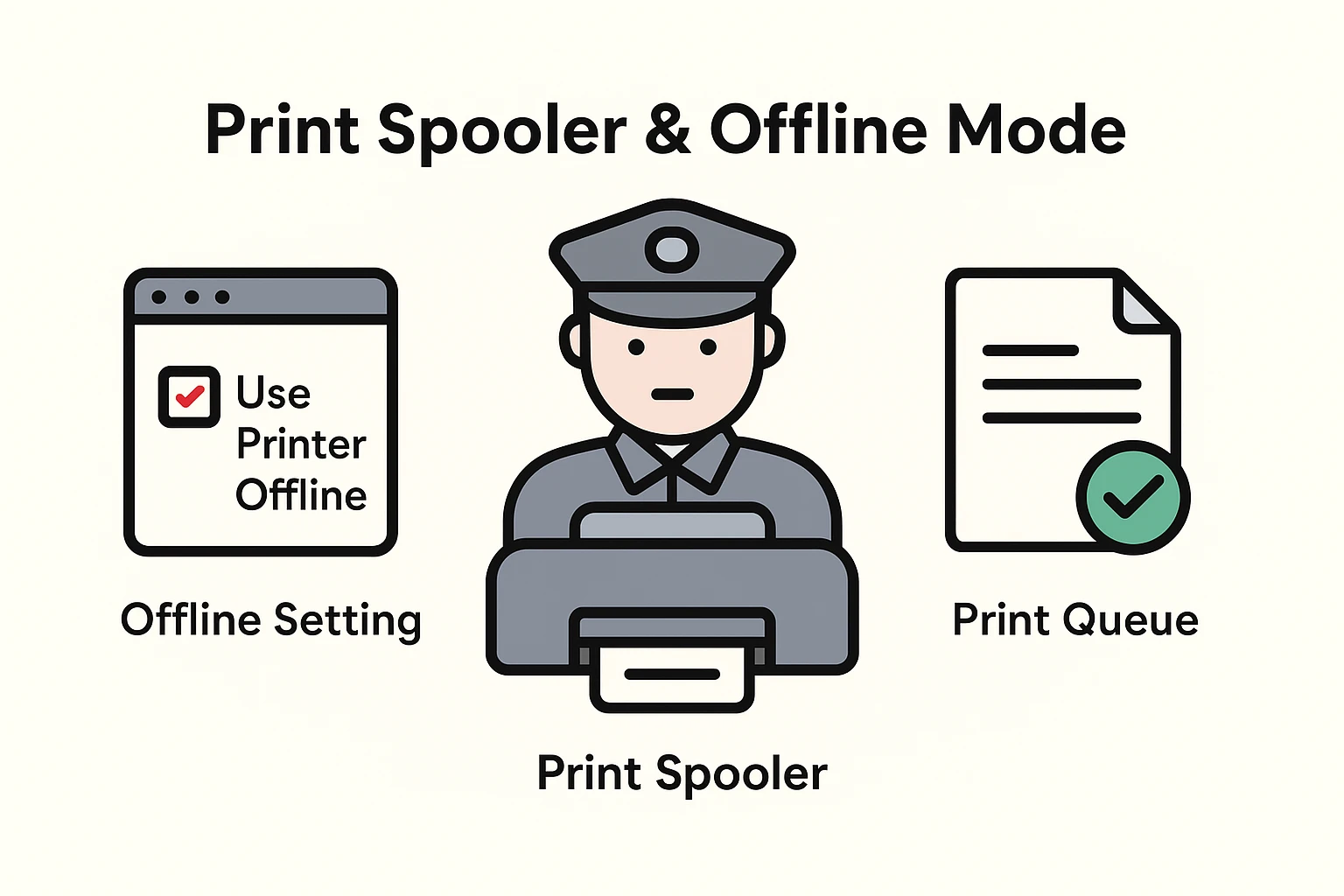
Sometimes, the problem isn’t the connection; it’s a jam.
Imagine you are at the grocery store checkout. The person at the front of the line is arguing about an expired coupon. Until that person moves, nobody behind them can check out.
Your computer has a “Print Spooler” which acts like that checkout line. If one document you tried to print three weeks ago got stuck (corrupted), every new document you try to print just lines up behind it, waiting forever.
How to clear the line:
Technology is sensitive. If your power flickered, your internet slowed down, or your computer did an automatic update while you were sleeping, the “handshake” between the printer and computer can get broken. It’s rarely something you did wrong.
Orange (or amber) is usually the universal color for “I need help.” It almost always means one of two things:
Absolutely. If Wi-Fi is driving you crazy, there is no shame in using a USB printer cable. It looks like a square plug on one end and a standard USB on the other. It is the most reliable way to print because it doesn’t rely on invisible signals. It’s the “Old Reliable” of printing.
If you have restarted the printer, computer, and router, and cleared the queue, and it still says offline, the software driver might be outdated. At this point, it might be time to ask a tech-savvy grandchild for help, or visit the support website of your printer manufacturer (HP, Canon, Epson, etc.) to download the latest “driver.”
Printers are notoriously finicky machines. They can smell fear. The key is to remain calm, treat it as a temporary communication breakdown, and methodically restart your devices.
Remember: You are the human. You are in charge. And if all else fails, writing the recipe down on an index card still works just as well as it did in 1995.