Newsletter Subscribe
Enter your email address below and subscribe to our newsletter


You know that feeling when you finally buy a new car, you’re excited to drive it off the lot, and then you realize you have no idea how to turn on the windshield wipers? And suddenly it starts raining?
Buying a new laptop can feel exactly like that. You get the sleek, shiny machine home, you’re ready to print that recipe for your famous banana bread, and you reach to plug in your trusty printer… only to find there is no hole for the plug. You check the left side. You check the right side. You even check the back, feeling like a burglar looking for a spare key.
Nothing.
Welcome to the “Port Famine.” In the quest to make laptops thinner than a saltine cracker, manufacturers have started removing the holes (technically called “ports”) that we’ve used for decades. If you’re feeling confused about where your mouse, printer, or external hard drive is supposed to go, you aren’t losing your mind. You’ve just encountered the changing world of computer connectivity.
The good news? You don’t need an engineering degree to figure this out. You just need to know what to look for before you buy. Today, we’re going to play matchmaker between your favorite old devices and your potential new (or refurbished) laptop.
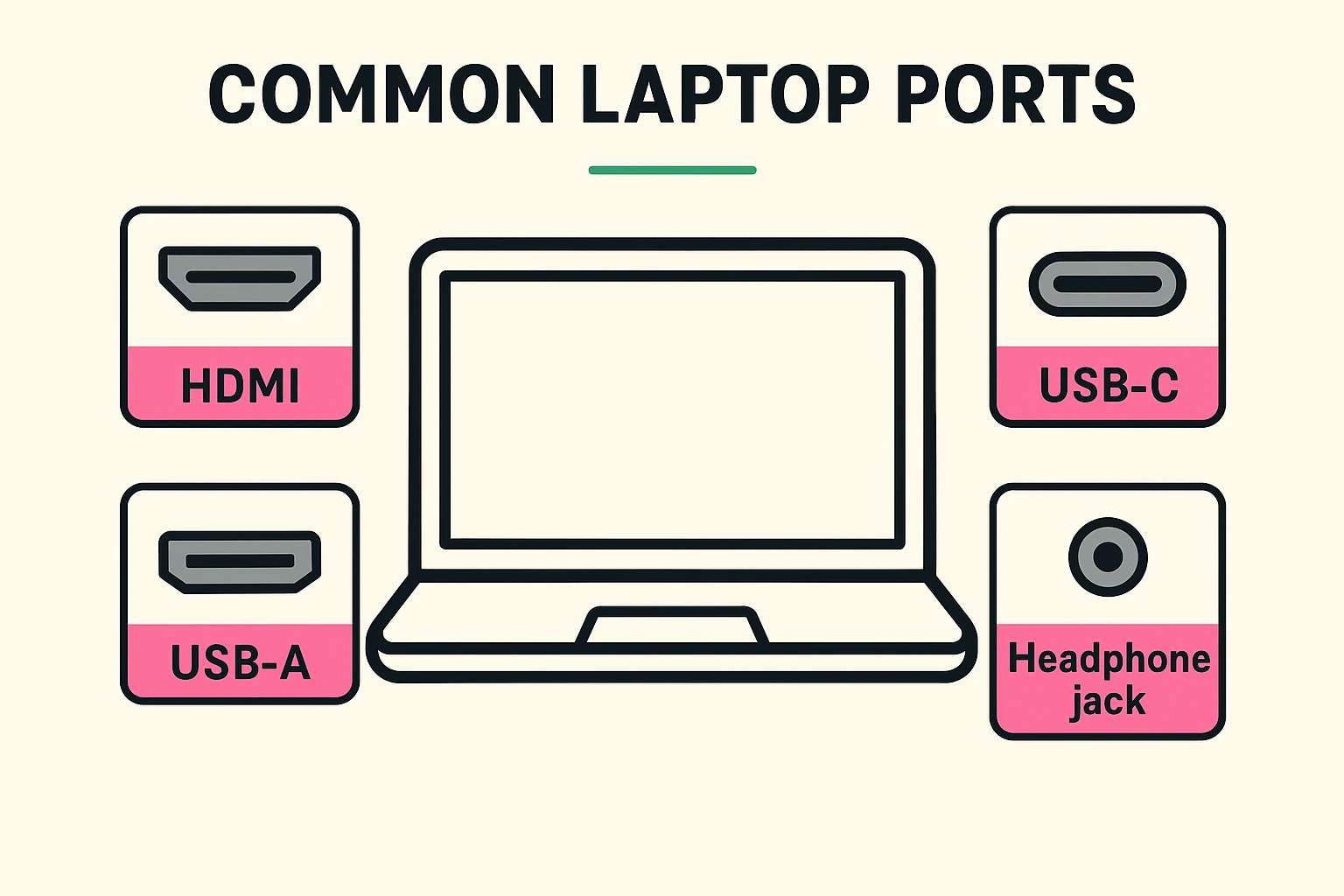
Before we get into the newfangled stuff, let’s talk about the “Old Reliables.” These are the ports you’ve been using since the days when dial-up internet made that screeching noise that sounded like a fax machine arguing with a cat.
This is the classic. It’s the port where you plug in your mouse, your keyboard, and that flash drive with the photos of the grandkids from 2014.
The frustration factor: We all know the “USB Dance.” You try to plug it in. It doesn’t fit. You flip it over. It still doesn’t fit. You flip it back to the first way, and suddenly—magically—it slides right in. This port is disappearing from brand-new, ultra-thin laptops, but it is still very common on the robust, business-class refurbished laptops we often recommend.
This looks like a slightly grumpy smiley face. It’s the standard cable used to connect your laptop to a larger monitor or your living room TV so you can watch Netflix on a screen bigger than a dinner plate. If you like using a second screen, this is a non-negotiable must-have.
A small, round hole. While many people are moving to wireless Bluetooth headphones, there is something comforting about a cord that doesn’t need to be charged. Thankfully, most laptops still have this.
Now we have to address the elephant in the room. Or rather, the tiny oval in the room.
Meet USB-C. It’s the new standard, and it’s slowly eating all the other ports. It’s smaller, faster, and—here is the best part—it is reversible. There is no “up” or “down.” You can plug it in with your eyes closed and it will fit. It’s a small victory for humanity.
Think of USB-C like a Swiss Army Knife. The old USB-A could only do data. The HDMI could only do video. But a single USB-C port can often do it all: it can charge your laptop, transfer files, and connect to a monitor.
Here is where it gets a little tricky, so stick with me. While all these new ports look like identical little ovals, some are superheroes in disguise.
If you see a little lightning bolt symbol next to the USB-C port, that means it’s a “Thunderbolt” port. It looks the same, but it’s much faster and more powerful. It’s like buying a Honda Civic that happens to have a Ferrari engine under the hood. For most seniors, a regular USB-C is fine, but a Thunderbolt port ensures your laptop won’t be obsolete anytime soon.

Absolutely not. If you have a perfectly good printer that uses a rectangular USB-A plug, but your new laptop only has oval USB-C ports, you do not need to buy a new printer.
You need a Translator.
Tech companies call them “adapters” or “dongles” (a word that sounds inherently silly). Think of them like the travel adapter you take to Europe so your hairdryer fits into the wall.
Before you browse for a laptop, you need to do a “Device Audit.” It sounds official, like something the IRS would do, but I promise it takes less than five minutes.
The goal is to stop looking at laptop specs and start looking at your life. Don’t let a salesperson tell you what you need. Let your desk tell you.
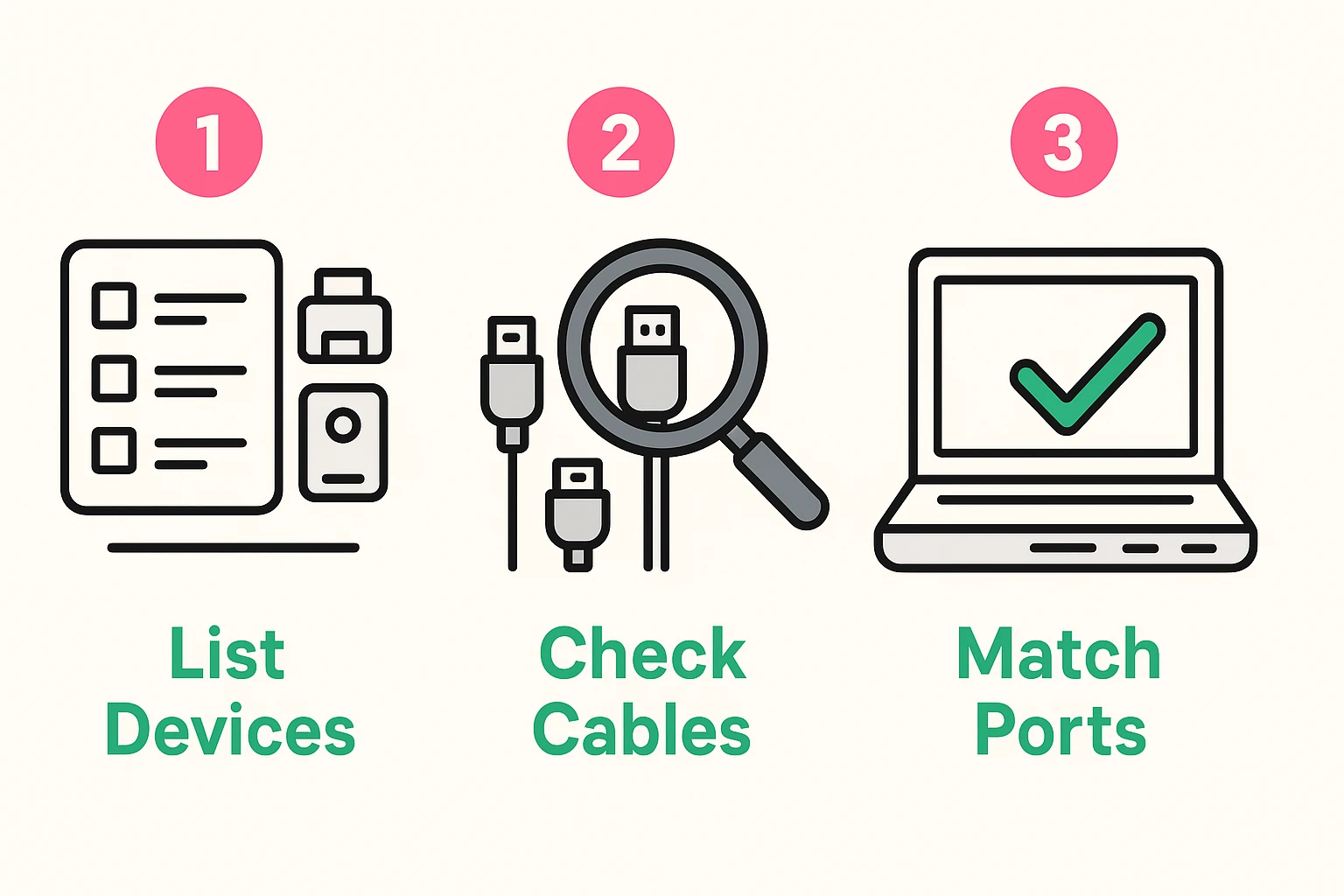
Look at your desk right now. What is plugged in?
If you counted three “Must-Haves” that use the old rectangular plug, you have two choices:
This is a secret that tech insiders know. Business laptops (like Lenovo ThinkPads or Dell Latitudes found on sites like Plug.tech) are built for office workers who—just like you—need to plug things in. They often keep the “legacy” ports (the rectangles and HDMIs) while still giving you modern speed. It’s the best of both worlds: modern power with familiar plugs.
Generally, no. Modern tech is designed to be “foolproof.” If the plug doesn’t fit, don’t force it (that’s how you break things). If it slides in easily, you’re usually safe. The computer is smart enough to ignore a connection it doesn’t understand.
Sometimes! Look for a tiny icon of a plug or a lightning bolt next to the port. If you don’t see one, check your manual. However, on many modern laptops, you can charge in either port. If you plug the charger into a data-only port, nothing bad will happen—it just won’t charge.
A Hub is portable—good for throwing in your bag. A Docking Station is a heavier, stationary version that stays on your desk. You plug your monitor, printer, mouse, and power into the Dock, and then plug one single cable from the Dock to your laptop. It turns your laptop into a desktop computer with one click.
Don’t let the fear of ports keep you from upgrading a slow, clunky computer. The technology has changed, but the solution is simple.
Take five minutes today to look at the ends of your cables. Identify if they are Rectangles (USB-A) or Grumpy Smileys (HDMI). Once you know what you have, you can shop with confidence, knowing exactly what you need to stay connected. And remember: when in doubt, there is almost always an adapter for that.