Newsletter Subscribe
Enter your email address below and subscribe to our newsletter

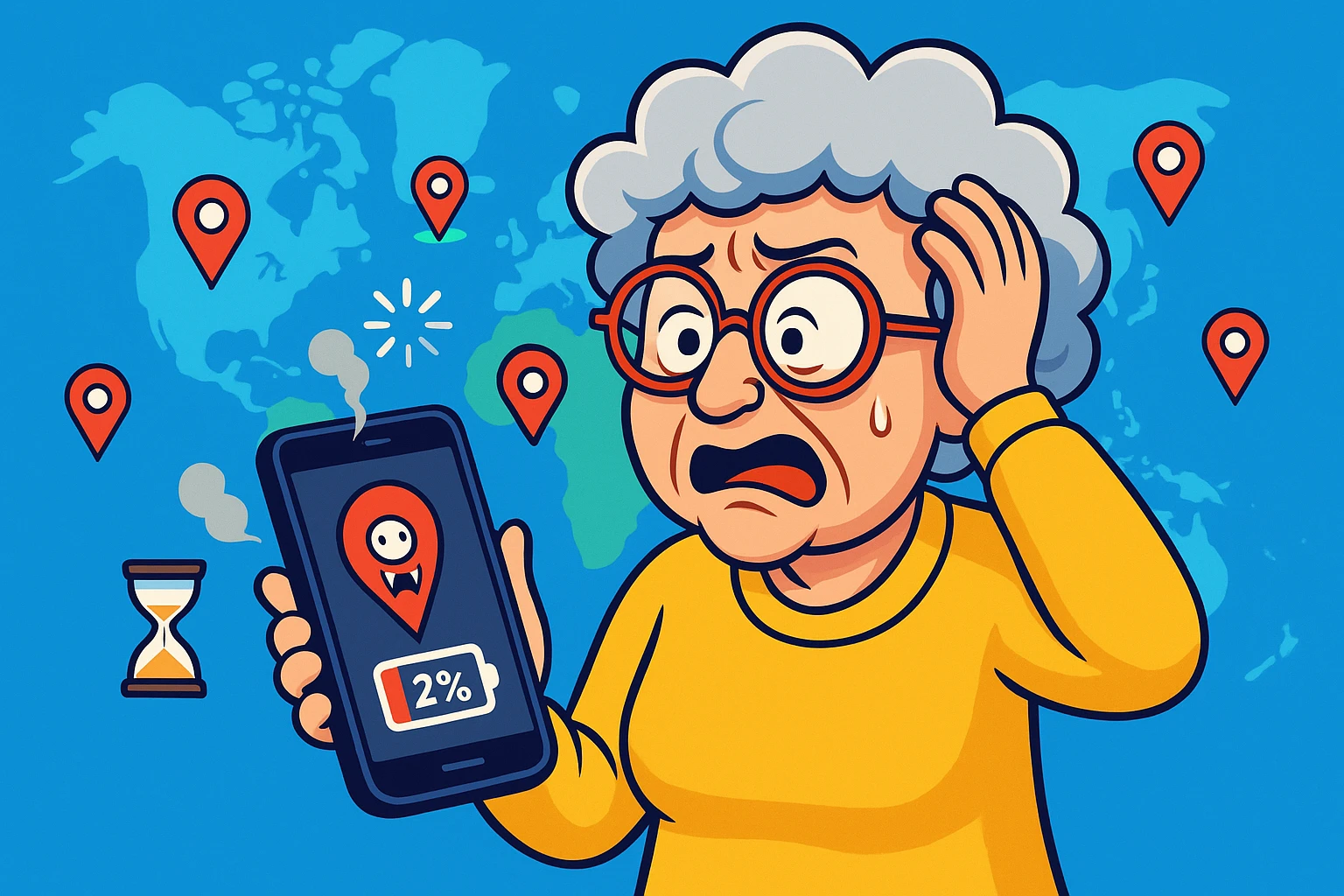
You charge your phone to a crisp, confident 100%. You place it gently in your pocket or purse, perhaps patting it affectionately. You drive to the grocery store, pick up a gallon of milk and some bananas, and drive home. You haven’t made a call. You haven’t checked Facebook. You haven’t even looked at a photo of your grandkid.
Yet, when you pull the phone out, it is hot to the touch and gasping for life at 12%.
It feels like a betrayal. It feels like your phone went out and ran a marathon while you were thumping cantaloupes in the produce aisle. But the culprit isn’t usually a broken battery; it’s a feature that acts like a hyperactive puppy, constantly asking, “Where are we? Are we there yet? How about now?”
This feature is Location Services. While it’s wonderful for finding the nearest coffee shop or navigating to your niece’s new house, it is also a vampire that feeds on your battery life.
The good news? You don’t have to choose between a dead phone and getting lost. You just need to tell your phone to calm down.
Before we start flipping switches, let’s address the elephant in the room—or rather, the satellite in the sky.
Many seniors leave every single location setting turned on, all day, every day, out of fear. The logic is sound: “If I fall or have an emergency, I want the ambulance to know exactly where I am.”
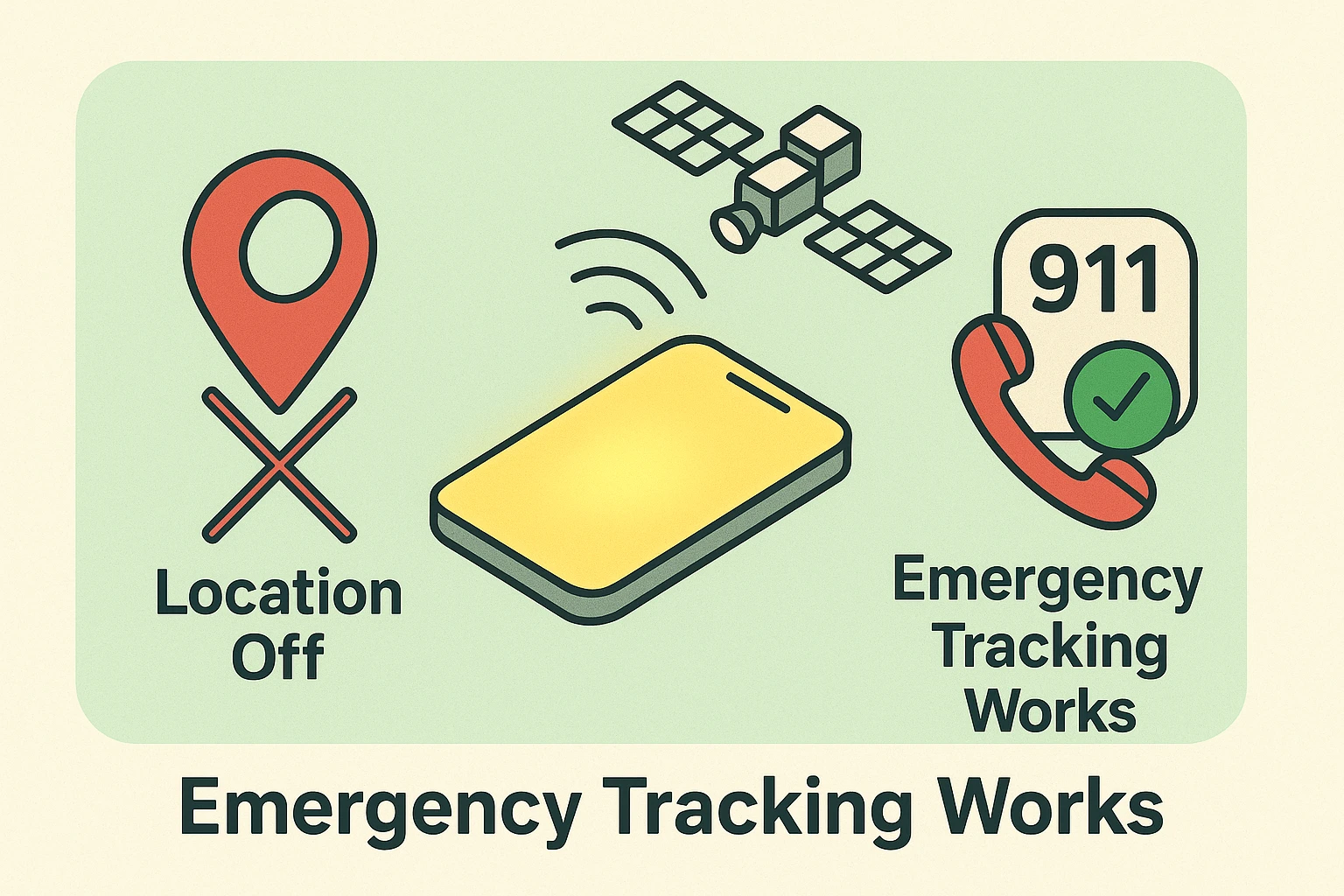
Here is the secret that phone companies and tech manuals rarely explain clearly: Emergency services have a backstage pass.
In the United States, federal regulations (specifically E911 Phase II rules) mandate that if you call 911, your wireless carrier must provide your location to emergency responders. This happens independently of whether you have allowed Facebook or the Weather Channel to know where you are. Your phone has a “break glass in case of emergency” protocol that overrides your privacy settings the moment you dial 9-1-1.
To understand why your battery is dying, you have to understand what your phone is doing. When an app wants to know your location, your phone has to scream at a satellite in outer space.
Okay, technically it’s receiving signals from GPS satellites, but the effort required is immense. It’s the digital equivalent of sprinting. If your phone is constantly checking your location, it’s constantly sprinting.
However, not all location checks are created equal. Your phone has two ways to figure out where it is:
The problem is that many apps use the “Energy Hog” method when they don’t need to. Does your solitaire game really need to communicate with space satellites to deal a hand of cards? Absolutely not.
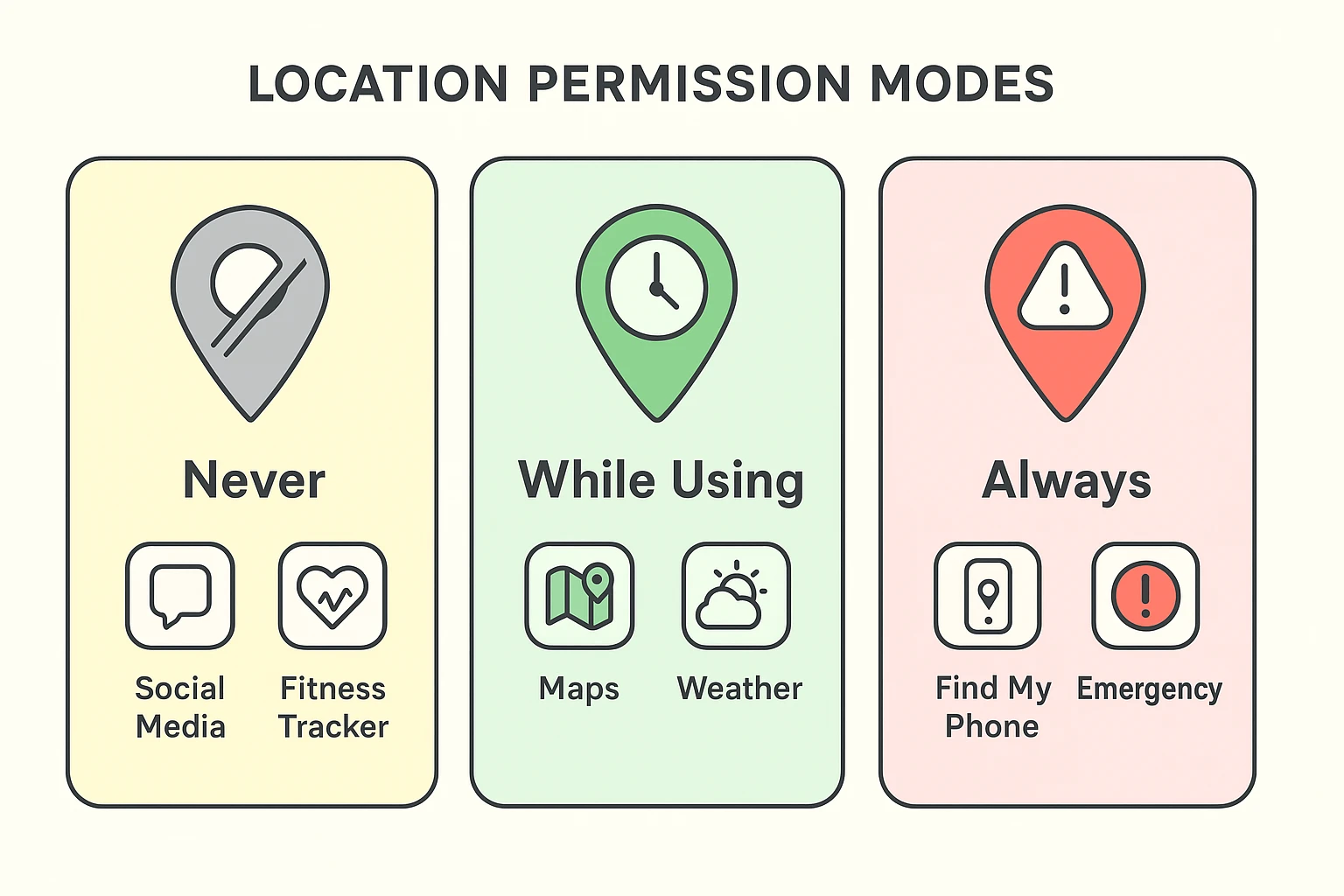
For years, we thought of location settings as a light switch—either On or Off. Today, smartphones are smarter than that. They offer a “middle path” that saves your battery while keeping your maps working.
Think of it like a security clearance at the Pentagon. Not everyone gets to see the aliens; some people just handle the cafeteria menu.
This setting allows an app to track you even when you aren’t using it. It’s tracking you while the phone is in your pocket. It’s tracking you while you sleep.
This is the golden ticket. The app only checks your location when you actually have the app open on your screen.
This cuts the app off completely.
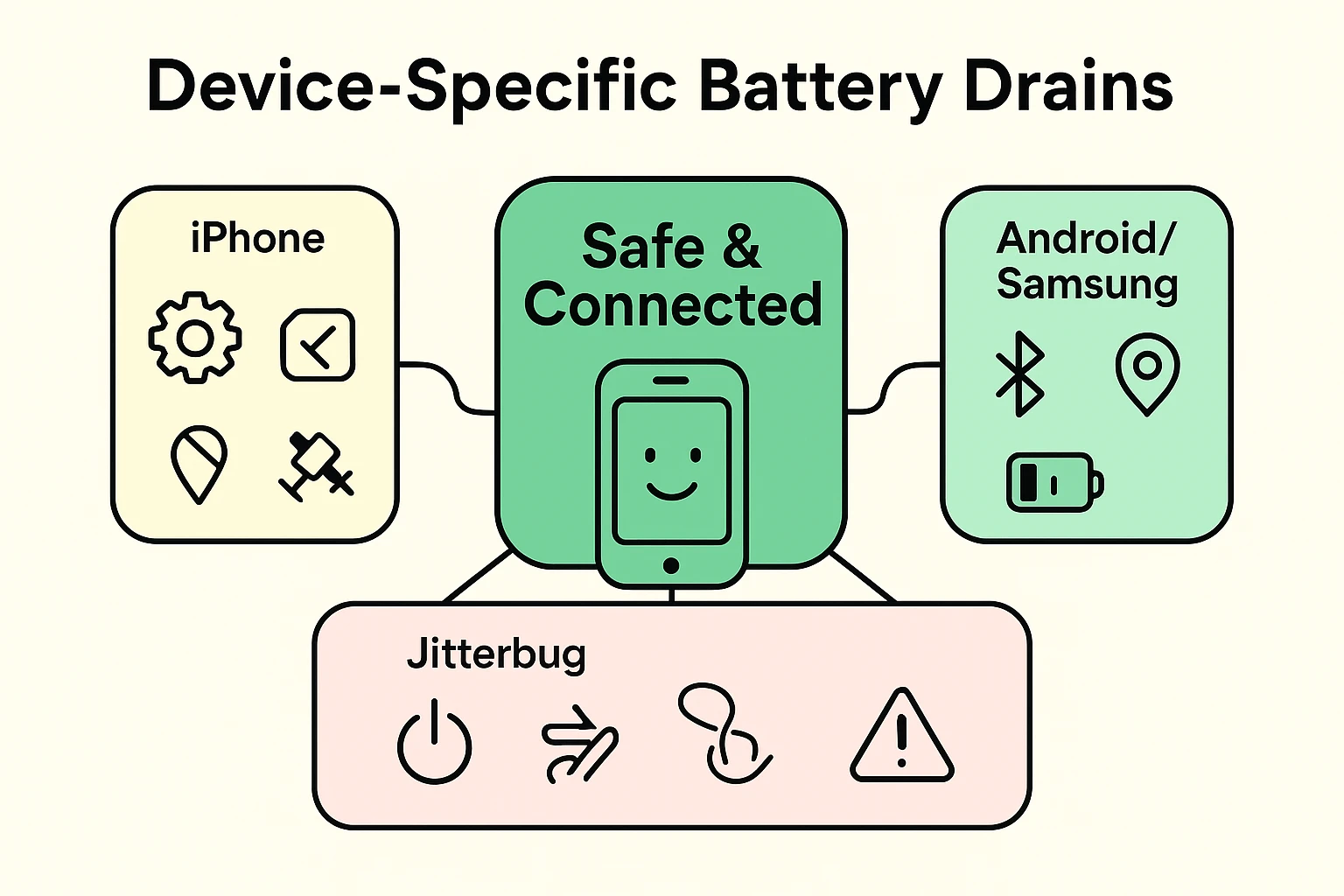
Ready to stop the drain? Here is how to find the hidden switches on your specific device.
Apple likes to tuck things away in neat little drawers.
The Secret iPhone Drain: Scroll all the way to the bottom of that list and tap System Services. These are Apple’s internal tools. You’ll see things like “Compass Calibration” and “Product Improvement.” Most of these can be turned off, but leave “Emergency Calls & SOS” and “Find My iPhone” on.
Android gives you a lot of control, but sometimes the menus move around.
The Jitterbug Smart is designed to be simple, but it still runs on Android technology, which means it still hunts for satellites.
Yes! “While Using” counts navigation as “using” the app, even if the screen turns off or you switch to a music app. It knows you are still on a journey.
Yes. “Find My” (on iPhone) or “Find My Device” (on Android) are separate system functions. As long as you don’t turn off the Master Location Switch, these safety features stay active.
Usually, yes. If you want your phone to buzz with a tornado warning even when it’s in your pocket, the app needs to check where you are periodically. This is a trade-off: you pay a little battery life for the safety of knowing a storm is coming.
Bluetooth used to be a battery hog, but modern Bluetooth (like what connects to your hearing aids or car) is very efficient. It uses a fraction of the power that GPS uses. Don’t worry about leaving Bluetooth on.
You don’t need to check these settings every day. Take five minutes right now with your morning coffee. Go through your list of apps. Be ruthless. If an app doesn’t help you navigate a car or check the weather, it has no business knowing where you are.
Once you make these changes, you might find that your phone actually survives that trip to the grocery store—and maybe even the ride home, too. You’ll have reclaimed your battery life, and perhaps more importantly, you’ll have stopped shouting at satellites when all you wanted to do was play solitaire.