Newsletter Subscribe
Enter your email address below and subscribe to our newsletter

Enter your email address below and subscribe to our newsletter
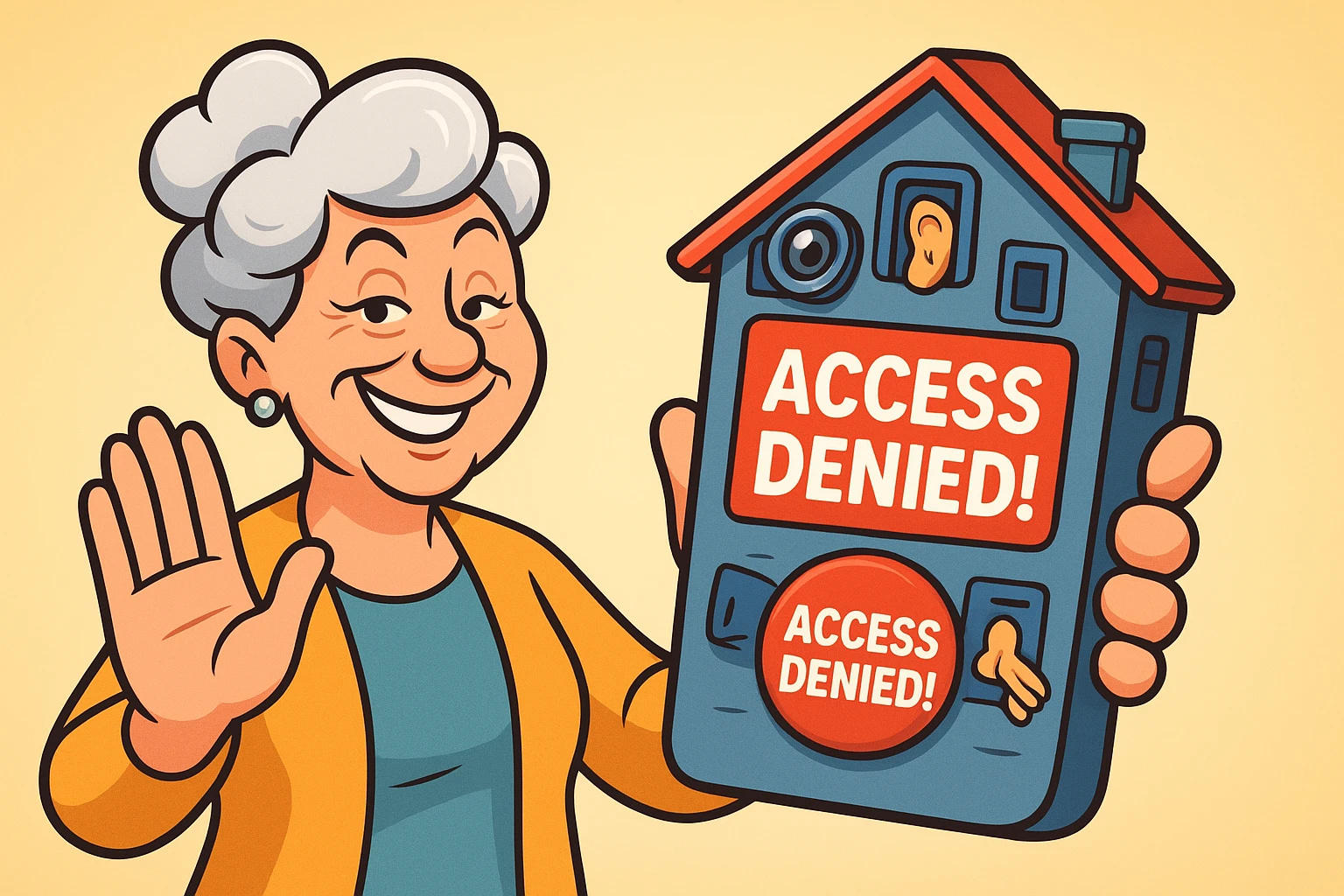
Imagine buying a brand new toaster. You take it out of the box, plug it in, and get ready for a nice, crispy bagel. But before the heating coils even glow, the toaster speaks up.
“Excuse me,” the toaster says. “Before I can toast this bagel, I’m going to need your home address, a list of all your friends, and permission to listen to your conversations while you eat breakfast.”
You would probably throw that toaster out the window, right? Or at least call a priest to perform an exorcism. It’s a toaster. It has one job: make bread hot. It doesn’t need to know where you live.
Yet, every single day, we invite digital “toasters”—aka apps—into our phones, and we happily hand over the keys to our private lives just so we can play a free game of Solitaire or use a flashlight. We click “Allow” on those little pop-upA pop-up is a type of graphical user interface element that appears suddenly on top of the current c... More boxes because we want the annoying notification to go away so we can get to the fun part.
But here is the truth: Your phone is your digital house, and not every guest deserves a key to the master bedroom. Today, we are going to look at what those apps are actually asking for, why they want it, and how you can politely (but firmly) tell them “No” without breaking your phone.
To understand appAn app (short for application) is a program that helps you do specific tasks on your smartphone, tab... More permissions, stop thinking about computer code and start thinking about your front door.
Your smartphone is essentially a house filled with your personal stuff.
When you download"Download" means saving something from the internet onto your device—like your phone, tablet, or c... More an app, it is like inviting a guest over. Some guests, like a map app, genuinely need to know where your house is (Location Services) to help you navigate. That makes sense.
But other guests are just nosy. Why does a “Flashlight” app need access to your Contact List? Is it planning to call your granddaughter to tell her it’s dark outside? Probably not. It wants that information to build a profile on you and sell ads.
Here are the “Big Four” permissions you need to watch out for:
This tells the app exactly where you are standing.
This allows the app to listen to audio around the phone.
This is the one seniors often overlook. When you grant access to Contacts, you aren’t just sharing your info; you are sharing the phone numbers and emails of everyone you know.
Not all apps are created equal. Some are well-behaved guests that wipe their feet at the door. Others track mud everywhere. Let’s look at two categories that often trip people up.
There is a popular video player app called PLAYit that many people download to play video files. While it works as a player, security researchers have given it a low “privacy score.” Why? Because it asks for a lot of permissions.
It often requests access to your contacts and location—things a video player simply does not need to function. It’s like a plumber asking for the combination to your wall safe “just in case.” When an app asks for permission that has nothing to do with its job, that is a red flag.
You might see apps that promise to let you run “Two WhatsApp Accounts” or “Clone” an app. These are often called “Dual Apps.” Be very careful here.
To make this magic happen, these apps often require “Admin” level access to your phone. They act as a middleman between you and your real apps. If the middleman isn’t trustworthy, they can see everything you type—including passwords.
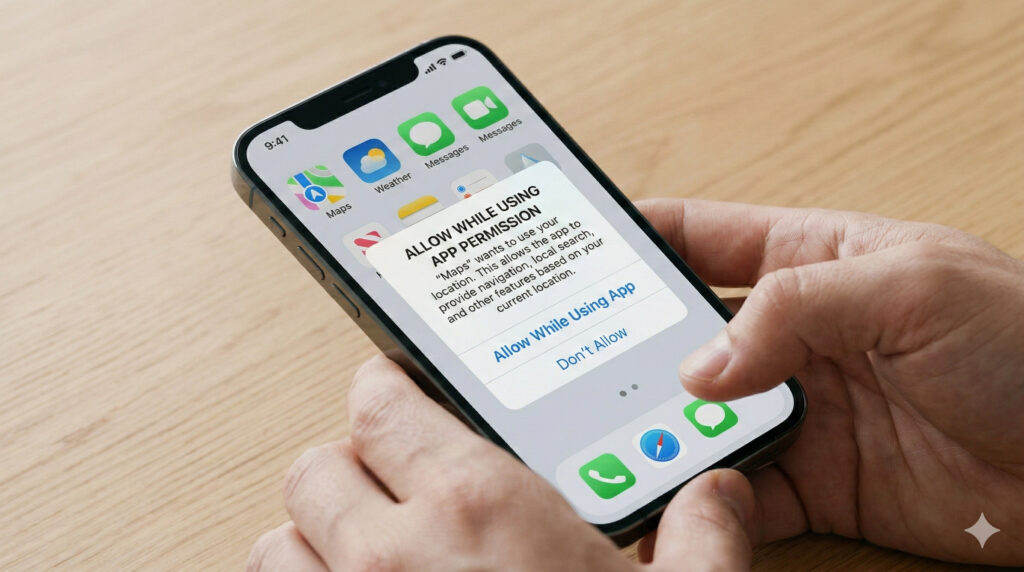
Years ago, permissions were an “All or Nothing” deal. If you wanted to use a map, you had to let it track you 24/7. Thankfully, Apple and AndroidAndroid is a type of operating system—like the brain of a device—that runs on many smartphones a... More got smarter.
Now, you have a magical option called “Allow While Using App.”
This is the sweet spot. It means, “Okay, Google Maps, you can see where I am right now so I don’t get lost on the way to the dentist. But the second I close the app, you have to stop looking.”
Think of it like a hotel key card. It works while you are staying there, but once you check out, the card stops working. Whenever you see this option, choose it. It is almost always the safest bet.
You don’t need a degree in computer science to fix this. You just need about five minutes and a cup of coffee. Here is how to perform a “Privacy Clean-up” on your device.
Pro Tip: This is also where you check Photo access. If you are nervous about apps deleting your memories, ensuring you have a proper backup is vital. Learning how to backup iphone photos gives you peace of mind, so even if an app behaves badly, your pictures are safe in the cloud"The cloud" refers to storage and services that are accessed over the internet instead of being stor... More.
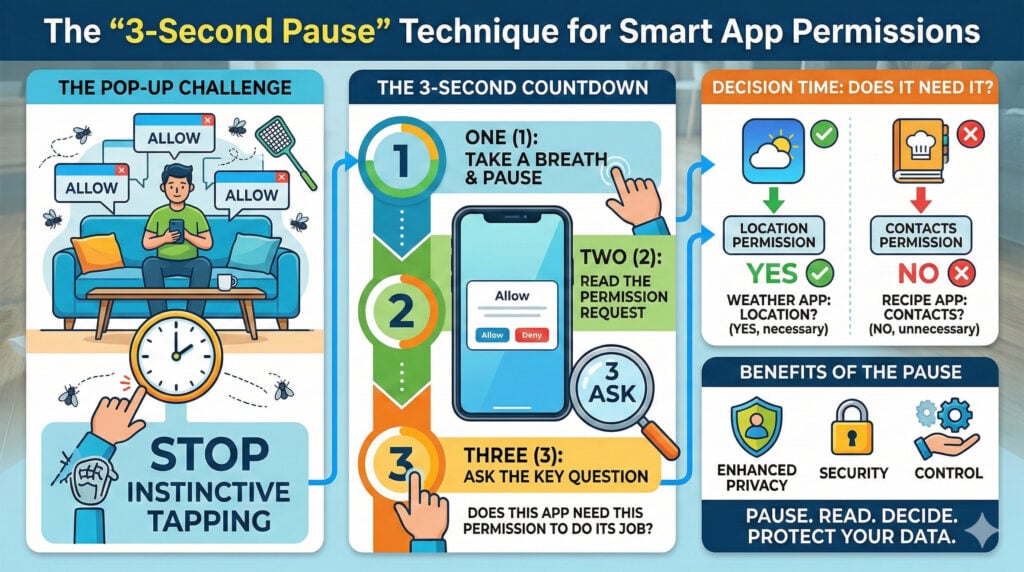
We have been trained to treat pop-up boxes like flies at a picnic—we just want to swat them away. When you install a new app and a box pops up, your instinct is to tap “Allow” just to make it vanish.
Fight that instinct. Try the 3-Second Pause.
When a box pops up asking for permission, count to three. Read what it is asking for. Ask yourself: “Does this app need this to do its job?”
Usually, no. The app will still open. However, specific features might not work. For example, if you deny WhatsApp access to your microphone, you can still type messages, but you can’t send voice notes. The app will usually pop up a message asking you to turn it back on if you try to use that feature.
Absolutely. Nothing is permanent. If you turn off Location for your weather app and then realize you have to manually type in your city every time and you hate it, you can go back into Settings and turn it back on. You are the boss.
Sometimes it’s lazy programming, but usually, it’s about data. Data is the currency of the internetThe Internet is a vast network of computers and other electronic devices connected globally, allowin... More. “Free” apps aren’t really free; you pay for them with your personal information, which they sell to advertisers. By restricting permissions, you are limiting how much “currency” they can pull from your wallet.
Your phone is your private club. You are the bouncer. It is perfectly okay to tell an app, “You can come in, but you can’t go through my photo albums.”
Take five minutes today to check just one permission category—maybe start with Location. You might be surprised to find that a coupon app you haven’t used since 2019 has been tracking your movements every day. Turn it off, lock the digital door, and enjoy your toasted bagel in peace.