Newsletter Subscribe
Enter your email address below and subscribe to our newsletter

Enter your email address below and subscribe to our newsletter
You buy a new smartphone or tabletA tablet is a lightweight, portable device with a touchscreen that you can use to browse the interne... More. The salesperson, a young whippersnapper who speaks entirely in acronyms, assures you this device has “128 Gigabytes” of storage. That sounds like a number made up by a scientist in a 1950s sci-fi movie, but you’re assured it’s enough space to store every photo you’ve ever taken, plus the entire Library of Congress.
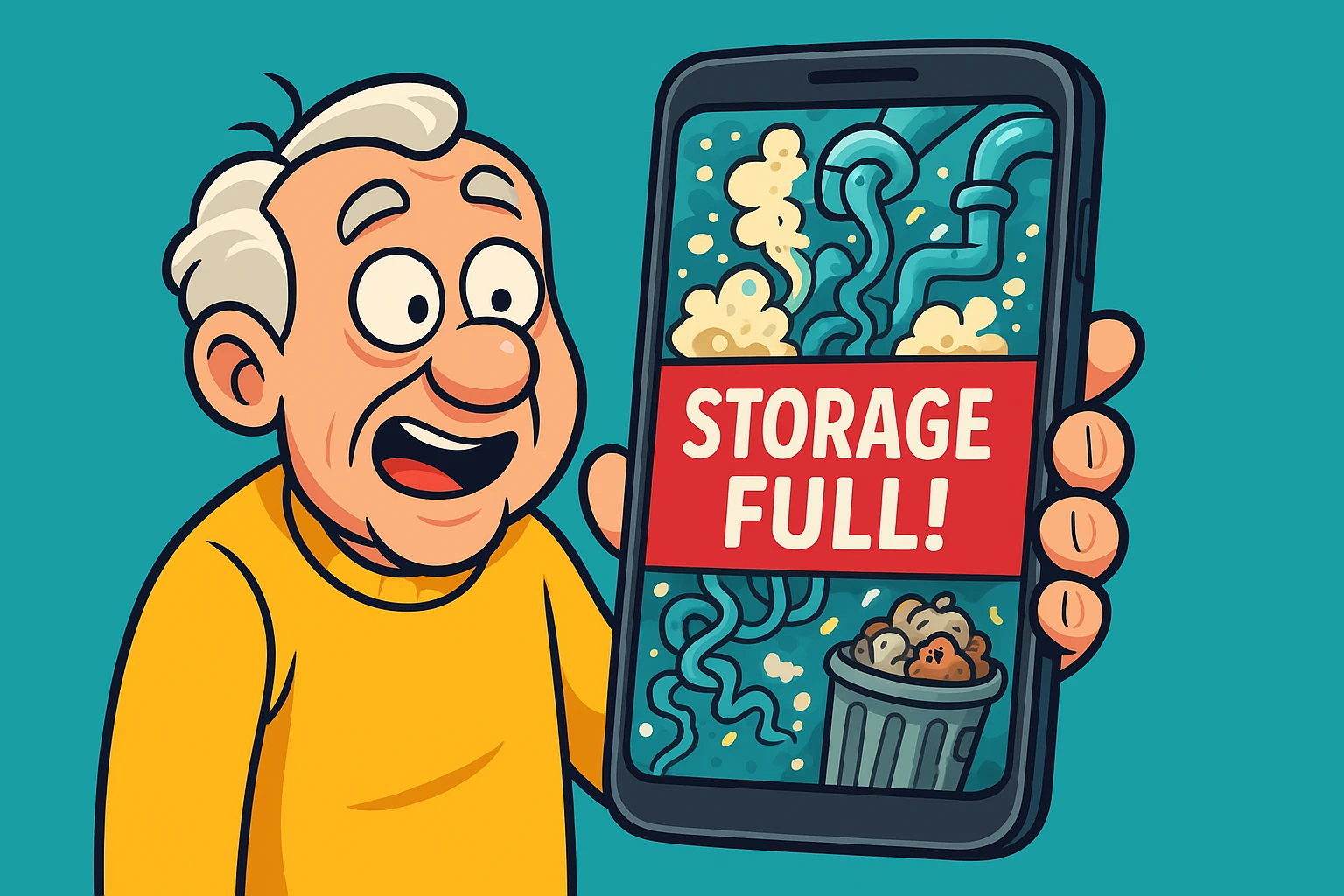
So, you take it home. You take a few pictures of the dog. You download"Download" means saving something from the internet onto your device—like your phone, tablet, or c... More a weather appAn app (short for application) is a program that helps you do specific tasks on your smartphone, tab... More. You save a recipe for zucchini bread. And then, seemingly five minutes later, a terrifying message pops up: “Storage Full.”
You stare at the screen. You haven’t downloaded the Library of Congress. You haven’t even downloaded the Library of Local Zucchini Recipes. You feel betrayed. Is the phone lying to you? Is there a tiny digital squatter living inside your device, hoarding data while you sleep?
If this sounds familiar, take a deep breath. You haven’t done anything wrong, and you certainly aren’t alone. This is one of the most common frustrations in the digital world. The good news is that your storage isn’t actually broken, and fixing it doesn’t require an engineering degree. It just requires understanding where all that invisible “stuff” is hiding.
To understand why your phone is full when you barely have any photos, we need to stop thinking of storage like a magical empty bucket. Instead, think of your device like a brand-new house.
When the salesperson sold you that “128GB House,” they forgot to mention something crucial. You don’t get to use every square inch of that space for your furniture (your photos and apps).
Why? A house needs walls, plumbing, electrical wiring, a furnace, and a water heater. In the tech world, this is called the Operating SystemAn operating system (OS) is software that manages computer hardware and provides a platform for runn... More and System Data. These are the guts of the phone that make it turn on, ring when grandma calls, and connect to the internetThe Internet is a vast network of computers and other electronic devices connected globally, allowin... More.
You can’t delete the plumbing without ruining the house. So, right out of the box, a chunk of your storage is already spoken for. It’s the “Storage Basement”—necessary, unmovable, and totally invisible to you until you run out of room upstairs.
Once you accept that the “plumbing” takes up space, we have to look for the other culprits. These are the sneaky files that pile up over time. We like to call them the Three Ghosts of Storage.
This is the biggest offender for most people. Every time you open an app—let’s say, Facebook or the News—your phone saves little bits of information so the app loads faster next time.
Think of it like baking cookiesCookies are like tiny reminder notes that a website sticks on your device through your browser. They... More. Every time you bake (use an app), a little bit of flour dust settles on the counter. One baking session? No big deal. But if you bake every day for two years and never wipe the counter? You’re going to be buried in flour.
Tech geeks call this “Cache” (pronounced like “cash”). Your device is covered in digital flour dust, and it’s taking up gigabytes of space.
Here is a fun fact that drives people crazy: When you hit “delete” on a photo, it doesn’t actually leave your phone.
Your phone thinks, “Wait! What if they made a mistake? I’ll hold onto this for 30 days, just in case.” It moves the photo to a “Recently Deleted” folder (essentially a digital trash can).
It’s like throwing a newspaper in the kitchen trash can. It’s off the table, but it’s still in the house taking up space until you take the bag out to the curb.
Do you text photos and videos to your family? Or receive them via WhatsApp or iMessage? Those text threads are storage hogs.
If your granddaughter sends you a 3-minute video of her dance recital, and you keep that text message forever, that video lives on your phone. If you have five years of text messages saved, you are carrying around a massive digital scrapbook that you probably forgot existed.
This is the part that scares everyone. You see the “Disk Full” warning, but you’re paralyzed. You’re terrified that if you press the wrong button, you’ll accidentally delete the only photo of your late Aunt Gertrude.
We have created a “Traffic Light” system to help you clean safely.
You dust your living room (occasionally), right? You need to do the same for your phone. Here is a simple, painless routine that takes about 5 minutes.
Go to your Photos app. Look for “Albums” or “Library,” scrollScrolling is what you do when you move up or down on a screen to see more of a webpage, email, or do... More down to “Recently Deleted,” and tap “Delete All.” Boom. Instant space.
Look at your apps. Do you have an airline app for a flight you took six months ago? A parking app for a city you don’t live in? Delete them. The app storeApp Store is a digital shop on your phone, tablet, or computer where you can find, download, and upd... More will remember you owned them, so you don’t have to pay again if you need them back.
Before you do any deep cleaning, ensure your memories are safe. If you use an iPhone, you should learn how to backup pictures from iphone to the cloud. Once they are safely in the cloud, you can optimize your phone storage without fear.
That is the “Storage Basement” and the “Flour Dust” combined. It’s files the phone needs to run, plus voices for Siri, fonts, and dictionary data. It fluctuates. Sometimes, simply turning your phone off and back on again (a classic move) will shrink this section because the phone does a little self-cleaning during a restart.
Remember the “Recently Deleted” folder? The video is sitting in the trash can, still taking up space. You have to take the trash out (empty the folder) to see the number drop.
This is the biggest myth in tech! Buying cloud storage"The cloud" refers to storage and services that are accessed over the internet instead of being stor... More is like renting a storage unit across town. It gives you a place to put your stuff, but it doesn’t make your house (your phone) physically bigger. You still have to move the files from your phone to the cloud for it to help.
You are now armed with the knowledge to fight back against the “Disk Full” bully. Remember, technology is supposed to work for you, not make you feel like a hoarder.
Start small. Go empty your “Recently Deleted” folder. It feels surprisingly satisfying, like finally cleaning out that junk drawer in the kitchen.
If you’re ready to get serious about protecting those precious memories while clearing space, it might be time to look into proper backup strategies so you never have to choose between a photo of your grandson and a working phone.