Newsletter Subscribe
Enter your email address below and subscribe to our newsletter

Enter your email address below and subscribe to our newsletter
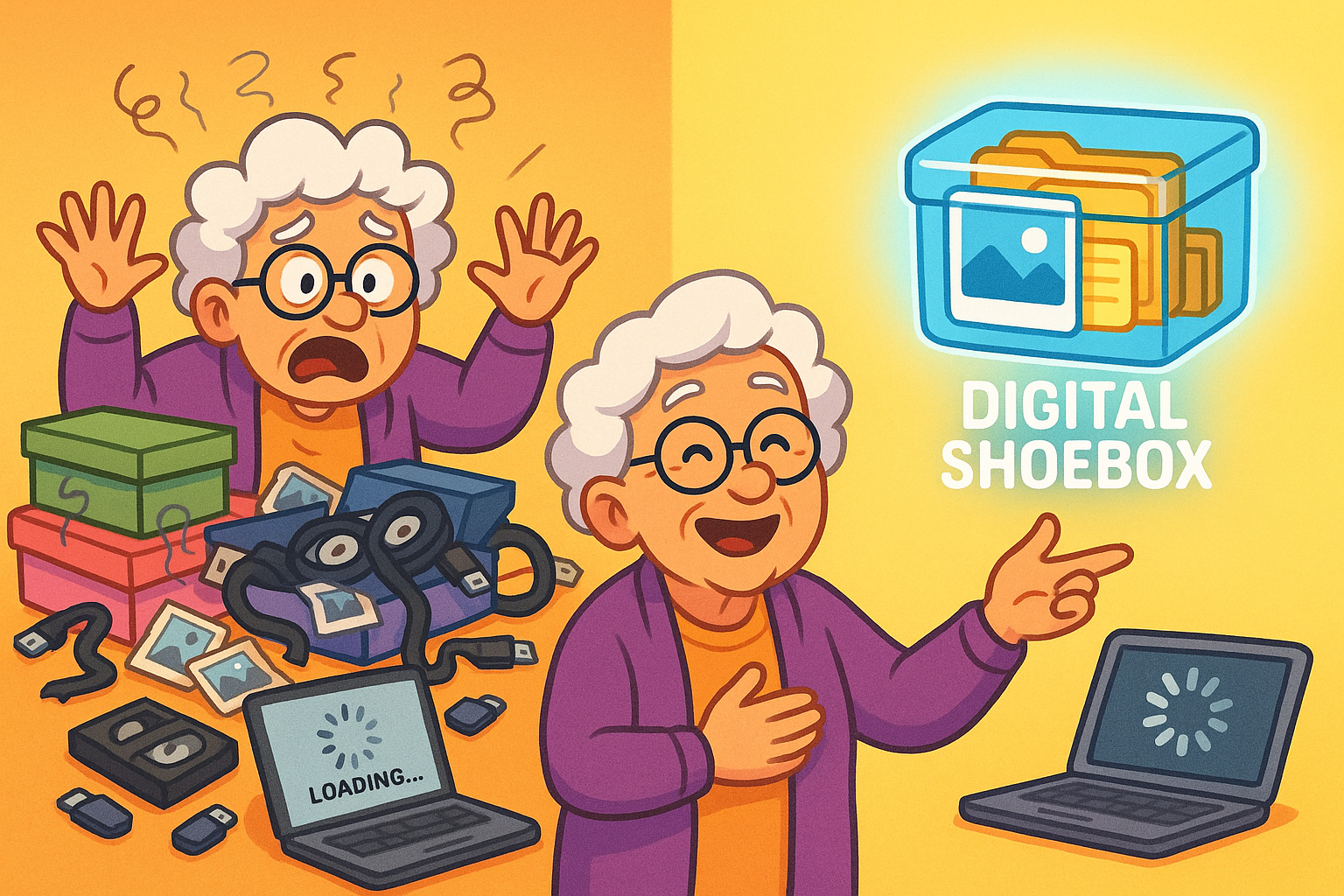
Remember the good old days? When “digital” meant flipping through a photo album and “shoebox” referred to an actual shoebox filled with faded snapshots under your bed? Ah, simpler times. Now, we’re drowning in a sea of digital photos, mystery USB drives, old camcorder tapes, and actual shoeboxes that haven’t seen the light of day since disco was a thing. You probably have more photos on your phone than you ever printed in your entire life.
It’s enough to make you want to throw your hands up and declare everything a lost cause. But hold on! Those aren’t just old photos and dusty tapes; they’re your family’s history. They’re the silent witnesses to first steps, awkward teenage haircuts, and holidays that ended in a food coma. Losing them would be like accidentally deleting your entire past, which, let’s be honest, we’ve all felt like doing after a particularly bad haircut, but that’s a story for another time.
The good news is, you don’t need a degree in computer science to bring these precious memories into the modern age. You just need a practical guide, a healthy dose of patience, and maybe a strong cup of coffee. We’re here to help you turn that overwhelming pile of physical and digital clutter into a perfectly organized “digital shoebox” that will last for generations. Let’s dig in and make sure your memories don’t become the next ancient artifact for future archaeologists to ponder.
It’s a harsh truth: time is not kind to memories, especially those stored on physical media. Those precious VHS tapes from your grandkids’ first school play? They’re literally decaying. Magnetic tapes, film negatives, and even printed photos are all susceptible to deterioration over time, from fading colors to complete data loss. In fact, experts estimate that up to 50% of photos taken before the 1970s are at risk of being lost due to physical degradation. Yikes!
And it’s not just physical stuff. We’re also generating digital files at an astonishing rate. The average household now juggles roughly 2 terabytes of data, spread across phones, tablets, computers, and who knows how many forgotten USB sticks. Without a proper system, those digital memories are just as likely to get lost in the shuffle or disappear when a hard drive inevitably kicks the bucket. The goal here isn’t just to save them, but to make them accessible and enjoyable for years to come.
So, how do you stop the memory bleed? You digitize! This means converting all those physical relics—photos, slides, film negatives, and home movies—into digital files that can live on your computer, in the cloud, and be shared with a click. It sounds like a big undertaking, but it’s entirely doable, even for those who consider “plug and play” a high-tech magic trick.
There are two main routes for digitization: the do-it-yourself approach or hiring a professional service.
DIY Digitization:
Professional Digitization Services: If the thought of hooking up cables and scanning hundreds of photos makes your head spin, professionals can do it for you. Companies like Legacybox or ScanCafe specialize in converting various media types. They provide a box, you fill it up, and they send back digital files (and your originals). While it costs more, it saves you countless hours and ensures a high-quality result. It’s a great option for those truly irreplaceable items or a massive collection.
Once your memories are digitized, where do you put them? The answer, my friends, is in the “cloud.” Think of cloud storage as a giant, incredibly secure, and virtually limitless digital safe deposit box that you can access from anywhere with an internet connection. It’s a game-changer for safeguarding your digital family heritage. In fact, over 80% of organizations already use cloud storage for their data, a testament to its reliability.
But not all clouds are created equal. You’ll want to consider security, privacy, cost, ease of use, and storage limits. Here’s a quick rundown of popular options: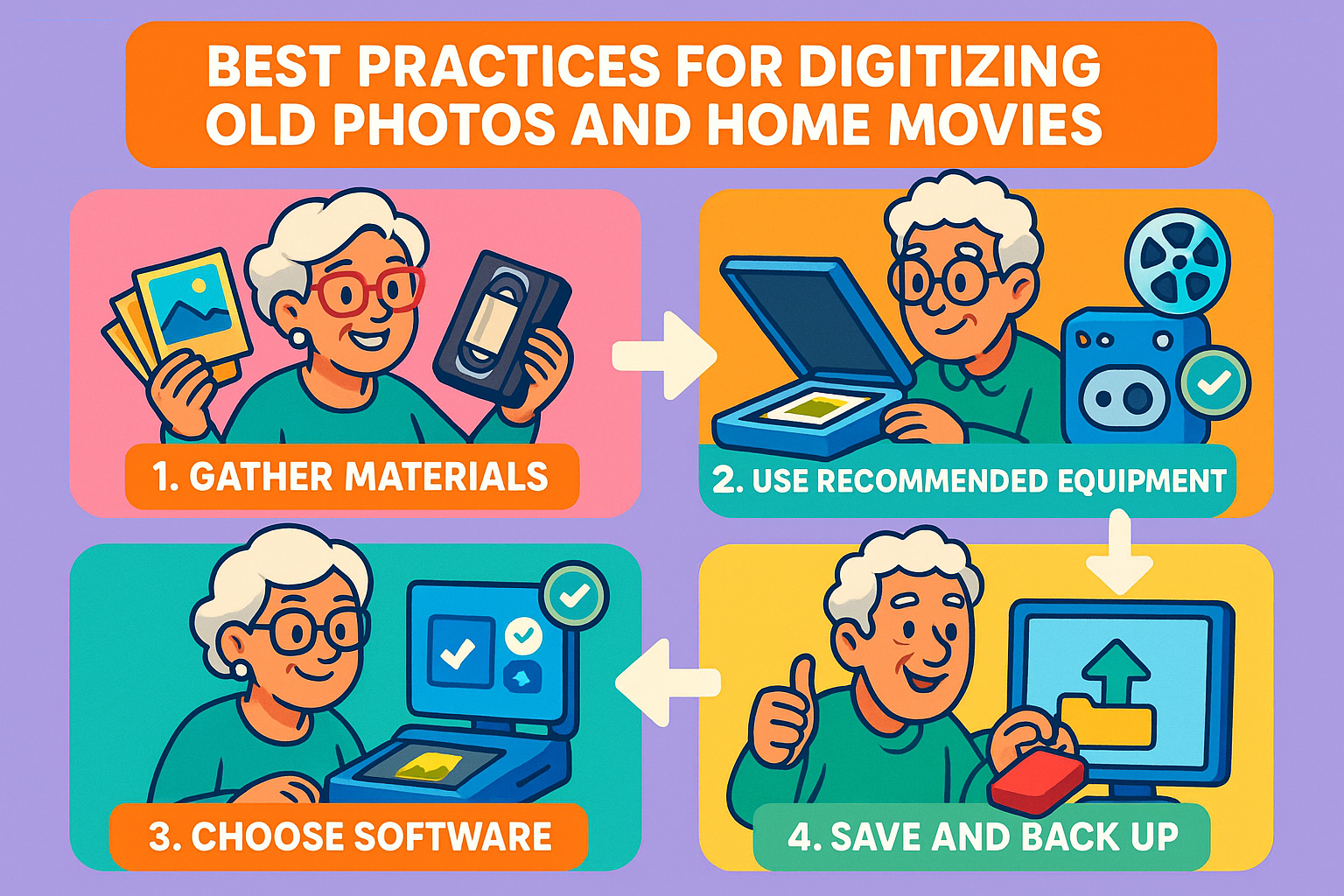
When choosing, remember the “3-2-1 backup rule”: Keep at least 3 copies of your data, store them on 2 different types of media, and keep 1 copy offsite (the cloud counts!). This dramatically reduces the risk of loss, addressing common concerns that data breaches are a top worry for 66% of people when considering cloud services. For a deeper dive into how cloud storage works, take a look at our article Understanding Cloud Storage: Your Digital Attic in the Sky.
Digitizing and organizing is just the first step. The real magic happens when you use these memories to tell your story. Digital family history books, photo slideshows, or even custom greeting cards bring your archives to life. Several online services (like Shutterfly, Mixbook, or Blurb) allow you to design professional-looking photo books with your digital images.
You can create thematic books—like “Our Family Vacations” or “Grandchildren Through the Years”—or a comprehensive family history. These digital creations don’t just sit on a shelf; they can be shared electronically with family members around the globe, making sure everyone can enjoy your shared past. This taps into the emotional core of why we preserve memories: to connect generations and share stories that might otherwise be forgotten.
You’ve digitized everything and picked your cloud storage. Now for the crucial part: organizing it all so you can actually find what you’re looking for. Imagine having thousands of files named “IMG0001.jpg” or “videofinalversion2reallyfinal.mp4.” It’s a nightmare. The key is a simple, consistent file-naming system. We’re talking about a system so straightforward, even your technologically-challenged cousin Larry could follow it.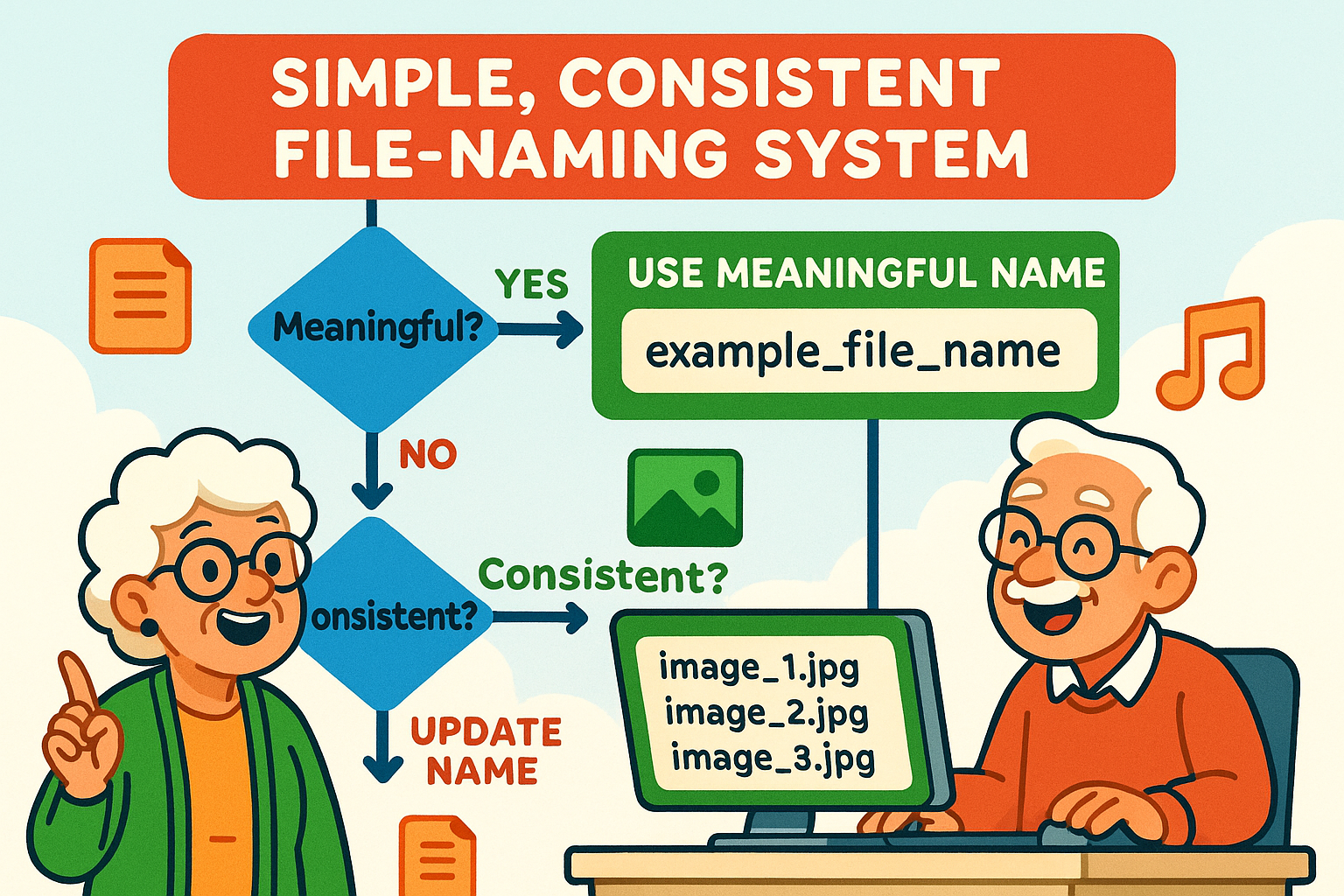
Here’s a winning formula: YYYY-MM-DDEventDescription_Who.filetype
2003-07-14_SmithFamilyReunion_LakeHouse_AllAuntsAndUncles.jpgThis simple system will transform your digital archives from a chaotic mess into a beautifully organized library. Remember, the average person has over 2,000 photos on their phone alone; multiply that by years and devices, and you can see why good organization is not just helpful, but essential. For more tips on keeping your digital life tidy, check out our article, Mastering Your Digital Files: A Beginner’s Guide to Computer Organization.
We get it. This all sounds like a lot. Here are some common concerns and our straightforward answers:
Absolutely! Think of it this way: physical media will degrade. Period. 50% of photos from the 1970s and earlier are already at risk. Digitizing them is like giving them eternal life. Plus, it makes sharing those memories with family far away incredibly easy. No more mailing dusty albums.
While no system is 100% immune, reputable cloud providers invest heavily in security. Using strong, unique passwords (and ideally, two-factor authentication) for your cloud account adds significant protection. The risk of losing memories to a local hard drive crash is often higher than a cloud breach, especially if you follow the “3-2-1 backup rule.”
Yes, you can! Many parts of this process, like scanning photos or signing up for a cloud service, are designed to be user-friendly. Start small, maybe with a single shoebox of photos. If a task feels too daunting, that’s when professional services shine. Remember, even little steps make a big difference.
It varies. If you do most of it yourself with an existing scanner, it could be free (beyond your time). Buying a new scanner might cost $100-$300. Professional digitization services can range from a few hundred dollars to over a thousand, depending on the volume. Cloud storage often has a free tier (e.g., 5-15GB) and then scales up for larger amounts, usually $2-$10 per month for hundreds of gigabytes or a few terabytes.
The best way to eat an elephant? One bite at a time! Start by gathering all your physical photos and videos into one place. Then, pick one small project, like digitizing a single photo album. Or, tackle your digital clutter by creating a few main folders on your computer. Momentum is your friend.
Think of this as creating a permanent, searchable, and shareable archive of your life’s most precious moments. No more rummaging through dusty boxes or trying to decode cryptic file names. You’ll have peace of mind knowing your family’s story is safe, sound, and ready to be enjoyed by generations to come.
Ready to take the next step? We encourage you to explore more of our articles for practical, jargon-free advice on navigating the digital world with confidence. Your memories are too important to leave to chance. Let’s make sure they live on, beautifully organized, in your very own digital shoebox.