Enter your email address below and subscribe to our newsletter

Free vs. Paid Software: How to Save a Bundle Without Sacrificing Quality

Learn how seniors can save money with smart free software alternatives without losing important features or quality.

Have you ever downloaded a new program to your computer, feeling pretty pleased with yourself for finding a “free” solution, only to have it suddenly hold your documents hostage a week later? A giant pop-up appears, cheerfully demanding your credit card number, explaining that your “free trial” has expired and it’s time to pay the piper.

It feels like a digital bait-and-switch, doesn’t it? In the old days, you bought a typewriter, and that was that. Nobody asked you to subscribe to the letter ‘E’ for $9.99 a month.

Navigating the world of software today can feel like walking through a minefield of hidden costs and confusing choices. But here’s the good news: you don’t have to empty your wallet to get powerful, reliable tools for your computer. You just need a little inside knowledge to tell the truly free gems from the costly imposters. This guide will be your map.

This visual explains core differences between free and paid software for seniors.

The Two Kinds of “Free” (And Why It Matters)

In the tech world, the word “free” is slipperier than a greased eel. It can mean two very different things, and understanding the distinction is your first step to becoming a software-savvy saver.

1. Free as in “Free Lunch”

This is the one we all know. It means the software costs zero dollars. You download it, you use it, and your bank account remains untouched. This is fantastic, but it often comes with a catch. The company that makes it has to make money somehow, which could mean:

  • Annoying Ads: The program is cluttered with blinking advertisements.
  • Selling Your Data: You’re not the customer; you’re the product. Your browsing habits might be sold to advertisers.
  • Constant Upselling: They’re always trying to push you to upgrade to the “Pro” version.

2. Free as in “Freedom”

This is a different beast altogether, often called “open-source” software. Think of it like a community potluck. A group of developers builds the software together and then gives the recipe (the source code) away for anyone to use, inspect, and improve.

The key idea here is freedom. You have the freedom to run the program for any purpose, see how it works, and share it with others. Because it’s often built by volunteers and non-profits, it’s usually free of charge, too. This type of software is built on trust and community, not on turning a profit from your personal information.

The Great Trade-Off: What Are You Really Paying For?

Deciding between a paid program and a free alternative often comes down to a few key differences. There’s no single “best” choice; it’s about what’s best for you.

  • Pros: You typically get a polished, user-friendly experience right out of the box. The biggest benefit is dedicated customer support. If something breaks, you have a phone number to call or an email to send.
  • Cons: The cost, of course! Many companies have moved to a subscription model, which means you’re paying every year just to keep using the software.

Free Software: The DIY Powerhouse

  • Pros: It saves you money—sometimes hundreds of dollars a year. It’s often just as powerful as its paid counterparts and gives you more control.
  • Cons: Support usually comes from community forums. This means you might be reading through questions and answers from other users instead of talking to a company employee. And sometimes, you have to be extra careful about where you download it from to avoid viruses. A good rule of thumb is to always check their website to ensure it’s the official source.
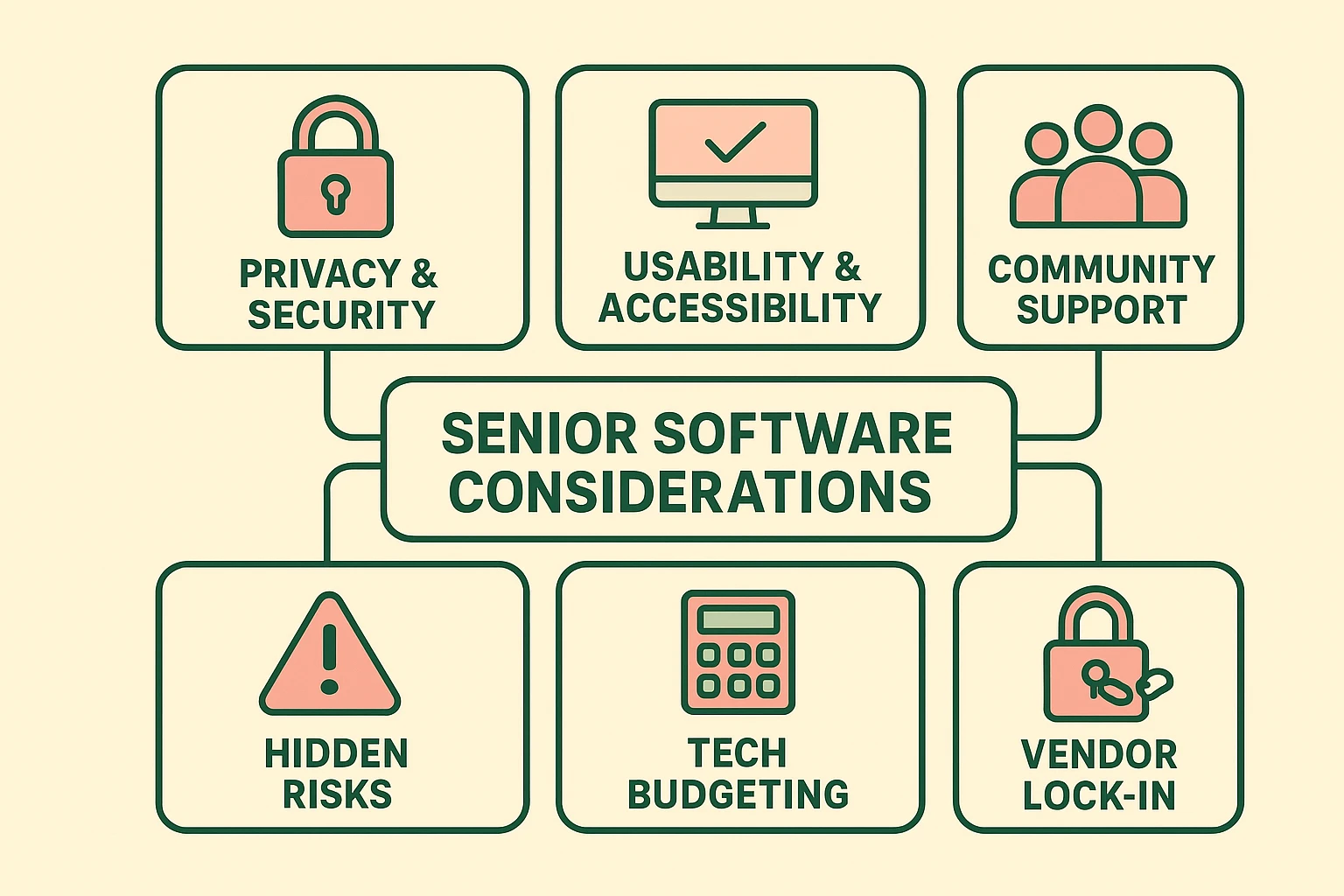
A framework highlighting senior software considerations for privacy, usability, and budgeting.

Your Senior-Friendly Software Toolkit: 3 Smart Swaps

Ready to start saving? Here are some of the most reliable and respected free alternatives to common paid programs, perfect for everyday tasks.

1. For Writing Letters, Making Spreadsheets, and Creating Presentations

  • Instead of: Microsoft Office 365 (costs ~$70-$100 per year)
  • Try: LibreOffice
  • Why it’s great: LibreOffice is the gold standard of free office software. It looks and feels very similar to older versions of Microsoft Office and can do virtually everything you need: write documents, manage household budgets in spreadsheets, and create photo slideshows. Best of all, it can open, edit, and save files in Microsoft Office formats (like .docx and .xlsx), so you can easily share documents with friends and family who use Microsoft products.

2. For Editing Your Photos

  • Instead of: Adobe Photoshop or Lightroom (costs ~$120+ per year)
  • Try: GIMP (GNU Image Manipulation Program)
  • Why it’s great: If you want to do more than just crop a photo—like remove that pesky telephone pole from a beautiful landscape shot or touch up an old family picture—GIMP is your tool. It’s incredibly powerful, but be warned: it has a bit of a learning curve. Think of it as moving from a bicycle to a 10-speed bike; it takes some getting used to, but you can go a lot further. For simpler edits, the photo editor built into your Windows or Mac computer often works just fine!

3. For Protecting Your Computer

  • Instead of: McAfee or Norton Antivirus (costs ~$50-$90 per year)
  • Try: Windows Security (formerly Windows Defender)
  • Why it’s great: If you have a modern Windows computer, you already have a very good, completely free antivirus program built right in. It runs quietly in the background, updates itself automatically, and doesn’t pester you with pop-ups trying to sell you more stuff. For years, third-party antivirus was a must-have, but today, Microsoft’s built-in solution is more than enough protection for most people.

Staying Safe in the Wild West of Free Software

While there are many fantastic free programs, there are also some bad apples. Here are a few tips to stay safe:

  • Download from the Source: Always download a program directly from its official website. Avoid third-party download sites, which often bundle extra junk (or even viruses) with the installation.
  • Read the Fine Print: During installation, some programs will try to sneak in other software, like a new web browser toolbar you don’t want. Read each step carefully and uncheck any boxes for things you don’t recognize.
  • Trust Your Gut: If a free offer seems too good to be true, it probably is. No one is giving away the latest, greatest version of a $500 program for free. Practicing secure online shopping and downloading habits is key.

Frequently Asked Questions

Is free software really safe to use?

Yes, as long as you download reputable programs from their official sources. The alternatives listed above, like LibreOffice and GIMP, are used and trusted by millions of people worldwide.

What if I get stuck and need help?

This is the biggest trade-off. With free software, you’ll rely on community support. This usually means searching the program’s website for forums or FAQs. The answer is almost always out there, but you may have to do a little digging to find it.

Will free software work with my old files from paid programs?

In most cases, yes. LibreOffice, for example, was specifically designed to be compatible with Microsoft Office files. You can open, edit, and save your existing documents without any issue.

So what’s the real catch with “free”?

The main “catch” is that you are exchanging money for a bit of your time and attention. You might have to spend a little more time learning the program or finding answers on your own. But for many, saving hundreds of dollars a year is well worth that trade.

You’re in the Driver’s Seat

Choosing software doesn’t have to be a source of stress or a drain on your budget. By understanding the difference between paid and truly free options, you can equip your computer with powerful tools without spending a dime.

Start with one swap. Try downloading LibreOffice the next time you need to write a letter. See how it feels. You might just be surprised at how much you can do—all while keeping your money right where it belongs: in your pocket.

Newsletter Updates

Enter your email address below and subscribe to our newsletter

Leave a Reply

Your email address will not be published. Required fields are marked *


Stay informed and not overwhelmed, subscribe now!