Newsletter Subscribe
Enter your email address below and subscribe to our newsletter

Enter your email address below and subscribe to our newsletter
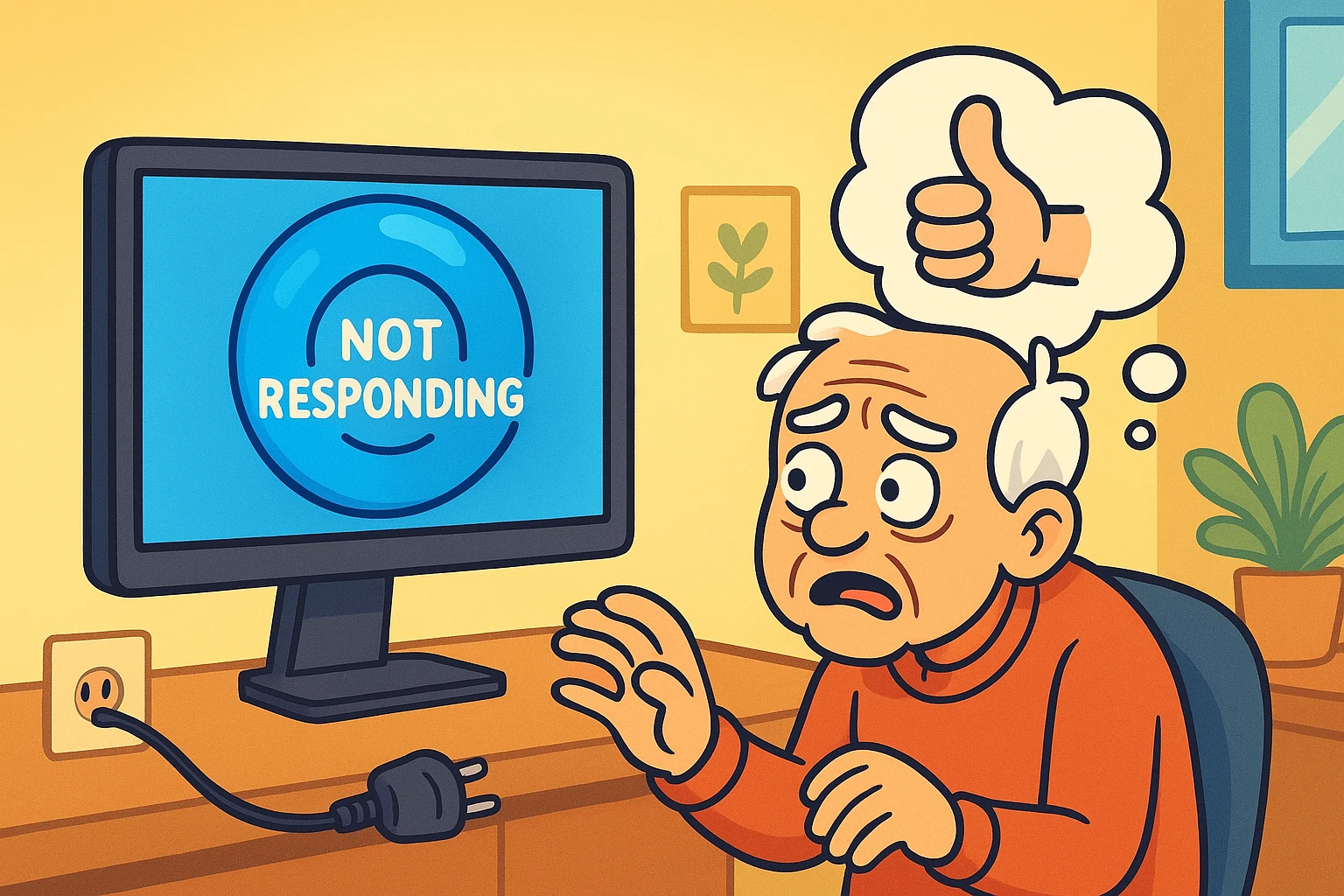
You are sitting there, minding your own business, perhaps typing an emailEmail, or electronic mail, is a digital communication tool that allows users to send and receive mes... More to your grandson or trying to beat your high score in Solitaire. You move the mouse to click “Send” or move that King of Hearts, and… nothing happens.
You click again. Nothing.
You click harder, because clearly, the computer just didn’t feel you the first time. Still nothing.
Then, the screen goes a milky, ghostly white, and a message pops up that strikes fear into the hearts of mortals everywhere: “Application Not Responding.”
Your cursor turns into a spinning blue circle—the “Donut of Doom.” It spins and spins, mocking your desire to get anything done today. The impulse to reach down and yank the power cord out of the wall is strong. It feels like the only way to assert dominance over the machine.
But wait! Before you perform the digital equivalent of flipping the Monopoly board because you’re losing, put the plug down. A frozen computer isn’t necessarily a broken one; usually, it’s just a confused one.
We’re going to walk through the “Computer First Aid Kit.” We’ll cover how to handle a freeze without panic, without losing your photos, and without needing a degree in computer science.
When a computer freezes, our instinct is to do something immediately. We start clicking wildly. We mash keys on the keyboard like a concert pianist playing a particularly angry concerto.
Here is the hard truth: Clicking makes it worse.
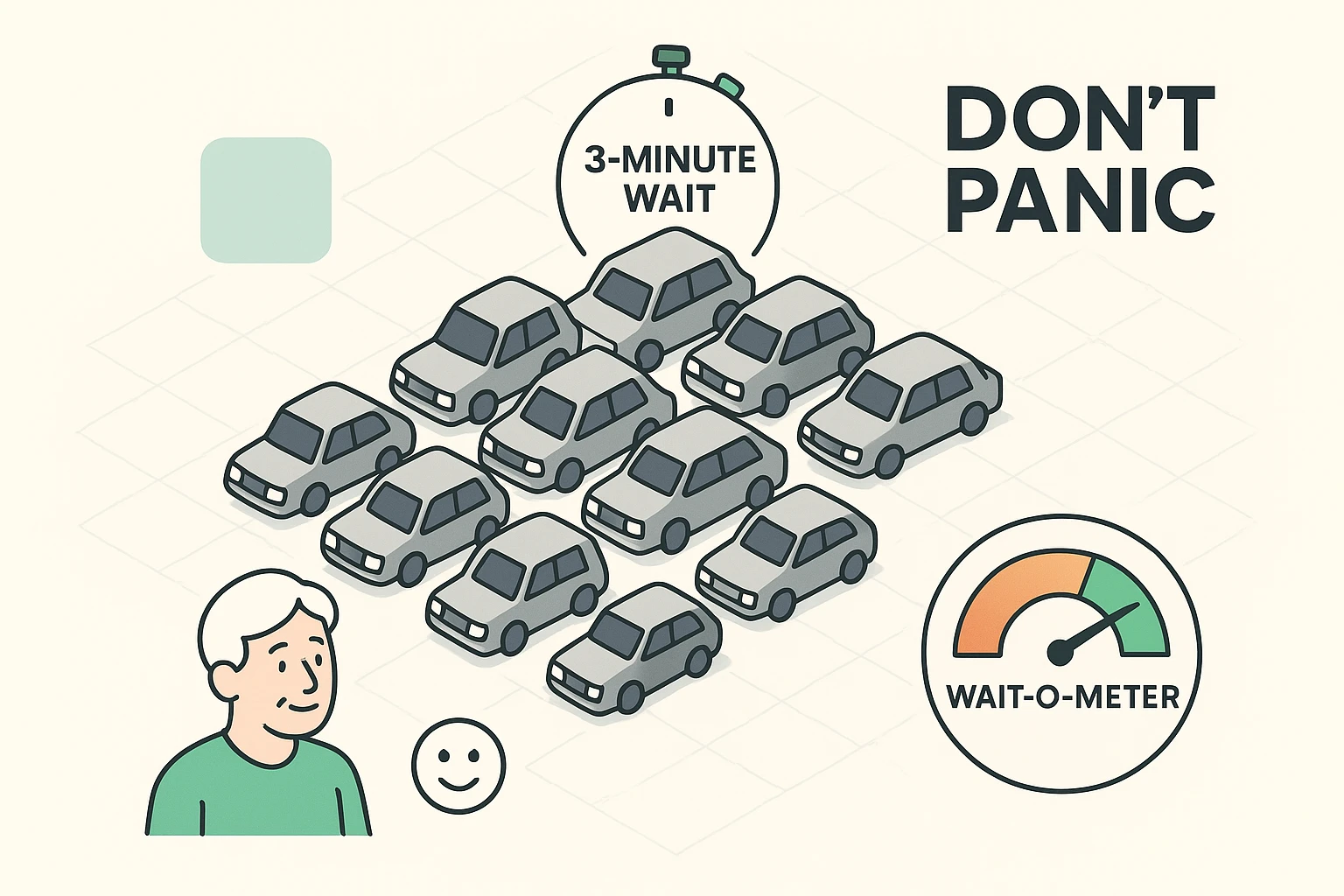
Imagine your computer is a traffic cop at a busy intersection. Suddenly, 500 cars (your programs) try to go through at once. The cop is overwhelmed. If you start clicking the mouse, you are effectively sending more cars into the intersection honking their horns. You aren’t helping the cop; you’re just creating a bigger pile-up.
Modern computers are actually pretty smart. They have self-healing mechanisms that try to fix these traffic jams automatically. But they need time.
So, here is your first step: Take your hands off the keyboard.
Stand up. Go to the kitchen. Pour a cup of coffee. Look out the window and judge your neighbor’s lawn maintenance. Give the computer a solid three minutes to sort itself out. You’d be amazed how often you come back to find the “traffic jam” has cleared and everything is working again.
Sometimes the computer isn’t frozen, but the mouse battery just died, or a specific program is stuck while the rest of the computer is fine. How do you tell the difference?
Look at your keyboard and press the Caps Lock key.
If the 3-minute coffee break didn’t work, we need to nudge the computer awake. We do this using keyboard shortcuts. Think of these like a gentle tap on the shoulder rather than a bucket of ice water.
Here are the three magical combinations you should try, in order:
Esc. It stands for Escape. Press it a few times. Sometimes, a menu or a pop-upA pop-up is a type of graphical user interface element that appears suddenly on top of the current c... More window is hidden off-screen waiting for you to click “OK,” and pressing Escape cancels it.Alt key and tap the Tab key. This shows you all your open windows. If you can switch to a different window that isn’t frozen, you know the problem is just one bad appAn app (short for application) is a program that helps you do specific tasks on your smartphone, tab... More, not the whole machine.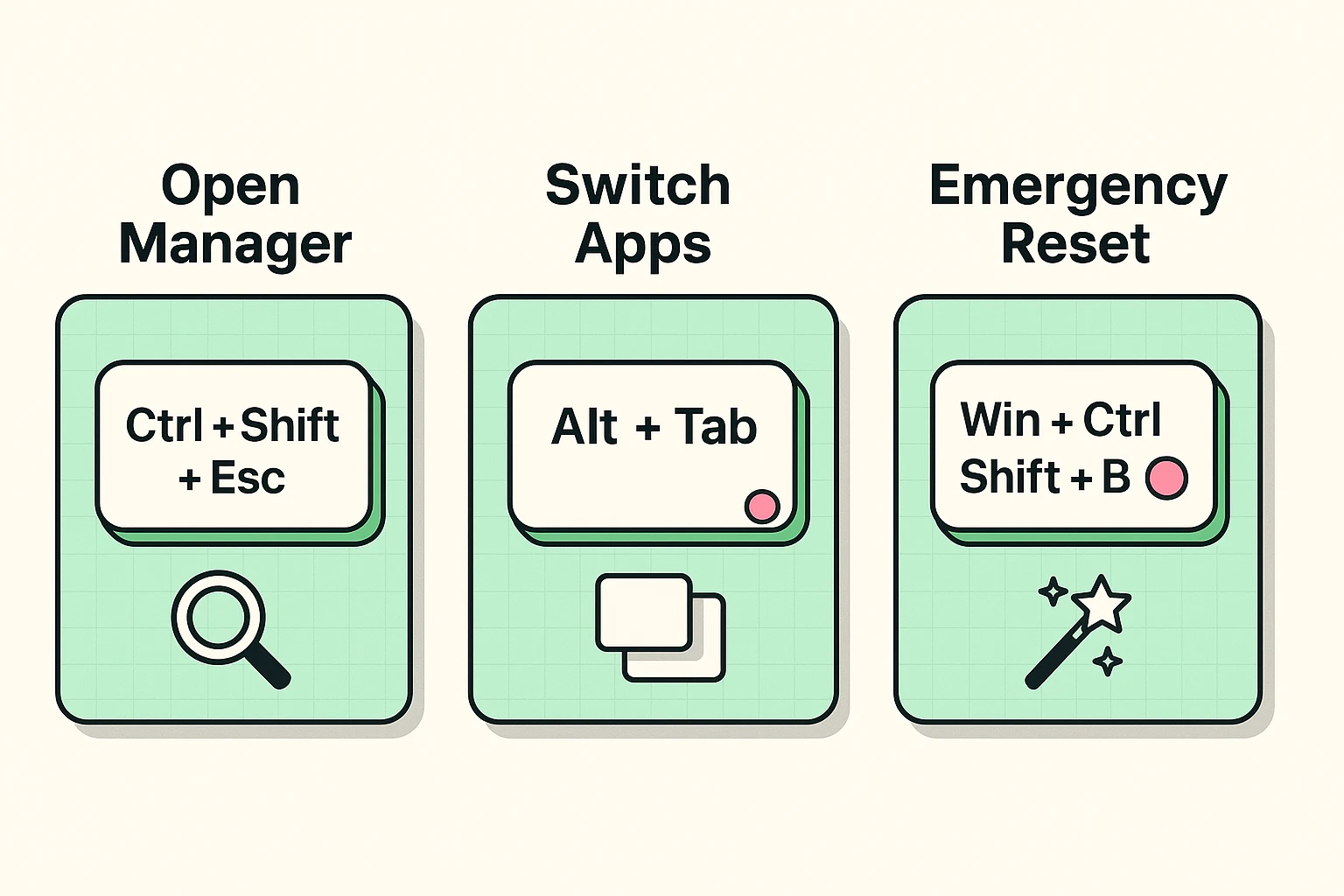
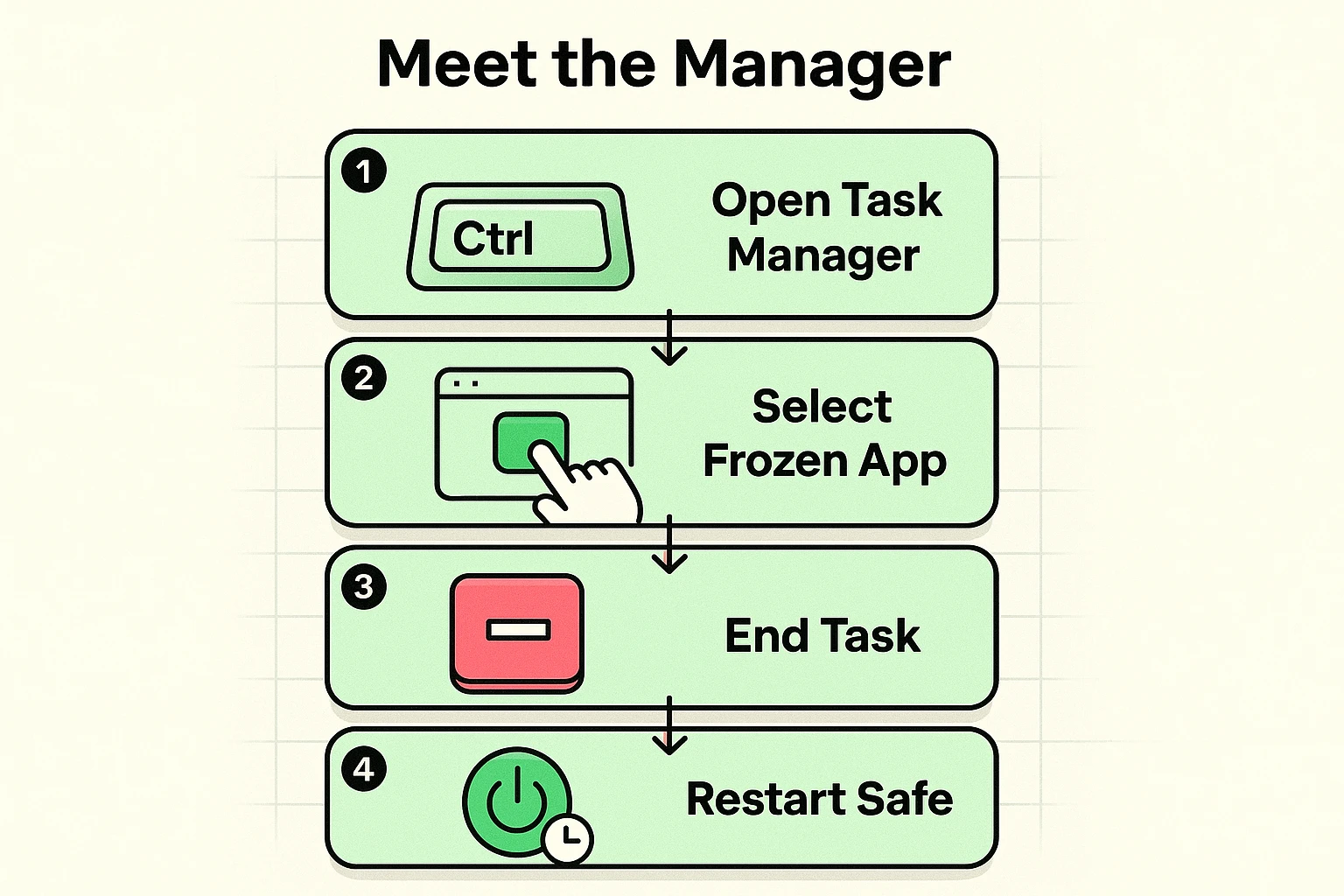
If the computer is still acting like a stubborn mule, it’s time to call the boss. In Windows, this is called the Task Manager.
Think of the Task Manager as the security guard of your computer. Its job is to walk up to the misbehaving program (like a web browser that won’t close) and kindly escort it out of the building.
You may know the classic move: Ctrl + Alt + Delete.
Ctrl and Alt with your left hand.Delete with your right hand.Once the Task Manager window opens, you’ll see a list of everything currently running.
Poof! The frozen program should disappear, and your computer should breathe a sigh of relief.
If the mouse is frozen, the keyboard is dead, and even the Caps Lock light won’t blink, you have reached a total gridlock. The traffic cop has left the building.
You have to force a shutdown. But do not pull the plug from the wall.
Yanking the power cord is like stopping a car by driving it into a tree. It stops the car, sure, but it causes a lot of damage. It can corrupt your files or confuse the hard driveA hard drive is a part of your computer that stores all your files and data, like documents, photos,... More.
Instead, locate the physical power button on your computer or laptop (the button you press to turn it on).
Note: If you find your computer struggles to turn back on, or keeps restarting over and over without ever reaching your desktop, you might be stuck in a “bootloop.” This can happen if a shutdown was too aggressive.
You might be wondering, “Why does this expensive machine stumble over a simple email?
Think of your computer as a juggler. Every tab you have open in your web browser, every program running, and every background update is a ball in the air.
If you have 40 tabs open in Chrome, Solitaire running, and an antivirusAntivirus software is a program that protects your computer, phone, or tablet from harmful viruses a... More scan happening, you’ve tossed 50 balls to a juggler who only has two hands. Eventually, they are going to drop everything and freeze.
Sometimes freezes are caused by malicious software running in the background. If your computer frequently freezes when you visit specific sites, you should always check their website legitimacy before clicking around. Rogue ads and pop-ups are notorious for clogging up your system’s resources.
If you were typing a document (like in Word or GoogleGoogle is a multinational technology company known for its internet-related products and services, i... More Docs) when the freeze happened, you are likely okay! Modern programs “autosave” every few minutes. If you have to force a restart, open the program again immediately—it will usually ask, “Do you want to recover the file you were working on?”
Not necessarily. Even brand-new supercomputers freeze if the software gets confused. However, if your computer freezes every single day, it might be a sign that it needs a tune-up or has a failing part.
Before you spend money, try a “Restart” (Start Menu > Power > Restart) once a day. Think of it as a good night’s sleep for your PC. It clears out the “cobwebs” in the memory and gives the juggler a fresh start.
Technology is wonderful, but it’s not perfect. The next time your screen freezes, remember: it’s not a disaster, it’s just a traffic jam. Sip your coffee, try the keyboard shortcuts, and remember that you are the one in charge—not the machine.
If you find that your device is acting strange after a forced restart, specifically if it gets stuck trying to turn on, you may need to troubleshoot a bootloop to get things back to normal.
Stay calm, and happy computing!